

Overview
Live Mode is the primary gameplay mode in inZOI where the life simulation takes place. After creating a Zoi in the Character Studio and selecting a home, players enter Live Mode to control their Zois' daily lives. This is where all real-time simulation happens: needs deplete, relationships develop, careers progress, and the world moves forward. It contrasts with Build Mode, which pauses time and focuses on construction and decoration.
Live Mode runs on a configurable real-time clock. Each in-game day defaults to 48 minutes of real time (changed from 96 minutes in v0.4.0), and seasons cycle every 7 in-game days. Time passes continuously unless paused, and players direct their Zois through daily routines, social interactions, career tasks, and leisure activities.
Entering and Exiting Live Mode
Live Mode is the default state after loading a household. To switch to Build Mode, press I on the keyboard or click the Build Mode icon in the lower right corner of the screen. To return from Build Mode to Live Mode, use the upper-left menu and select "Save and Exit." Live Mode can also transition into Edit City mode by pressing M to open the City Map and selecting the City Appearance tab.
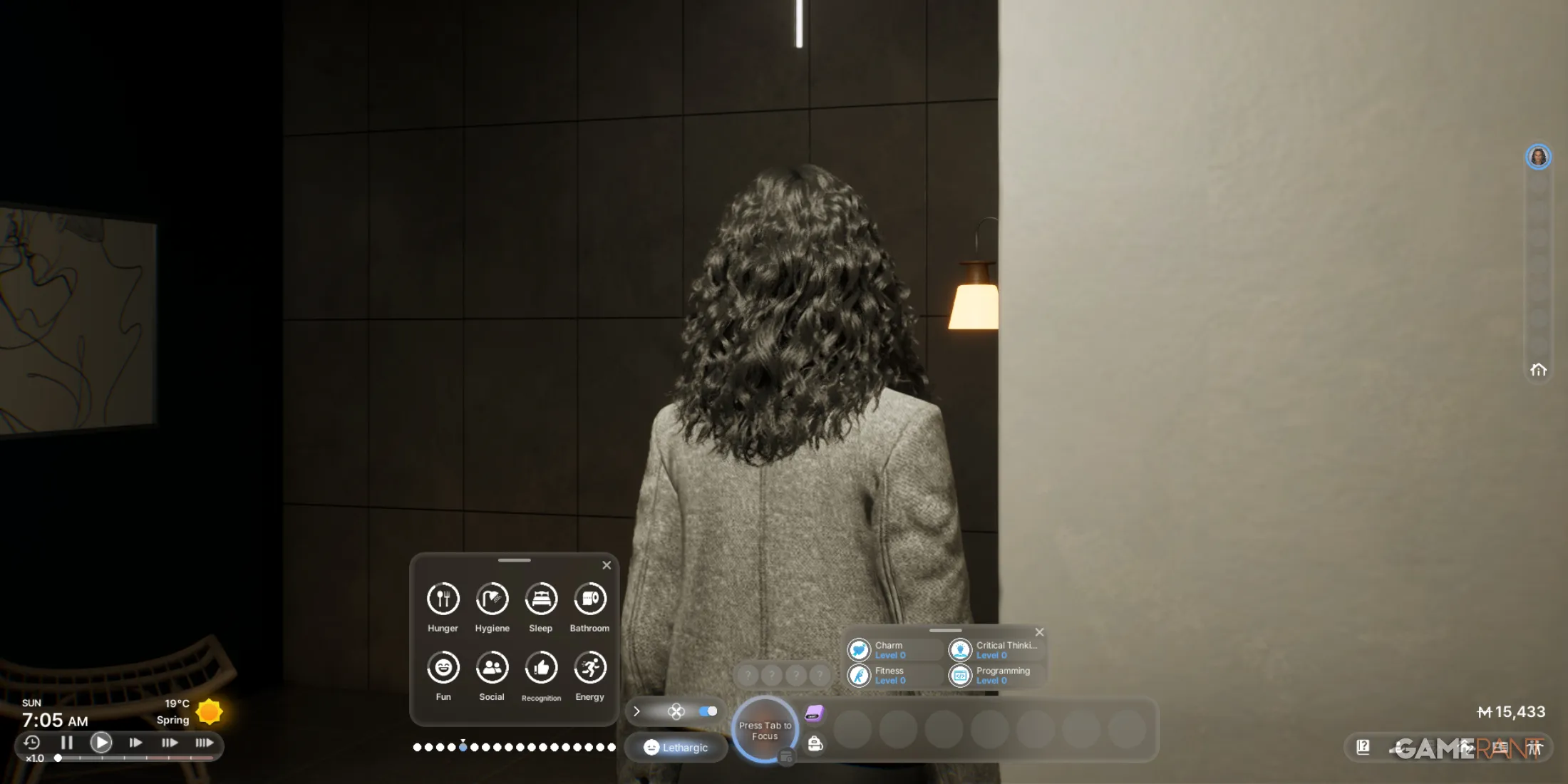
Time Controls and Speed Settings
The Time Panel in the bottom-left of the screen provides speed controls. Players can pause the simulation or speed it up to watch events unfold faster. There is also a manual slider that can push the speed beyond the preset buttons.
Speed | Multiplier | Keyboard Shortcut |
|---|---|---|
Pause | 0x | 0 (or Esc) |
Slow | 1x | 1 |
Normal | 1.5x | 2 |
Fast | 3x | 3 |
Very Fast | 5x | 4 |
Maximum (slider) | Up to 10x | Drag slider beyond 5x |
Movement controls and the autonomy toggle are disabled when playback speed exceeds 5x. At 8x speed and above, Zois may neglect self-care and can die from unmet needs. A special 30x time scale activates automatically when all household Zois are asleep between 22:00 and 06:00.
Day Length Options
The length of each in-game day can be configured in Game Options under Simulation. This affects how quickly Zois age and how long seasons last.
Setting | Real Time per In-Game Day | Season Duration (Real Time) |
|---|---|---|
Short | 48 minutes | ~5 hours 36 minutes |
Normal (Default) | 96 minutes | ~11 hours 12 minutes |
Long | 4 hours | ~28 hours |
Very Long | 24 hours | ~7 days |
Camera Controls
Live Mode uses a third-person camera that follows the active Zoi. Several camera modes are available for different situations.
Control | Action |
|---|---|
Left Click + Hold | Pan camera |
Right Click + Hold | Rotate camera view |
Mouse Wheel | Zoom in and out |
Tab | Toggle between top-down and shoulder camera perspectives |
Ctrl + Tab | Free Camera mode |
Q / E (Free Camera) | Move camera up and down |
F | Focus camera on active character |
Home / End | Adjust wall visibility |
Page Up / Down | Change floor view level |
In Free Camera mode (Ctrl + Tab), the camera detaches from the active Zoi and can be moved freely around the world. This is useful for exploring neighborhoods or framing screenshots in Photo Mode.
Movement and Interaction Controls
Players control their active Zoi using keyboard and mouse. Direct movement with WASD will cancel any autonomous actions the Zoi was performing.
Control | Action |
|---|---|
W / A / S / D | Move character (cancels autonomous actions) |
Shift + Movement | Run |
Left Click | Interact with objects, other Zois, or command movement |
Space | Switch between active Zois in the household |
T | Toggle autonomy on or off |
P | Open Smartphone |
R | Open relationships menu |
O | Open Zoi Card |
M | Open City Map |
I | Enter Build Mode |
Esc | Open game menu or pause |
Ctrl + Shift + U | Hide or show entire UI |
Autonomy (Free Will)
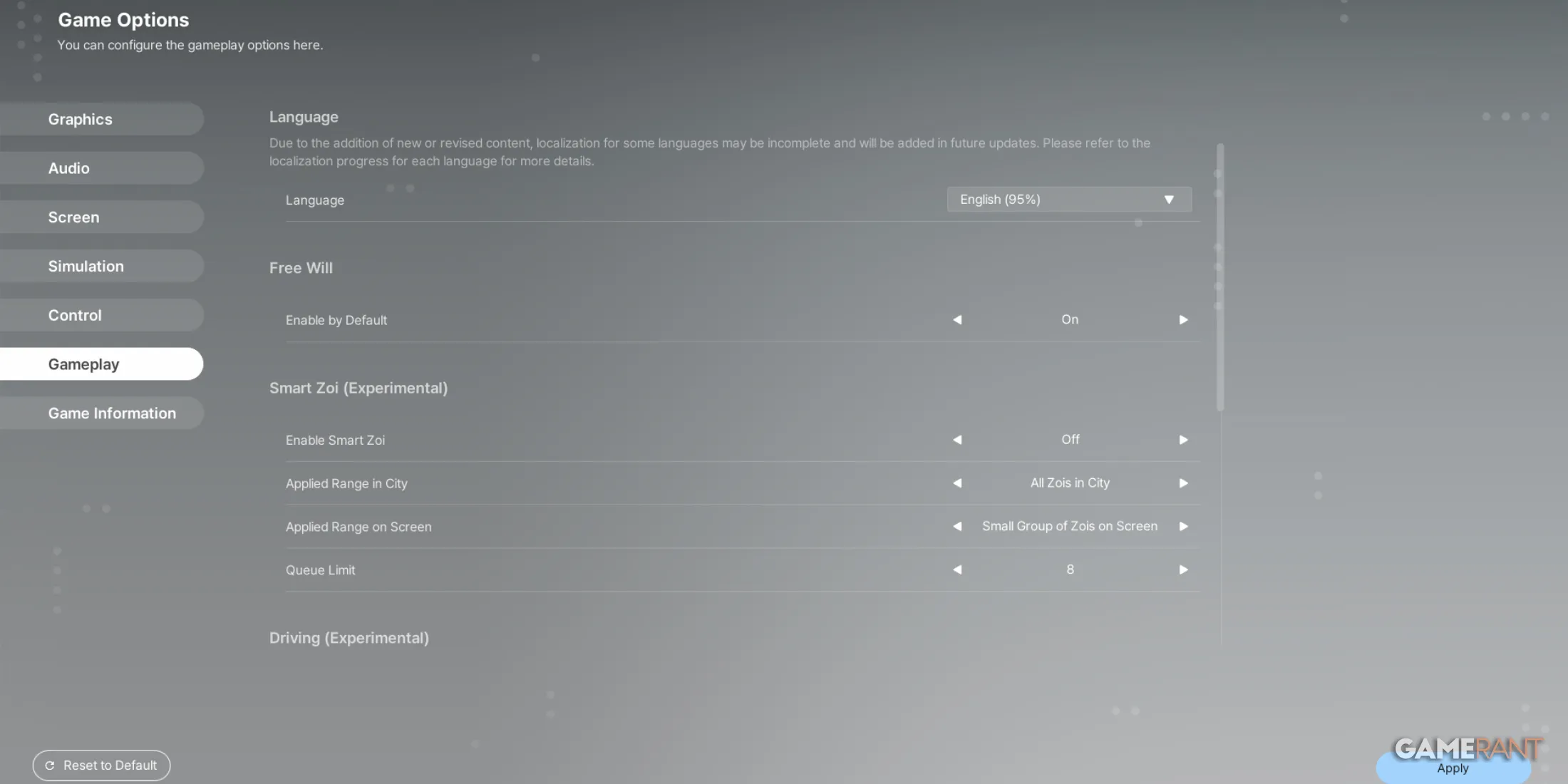
The autonomy system determines whether Zois act on their own or only follow player commands. Press T to toggle it, or click the toggle near the Needs display.
A visual indicator appears above each Zoi's head: a cat's eye symbol. A white, open eye means autonomy is on; an orange, closed eye means autonomy is off. Each Zoi's autonomy can be toggled independently.
Autonomy On: The Zoi independently manages their own needs, eating when hungry, sleeping when tired, socializing, and completing work tasks. Their behavior is influenced by their traits and preferences.
Autonomy Off: The player controls every action. You must manually monitor all needs. Neglecting a Zoi with autonomy off can lead to death.
Autonomy cannot be toggled when the game speed is above 5x. For new players, leaving autonomy on is recommended so Zois handle basic self-care while you learn the interface.
Needs Panel
The Needs panel displays eight gauges representing your Zoi's physical and mental well-being. These gauges deplete over time and must be replenished through various activities. Double-clicking a need prompts the Zoi to automatically seek the fastest way to fulfill it.
Need | Category | How to Fill |
|---|---|---|
Hunger | Physical | Cook meals, eat snacks from fridge, visit restaurants |
Hygiene | Physical | Take showers or baths |
Sleep | Physical | Sleep in a bed, nap on a sofa |
Bathroom | Physical | Use toilets (public restrooms available at most venues) |
Fun | Mental | Engage in hobbies, exercise, play games, watch TV |
Social | Mental | Call friends, meet new people, attend social events |
Recognition | Mental | Gain recognition through social interactions, tied to karma |
Energy | Mental | Rest in chairs (does not require sleep) |
Needs are interconnected. A hungry Zoi loses Energy faster. A Zoi with low Social may find less Fun in activities. If Hunger or Sleep reaches zero and stays there, the Zoi can die. If Social drops too low, the Zoi may run away from home permanently.
Emotions
The emotion system in Live Mode tracks your Zoi's emotional state through 17 core emotions with over 40 total variations at different intensities. Emotions appear as colored dots under the Needs panel. Multiple emotions can affect a Zoi simultaneously, but only the most intense one becomes the active emotion.
Emotions directly affect skill learning speed. For example, a Concentrated Zoi improves Fitness and Critical Thinking faster, while a Curious Zoi picks up Art and Coffee Craft more quickly. Negative emotions like Annoyed or Sad slow down certain skills and drain needs faster.
Urges
The urge system generates spontaneous desires based on your Zoi's traits, ambitions, and current situation. Up to four urges can be active at any time, each with an expiration timer. Fulfilling urges grants Zoi Coins and temporary mood boosts. The urge UI panel can be repositioned by dragging it around the screen.
Smartphone
Press P to open the Smartphone, which is the central hub for managing your Zoi's life outside of direct interactions.
App | Function |
|---|---|
Messages | Text conversations with other Zois |
Contacts | Manage relationships and communication |
Schedule | View and edit weekly schedule, work and school times |
City Map | View points of interest, access fast travel |
Dream Car | Purchase and manage vehicles |
Buy and sell items, hire services via Pocket Market | |
Events | |
School | View schools and manage schoolwork |
Career | Browse and apply for jobs |
News | Read local news and announcements |
Driving Controls
When your Zoi gets into a vehicle, the control scheme changes to driving mode. Vehicles can be purchased through the Dream Car phone app or summoned when away from home.
Control | Action |
|---|---|
W | Accelerate |
S | Brake or reverse |
A / D | Steer left and right |
Tab | Toggle between first-person and third-person driving view |
Pressing Tab while driving switches to a first-person cockpit view for a more immersive experience. Players can also pick up other Zois by driving alongside them.
UI Layout
The Live Mode interface consists of several draggable panels that can be repositioned around the screen. Positions may reset between game loads during Early Access.
UI Element | Location (Default) | Description |
|---|---|---|
Needs Panel | Bottom area | Eight gauges showing physical and mental needs |
Emotion Gauge | Below Needs | Colored dots showing active emotions |
Urges Panel | Draggable | Up to four active urges with timers |
Skills Window | Draggable | Current skill levels and progress |
Time Panel | Bottom-left | Day, time display, and speed controls |
Family Portraits | Left side | Household member icons (click or Space to switch) |
Zoi Portrait | Top area | Active Zoi info with phone icon nearby |
Autonomy Eye | Above Zoi's head | White (on) or orange (off) eye icon |
Build Mode Icon | Lower right | Click to enter Build Mode |
Psycat's Guide | Bottom right | Book icon for help, money cheat, emergency rescue |
Psycat's Guide
The Psycat's Guide is a book icon in the bottom-right corner of the screen. It provides three functions:
Customer Support: Links to official help resources and the community forum.
Money Cheat: A quick button that grants 100,000 Meow per click with unlimited uses. Using this disables achievements.
Emergency Rescue: Teleports a stuck Zoi back to a safe location. Useful when pathfinding breaks.
Cheat Console
After enabling cheats through Psycat's Guide, open the cheat console with Ctrl + Shift + C. The console accepts various commands for testing and creative play. Using cheats disables achievements for that save file.
Cheat Command | Effect |
|---|---|
addMoney [amount] | Add Meow currency |
addMeowCoin [amount] | Add Meow Coins (premium currency) |
setNeedsFull | Fill all needs to maximum |
freezeAllNeeds [true/false] | Prevent needs from depleting |
timeSpeed [number] | Set game speed (up to 30x) |
stopAging [true/false] | Prevent Zois from aging |
immortalZoi [true/false] | Prevent active Zoi from dying |
setSkillLevel [skill] [level] | Set a skill to a specific level |
JobPromotion | Advance one career level |
setRelationshipFull [Zoi ID] | Max out relationship with a specific Zoi |
changeSeason [season] | Change the current season |
controlWeather [type] [level] | Change weather conditions |
instantClean | Clean the entire lot immediately |
stopUtilitybills [true/false] | Disable utility bills |
getBabyWith [Zoi ID] | Start pregnancy with a specific Zoi |
helloMyAngel | Trigger instant birth |
Tips and Strategies
Start with one Zoi. Managing a single household member is much easier while learning the interface. Add more Zois once you are comfortable with the controls.
Clear the auto-generated schedule. Random activities are added during character creation that will pull your Zoi away from tasks you assign. Open the Schedule app and remove entries you do not want.
Clean your house daily. Dust and dirt accumulate faster than you might expect. Use mops regularly, or hire a maid through Pocket Market. Alternatively, adjust the city sanitation settings in City Management Settings to reduce dirt accumulation.
Double-click needs. Double-clicking any need gauge sends the Zoi to automatically address it through the fastest available option.
Avoid speeds above 5x with autonomy off. At 8x speed and above, Zois may neglect basic self-care and die. Only use high speeds when all household Zois have autonomy enabled and full needs.
Use the Library for skills. Reading skill books at the Library is one of the most efficient ways to level up skills.
Explore on foot. Unmarked locations and discovery points do not appear on the City Map. Walk or drive around Dowon, Bliss Bay, and Cahaya to find hidden spots.
Watch the weather. Dress Zois appropriately for the season. They can freeze to death in winter without warm clothing, or get sick from overdressing in summer.
Open a bank account early. Find an ID Scanner terminal at any bank to open an account. This lets you deposit money safely, take out loans, and earn interest.
Use the Emergency Rescue button. If a Zoi gets stuck on furniture or trapped in a room, the Emergency Rescue in Psycat's Guide will teleport them to safety.