

Overview
The 3D Printer is an AI-powered tool that converts real-world 2D images into 3D in-game objects. Upload a photo of a lamp, a toy, a vase, or nearly anything else, and the system generates a three-dimensional model that can be placed in the world. The AI runs entirely on-device, not in the cloud, which means it works without an internet connection and processing happens locally on your hardware.
The 3D Printer is available in two contexts with different outputs: furniture creation in Build Mode and Build Studio, and accessory creation in Character Creation and Edit Zoi.
Furniture Creation
In Build Mode or Build Studio, the 3D Printer is located under the Create menu > 3D Printer. This path generates furniture-scale objects.
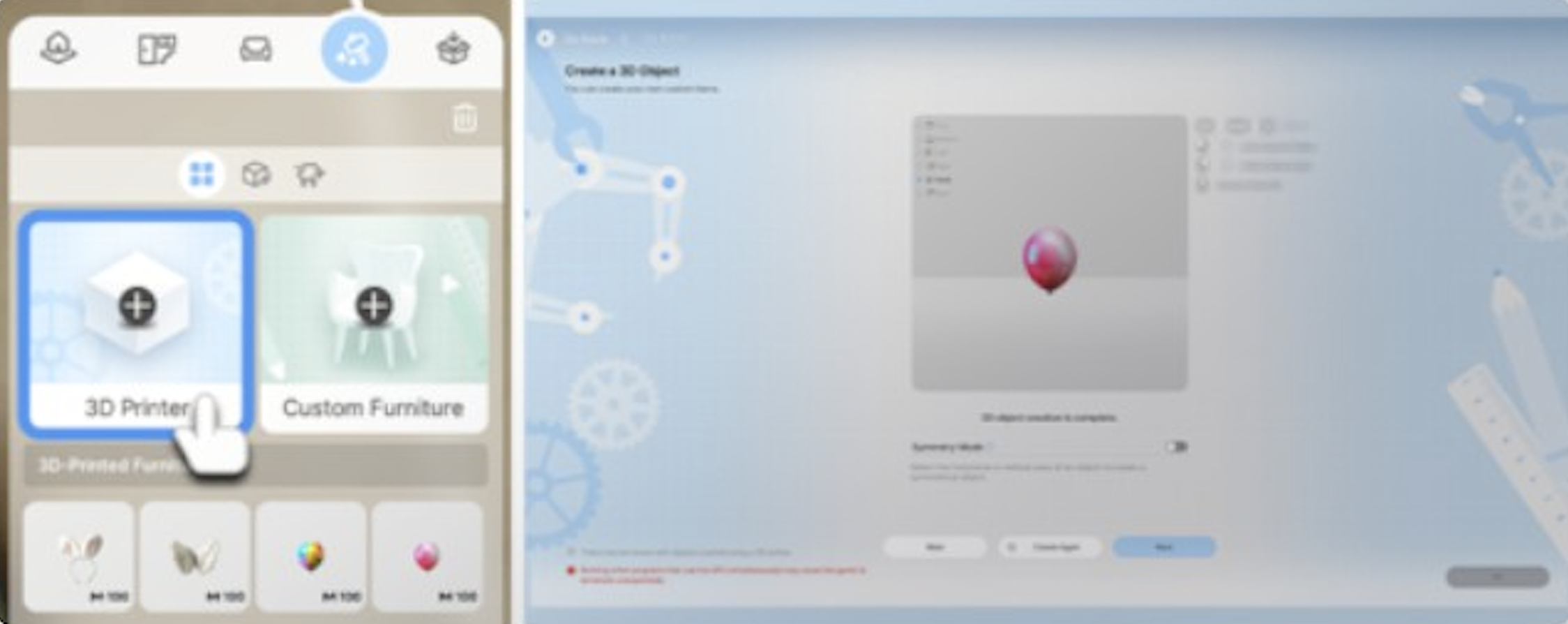
Open Build Mode or Build Studio.
Navigate to the Custom tab.
Select 3D Printer.
Upload a 2D image from your computer. The image should show the object clearly against a simple background.
The AI processes the image and generates a 3D model.
Once generated, categorize the object by selecting its furniture type (chair, desk, decorative, etc.). This determines how the game treats the object: a chair categorized as seating will be usable by Zois.
Place the object in the world like any other furniture piece.
Generated furniture can be customized with Edit Color and Material after placement. It can also be saved and uploaded to Canvas for other players to download.
Accessory Creation
In Character Creation or Edit Zoi, the 3D Printer is located under the Custom tab > 3D Printer. This path generates wearable accessories.
Item | Description |
|---|---|
Headbands | Hair accessories that sit on top of the head. |
Wings | Worn on the back. Can range from small decorative wings to large cosplay-style designs. |
Masks | Face-covering accessories. |
The process is the same as furniture creation: upload an image, wait for the AI to generate the 3D model, and then apply it to your Zoi. Accessories created this way can be shared on Canvas.
Categorization
After the 3D model is generated, you assign a furniture category that determines the object's in-game function. If you print a chair-shaped object and categorize it as a chair, Zois will sit in it. If you categorize a flat surface as a desk, Zois can work at it. The category system bridges the gap between the visual model (which is just a shape) and gameplay functionality.
Available categories match the furniture types found in the regular Furniture tab: seating, tables, desks, beds, decorative objects, lighting, and more. Objects categorized as decorative have no gameplay function beyond visual appeal.
How the AI Works
The image-to-3D technology runs locally on your GPU. It analyzes the uploaded 2D image and infers depth, texture, and shape to construct a three-dimensional mesh. The model does not need multiple angles. A single front-facing photo is enough. The AI fills in the back and sides based on its understanding of the object's likely shape.
Processing time depends on your hardware. Faster GPUs produce results more quickly. The generated model is an approximation, not a photorealistic scan. Simple, recognizable shapes produce the best results.
Limitations
Item | Description |
|---|---|
No mechanical properties | A printed gun can't be fired. A printed car can't be driven. Objects are static or have only the functionality of their assigned category. |
Results vary | Complex objects with many small details, transparent materials, or unusual angles may not generate well. The AI works best with clearly defined, opaque shapes. |
Single-sided views work best | Images showing one clear angle (front or side) produce more consistent results than images showing multiple angles or odd perspectives. |
Symmetrical objects work best | The AI handles symmetrical shapes (vases, lamps, chairs) more reliably than asymmetrical ones. |
Part of the AI Creation Suite
The 3D Printer is one of several AI creation tools in inZOI:
Item | Description |
|---|---|
3D Printer | Image-to-3D object (this feature). |
Text-to-Pattern | Type a text description and the AI generates a texture pattern. Used in Build Mode's My Texture system for custom wallpapers, fabrics, and surface finishes. |
Video-to-Motion | Upload a video and the AI extracts motion data for custom poses. |
Upload a video or image in Photo Mode to generate a custom Zoi pose. | |
Maps real facial expressions onto a Zoi in real-time using an iOS device. | |
AI-driven autonomous behavior for Zois using NVIDIA ACE. |
Tips for Best Results
Use images with a clean, solid-color background. White or light gray works well.
Photograph the object from straight on, centered in the frame.
Avoid images with heavy shadows, reflections, or transparency.
Simple shapes produce the most usable results. A coffee mug, a potted plant, or a table lamp will generate better than a complex mechanical device.
Try different images of the same object if the first result isn't satisfactory. Small changes in angle or lighting can produce noticeably different outputs.
After generating, use Edit Color and Material to refine the object's appearance. The AI gets the shape right, but you may want to adjust surface materials manually.