

Overview
inZOI supports community modding through a combination of official tools and third-party platforms. KRAFTON has committed to making modding accessible to creators of all skill levels, from simple cosmetic swaps to full gameplay modifications using scripting. The official ModKit launched in June 2025 alongside the v0.2.0 update, providing a structured toolkit for creating custom content within Unreal Engine 5. Mods are distributed primarily through CurseForge, which integrates directly with the in-game Mod Browser for one-click installation. A large community also shares mods on external community mod sites as an external alternative.
Mods vs. Canvas
Before diving into mods, understand the difference between mods and Canvas:
Feature | Mods | |
|---|---|---|
What it is | In-game content sharing platform | External modifications to game files |
Content types | Zois, outfits, builds, rooms, furniture (created with in-game tools only) | Clothing, hair, gameplay changes, UI tweaks, visual enhancements, objects, and more |
Safety | Fully curated and safe | Varies by source; use trusted platforms |
Installation | Download directly in-game | In-game (CurseForge) or manual file placement (External Mod Sites) |
Can modify gameplay | No (cosmetic/design only) | Yes (can change game mechanics, add features) |
Canvas is the safe, simple option for cosmetic content. Mods offer far more power and variety but require some setup.
ModKit
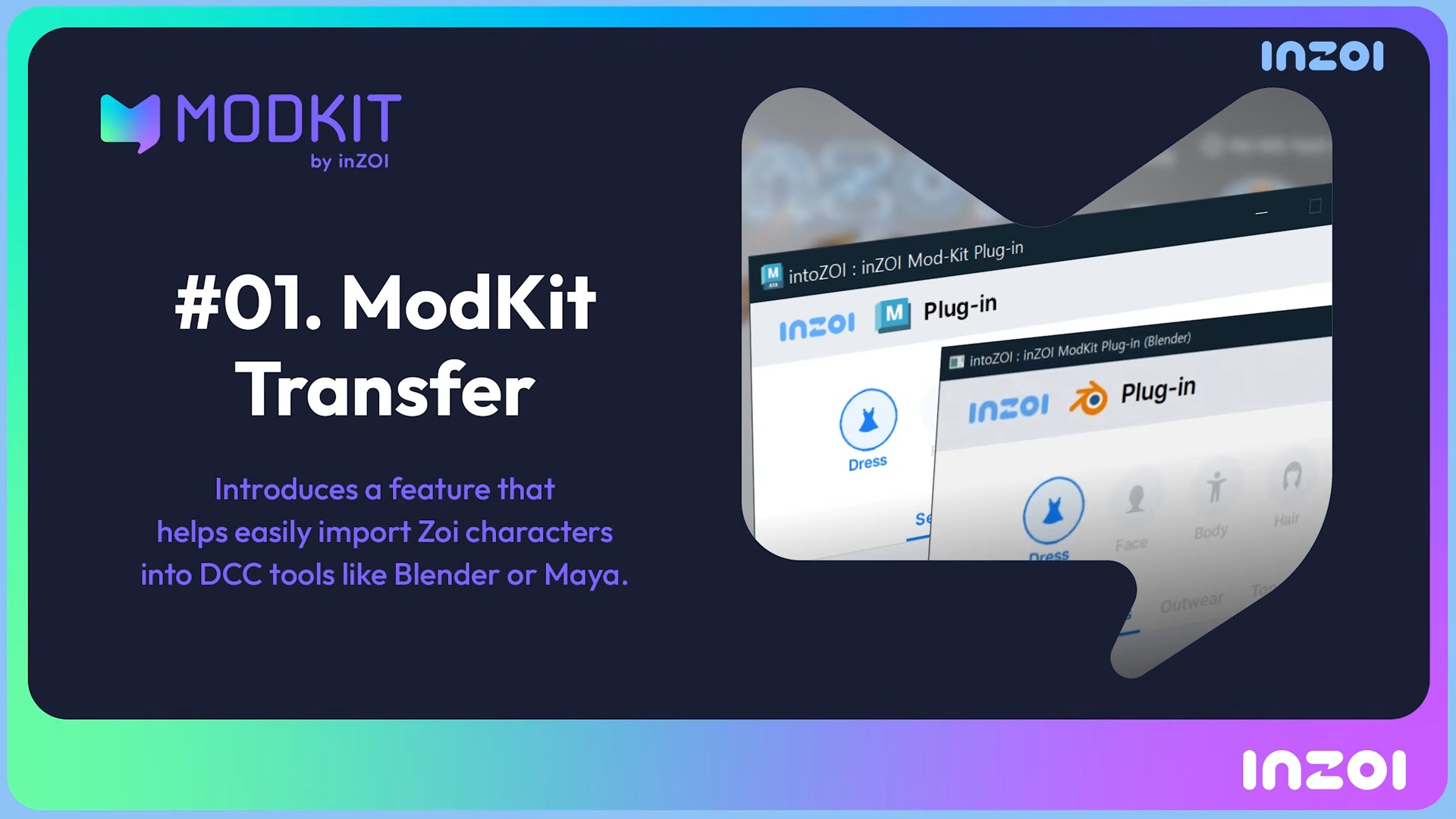
The ModKit is inZOI's official modding toolkit, available through the Epic Games Store. It provides everything needed to create, package, and distribute custom content. KRAFTON describes it as 'an official tool designed to make modding easy and accessible for everyone.'
Asset Types
The ModKit supports several categories of moddable content:
Asset Type | Description | File Format |
|---|---|---|
Custom Outfits | Clothing and accessories for character customization (CAZ) | FBX meshes + JSON metadata |
Furniture and Objects | Placeable items for Build Mode | FBX meshes + JSON metadata |
Hair and Faces | Custom hairstyles and facial features (added September 2025) | FBX + MetaHuman templates |
Architecture Elements | Doors, windows, fences, and structural pieces (added September 2025) | FBX meshes |
Audio | Custom music, sound effects, and ambient sounds | Audio files via Sound Wizard |
Game Data | Modified mechanics, pricing, buff durations, interaction rules | JSON configuration files |
Localization | Community-created language packs | JSON string tables |
Accessories (March 2026) | Standalone accessories such as earrings, glasses, and hats for CAZ | FBX meshes + JSON metadata |
Animations/Motions (March 2026) | Custom motion and animation files for Zoi actions and poses | FBX animations + JSON metadata |
Face Mods (March 2026) | Custom facial structures using Epic's MetaHuman framework | MetaHuman templates + FBX |
Technical Tools
The ModKit includes several tools for creators working at different skill levels:
Tool | Description |
|---|---|
Blender Plugin | Official plugin for importing inZOI meshes into Blender. Export FBX files back into the mod format. |
Maya Plugin | DCC plugin for Autodesk Maya with the same import/export workflow as Blender. |
Unreal Engine Plugin | Converts custom assets into the inZOI mod format. Required for packaging mods that include 3D content. |
Sample Mods | Bundled example projects demonstrating CAZ item creation, building object placement, and data editing structure. |
JSON Data Editing | Modify game mechanics without 3D modeling. Adjust bed energy restoration rates, buff durations, item pricing, placement rules, and interaction behaviors. |
Wizard Tools
The Wizard system provides step-by-step guided interfaces for common modding tasks. Instead of requiring full Unreal Engine knowledge, Wizards walk creators through specific workflows using a guided UI.
CAZ Wizard
The CAZ Wizard streamlines creation of custom Create a Zoi content. The initial release (June 2025) supported outfit creation. The March 2026 update expanded the CAZ Wizard significantly, adding support for accessories, motion/animation modding, and facial modification tools. A MetaHuman guide is provided alongside the face modding tools to help creators work with Epic's character framework.
CAZ Wizard Feature | Availability |
|---|---|
Custom outfits (clothing) | Available (June 2025) |
March 2026 | |
Motion/animation modding | March 2026 |
Face modding (with MetaHuman guide) | March 2026 |
Sound Wizard
The Sound Wizard handles audio modifications. It supports both partial replacement (swapping individual sounds while keeping others) and addition (layering new audio on top of existing sounds). The March 2026 update improved the Sound Wizard with better partial replacement controls and the ability to add entirely new sound categories.
Planned Wizards
Wizard | Target Date | Details |
|---|---|---|
Vehicle Wizard | June 2026 | Custom vehicle models and behaviors. |
AI Data Wizard | October 2026 (R&D) | An AI-assisted tool to help generate mod data configurations automatically. |
March 2026 ModKit Expansion
The v0.7.0 update (March 26, 2026) brought a major expansion to the ModKit, representing one of the largest modding upgrades since the toolkit's launch. Several long-requested features became available in this milestone update.
New Content Types
Three new categories of moddable content were added to the CAZ Wizard:
Content Type | Description |
|---|---|
Creators can now build standalone accessory items such as earrings, glasses, necklaces, and hats. Previously, accessories could only ship as part of full outfit mods. | |
Animations and Motions | Custom motion files allow modders to create entirely new Zoi animations, from idle poses and walking styles to interaction sequences. This opens the door to custom emotes, dance moves, and unique social animations. |
Face Mods | Facial structure modifications are now possible through integration with Epic's MetaHuman framework. KRAFTON provides a dedicated MetaHuman guide to help creators build custom face presets, adjusted bone structures, and unique facial features. |
Hot-Swapping (Live Mod Loading)
One of the most impactful quality-of-life improvements in v0.7.0 is hot-swapping support. Players and mod creators no longer need to restart the game to apply newly downloaded or installed mods. Graphics resource mods can be installed and activated during gameplay, with changes taking effect immediately. For mod creators, this dramatically speeds up the testing cycle since they can iterate on assets and see results in real time without waiting through loading screens.
Project Management Tools
The ModKit's project management interface received new search and filter functions, making it easier to locate specific assets within large mod projects. Creators can now package multiple selected mods at once, streamlining the workflow for developers maintaining mod collections or content packs.
ToggleModInsight Cheat
A new developer cheat, ToggleModInsight, was added for modders to inspect what parameters can be exported in or for mods. When activated, it displays different parameters of in-game assets in real time, making it much easier to understand how existing content is structured and what values can be modified.
Mod Distribution
CurseForge (Official)
CurseForge is inZOI's official mod distribution platform with direct in-game integration. Mods uploaded to CurseForge appear in the in-game Mod Browser, allowing players to discover, install, and manage mods without leaving the game. The Mod Browser supports searching, one-click installation, deletion, and automatic updates.
Community Mod Sites (External)
External community mod sites host over 900 inZOI mods as of early 2026, offering a wider variety than CurseForge. These external sites tend to host more experimental mods, visual enhancements, gameplay tweaks, and performance modifications. Mods downloaded from an external community mod site must be installed manually by extracting files into the game's mod directory. The external modding community also provides modding guides, tutorials, and troubleshooting forums.
Distribution Comparison
Feature | CurseForge | External Mod Sites |
|---|---|---|
In-game integration | Yes (Mod Browser) | No (manual install) |
One-click install | Yes | No |
Auto-updates | Yes | No |
Mod variety | Official-approved content | Wider range including experimental mods |
Mod count (early 2026) | Growing catalog | 900+ mods |
Upload requirements | ModKit packaging | Any compatible format |
Installing Mods via CurseForge
CurseForge is the easiest way to install mods because everything happens inside the game. No manual file management is needed.
Open inZOI and go to the main menu.
Click the "Mods" button.
Browse mods using the Discovery tab (featured mods) or Browse tab (all mods with category filters).
Click on a mod to see its description and screenshots.
Click "Download" to install it.
Manage installed mods from the "Installed Mods" tab, where you can enable, disable, or uninstall individual mods.
CurseForge Limitations
The CurseForge desktop application does not support inZOI. Mods can only be downloaded through the in-game browser. There is a 50-mod limit for active CurseForge mods at one time. CurseForge mods are curated and must pass moderation guidelines, so the selection is smaller but safer than external community mod sites.
Installing Mods Manually (External Sites)
External community mod sites host approximately 900+ mods with a wider variety than CurseForge, including visual enhancements, gameplay tweaks, and performance mods. Manual installation requires a few extra steps.
Step 1: Install the Mod Enabler
Before any mods from external community mod sites will work, you need the InZOI Mod Enabler. This is a one-time setup.
Visit the official mod-hosting page for inZOI and download the "InZOI Mod Enabler" (it is mod #1 on the site, created by FrancisLouis).
Extract the downloaded archive (you will get a BlueClient folder).
Copy the BlueClient folder into your inZOI installation directory (typically C:\Program Files (x86)\Steam\steamapps\common\inZOI\).
When prompted, choose to replace existing files.
The Mod Enabler bypasses PAK file signature checks, allowing the game to load unsigned mod files.
Step 2: Know Your Mod Folders
Different mod types go in different folders. This is the most confusing part for beginners, so keep this reference handy.
Mod Type | Folder Location |
|---|---|
Legacy.pak mods (pre-ModKit) | Steam\steamapps\common\inZOI\BlueClient\Content\Paks\~mods\ |
ModKit mods (post-May 2025) | Documents\inZOI\Mods\ (each mod has a mod_manifest.json) |
Character appearances / presets | Documents\inZOI\Creations\MyAppearances\ |
3D Printer items | Documents\inZOI\AIGenerated\My3DPrinter\ |
Custom textures | Documents\inZOI\AIGenerated\MyTextures\ |
AI motion files | Documents\inZOI\AIGenerated\MyAIMotions\ |
Config mods (.ini files) | AppData\Local\BlueClient\Saved\Config\Windows\ |
For legacy.pak mods, you may need to create the ~mods folder yourself inside BlueClient\Content\Paks\. The tilde (~) at the start of the folder name ensures it loads after the base game files, allowing mods to override originals.
Step 3: Install a Mod
Download the mod from an external community mod site.
Extract the archive (.zip,.rar, or.7z).
Check the mod's description page for specific installation instructions. Most mods tell you exactly which folder to place files in.
For.pak/.utoc/.ucas files: place them in the ~mods folder.
For ModKit mods with a mod_manifest.json: place the entire mod folder in Documents\inZOI\Mods\.
For creation files (character presets, textures): place them in the matching Documents\inZOI\ subfolder.
Launch the game and verify the mod is working.
Mod Managers
If manually placing files feels tedious, community-built mod managers simplify the process.
Tool | Description |
|---|---|
Vortex Extension | Adds inZOI support to the Vortex mod manager. Drag-and-drop installation. Requires game and Documents folder on the same drive. |
IMM (InZoi Mod Manager) | Open-source desktop app with a two-column UI, drag-and-drop enabling, load order management, and archive support (.zip,.rar,.7z). |
Simple Mod Manager | Lightweight tool that auto-detects your game folder and offers to install the Mod Enabler during first run. |
How to Uninstall Mods
CurseForge Mods
Go to the main menu and click "Mods".
Navigate to the "Installed Mods" tab.
Click on the mod and select "Uninstall", or use "Uninstall All Mods" to remove everything.
External Mod Sites / Manual Mods
Feature | Details |
|---|---|
For.pak mods | delete the.pak,.utoc, and.ucas files from the ~mods folder. |
For ModKit mods | delete the mod folder from Documents\inZOI\Mods\. |
For creation files | delete the relevant files from the matching Documents\inZOI\ subfolder. |
To completely remove all mod support | delete the Mod Enabler files from the BlueClient folder (or verify game files through Steam to restore originals). |
Creating Mods
The basic workflow for creating a mod with the ModKit:
Download the ModKit from the Epic Games Store.
Choose a Wizard for guided creation, or use the full Unreal Engine plugin for advanced content.
For 3D content: model in Blender or Maya using the official plugins, export as FBX, and convert with the UE plugin.
For data mods: edit JSON configuration files to adjust mechanics, pricing, or behaviors.
Package the mod using the ModKit's export tools.
Upload to CurseForge for in-game distribution, or share the files on an external community mod site.
Official documentation and sample mods are included with the ModKit. The Modding Getting Started Guide provides a step-by-step walkthrough for new creators.
Engine Compatibility
Engine upgrades affect mod compatibility. Mods built for one Unreal Engine 5 version may not work on another without updates. The UE 5.4 to 5.6 migration in early 2026 requires mod creators to rebuild their content. The March 2026 roadmap milestone includes updated mod tools for 5.6 compatibility. During the engine beta test (March 5, 2026), mods were restricted to isolate engine-specific issues. Mod creators should monitor the official inZOI Forums for migration guides.
Safety and Trust
Mods involve downloading files from the internet and placing them in your game directory. Follow these practices to stay safe.
Feature | Details |
|---|---|
Use trusted platforms | CurseForge (in-game) is the safest option since all mods are curated. External community mod sites scan uploaded files for viruses and have community ratings. |
Check endorsements and comments | On external community mod sites, read user comments and check the endorsement count before downloading. Popular, well-reviewed mods are far less likely to cause problems. |
Avoid unknown sources | Do not download mods from random websites or unverified links. Stick to CurseForge and reputable external mod sites. |
Antivirus flags | The Mod Enabler uses DLL injection to bypass signature checks, which some antivirus software flags as suspicious. This is typically a false positive, but only download it from the official mod download page. |
KRAFTON's warning | The developer has officially cautioned against unauthorized mods from unofficial sources, stating they can compromise personal data. Use your judgment and stick to reputable platforms. |
Updates and Compatibility
Game updates are the most common cause of mod issues. Here is what to expect and how to handle it.
Update | Details |
|---|---|
Mods auto-disable on update | When inZOI receives a patch, all mods are automatically disabled for stability. You must manually re-enable them afterward. |
Mods may break | Some mods stop working after a game update because the game files they modify have changed. Check the mod page on external community mod sites or CurseForge for an updated version. |
Wait before updating | If you rely on specific mods, consider waiting a few days after a game update before patching. This gives mod authors time to release compatibility updates. |
Remove broken mods | If the game crashes after an update, remove all mods from the ~mods folder and the Documents\inZOI\Mods\ folder. Re-add them one at a time to identify which mod is causing the issue. |
2026 Modding Roadmap
KRAFTON's specialized modding task force has laid out a roadmap for expanding mod capabilities throughout 2026. Director Kjun noted that features remain 'subject to change and may not arrive in each quarter,' as the team prioritizes stability over speed.
Quarter | Milestone | Details |
|---|---|---|
January 2026 | JSON asset structure + mod manager | Mods use JSON-based format to prevent data mismatches; in-game mod management interface launches. |
March 2026 | Wizard expansion + hot-swapping | CAZ Wizard adds accessories, motions, face modding; Sound Wizard improvements; graphics mods can be installed and applied during gameplay without restarting. |
March 2026 | Project management tools | Search, filter, and asset merging features for mod creators managing large projects. Package multiple mods at once. |
June 2026 | Vehicle modding + UE 5.6 migration | Vehicle customization tools; mods rebuilt for Unreal Engine 5.6 compatibility; CLO platform integration exploration for custom clothing. |
June 2026 | Console mod feasibility | PS5 and Mac mod support preparation begins. |
October 2026 | Multiplayer mod R&D | Research and development phase for multiplayer-linked modding; AI data wizard testing. |
December 2026 | Lua scripting | Full Lua script modding support rollout. |
Lua Scripting
Full Lua scripting support is planned for December 2026. Lua was chosen for its lightweight footprint and widespread use in game modding communities. Script modding will unlock capabilities far beyond cosmetic changes:
Script mods then moved closer to release. At TapTap Game Fest 2026 on September 12 and 13, script mods powered the Canvastown demo, where the team had built mini-games such as car racing with them, and the September 16, 2026 reply said the October update will introduce modding capabilities. No public release date for script mods had been given as of September 21, 2026.
Two September hotfixes touched mods: v0.10.2 (September 9, 2026) repaired some ModKit guide links, restored the pop-up shown when unverified mods are disabled by a game update, and left the Contents Template Workspace support button and the Data Editor guide-tab wiki button still broken, while v0.10.3 (September 10, 2026) fixed purchases of some modded vehicles failing when several vehicle mods were enabled at once.
Custom gameplay logic and new interaction types.
Modified AI behaviors for Zois and NPCs.
Entirely new game systems (custom careers, mini-games, progression mechanics).
Advanced automation and quality-of-life tools.
Systemic overhauls that change core game rules.
Before the official Lua support, some community modders on external community mod sites have created Lua-based mod enablers that bypass standard loading restrictions. These unofficial tools are not supported by KRAFTON and may cause stability issues.
Recommended First Mods
If you are new to modding, these widely-used mods are good starting points.
Mod | What It Does | Source |
|---|---|---|
Enhanced InZOI Visuals | Disables vignette and chromatic aberration, increases draw distance and shadow quality. Subtle but noticeable visual improvement. | External Mod Sites |
Higher Quality Skin and Faces | Restores high-quality character textures from the 2024 demo build. Makes faces and skin look sharper. | External Mod Sites |
Skip Intro | Skips the intro sequence and jumps straight to the main menu. Small quality-of-life improvement. | External Mod Sites |
Remove Shower Blur | Removes the blur effect during shower scenes. | External Mod Sites |
InZOI Optimizer | Performance optimization for mid-range and lower-end PCs. Can improve frame rates by 15-25% depending on hardware. | External Mod Sites |
Troubleshooting
Problem | Solution |
|---|---|
Mods not appearing in game | Confirm the Mod Enabler is installed correctly. Check that.pak files are in the ~mods folder (not a subfolder within it). For ModKit mods, ensure mod_manifest.json has "bEnable": true. |
Game crashes on startup after installing a mod | Remove all mods from the ~mods and Documents\inZOI\Mods\ folders. Re-add them one at a time to identify the problem mod. |
Mods disappeared after game update | All mods are auto-disabled on update. Re-enable them from the CurseForge Installed Mods tab or check that manual mod files are still in place. |
CurseForge shows no mods available | Check your internet connection. CurseForge requires online access to browse mods. Also ensure you are using the in-game mod browser, not the CurseForge desktop app. |
Antivirus flags the Mod Enabler | This is typically a false positive due to DLL injection. Add an exception for the inZOI game folder in your antivirus settings if you trust the source (official mod download page). |
Vortex cannot find the game | The game installation and Documents folder must be on the same drive partition. Symlinks are not supported by the Vortex extension. |
OneDrive interfering with mods | Exit OneDrive completely and restart inZOI. OneDrive can lock mod files and prevent the game from reading them. |
Two July 2026 hotfixes addressed the modding tools directly: v0.9.5 fixed a CurseForge browser bug that could hang or crash the game when the browser opened, and v0.9.6 fixed a ModKit crash when deleting a mod project that included Hair Mode and trimmed the oversized assets shipped with the Sample_Build mod. See Update History for the full patch notes.
Tips
Start with CurseForge. The in-game browser is the simplest and safest way to try your first mods.
Back up your save files before installing gameplay-altering mods. Saves are in Documents\inZOI\Saves\.
Install a few mods at a time rather than dozens at once. This makes it easier to identify which mod causes a problem if something breaks.
Read the mod description page carefully. Many installation issues come from putting files in the wrong folder.
The Simple Mod Manager from an external mod site auto-detects your game folder and offers to install the Mod Enabler for you. Good for first-time setup.
Performance mods (like InZOI Optimizer) are worth installing even on capable hardware. They reduce stuttering and improve frame pacing.
If a mod has not been updated in several months and the game has received major patches, it is likely broken. Check comments for confirmation before installing.
Use the in-game Mod Browser for the safest installation experience. CurseForge mods are tested for compatibility.
After an engine update, wait for mod creators to release updated versions before re-enabling mods.
JSON data mods are the easiest to create and do not require 3D modeling skills. Start there if you are new to modding.
As of v0.7.0, you can hot-swap graphics mods without restarting the game. This makes testing much faster for both players and creators.
Use the ToggleModInsight cheat to inspect asset parameters in real time when developing mods.
Check the Modding Getting Started Guide for a complete walkthrough with screenshots and examples.
v0.9.0 Modding Additions
The v0.9.0 update (June 19, 2026) extended both the ModKit and the in-game modding tools.
ModKit
Overlay UI modding is now supported, with a sample asset added to the ModKit.
MetaHuman body assets are supported. See MetaHuman Import.
MetaHuman Creator eyelashes, eyebrows, mustaches, and beards can be extracted using the DCC Export Helper.
In-Game Modding
The in-game mod browser design was improved, and the mod auto-update pop-up was refined; auto-update is supported for both the in-game catalog and CLO mods.
The mod manager moved in-game and is now reached under Game Options > Mods.
Furniture samples for modding can be previewed in-game after enabling the Dev category with the showUserDevCategory cheat.
CLO Connect was integrated into the game, allowing direct clothing mod downloads and uploads without leaving inZOI, with search and filter options and download history synced between web and in-game.
As with every patch, all installed mods are automatically disabled when an update is applied and must be re-enabled afterward.
v0.10.0 Modding Additions (September 3, 2026)
The browse mods page was rebuilt for easier navigation, and the mods menu can be opened from the in-game menu during play.
The local mods folder can be opened from the manage mods page.
Official mods verified to work are no longer deactivated automatically after a game update. Outdated mods and mods from unsupported sources still are.
Vehicle modding was added, with its own wizard.
The MetaHuman system used by the game moved from 5.0 to 5.6.
New ModKit sample assets shipped with the update: 30 accessories, four pairs of high heels, one object set, one sink, and one sofa. A furniture FBX file is now provided, data editor items can be edited by double-clicking, and each mod's tab open and active states are saved so a workspace resumes where it was left.
The command line interface gained a post-process animation blueprint route for overriding individual bone transforms without replacing the main animation, through pose.set_bone, pose.clear, pose.get, and pose.list_bones. Allowed-value enums were added to parameters on commands including bio.set_gender, data.patch, luamod.reload, and zoi_group.create, and command search now matches case-insensitively across identifiers, display names, aliases, enum values, and descriptions.
Script Mods have not shipped. The September 4, 2026 developer letter said they are being prepared for release and that the ModKit is being refined with a small group of modders first, whose feedback is being folded back in before a wider release.