

AI Features
Complete guide to inZOI's six AI-powered features: Smart Zoi autonomous behavior, AI Texture generation, 3D Printer object creation, Facial Capture, AI Emote pose creation, and Video-to-Motion animation extraction. Covers usage instructions, hardware requirements, training data, and the community debate around generative AI.
On This Page
Overview
inZOI integrates artificial intelligence across six distinct player-facing features: Smart Zoi (autonomous NPC behavior), AI Texture (text-to-pattern generation), the 3D Printer (image-to-object conversion), Facial Capture (real-time expression mapping), AI Emotes (pose creation from images), and Video-to-Motion (animation extraction from video). Together, these tools let players customize characters, furniture, animations, and NPC behavior in ways that go beyond traditional preset-based creation systems.
Privacy and Local Processing
With the exception of Smart Zoi, all AI features run entirely on-device; no images, text prompts, or other player data are sent to external cloud servers. Smart Zoi also processes its language model locally on the player's GPU, but it requires an internet connection for license verification at launch. KRAFTON has stated that every AI model in the game is proprietary and was trained exclusively on company-owned assets and commercially licensed, copyright-free materials. The on-device design means that most AI features continue to function without an active internet connection, although inZOI itself requires an internet connection to start.
Feature Summary
Feature | Input | Output | Where It's Used |
|---|---|---|---|
Personality, traits, memories | Autonomous behavior, inner thoughts, daily schedules | Gameplay (all modes) | |
Text prompt | Seamless pattern / texture | ||
2D image (JPG/PNG) | 3D in-game object | ||
iPhone camera (Live Link Face) | Real-time facial expressions on Zoi | Gameplay, Photo Mode | |
Image or short video | Custom static pose | Photo Mode, Canvas | |
Video-to-Motion | Video clip | Custom animation sequence | Photo Mode, Canvas |
Smart Zoi
Smart Zoi is the most ambitious AI feature in inZOI. It gives Zois autonomous decision-making powered by a Mistral NeMo Minitron small language model (sLM) with 0.5 billion parameters, developed in partnership with NVIDIA using their ACE (Avatar Cloud Engine) technology. inZOI is one of the first commercial games to ship with NVIDIA ACE integrated directly into gameplay. When the feature is enabled, Zois stop following rigid behavioral scripts and instead make independent choices about what to do based on their personality traits, emotions, memories, and current needs. A Zoi with a caring personality might stop on the street to buy food for a hungry NPC or offer directions to a lost stranger, while a mischievous Zoi might pick fights or cause trouble.
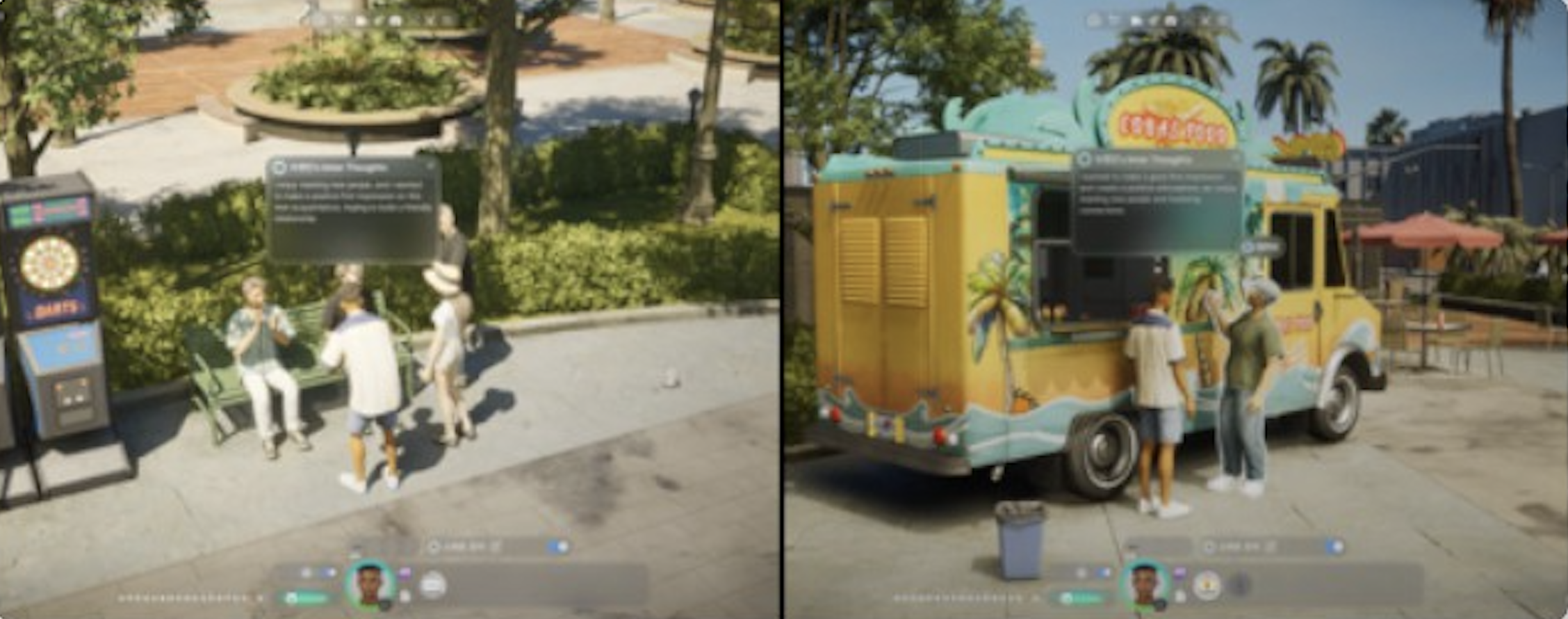
Inner Thoughts
With Smart Zoi active, each Zoi generates a running inner monologue that the player can read as a thought bubble. These inner thoughts reflect what the Zoi is thinking about in the moment: their opinion on the music playing nearby, their feelings about a conversation they just had, their reflections on a book they are reading, or their deeper existential musings. The inner thoughts system provides a window into the reasoning behind a Zoi's decisions, making their autonomous behavior feel more transparent and personality-driven.
Diary and Schedule Generation
At the end of each day (once a Zoi is sufficiently tired and it is past 11:00 PM in-game), Smart Zois write a diary entry summarizing the events and emotions of the day. The diary draws from the inner thoughts accumulated throughout the day, creating a coherent narrative of the Zoi's experiences. After this reflective session, the Zoi analyzes its thoughts, feelings, and notable events to generate a new schedule for the following day. This means a Zoi might decide to pick up a new hobby, visit a friend it had a good conversation with, or avoid a location where something unpleasant happened. The schedule evolves organically based on the Zoi's lived experience rather than following a static routine.
Zoi Pen
The Zoi Pen is a player tool that allows direct influence over a Smart Zoi's thoughts. By typing a short text prompt (up to 100 words, though 20 words is recommended for best results), the player plants an idea in the Zoi's mind. This input shapes the Zoi's subsequent inner thoughts, decisions, and diary entries. For example, writing "You feel inspired to learn to cook" might lead the Zoi to enroll in a cooking class, browse recipes, or visit the grocery store. The Zoi Pen gives players a way to steer Smart Zoi behavior without removing the autonomous decision-making that makes the feature unique.
Scope Settings
Players can control how broadly Smart Zoi applies through the Gameplay tab in the Options menu. Three scope settings are available:
Setting | Description |
|---|---|
Your Zoi only | Smart Zoi behavior applies only to the player's active Zoi. |
Your Zoi's family | |
All Zois | Every NPC in the city operates with Smart Zoi behavior, creating a fully autonomous world. |
The feature can be toggled on or off at any time from the same settings menu. Note that the diary, inner thoughts, and schedule features are disabled when the game speed is set to 5x or higher.
Smart Zoi Technical Requirements
Smart Zoi requires an NVIDIA RTX GPU with a minimum of 8 GB VRAM. The officially listed minimum is the RTX 3060, while the recommended GPUs are the RTX 5070 and RTX 4070 SUPER (12 GB VRAM). The language model uses approximately 1 GB of VRAM when active, which causes the game's graphics settings to drop one tier automatically to accommodate the additional memory usage. As of early 2026, Smart Zoi supports English only. AMD GPU users cannot enable the feature through the standard settings menu, though KRAFTON has stated that broader GPU support is planned as optimization continues.
AI Texture
AI Texture (also called My Texture in some interfaces) is a text-to-pattern generator available in Create a Zoi and Build Mode. Players type a text description of the pattern they want, and the AI generates a unique, seamless texture that can be applied to clothing, furniture surfaces, wallpapers, and floor patterns. The underlying model was trained on a curated dataset of approximately 20 million images sourced from Creative Commons-licensed public images that permit commercial use and modification, combined with assets from KRAFTON's own games (including textures from PUBG: Battlegrounds).
How to Use AI Texture
Select the clothing item or furniture piece you want to customize.
Click the My Texture button located at the bottom of the item's icon.
Click the four-pointed star icon to open the text prompt field.
Type a description of the pattern you want (for example: "blue floral," "tiger stripes," "marble with gold veins," "vintage plaid").
Press Create and wait a few seconds for the AI to generate the texture.
If satisfied, press Save to store the custom texture. If not, press Create again to generate a variation.
Repeating the same prompt produces similar but not identical results each time, giving players the option to generate multiple variations and choose their preferred outcome. Generated textures can be applied repeatedly to different items and further adjusted with color modification tools. Each generation runs locally on the player's hardware and typically completes within a few seconds, depending on GPU performance. AI Texture requires a GPU with at least 8 GB VRAM to function.
3D Printer
The 3D Printer converts uploaded 2D images into three-dimensional in-game objects using AI. The underlying model was trained on approximately 46,000 high-quality 3D models either owned by KRAFTON or sourced from commercially licensed datasets. Players upload a photo of a real-world object (a lamp, vase, toy, figurine, or virtually anything else), and the AI infers depth and shape from the single image to generate a 3D model in roughly 20 seconds. Multiple angles are not needed.
Accessing the 3D Printer
In Build Mode, open the Craft tab on the left side of the screen and select the 3D Printer option (the fourth and final tab). From there, click the upload button to select an image file from your computer.
Furniture vs. Accessory Mode
3D-printed objects can be used in two ways:
Mode | Description |
|---|---|
Furniture / Decoration | Place the object as a decorative item in Build Mode. Generated objects are static by default, but they inherit the basic functionality of whatever furniture category they are assigned to. For example, a printed chair categorized as seating can be sat on by Zois. |
Accessory | Attach the object to a Zoi as a wearable item in Create a Zoi. Accessories can be placed on various body slots, including the head (hats, masks, crowns), back (wings, capes), and ears (earrings). All 3D-printed items appear under the Custom category in Accessories. |
Tips for Best Results
Use a high-quality image with at least 1000 x 1000 pixels for the best conversion.
Choose images with a plain, clean background and avoid strong shadows or multiple objects in the frame.
Simple, symmetrical objects produce more accurate results than complex, asymmetrical ones.
JPEGs work well for fully three-dimensional objects, while PNGs with transparent backgrounds are better for flat items.
Avoid photos taken in harsh direct sunlight. Use a front-facing view of the object.
After generation, you can adjust the rotation and position of the object before placing it. This is especially useful for accessories that need to curve in a specific direction.
3D-printed items can be uploaded to Canvas for other players to download and use. The 3D Printer requires a GPU with at least 8 GB VRAM.
Facial Capture
Facial Capture maps real-time facial expressions from an iOS device onto a Zoi, allowing players to animate their character's face by making expressions themselves. The feature uses Apple's Live Link Face app, which streams facial tracking data from the iPhone's TrueDepth camera to the PC over a shared Wi-Fi network. It works during gameplay and in Photo Mode for capturing specific expressions that are not available in the built-in expression presets.
Setup Process
In inZOI, click the Set Up Facial Capture button in the center of the top toolbar.
Confirm that both your PC and iPhone are connected to the same Wi-Fi network.
Scan the QR code displayed on screen to download and install the Live Link Face app on your iPhone (requires iOS 16.0 or later).
Open the app on your iPhone. Go to Settings, select Live Link in the Streaming section, and tap Add Target.
Back in inZOI, click Next until you reach the "Choose a device to connect" screen and select your iPhone.
Once connected, zoom in on your Zoi's face to see it mirror your real-time expressions: smiling, frowning, blinking, raising eyebrows, and more.
Limitations
Facial Capture is iOS only. Android devices and webcams are not supported.
The iPhone must have a TrueDepth camera (iPhone X or later).
Both devices must be on the same local network; Bluetooth connections do not work.
Only facial expressions are captured. Head position, body movement, and voice are not tracked.
AI Emote
AI Emote is part of the broader Video-to-Motion AI system. It generates custom static poses from uploaded images or short video clips. Players can upload an image of a person in a specific position, and the AI replicates that pose on their Zoi. Alternatively, uploading a video clip allows the AI to extract a pose from a selected frame. Generated poses can be applied in Photo Mode and saved to Canvas as Custom Poses for other players to download.
How to Create an AI Emote
Hover over your Zoi and find the AI Motion option.
Select Make AI Emote.
Choose whether to upload an image (for a static pose) or a video (to extract a pose from a frame).
Select the source file from your computer. Supported video formats include MP4, AVI, and MOV.
The AI processes the input and generates a pose. Review the result and save it if satisfied.
Tips for AI Emote
Use images or videos featuring a single person in a full-body shot for the most accurate pose extraction.
Keep videos short, ideally under 5 seconds.
A stationary camera produces better results than footage with camera movement.
AI Emote does not generate facial expressions. Use Facial Capture or the built-in expression presets separately.
The feature is marked as experimental and may not always accurately replicate complex poses.
Video-to-Motion
Video-to-Motion is the broader system that powers AI Emote. While AI Emote extracts a single static pose from one frame, Video-to-Motion goes further by extracting motion data from an entire video clip and converting it into a custom animation that can be applied to Zois. This allows players to capture movement sequences (walking patterns, dance moves, gestures) rather than just a single frozen pose.
The technology runs entirely on-device and produces approximations of the source motion rather than frame-perfect replicas. Complex movements with rapid direction changes or multiple people in the frame may produce less accurate results. As with AI Emote, the generated animations can be saved and shared through Canvas. Video-to-Motion uses the same supported formats (MP4, AVI, MOV) and benefits from the same filming guidelines: single subject, full body visible, stationary camera.
AI Build (Discontinued)
AI Build was an experimental Build Mode feature that generated room layouts automatically. It launched with the October 2025 update (v0.4.0) for Windows systems with NVIDIA RTX 3000 series or AMD RX 6000 series graphics cards or newer, and the February 2026 update added wall and floor color customization plus automatic room categorization for bedrooms and bathrooms.
As of the August 2026 known-issues list, the feature is temporarily disabled because of a crash on systems with AMD graphics cards. On July 24, 2026 the team went further and announced that AI Build will be discontinued. The stated reason: the quality players expect cannot be reached with the technology available today, so the research budget behind the feature moves to other AI features. The team asked players to share which AI features they would like to see instead.
AI Used During Development
Beyond the six player-facing features, KRAFTON also used AI-based tools as auxiliary support during inZOI's content creation process. The game's Steam store page discloses this under Valve's AI transparency requirements. According to KRAFTON, all content generated through internal AI tools was thoroughly reviewed and manually refined by the development team before being finalized. The three primary areas where AI assisted development are the same technologies made available to players: Text-to-Image (for generating texture and pattern assets), 3D model generation (for creating base object models), and Video-to-Motion (for producing character animation references).
KRAFTON has not disclosed the specific extent to which AI-generated assets appear in the shipping game, but the company has stated publicly that generative AI is part of its broader corporate strategy to maximize efficiency and reduce production costs across all its titles.
Ethical Approach and Community Response
KRAFTON has positioned inZOI's AI implementation as an ethical alternative to the AI tools that have drawn controversy in other industries. The company's key claims are:
Approach | Description |
|---|---|
Proprietary models | All AI models are developed internally by KRAFTON, not licensed from third-party providers like Midjourney or Stable Diffusion. |
Controlled training data | The Text-to-Image model was trained on 20 million images sourced from Creative Commons-licensed public datasets and KRAFTON-owned game assets (primarily PUBG: Battlegrounds). The 3D Printer model was trained on approximately 46,000 3D models from KRAFTON-owned or commercially licensed sources. No scraped internet data or third-party intellectual property was used. |
On-device processing | All generation happens locally on the player's hardware. No images, prompts, or user data are transmitted to external servers. |
Community Debate
The community response has been mixed. Supporters have praised KRAFTON for its transparency, noting that inZOI was one of the first major games to openly disclose exactly how AI was used, both in development and in player-facing features. The on-device approach and use of only company-owned or properly licensed training data have been viewed by some as a responsible model for AI integration in games.
Criticisms and Concerns
Critics have raised several counterpoints. Some players oppose any use of generative AI in commercial games on principle, arguing that it displaces human artists and animators regardless of how the training data was sourced. Others have questioned whether the "copyright-free" label is fully accurate, noting that Creative Commons licenses have varying terms and that the sheer volume of training data (20 million images) makes manual verification of every source impractical. KRAFTON's public statements about becoming an "AI-first" company and using AI to reduce headcount have further fueled concerns about the technology's impact on employment in the games industry. See Reception and Reviews for the full controversy discussion.
Hardware Requirements
Most AI features run on any hardware that meets the base game's System Requirements, provided the GPU has sufficient VRAM. The table below summarizes the requirements for each feature.
Feature | Minimum GPU | Minimum VRAM | Recommended GPU | Notes |
|---|---|---|---|---|
NVIDIA RTX 3060 | 8 GB | RTX 5070 / RTX 4070 SUPER | NVIDIA RTX only; uses ~1 GB VRAM; graphics drop one tier | |
Any GPU meeting base requirements | 8 GB | Faster GPU = faster generation | Works on both NVIDIA and AMD | |
Any GPU meeting base requirements | 8 GB | Faster GPU = faster generation | Works on both NVIDIA and AMD | |
Any GPU meeting base requirements | 6 GB | N/A | Requires iPhone with TrueDepth camera (iOS 16+) | |
Any GPU meeting base requirements | 8 GB | Faster GPU = faster processing | Works on both NVIDIA and AMD | |
Video-to-Motion | Any GPU meeting base requirements | 8 GB | Faster GPU = faster processing | Works on both NVIDIA and AMD |
The base game's minimum GPU requirement is an NVIDIA RTX 2060 or AMD Radeon RX 5600 XT with 6 GB VRAM. For AI features other than Smart Zoi, both NVIDIA and AMD GPUs are supported, but 8 GB VRAM is required for the generative features (AI Texture, 3D Printer, AI Emote, Video-to-Motion). Faster GPUs produce results more quickly but do not affect the quality of the output.
Tips and Best Practices
If your system barely meets the VRAM requirements, close other applications before using AI features to free up GPU memory.
Smart Zoi's diary, inner thoughts, and schedule features are disabled at 5x speed or higher. Play at normal speed or 2x/3x to experience the full Smart Zoi system.
When using the Zoi Pen, keep prompts short and specific. The recommended length is around 20 words. Vague prompts produce less predictable results.
For AI Texture, experiment with different wording for the same concept. "Blue watercolor flowers" and "navy floral pattern" will produce distinct results even though both describe blue flowers.
The 3D Printer works best with simple, symmetrical objects. Complex organic shapes (like animals or human figures) tend to lose detail in the conversion process.
AI Emote works well with reference clips of Fortnite emotes and TikTok dances, as these typically feature a single person in a full-body shot with minimal camera movement.
All AI-generated content (textures, 3D objects, poses, animations) can be shared with other players through Canvas.
If Smart Zoi causes noticeable performance drops, try reducing its scope to "Your Zoi only" instead of "All Zois" to limit the number of Zois running the language model simultaneously.