

Interactions
Complete guide to interactions in inZOI: object interactions, social conversation categories (Daily Life, Romance, Affection, ChitChat, Humor, Conflict, Action, Thoughts, News), conversation mechanics, skill influences (Rhetoric, Charm), mood effects, locked topics, physical interactions, mean and negative interactions, child vs adult interactions, group interactions, multitasking, and trait effects on social behavior.
On This Page
Interactions are how Zois engage with the world and with each other. Click on any object, surface, or Zoi to bring up a context menu of available actions. inZOI's environment is designed to be highly interactive: most furniture, appliances, outdoor objects, and even patches of ground offer at least one action. The interaction system covers everything from sitting on a bench to starting a conversation to repairing a broken appliance.
Object Interactions
Clicking on an object displays a radial menu of actions specific to that object. A refrigerator offers "Make Food" and "Grab a Quick Bite." A bookshelf offers "Read" with sub-options for different book categories. A television offers channels, volume control, and the option to watch together. A washing machine offers "Wash Laundry." Build Mode furniture, outdoor equipment, cars, and city objects all have their own interaction sets.
Some objects have interactions locked behind skill levels or life stage requirements. A surfboard requires Fitness level 3. Certain cooking recipes need a minimum Cooking skill. Children cannot drive cars. Locked interactions appear grayed out with a tooltip explaining the requirement.
The Join Mechanic
Many object interactions display a Join icon after the initial click. Clicking this icon opens a selection menu showing Zois who can be invited to participate in the activity together. The menu only shows Zois who meet two conditions: they must have an existing relationship with the active Zoi, and they must be currently present on the same property or lot.
If the desired partner is not on the property, use the Call Over feature first. Open the relationship panel (press R), select the target Zoi, and choose Call Over. The invited Zoi will travel to the active Zoi's location. Once they arrive, they will appear in the Join selection menu for cooperative activities. Call Over works anywhere in the open world, not just at your home lot.
Social Interactions
Clicking on another Zoi opens the social interaction menu. Conversation options are organized into categories based on the type of interaction. Each option has a mood and relationship impact: positive interactions raise the appropriate relationship bar and improve both Zois' emotions, while negative interactions lower bars and create bad moods.
Conversations display emoji icons representing the tone of each option: a happy face for friendly topics, a frowning devil for hostile ones, and a distressed face for awkward exchanges.
Conversation Categories
When you click "More" in the social interaction menu, conversations are organized into thematic categories:
Category | Description | Best For |
|---|---|---|
Daily Life | Rapport builders: gossip about neighbors, discuss restaurants, talk about work experiences. | General friendship building |
Plan dates, set the mood, steal kisses, uncover relationship status. Requires Young Adult or older. | Romantic relationship progression | |
Affection | Good-natured subjects: compliment clothes, appreciate differences, share music preferences. | Building positive impressions |
ChitChat | Random subjects: favorite colors, neighborhood observations, the night sky. Includes value-based topics that unlock at 60+ value points. | Extroverts; fulfilling conversation urges |
Humor | Quirky or funny options with varied reception. Includes self-deprecation and absurdist humor. | Breaking the ice; entertainment-focused Zois |
Conflict | Negative interactions: discussing hurtful moments, criticism, telling another Zoi you do not like them. | Lowering relationships; creating drama |
Action | Commands like asking others to leave. Also includes mood-lightening compliments and jokes. | Directing NPC behavior |
Thoughts | Heavily influenced by character values. Discusses travel preferences, lifestyle choices, deeper motivations. | |
News | Sharing music recommendations and news articles. | Impressing go-getters and knowledge-focused Zois |
Interactions are also organized by relationship type. The heart icon groups Romance options, the smile icon groups Friendship options, and separate icons exist for Business and Family interactions. Each relationship type has its own progress bar that fills based on the category of interactions used.
Conversation Mechanics
Not every interaction attempt succeeds. Whether a conversation topic is well received depends on several factors: who you are talking to, your current relationship level, both Zois' moods, relevant skill levels, and personality compatibility. Asking personal or probing questions too early (before trust is established) can backfire and lower the relationship bar.
Three skills directly influence conversation outcomes:
Skill | Effect on Conversations |
|---|---|
Affects first impressions and professional conversation quality. Improved by mirror practice, introducing yourself to new people, discussing business matters, giving life advice, and reading leadership books. | |
Directly impacts success rate of romantic interactions. Higher Charm means lower rejection chance for flirting. Improved through romantic conversations and speech-related books. | |
Influences success of scam-related interactions and the ability to recognize incoming scams. |
Mood also plays a major role. Positive moods (Concentrated, Amused, Curious) improve interaction outcomes, while negative moods (Bored, Uncomfortable, Sad) hinder success. Both Zois should ideally be in a positive emotional state for the highest acceptance chance, especially for marriage proposals. Successful romance interactions trigger the "Aflutter" mood, which unlocks unique romantic options.
Locked Topics and Information Discovery
Some conversation topics display a Lock icon, representing information your Zoi has not uncovered yet about the other person. Players must tactfully inquire about another Zoi's traits, marital status, values, and career. Successfully discovering information adds it to the Relationship Log, which tracks everything known about each Zoi.
Be careful with probing questions. Some Zois resent prying, and asking about personal details too early in a relationship can damage your friendship bar. Build a solid foundation of friendly conversation before attempting to learn someone's secrets.
Value-Based Conversations
When a Zoi's values reach 60 or more points, additional conversation topics unlock within the ChitChat category. These include topics like "Value: Pleasure," "Value: Rule-Abiding," and "Value: Challenger." Using these topics fulfills "Wants to Talk About..." urges and resonates with Zois who share similar values.
Physical Interactions
Beyond conversation, Zois can engage in physical interactions that deepen relationships or express emotions:
Friendly Physical Interactions
Interaction | Description |
|---|---|
Hug | Available once a friendship reaches a sufficient level. Found in the Action category. |
High Five | A casual positive interaction available to friends. |
Share Earphones | Added in v0.4.0. A cooperative listening activity. |
Romantic Physical Interactions
Romantic physical interactions unlock progressively as the romance relationship bar advances:
Interaction | Description |
|---|---|
Hold Hands | One of the earliest romantic physical interactions. |
Embrace | A close hug with romantic undertones. |
Kiss | Available at higher romance levels. Can be stolen as a surprise action. |
Kiss Passionately | Added in v0.7.0 (March 2026). A more intense romantic interaction than the standard kiss. Available at higher romance levels. The success rate is influenced by the current relationship score and both Zois' moods. Creates a stronger emotional response than a regular kiss. |
Set the Mood | The intimacy interaction, requiring at least Sweetheart romance level. Takes place in front of a bed, with the scene censored by a pink heart and blurred surroundings. Does not cause pregnancy on its own. |
Negative Physical Interactions
Shove: A physical confrontation that damages the relationship.
Fight / Pick a Fight: Initiates a physical altercation. Causes nearby Zois to become afraid and may lead to insults from witnesses.
Mean and Negative Interactions
The Conflict category and various other menus contain negative interactions that damage relationships and lower karma. Known negative interactions include:
Mockery and ridicule
Demand departure ("Go Away")
Yelling and insults
Fake gift-giving
Phone distraction during conversation
Disrespectful facial expressions
Threats and intimidation
Crude jokes and name-calling
Fighting initiation
Sending rumors, malicious rumors, or pranks via the Smartphone
Repeatedly failing Friendship interactions or using mean interactions eventually creates a Foe relationship. Other Zois become wary, refuse acknowledgment, or mock the instigator. In marriages, sustained fighting, ignoring a spouse's needs, hostile text messages, and romantic betrayal can lead to divorce.
Child and Life Stage Interactions
Available interactions vary significantly by life stage:
Image | Life Stage | Available Interactions |
|---|---|---|
| Very limited: observation, talking to them, Give Formula (v0.4.0). Locked to cribs; cannot be held. | |
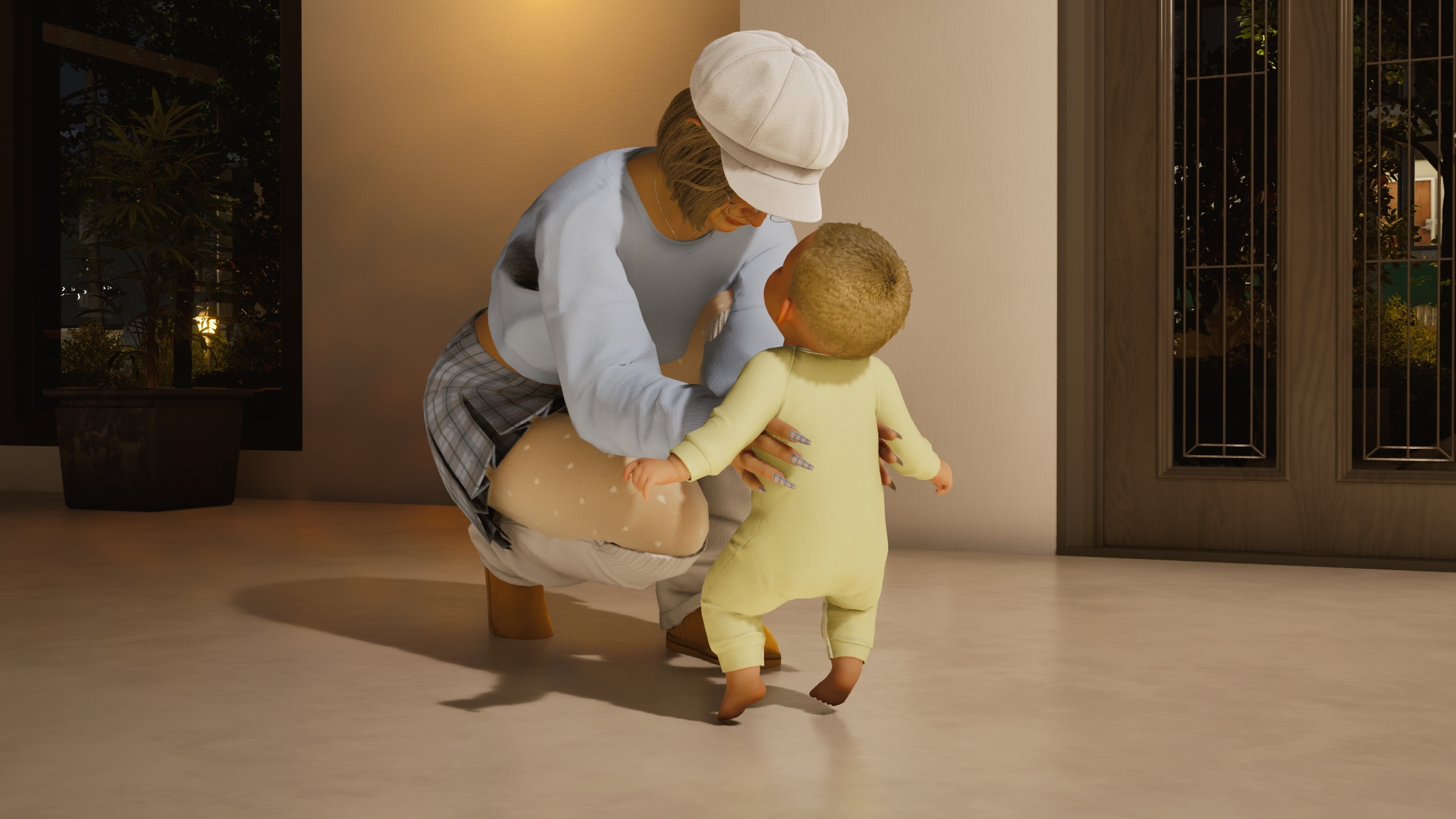
| Toddler | Parenting interactions: feeding, bathing, teaching walking and talking, Do Baby Stretches (v0.4.0). All performed on the floor. |
| Child | Expanded parenting: Reprimand (v0.4.0), co-sleeping, soothing after nightmares, household chores, attempting meals. Can fish, mine, and attend school. Cannot romance or do business. |
| Teenager | Most adult interactions except Romance and Business. Can use smartphones, share earphones, attend school. |
| Young Adult+ | Full access to all four relationship tracks (Friendship, Romance, Family, Business) and all conversation categories including crime interactions (v0.5.0). |




Group Interactions
The v0.5.0 update introduced the Group Interactions system. Zois can be placed into groups, and group members prioritize interactions with other group members. Certain cooperative interactions are exclusive to grouped Zois:
Group members can applaud and cheer for other Zois in the group.
Children can use "Ask How to Draw Something" as a group interaction.
Group formation encourages more natural social clustering at events and gatherings.
Group Activities (March 2026)
The v0.7.0 update significantly expanded the range of group activities available. Three major categories of group interactions were added, giving Zois many more ways to socialize while performing activities together.
Fitness Group Activities
Twelve new fitness-related group activities were added. These allow multiple Zois to exercise together, building both their Fitness skill and their social bonds simultaneously. Group fitness activities include workouts that can be performed at gyms, parks, and home lots with appropriate equipment. Zois who exercise in groups tend to maintain higher motivation and complete longer workout sessions than those who exercise alone.
Instrument Group Activities
Six new instrument-related group activities let Zois play music together. These cooperative music sessions build the Instrument skill while strengthening friendships between participants. Group members can jam together, practice songs as a band, or simply play side by side. The quality of the group performance depends on each participant's individual Instrument skill level.
Critical Thinking Group Activities
Four new Critical Thinking group activities were introduced. These intellectual group interactions include activities like solving puzzles together, debating topics, and collaborative problem-solving. Participating in these activities builds the Critical Thinking skill and works particularly well for Zois with intellectual traits such as Scholar or Visionary.
Build a Snowman Together
A seasonal group interaction that lets multiple Zois collaborate on building a snowman during winter weather conditions. This activity is available in outdoor areas when snow is present and provides a fun bonding experience for families and friend groups.
Multitasking
Also added in v0.5.0, multitasking allows Zois to perform conversations while doing other activities. Supported combinations include talking while eating, talking while using a computer, talking while reading, and eating while watching TV. Currently, multitasking is only supported for autonomous actions involving talking or checking smartphones.
Expanded Multitasking (March 2026)
The v0.7.0 update expanded the multitasking system in several ways. Zois can now start multitasking if any nearby interactions catch their interest, creating more organic and lifelike behavior. Previously, multitasking was limited to a few specific combinations. The updated system supports a broader range of simultaneous actions.
Walking multitasking is the biggest addition. Zois can now eat certain food items while walking around, carry objects while moving between locations, and hold food during conversations. This eliminates the frustrating behavior where Zois would stop walking to eat or would refuse to move while holding an item.
The full list of supported multitasking combinations now includes:
Talking while eating (existing)
Talking while using a computer (existing)
Talking while reading (existing)
Eating while watching TV (existing)
Eating food while walking (new in v0.7.0)
Reading books while walking (new in v0.7.0)
Holding objects while conversing (new in v0.7.0)
Swapping held objects between hands (new in v0.7.0)
Multitasking still requires autonomy to be enabled for Zois to initiate these actions on their own. When autonomy is disabled, players must manually queue actions, though the system will still allow compatible actions to overlap when possible.
Interaction Availability by Relationship Level
Many interactions are gated behind specific relationship tier thresholds. As a relationship progresses through its six tiers, new options become available:
Relationship Milestone | Interactions Unlocked |
|---|---|
~20% Friendship | Romance interaction category appears |
Friend tier (Friendship) | Gift sending unlocked |
Mutual Crush (Romance) | Date scheduling unlocked. See Social Events. |
Sweetheart (Romance) | Set the Mood (intimacy) unlocked |
True Love (Romance) | Marriage proposal unlocked |
Married | Suggest Having a Baby unlocked |
At each tier breakpoint, a "Select Relationship" conversation option appears with two choices: a positive option (upward arrow) to advance the relationship, or a negative option (downward arrow) to regress it. Relationships do not advance past these gates automatically.
Trait Effects on Social Interactions
Each of the 18 traits shapes how a Zoi approaches social interactions:
Image | Trait | Social Effect |
|---|---|---|
| Easily makes friends and builds romantic relationships quickly. | |
| Outstanding social skills; builds all relationships more easily. | |
| Very skilled at forming relationships through humor and charm. | |
| Builds relationships more easily; values relationships highly. | |
Easily builds family relationships; highly loyal. | ||
| Builds relationships more easily; prioritizes peace and conflict resolution. | |
Empathetic and kind; picks up on others' emotions but may be passive. | ||
Tends to avoid conversations; prioritizes career and goals over socializing. | ||
Dislikes off-topic conversations; more interested in objects and ideas. | ||
Struggles to build deep connections; prefers activities over conversation. | ||
| Struggles outside professional settings; effective at business relationships. | |
| Rarely shows emotions; appears aloof in social situations. |







Traits influence which conversation options are available, which emotions are felt during interactions, which urges drive autonomous behavior, how fast the social need depletes, and how quickly relationships build. Traits cannot be changed after a Zoi is created.
City Settings That Affect Interactions
The Manage City settings (accessible via Game Options) include several sliders that affect interaction dynamics across the entire city:
Interaction | Description |
|---|---|
Friendships | Adjusts the pace at which friendship relationships develop citywide. |
Romantic Relationships | Controls how quickly romance progresses. |
Affects business relationship building speed. | |
Influences family bond strength and development. | |
Civic Consciousness | Affects how politely Zois behave in public spaces. |
Positive/Negative Emotion Control | Adjusts the intensity and frequency of emotional responses to interactions. |
Each parameter can be set across 9 levels from Highest to Lowest, allowing players to fine-tune the social dynamics of their city.
Tips
Build Friendship before attempting Romance. About 20% friendship progress is needed before romantic options appear.
Match conversation categories to the other Zoi's personality. Intellectual types respond well to Thoughts; extroverts prefer ChitChat.
Level Rhetoric for better first impressions and Charm for more successful romantic interactions.
Use the Call Over feature from the relationship panel to invite Zois to your location before using the Join mechanic.
Watch for locked topic icons. Unlock them gradually as trust builds rather than asking everything at once.
Ensure both Zois are in a positive mood for important interactions like proposals. Feed, rest, and entertain them first.
Value-based conversation topics unlock at 60+ value points and are the best way to fulfill "Wants to Talk About..." urges.
Automatic Interruptions (March 2026)
The March 2026 update introduced automatic interruptions. When a Zoi has an urgent need (critically low hunger, sleep, or bathroom), they will now automatically cut off their current animation or interaction early to address it. This creates a better "flow" of gameplay by preventing situations where a Zoi stubbornly finishes a long conversation while starving.
Automatic interruptions work alongside the existing autonomy system. When autonomy is enabled, Zois with urgent needs will interrupt themselves and address the need. When autonomy is disabled, the interruption still triggers, but the player must direct the Zoi to the appropriate action.