

Overview
Clothing in inZOI is organized into 9 outfit categories, each designed for different situations. Outfits are created during Character Creation and can be changed, purchased, and customized throughout gameplay. The system has no restrictions on which items go in which category, giving players full flexibility to mix and match however they want.
Outfit Categories
Every Zoi has 9 outfit slots. A separate outfit can be designed for each:
Category | Description |
|---|---|
Everyday | the default outfit worn during normal daily activities. |
Formal | worn at formal occasions and Social Events. |
School | worn while attending school. |
Sleepwear | automatically equipped when the Zoi goes to bed for sleep. |
worn at parties and nightlife events. | |
Sportswear | worn during fitness activities and exercise. |
Swimwear | worn when swimming or at the beach. |
Summer | seasonal outfit for warm weather. |
Winter | seasonal outfit for cold weather. |
Zois automatically change into the appropriate outfit category based on the situation. Going to the gym triggers sportswear, heading to a pool triggers swimwear, and so on.
Outfit Wizard
The Outfit Wizard was added in the December 2025 (v0.5.0) update. It breaks down each outfit into individual clothing layers that can be customized separately:
Feature | Description |
|---|---|
Socks and stockings | base layer for feet. Includes various sock lengths and stocking styles. |
Underwear | undergarment layer. Multiple styles available. |
Shoes | footwear layer, separate from socks. |
Bottoms | pants, skirts, shorts, and other lower-body garments. |
Tops | shirts, blouses, and upper-body garments. |
Jacket | outerwear layer that sits over tops. |
Before this update, outfits were selected as pre-combined sets. The Outfit Wizard gives finer control over individual pieces. Each layer can be swapped independently, so changing shoes no longer requires changing the entire outfit.
Changing Outfits
Three ways to change a Zoi's outfit during gameplay:
Method | Description |
|---|---|
Action wheel | click the Zoi, open the action wheel, and select "Change Outfit". Pick from the 9 categories. |
Wardrobe, dresser, or mirror | interact with any of these furniture items and select "Edit Outfit". This opens a simplified outfit editor. |
"Style Yourself" | available on wardrobes and dressers. Opens the full wardrobe with all owned clothing items for complete outfit customization. |
Buying Clothing
Two dedicated clothing stores exist in the game:
Source | Description |
|---|---|
Jenna Fashion | located in Dowon. |
Nook's Select Shop | located in the center of Bliss Bay. |
Shopping at a clothing store: click a clothing rack to browse and try items on the Zoi. The Zoi stands in front of the rack and models each piece. When ready to buy, head to the register or kiosk in the store. Purchased clothing goes into the Zoi's wardrobe immediately and costs Meow.
Dedicated clothing store content is expanding in the June 2026 update preview cycle. The June 5 weekly update described store-specific clothing and hairstyles designed to make shops worth visiting, an interface update that shows where each unlockable item can be obtained, and a rule that unlocked items stay freely available afterward. Reception to the store content was positive, though some players argued all customization should stay freely accessible; the team called it an open balance question.
Custom Clothing Design
Clothing customization in inZOI goes well beyond picking a color. Several adjustment options are available for each clothing item:
Feature | Description |
|---|---|
Sleeve length | shorten or lengthen sleeves on tops and jackets. |
Hem length | adjust the bottom edge of skirts, dresses, and pants. |
Neckline | change the neckline style on tops. |
Fit | toggle between tight and loose fitting. |
Baggy level | increase or decrease how loose the garment hangs. |
Tuck-in | tuck shirts into pants or leave them out. |
These adjustments apply in Character Creation and in the in-game wardrobe editor.
Custom Textures and AI Patterns
Two advanced customization features let players go beyond the built-in designs:
Feature | Description |
|---|---|
Upload custom textures | import an image file as a clothing texture. The image wraps onto the garment. This is how players create branded, artistic, or reference-based outfits. |
AI text prompts | type a description of a pattern and the game generates it using AI. For example, typing "blue floral pattern" creates a procedural design matching the description. This uses the same AI system found in Build Mode texture generation. |
Canvas Sharing
Custom clothing designs can be uploaded to Canvas, inZOI's community sharing platform. Other players can browse, download, and apply shared designs to their own Zois. Canvas supports clothing, furniture, and full Zoi designs. Uploading a popular clothing design to Canvas can earn creator recognition within the community.
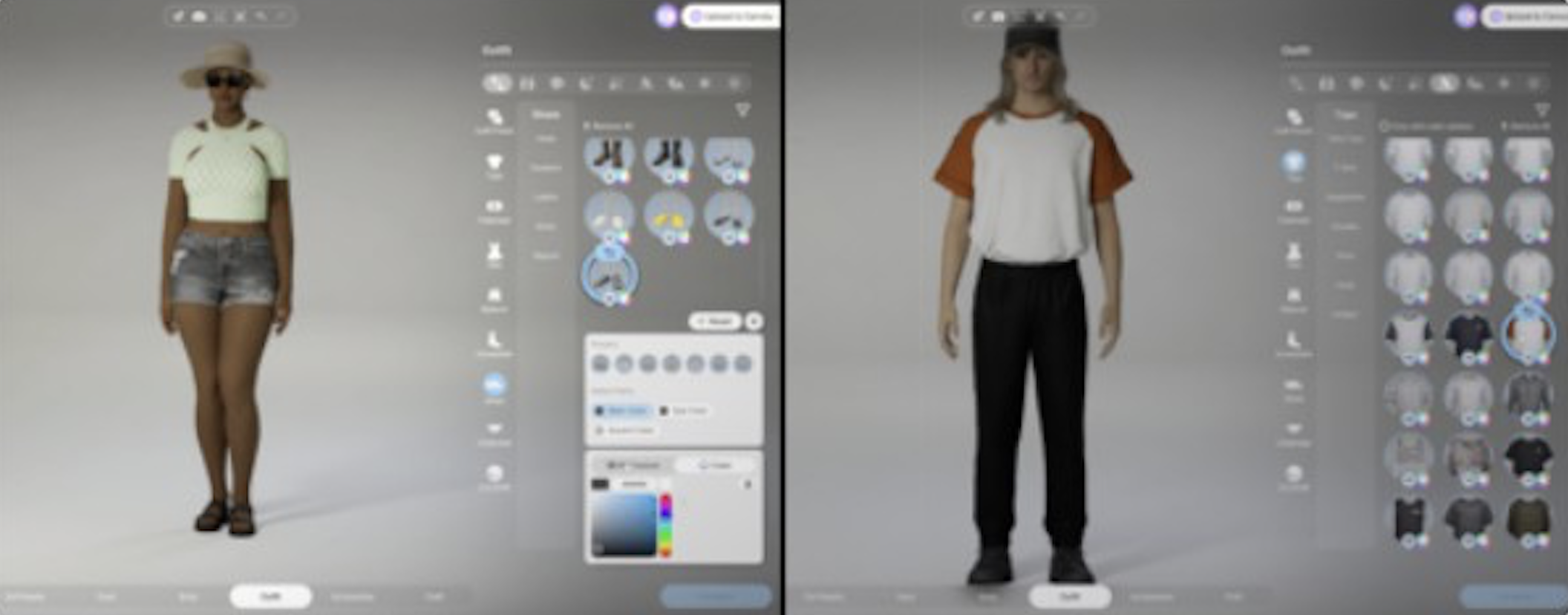
Outfit Categories and Restrictions
Despite having 9 named categories, there are no hard restrictions on which clothing items go where. You can put formal wear in the everyday slot, swimwear in the winter slot, or any other combination. The categories are suggestions for automatic outfit switching, not enforcement rules.
Tips
Design all 9 outfit categories during Character Creation. It's faster than doing it in-game.
Visit both stores (Jenna Fashion and Nook's Select Shop) since their inventories differ.
Use the AI text prompt feature for quick pattern generation when you don't have a specific image to upload.
Upload your best designs to Canvas so other players can use them.
Set seasonal outfits (summer and winter) early. Zois automatically switch based on season, so having appropriate outfits ready avoids awkward mismatches.
Use the Outfit Wizard to fine-tune individual layers. Matching socks to shoes and picking the right underwear for each outfit category adds detail that the previous system didn't allow.