

Overview
Build Studio is a creative sandbox that operates separately from the main Build Mode. It removes all budget restrictions and makes every material, furniture piece, and structural element available from the start. There is no Meow cost. The purpose is to let you design lots and rooms freely without worrying about a household's finances.
Anything you build in Build Studio can be saved as a preset and uploaded to Canvas for other players to download. Builds can also be imported back into the main game and placed on any lot your household occupies.
Accessing Build Studio
Build Studio is available from the main menu. It is not accessed through an active gameplay session. Select it before loading a save file. This keeps the sandbox environment separate from your live households.
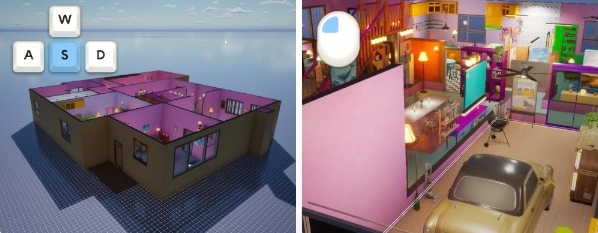
What's different from Build Mode
Item | Description |
|---|---|
No budget | Place unlimited items without spending Meow. |
All materials available | Every furniture piece, structural element, and texture is unlocked. In regular Build Mode, some items may be locked behind progression or Meow cost. |
No household | There are no Zois living in the build. The lot exists purely for design purposes. |
Mannequins | Poseable human figures that stand in for Zois, useful for scale reference and visual staging. |
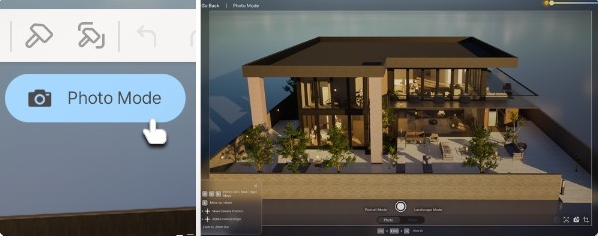
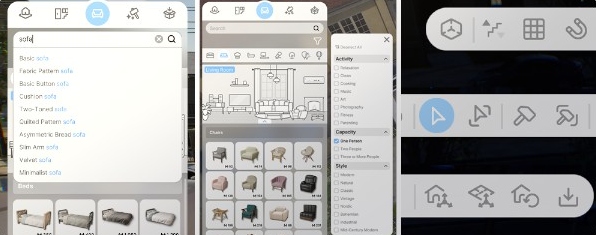
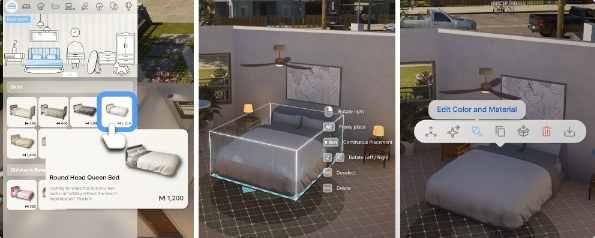
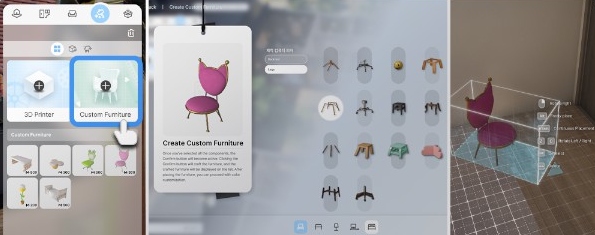
The core building tools are the same. Walls, doors, windows, stairs, furniture, the 3D Printer, Custom Furniture, Craft items, and all customization options (Edit Color and Material, My Texture, Customize Paint) work identically in both modes.
Camera controls
Build Studio uses a free-flying camera that is more flexible than the gameplay camera. The controls are:
Action | Key/Button |
|---|---|
Mouse drag / WASD | Move the camera horizontally across the lot. |
Q / E | Move the camera up and down vertically. |
Right-click drag | Rotate the camera angle. |
PgUp / PgDn | Switch between floors. This jumps the camera view to the next floor up or down. |
Home / End | Toggle wall visibility. Pressing Home shows full walls; pressing End cuts walls at a lower height so you can see room interiors from above. |
The camera has no collision, so you can fly through walls and into tight spaces. This makes it easy to furnish closets, bathrooms, and other small areas that would be hard to navigate with the regular gameplay camera.
Mannequins
Mannequins are found in the Furniture tab under Miscellaneous. They are static human figures that you place like any other object. Their purpose is to provide scale reference and visual staging for your builds.
Item | Description |
|---|---|
Posing | Mannequins can be posed. Select a mannequin and choose from available poses to see how a Zoi would look sitting in a chair, standing at a counter, or lying on a bed. |
Dressing | Mannequins can be dressed in any clothing item. This lets you stage a room with dressed figures to preview how it looks during gameplay. |
Not saved to Canvas | When you upload a build to Canvas, mannequins are stripped from the export. Other players will not see your mannequins; they only exist in your local Build Studio session. |
Lighting objects placed for staging purposes are also stripped when uploading to Canvas. The recipient sees the build under the default time of day lighting.
Saving Builds
Finished builds can be saved in two formats, identical to Build Mode:
Option | Description |
|---|---|
Lot preset | The entire property, including the structure, all rooms, and all furniture. |
Room preset | A single room with its walls, floor, ceiling, and contents. |
Both formats appear in the Building Presets tab in Build Mode and Build Studio. This means you can design a room in Build Studio and then place it into a live household's house through regular Build Mode.
Uploading to Canvas
To share a build with other players, save it as a preset and then upload it to Canvas. The upload process allows up to four screenshot images. Mannequins and staging lighting are removed automatically during export. The build appears on Canvas for other players to browse and download.
Canvas has a ranking system (Newbie, Silver, Gold, Diamond) based on likes and followers. Popular builds can reach the TOP Ranking section, which highlights the most liked creations over different time periods. See the Canvas article for full details on the community platform.
Use Cases
Item | Description |
|---|---|
Prototyping | Design a house without spending your household's Meow. Test layouts, try color combinations, and experiment with room sizes before committing to a build in-game. |
Content creation | Build elaborate lots specifically for uploading to Canvas. Since budget is unlimited, you can create mansions, public buildings, and themed lots without financial constraints. |
Practice | Learn the building tools without risk. New players can experiment with wall placement, roof construction, and pool building in a zero-cost environment. |
Scale testing | Use mannequins to check that furniture fits correctly and that room proportions feel right before importing the build into gameplay. |