

Overview
InZOI features one of the most detailed face customization systems ever seen in a life simulation game. As part of the Create a Zoi character creation tool, the face editor gives players granular control over virtually every facial feature, from the curve of the jawline to the spacing between the eyes. With over 250 total customization options across all character creation features, facial sculpting alone accounts for a significant portion of that depth.
The system is built on Epic Games' MetaHuman technology within Unreal Engine 5, which is why player-created Zois can look strikingly photorealistic. Players interact with the face through two complementary input methods: draggable nodes placed directly on the 3D model and traditional sliders for fine-tuning specific parameters. Whether you prefer starting from a preset template or building a face from scratch, the tools accommodate both approaches.
Face customization works together with Body Type Customization, Hair Styles, Makeup, Tattoos and Face Paint, and Accessories to form the full character creation pipeline. All of these systems layer on top of the face you sculpt in this editor.
Editing Modes
The face editor offers two distinct editing modes that control the level of detail available to the player.
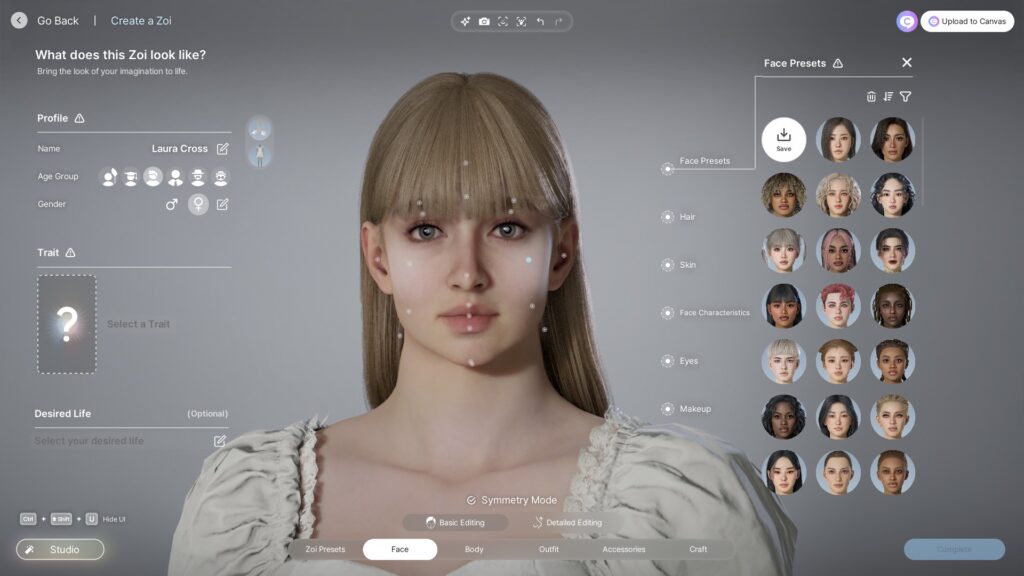
Basic Editing is the default mode. It displays a limited number of draggable nodes on the face, covering broad adjustments to the eyes, nose, mouth, jaw, and forehead. This mode is ideal for quick modifications or for players who want to make sweeping changes without being overwhelmed by dozens of control points. In basic mode, you can rotate the eyes by clicking and dragging the half-circle line that appears around each eye.
Detailed Editing is toggled on using the Detailed Appearance option in the middle of the screen. Activating it reveals many more draggable nodes across the face, exposing fine-grained control over areas like the eyelid crease, nostril width, lip curvature, and chin cleft. A single feature such as the nose might have eight or more individual parameters in detailed mode. This is where most of the depth lies, and experienced players will spend the bulk of their time here.
Both modes let you click and drag the nodes directly on the 3D model in real time. The camera can be rotated freely so you can check the face from every angle while sculpting.
Symmetry Controls
By default, the face editor operates in Symmetry Mode. Any change made to one side of the face is automatically mirrored on the opposite side. For example, moving the left eye outward will move the right eye outward by the same amount. This keeps both halves of the face consistent and speeds up the sculpting process.
Players can toggle Symmetry Mode off to enter Individual Edit Mode, which allows each side of the face to be adjusted independently. This is useful for creating subtle asymmetry, which is a key technique for making Zois look more lifelike. Perfectly symmetrical faces tend to trigger an uncanny valley response because real human faces always have slight differences between the left and right sides. Experienced character creators often turn off symmetry late in the process to nudge one eye slightly lower, widen one nostril a touch, or shift the mouth off-center by a small amount.
Facial Sculpting Regions
The core of face customization is the sculpting interface. Players manipulate individual facial features through draggable nodes and sliders. Each region of the face can be adjusted independently, and the table below summarizes the main sculpting regions and their key parameters.
Region | Adjustable Parameters |
|---|---|
Eyes | Size, spacing, tilt, depth, eyelid shape, inner/outer corner position, eye socket depth, eye rotation |
Nose | Bridge width, tip shape, nostril flare, overall length, vertical position, nostril depth |
Mouth | Lip thickness (upper and lower separately), width, curvature, corner angle, lip line |
Jaw | Width, angle, definition, overall shape (pointed to square) |
Cheekbones | Height, prominence, width |
Forehead | Height, slope, width |
Chin | Length, width, protrusion, cleft depth |
Ears | Size, angle, lobe shape, vertical placement |
Each parameter is independently adjustable, so the total number of possible facial configurations is enormous. No two player-created Zois ever need to look alike. Keep in mind that some parameters interact with one another. Widening the jaw, for example, can subtly affect how the cheekbones appear even if their sliders have not changed.
Skin Options
Beyond bone structure, the face editor provides comprehensive skin customization. Skin tone is selected using either a color wheel that supports precise warm and cool undertones or a range of preset swatches. The game also includes skin presets that change not just the color but the texture and shadow behavior on the face, making it noticeably easier to create Zois that reflect a variety of ethnic backgrounds. Monolid presets, for instance, complement East Asian features and are available alongside a wide range of other options.
Skin texture details add further realism to each face. Wrinkle patterns can be applied with adjustable depth and placement, which is useful for aging characters naturally. Freckle patterns range from subtle scatterings across the cheeks and nose to full-face coverage in multiple pattern types. Moles can be placed on the face, though they cannot be freely repositioned to an arbitrary location. Blemishes and skin imperfections are available for added realism, and skin shine and matte adjustments let you control how oily or dry the skin appears.
These details layer on top of the base skin tone, so players can build up a natural, lived-in look rather than the overly smooth appearance common in other character creators.
Characteristics Tab
The Characteristics tab sits alongside the main sculpting controls and provides additional facial detail sliders. These sliders control features that go beyond simple bone structure.
Brow Crease controls the depth of the furrow between the eyebrows, ranging from smooth to deeply furrowed.
Eye Bags adjusts the puffiness or dark circles under the eyes, useful for creating tired, older, or more weathered-looking characters.
Smile Lines (also called nasolabial folds) deepens the creases running from the sides of the nose to the corners of the mouth. The effect varies depending on the face shape. On some faces the change is subtle, while on others it is immediately noticeable.
Lip Line controls the definition of the border around the lips. This slider has a relatively subtle effect on most face shapes.
Chin Cleft adjusts the depth of the indentation on the chin.
Wrinkles adds aging lines across the forehead, around the eyes, and along the cheeks. Note that the wrinkle intensity is linked to the Zoi's life stage, and middle-aged and elder Zois receive noticeably heavier wrinkles automatically.
The characteristics tab is found under the skin color picker icon. These options are separate from the main sculpting nodes and are easy to overlook, so it is worth exploring them to add personality and age to a face.
Eye Customization
Eyes receive some of the deepest customization in the entire editor. Beyond the positional sculpting parameters covered above (size, spacing, tilt, depth), the eye section includes dedicated controls for the iris, pupil, and surrounding features.
Iris and Pupil: Players can adjust iris size, pupil size, and iris pattern. Color is selected through a full color wheel with sliders for hue, saturation, and brightness. Colors can also be entered by hex code, and custom swatches can be saved for reuse across multiple Zois. The system does not currently support heterochromia (different colored eyes on each side).
Eyebrows: Multiple eyebrow styles are available, with most leaning toward thick and bushy designs. Eyebrow color can be set independently from head hair, though the "Change all hair to match" button is available for quick synchronization. Thinner and more varied eyebrow styles are expected to be expanded through future updates and mods.
Eyelashes: Several eyelash styles are available, and players can rotate them to adjust how much they curve outward or forward. Rotating the lashes forward can create the appearance of shorter, subtler lashes. There is no individual lash length slider, but the rotation control provides a workable alternative.
Moles, Freckles, Scars, and Face Paint
The face editor provides a generous selection of cosmetic markings that sit on top of the base skin. These are found in the skin detail options and can be combined with skin texture settings.
Moles and Birthmarks: A wide variety of moles and birthmarks are available. They come in preset placements across the face rather than being freely positionable.
Freckles: Multiple freckle patterns ranging from super subtle to full-face coverage. Density and spread can be adjusted.
Scars: Includes surgical-style scars, plasters, acne patches, and pimple patches. Currently, only one scar or patch can be applied at a time; layering multiple scars on one face is not supported.
Face Paint: Decorative face paint options including some designs that extend onto the neck as tattoo-like patterns. Preview thumbnails do not always show exact placement, so some trial and error may be needed. For a full overview of the face paint system, see the Tattoos and Face Paint article.
Makeup Integration
The Makeup system is closely tied to face customization. While makeup is technically a separate category in the Create a Zoi interface, its effects are applied directly to the face and interact with the sculpted features underneath. Every makeup piece includes an intensity slider, giving players fine-grained control over how subtle or dramatic the effect appears.
Key makeup categories include highlighter (with extensive tone, glow, and contour controls), blush (with a gloss application option), eyeshadow, eyeliner, and lipstick. Lipstick is particularly well-developed, offering gloss, matte, and over-lip styles along with dual sub-color editing for edge and upper/lower separation. Lip wrinkle textures can also be applied to gloss styles for added realism.
Makeup can be changed freely after a Zoi has been created and placed in the world, so it is not locked in the way facial structure is.
Face Motion Capture
One of the standout features of InZOI's face customization is real-time Facial Capture. Using Epic Games' Live Link Face app (available on iOS), players can map their real facial expressions onto their Zoi in real time. The app tracks facial landmarks through the iPhone's front-facing camera and translates them into the game's animation parameters.
Setup Process
Open the facial capture option from the character creator or the top menu during gameplay.
A window will appear with a QR code. Scan it with your iPhone to find and download the Live Link Face app from the App Store.
Make sure your iOS device and your PC running InZOI are connected to the same Wi-Fi network.
In the Live Link Face app, select Live Link Capture Mode, open Settings, navigate to Streaming, and select Live Link.
Add a new target and enter the IP address displayed by InZOI on your computer screen.
Once connected, the app will stream your facial movements to the game in real time.
The facial capture feature is primarily cosmetic. It does not create a 3D model of your face for use in the sculpting editor; rather, it translates your live expressions onto the Zoi during gameplay, photo mode, and Themed Studio sessions. After the initial connection, players can fine-tune individual sliders to correct any areas where the automatic mapping does not perfectly capture their features.
Limitations: Facial capture currently requires an iOS device with Face ID capability. Android devices are not supported, and there is no webcam-based alternative at this time, although the developers have mentioned experimental webcam support as a possibility for the future. Disconnecting the iOS device disables the feature until it is reconnected.
Preset Templates
For players who prefer not to start from a blank slate, the face editor includes a library of preset face templates. These presets cover a range of ethnicities, age groups, and facial structures. Selecting a preset populates all facial sliders with a coherent starting point that can then be modified freely.
Presets are especially helpful for new players who are still learning how the sliders interact with one another. Starting from a well-balanced template and making incremental adjustments is often faster than sculpting every parameter from zero. It is important to choose a starting preset carefully, because some underlying parameters like nose rotation and face depth are difficult to alter drastically after the fact.
The current system provides only full face presets. There are no modular presets for individual features (such as a library of nose shapes or eye shapes to mix and match). This is a limitation that the community hopes will be addressed through modding or future updates.
AI-Powered Texture Generation
InZOI includes a built-in AI text-to-image tool that can generate custom textures. In the Create a Zoi interface, a four-pointed star icon next to the color wheel opens a text box where players can describe the texture they want. The AI then generates a texture based on the description, which can be applied to clothing and certain accessories.
The AI tool uses training data sourced exclusively from Krafton's own games (such as PUBG) and copyright-free material, which addresses concerns about the use of third-party artwork. While the texture generation tool is primarily used for clothing and furniture, it broadens the overall creative possibilities available alongside face customization.
Sharing on Canvas
Completed faces and full character designs can be uploaded to Canvas, InZOI's community sharing platform. Players choose whether to upload a whole Zoi, just the face, or only the outfit by selecting the appropriate option in the upload dialog. Other players can browse, download, and use shared faces as starting points for their own characters.
Canvas supports searching by tags, popularity, and recency, making it easy to find high-quality community creations. Downloading a face from Canvas populates all the sculpting sliders, so the recipient can continue tweaking the design rather than being locked into the original.
ModKit Support
The InZOI ModKit launched alongside the v0.2.0 update in June 2025. The initial release supports custom content creation through Unreal Engine 5, and modders have already published higher-quality skin textures (upscaling default textures from 1K to 4K resolution), custom face presets, and new eyelash and eyebrow styles.
Mods are distributed primarily through CurseForge, which integrates directly with the in-game Mod Browser for one-click installation. NexusMods is a popular alternative for external downloads. A dedicated facial ModKit designed to make face modding more accessible and structured is under development and expected to arrive in a later update.
Post-Creation Limitations
Once a Zoi has been finalized and added to the game world, edits to genetic features like facial structure and body proportions are no longer available. This includes all sculpting parameters, skin presets, and the characteristics sliders. Players should be certain about their face before confirming the character.
Certain cosmetic options remain freely changeable after creation. Hair style, hair color, Makeup, Accessories, and contact lenses can all be adjusted at any time by using a mirror or by selecting "Change Clothes" and then "Style Yourself" on a Zoi in the world.
Tips for Realistic Faces
Use the rotation tool constantly. A face that looks good head-on may have an unusual profile from the side. Check at least three angles (front, three-quarter, and profile) before finalizing.
Turn off Symmetry Mode toward the end of your session and introduce small asymmetric imperfections. Nudging one eye slightly lower or making one cheek fractionally wider can make the face feel much more natural.
Choose your starting preset carefully. Nose rotation and overall face depth are set by the preset and can be difficult to override with sliders alone.
Save multiple face presets before committing so you can compare options side by side.
Explore the Characteristics tab (under the skin color picker icon) for brow crease, eye bags, and smile lines. These details are easy to miss but add significant personality.
The facial capture scan works best in a well-lit environment with the camera held at eye level.
Browse Canvas for inspiration before starting your own face from scratch.
Combine face customization with Makeup and Hair Styles to complete the overall look of your Zoi.
For stylized or exaggerated faces, push the detailed editing sliders to their extremes. The MetaHuman base keeps even extreme settings looking plausible.
If the default skin textures do not meet your standards, check the ModKit community for 4K skin texture replacements that significantly improve pore detail and clarity.