

Overview
Foundations and basements are two related Build Mode features in inZOI. Foundations (raised floor levels that elevate a building above the ground) are available in the current Early Access build, though the process is less intuitive than in some other life simulation games. Basements (underground rooms below ground level) are not yet available but are planned for Q4 2026 as part of the "Fundamentals First" development roadmap.
Foundations
A foundation raises the base floor of a building above ground level, creating a visible gap between the ground and the house. Foundations add a sense of elevation and allow for front porches with steps, raised decks, and split-level designs. In inZOI, foundations are not a standalone tool. Instead, they are created by building a room or platform and then adjusting its height.
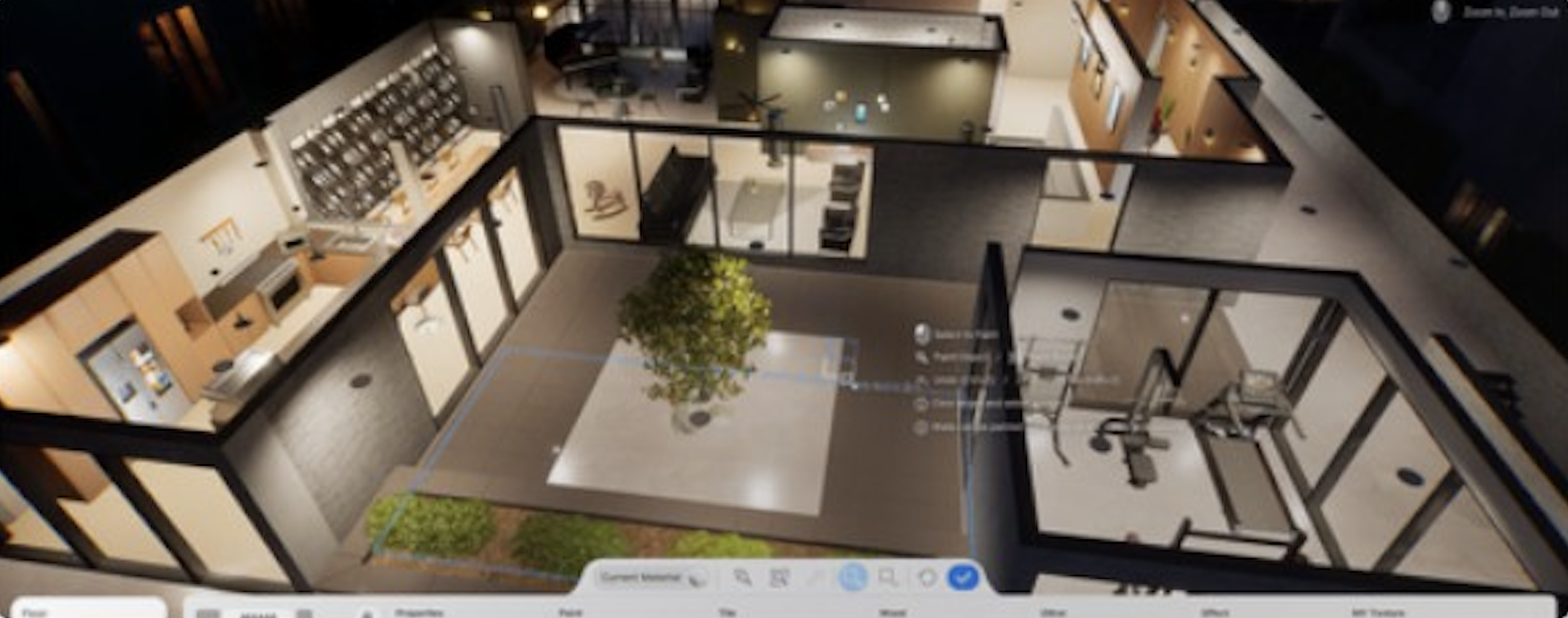
How to Build a Foundation
There are two methods for creating an elevated foundation in Build Mode:
Method 1: Room Floor Elevation
Open Build Mode (press I).
Place walls to define a room, or use a room preset from the Structure tab.
Switch to the Room Selection tool by pressing R (the cursor icon with a square).
Click on the room. Yellow markers appear at the corners of the room.
Click the markers near the bottom of the wall to create a floor surface.
Use the movement controller to raise the floor height. The entire room elevates above ground level.
Place stairs outside the room to connect the elevated entrance to the ground.
Method 2: Platform Elevation
In Build Mode, navigate to the Structure tab.
Scroll down past the main building sections to find the Platforms section.
Place a platform on the lot.
Select the platform. The piece selector shows options; the first option (movement controller) adjusts size and height.
Raise the platform to the desired foundation height.
Build walls on top of the raised platform to create rooms.
Add stairs for ground-level access.
Method 2 is generally simpler because the platform is a visible, separate object that clearly shows its elevation. Method 1 ties the foundation directly to the room, which some players find less intuitive since the height controls are part of the room editing tools rather than a dedicated foundation interface.
Foundation Height
The movement controller allows fine-grained height adjustment. There is no fixed set of foundation heights; you can raise the floor or platform to any level within the allowed range. However, keep the following rules in mind:
Single-stage height: Platforms raised one stage above ground allow Zois to step up without stairs. This creates a subtle foundation that looks like a low porch or step.
Multi-stage height: Any height above one stage requires stairs. Without stairs, Zois cannot reach the elevated area and will be unable to enter the building.
Stair alignment: Stairs must connect directly to the elevated surface. If there is a gap between the top of the stairs and the foundation edge, Zois will not be able to use them.
Adding Stairs to Foundations
Stairs are essential for any foundation above a single stage. Place stairs from the Structure tab in Build Mode. Multiple staircase styles are available, from straight flights to spiral designs.
Click the slanted arrow option on a placed staircase to bend or corner the stairs. This allows L-shaped and U-shaped staircases.
Ensure the building has a ceiling on the floor above before placing stairs to upper levels. The game requires a ceiling for stair connections, though this is not clearly communicated in the UI.
Leave at least one unobstructed corner of a room for staircase placement. Tight rooms may not have enough space for functional stairs.
Known Issues
The foundation system has several reported issues in the current build:
Issue | Description | Workaround |
|---|---|---|
Door disappearance | Placing a door on a wall attached to a raised platform can cause the door to vanish. If the platform is raised first, the door may refuse to install. | Place the door before raising the platform height. Alternatively, place the door after elevation but experiment with positioning. |
Stair pathfinding | Zois sometimes cannot walk stairs built on a raised platform, standing at the base without climbing. | Delete and replace the stairs. Ensure the stair top aligns flush with the platform edge. |
Foundation tool visibility | The platform tool is buried in a scrollable section of the Structure tab, below windows and doors. New players often miss it entirely. | Scroll down in the Structure tab past the house image to find the Platforms section. |
Non-resizable shapes | Octagon and hexagon room presets cannot be resized, limiting their use with foundations. | Use manual wall placement for custom-sized rooms instead of presets. |
Collision detection | Objects placed near the edge of a raised platform may trigger "Cannot place" errors even when space appears available. | Use Alt (free placement) to bypass some collision restrictions. |
Foundation Design Tips
Use a raised platform of 5 units to create a standard foundation height with a front stairway. This matches the proportions seen on pre-built premade family homes.
Paint the exposed foundation sides with stone or brick textures using the Customize Paint system for a finished look.
Combine a raised foundation with an outdoor deck by extending the platform beyond the house walls and adding railing furniture.
Check neighboring pre-built properties for reference. Many premade homes in both cities use elevated foundations with staircases, demonstrating that the system works when sequenced correctly.
Basements
Basements (underground rooms below ground level) are not available in the current Early Access build. There is no tool for digging below the ground surface, and no way to create rooms beneath the first floor.
Evidence of Planned Feature
Several indicators suggest basements are actively being developed:
Placeholder basement layouts and UI space are visible in Build Mode, though the options are not functional.
The Build Mode floor navigation tool in the top toolbar includes a basement level button that does not currently do anything.
The 2026 roadmap explicitly lists "Basement construction" under Q4 planned features.
Developer communications have referenced basements as a feature that requires the terrain editing system to be built first, explaining why both features are scheduled for the same quarter.
What to Expect
Based on the 2026 roadmap and developer comments, basements will likely include:
Underground rooms: The ability to create rooms below the ground floor, accessible via stairs from the first floor.
Customization: Similar to other rooms, basements will likely support wall painting, flooring, furniture placement, and lighting.
Terrain integration: Since basements are paired with terrain editing in the roadmap, the feature will probably involve digging into the terrain rather than simply adding a hidden floor beneath the house.
The developers have noted that "not every listed feature is guaranteed to arrive in 2026" and that timelines may shift based on technical challenges and player feedback.
Development moved faster than the original Q4 window suggested: the May 29, 2026 weekly video previewed underground building in the development build. The team cautioned that some systems previewed for the June update may arrive later, so basements may ship with the June 2026 update or in a subsequent patch.
No Current Workarounds
There is no way to simulate a basement in the current build. Unlike some other building games, inZOI does not allow negative elevation or underground room construction through any combination of existing tools. Players who want underground-themed spaces will need to wait for the official basement feature.
Multi-Story Building
While basements are not yet available, building upward with multiple floors is fully supported. Understanding multi-story construction helps with foundation work since the same floor and stair tools are used.
Building Upper Floors
Complete the ground floor with walls, a floor, and a ceiling. The ceiling is required before upper-floor construction can begin.
Use Page Up to navigate to the next floor level.
Draw walls for the second floor. They can match or differ from the ground floor layout.
Add a staircase connecting the ground floor to the second floor. Leave a gap in the ceiling where the stairs pass through.
Repeat for additional floors. Apartment buildings can reach up to 30 floors.
Wall Heights
Three standard wall heights are available for each floor:
Height | Use Case |
|---|---|
3m | Standard single-story rooms. The default choice for most homes. |
4.8m | Taller rooms with a more spacious feel. Suitable for living rooms and open-plan areas. |
5.7m | Double-height spaces. Used for grand entryways or loft-style designs. |
Wall height is selected when first drawing walls. Different rooms on the same floor can have different wall heights, allowing split-level interiors within a single story.
Related Build Mode Features
Build Mode provides the full interface for all construction tools.
Terrain Editing covers ground tiles, outdoor surfaces, platform elevation, and landscaping.
Pools and Water Features explains the pool building system, which uses a similar outline-and-adjust workflow.
Lot Types covers residential and community lot categories, sizes, and editing rules.
Tips
Always place doors before raising a platform to avoid the door disappearance bug.
Use Alt (free placement) when positioning stairs near raised platforms to bypass overly strict collision detection.
Build a ceiling on each floor before adding stairs to the next level. Without a ceiling, the game may not allow stair placement.
Paint exposed foundation walls using the Customize Paint system. Stone and brick textures give foundations a polished, finished appearance.
Test your foundation by unpausing the game briefly. Watch whether Zois can navigate the stairs and enter the building. Fix pathfinding issues before furnishing the interior.
Save your build as a preset before making major changes. If elevation adjustments break door or stair placement, you can revert to the saved version.