

Overview
Facial Capture maps your real facial expressions onto a Zoi in real-time. Smile, frown, raise your eyebrows, or open your mouth, and the Zoi mirrors the movement on screen. The feature uses Apple's face-tracking hardware and the Live Link Face app, which means it is currently limited to iOS devices (iPhone and iPad with a TrueDepth camera).
Facial Capture works in two contexts: during Character Creation (Create-a-Zoi and Edit Zoi) and during live gameplay. In both cases, the expressions transfer in real-time with minimal latency as long as the connection is stable.
Requirements
Component | Requirement |
|---|---|
iOS device | An iPhone or iPad with a TrueDepth front-facing camera (iPhone X or later, iPad Pro 2018 or later). |
Live Link Face app | A free app available on the Apple App Store. Developed by Epic Games for Unreal Engine facial animation. |
Same Wi-Fi network | Your PC running inZOI and your iOS device must be connected to the same Wi-Fi network. The data transfers over the local network, not through the internet. |
PC running inZOI | The game must be open and in a mode that supports Facial Capture (Character Creation or gameplay). |
Setup Instructions
Setting up Facial Capture takes a few minutes the first time. After the initial setup, reconnecting is faster.
Install the Live Link Face app on your iOS device from the App Store.
Make sure both your PC and your iOS device are on the same Wi-Fi network.
Open inZOI and enter Character Creation or gameplay.
Find the Facial Capture option in the game interface. A QR code will appear on screen.
Open Live Link Face on your iOS device and scan the QR code. This establishes the initial connection.
Grant any permissions the app requests (camera access is required).
In the Live Link Face app settings, enter your PC's IP address. This is needed so the app knows where to send the facial tracking data.
Once connected, your facial movements should appear on the Zoi in real-time.
If the connection drops, reopen Live Link Face and reconnect using the same IP address. The QR code step is only needed for the first-time setup.
Using Facial Capture in Character Creation
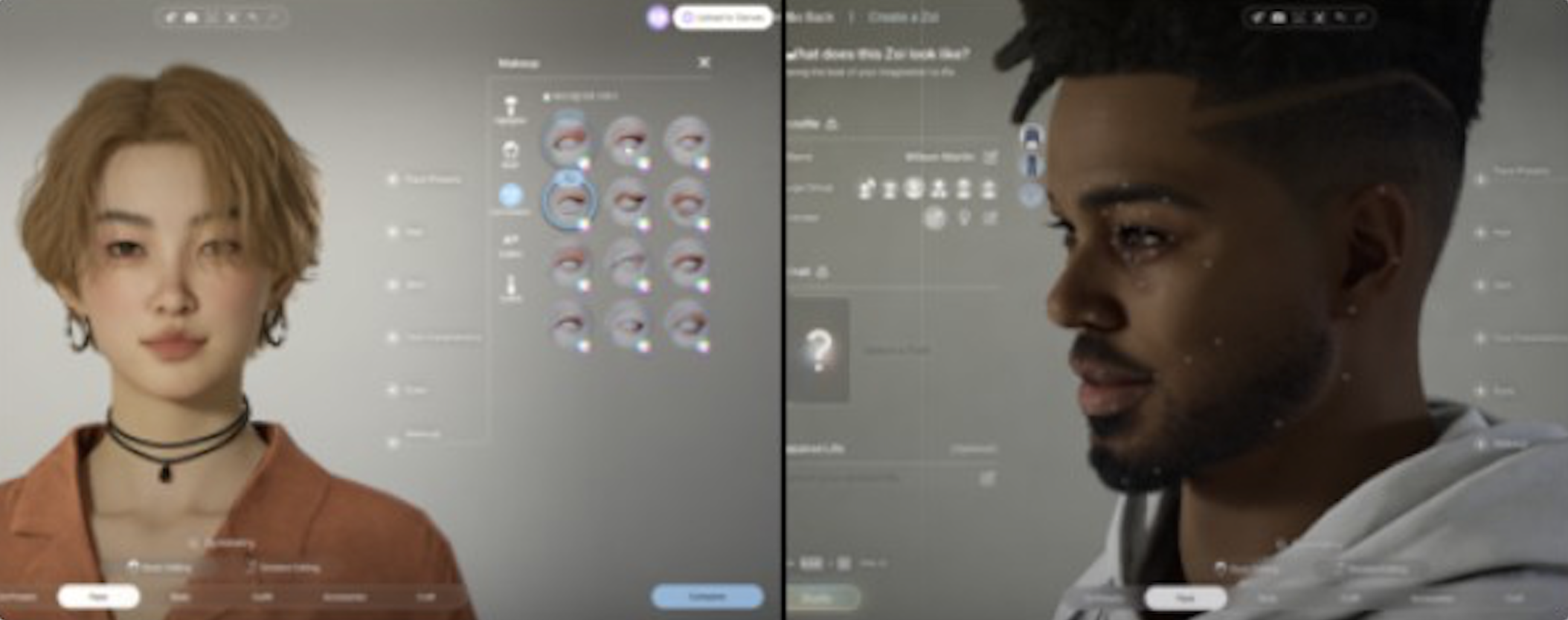
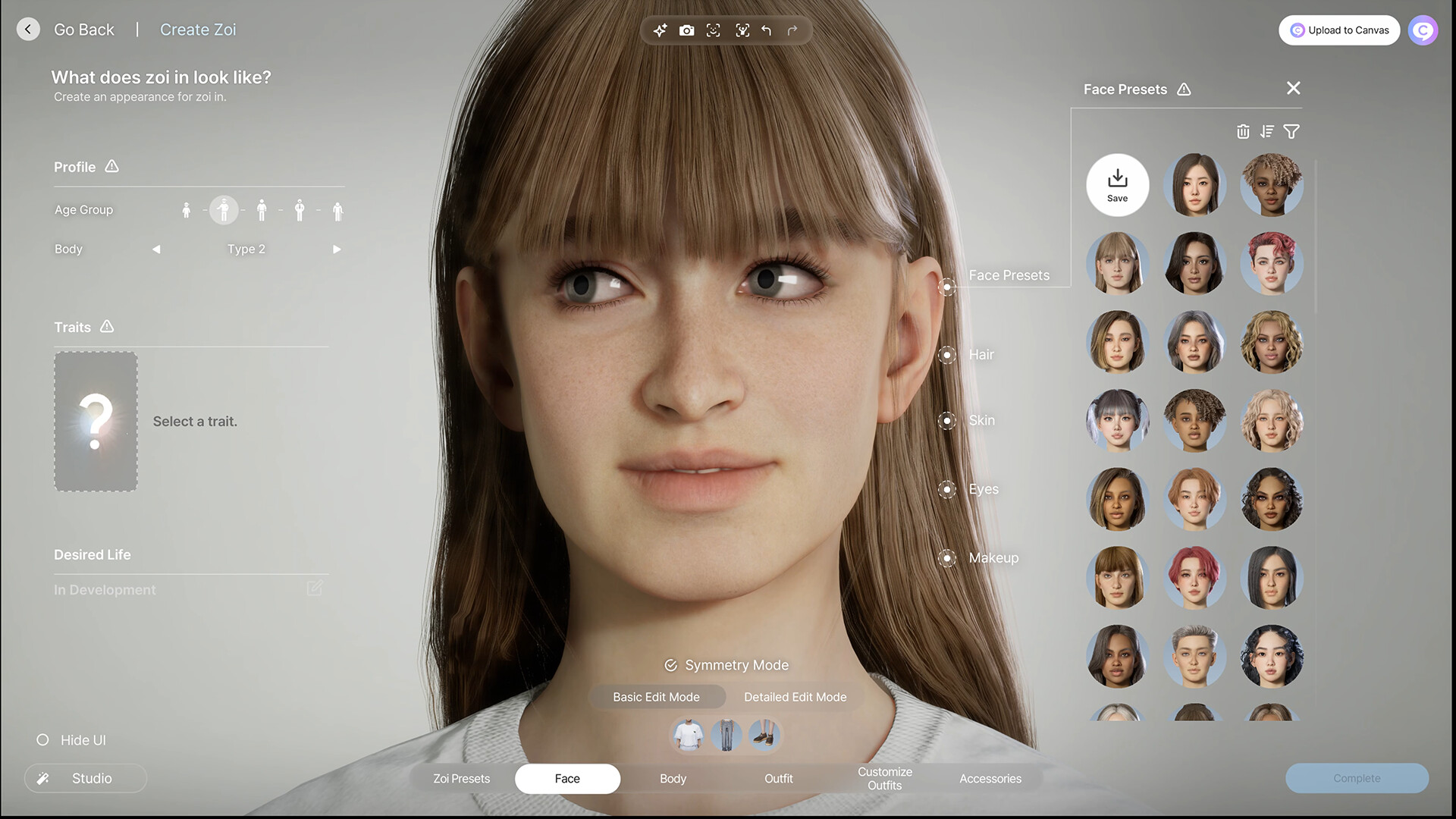
During Character Creation (Create-a-Zoi or Edit Zoi), Facial Capture lets you see how your Zoi's face moves before you commit to your design. This is useful for checking that the facial proportions you've set look natural in motion. A Zoi with exaggerated cheekbones might look good in the default pose but odd when smiling. Facial Capture lets you test expressions in real-time during the design process.
Expressions captured during Character Creation are for preview only. They don't permanently alter the Zoi's default face shape.
Using Facial Capture During Gameplay
During gameplay, Facial Capture adds a layer of expressiveness that goes beyond the built-in emotion system. Your Zoi mirrors your actual face in real-time while navigating the world, talking to other Zois, or performing activities.
Facial Capture also works inside Photo Mode. With the connection active, you can pose your face naturally while composing a screenshot. This gives you expressions that aren't available in the 10 built-in facial expression presets, like a half-smile, a squint, or a surprised look with raised eyebrows.
What it Tracks
Live Link Face tracks a wide range of facial movements through Apple's TrueDepth camera system:
Eyebrow raise and furrow (left and right independently).
Eye blinking, squinting, and widening.
Eye direction (where you're looking).
Mouth opening, smiling, frowning, and lip pursing.
Jaw movement (opening and lateral movement).
Cheek puffing and sucking.
Nose wrinkling.
The tracking is granular enough to capture subtle expressions. A slight smirk transfers differently from a full grin. The Zoi's facial rig maps these inputs to its own bone structure, so the result looks natural on the in-game character's face rather than being a one-to-one copy.
Limitations
Item | Description |
|---|---|
iOS only | Facial Capture requires Apple hardware with a TrueDepth camera. Android devices and Windows webcams are not supported at this time. |
Wi-Fi dependent | Both devices must be on the same local network. Mobile data connections do not work. Network congestion or weak Wi-Fi signal can cause latency or dropped frames in the tracking. |
No recording | Facial Capture is real-time only. There is no built-in way to record a facial performance and play it back later. You can take screenshots in Photo Mode to capture specific expressions, but not video. |
Lighting sensitivity | The TrueDepth camera works best in well-lit environments. Low light, strong backlighting, or direct sunlight on the face can reduce tracking accuracy. |
Future Webcam Support
KRAFTON has stated that webcam support for other devices is planned for a future update. This would remove the iOS requirement and allow Facial Capture on any PC with a standard webcam. No specific date has been announced for this feature. When it arrives, it will likely use a software-based face tracking solution since most webcams lack the depth-sensing hardware found in Apple's TrueDepth system.
Troubleshooting
Item | Description |
|---|---|
Can't find QR code | Make sure you're in Character Creation or active gameplay. The Facial Capture option may not appear on the main menu or in settings screens. |
Connection fails | Verify both devices are on the same Wi-Fi network. Check that no firewall or VPN is blocking local network communication. Try entering the PC's IP address manually in the Live Link Face app. |
Tracking is laggy | Reduce the distance between your iOS device and your Wi-Fi router. Close other bandwidth-heavy applications on the network. A 5 GHz Wi-Fi band generally performs better than 2.4 GHz for low-latency data transfer. |
Expressions look wrong | Make sure you're facing the iOS device's front camera directly. Extreme angles reduce tracking accuracy. Good, even lighting on your face also helps. |
Related Features
Facial Capture is one of several expression and animation tools in inZOI:
Feature | Description |
|---|---|
Photo Mode | 10 built-in facial expression presets plus 40+ body poses. Facial Capture adds unlimited natural expressions on top of these. |
Upload a video or image in Photo Mode to generate a custom body pose. Separate from Facial Capture, which handles only the face. | |
AI-driven behavior that includes emotional responses visible on the Zoi's face. These are animation-driven, not facial capture. | |
The in-game emotional state system. Zois display expressions based on their current emotional state. Facial Capture overrides these when active. |