
Canvas
Complete guide to Canvas, inZOI's community content-sharing platform with 470,000+ creations. How to browse, download, and upload Zois, properties, rooms, furniture, faces, and outfits. Covers web access at canvas.playinzoi.com, in-game integration, Newbie-to-Diamond creator rankings, and uploading process.
On This Page
Overview
Canvas is inZOI's official community content-sharing platform where players browse, download, and upload in-game creations. It functions as inZOI's built-in gallery for user-generated content, covering everything from complete character designs to individual furniture pieces. Canvas is accessible both in-game and through the web at the Canvas website. Players need a Krafton account (linked via Steam, email, Facebook, or Epic Games) to interact with Canvas.
On inZOI's Early Access launch day, over 1.2 million players interacted with Canvas and more than 470,000 creations were uploaded, making it one of the largest user-generated content libraries in any life simulation game. Only creations made within the game's built-in tools are permitted on Canvas. External mods and custom content created outside inZOI cannot be uploaded to Canvas; those are handled separately through CurseForge and the MODkit.
Content Categories
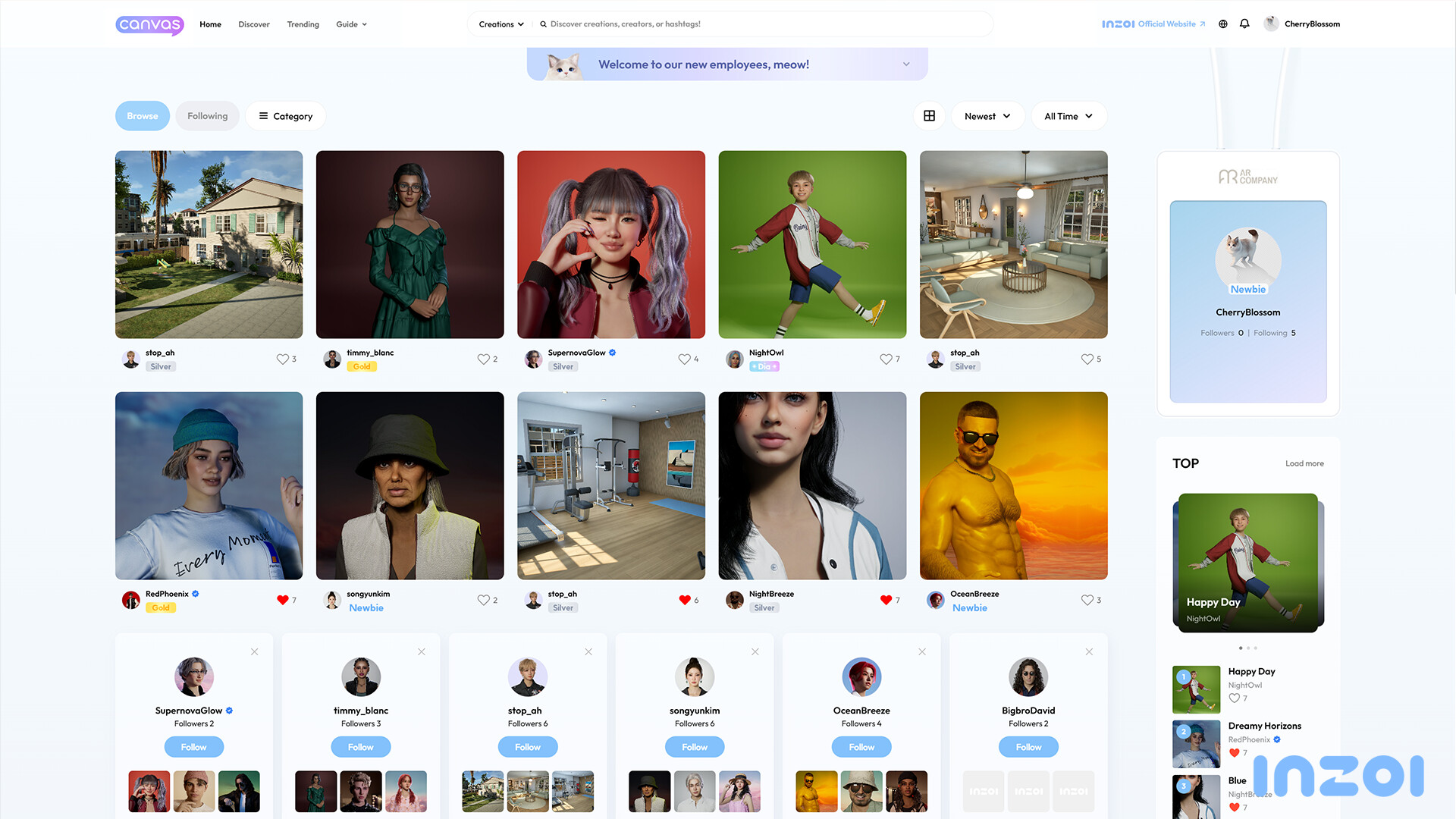
Canvas organizes creations into six categories. Each category maps to a specific area within the game where downloaded content appears.
Category | What It Includes | Where It Appears In-Game |
|---|---|---|
Zoi | Complete character designs including face, body, traits, and clothing | Character Presets in Create-a-Zoi (marked with purple Canvas icon) |
Face | Face-only presets for applying to existing Zois | Face Presets in Create-a-Zoi |
Clothing | Clothing combinations and fashion sets | Wardrobe section in Create-a-Zoi |
Property | Complete properties with buildings, landscaping, and furnishings | Property Presets in Build Mode |
Room | Individual room designs (bedroom, bathroom, kitchen, etc.) | Room Presets in Build Mode (sorted by room type) |
Furniture | Individual furniture pieces, decorative items, and 3D-printed objects | Custom section under furniture categories in Build Mode |
Zoi presets are the most popular category on Canvas, followed by Property and Room presets. Face presets allow you to apply a specific look to an existing Zoi without overwriting their body shape or traits, which makes them useful for mixing and matching appearances.
How to Access Canvas
There are several ways to open Canvas, depending on whether you want to browse from a web browser or directly within the game.
Method | How |
|---|---|
Web browser | Visit the Canvas website. Sign in with your Krafton account (Steam, email, Facebook, or Epic Games). |
Game lobby | Click the computer screen in the inZOI lobby. |
In-game shortcut | Press the Canvas button (C icon) in the upper right corner of any mode. |
Create-a-Zoi | Browse Zoi, Face, and Clothing presets directly while creating a character in Create-a-Zoi. |
Build Mode | Browse Property, Room, and Furniture presets while building in Build Mode. |
When accessing Canvas through the game lobby, it opens an in-game browser where you sign in with your Krafton account credentials or scan a QR code. The in-game browser provides the same browsing experience as the web version but allows direct downloads without queuing.
Browsing and Discovery
Canvas provides several tools for finding creations that match what you are looking for.
Feature | Description |
|---|---|
Categories | Filter by Zoi, Face, Clothing, Property, Room, or Furniture to narrow your search to a specific content type. |
Search | Find specific creations by keyword, hashtag, or creator name. Hashtags like #modern, #apartment, or #minimalist help surface themed content. |
Creators | View popular designers and their portfolios. You can follow creators to get notified when they upload new content. |
Rankings | See trending creations sorted by downloads and likes. Rankings are tracked on Daily, Weekly, and Monthly periods, with records finalized at specific UTC times. |
Sort options | Sort results by most downloaded, newest, most liked, or trending. |
Likes | Liking a creation saves it for quick access later, similar to bookmarking. |
The web version on the Canvas website is generally faster for browsing large volumes of content than the in-game browser, especially when comparing dozens of creations side by side. Use the web version for research and queue items for download, then launch the game to retrieve them.
How to Download Creations
The download process differs slightly depending on whether you are browsing Canvas in-game or through a web browser.
Downloading In-Game
Open Canvas through the game lobby (click the computer screen) or press the Canvas button (C icon) in the upper right corner.
Browse by category or search by keyword, hashtag, or creator name.
Click on a creation to preview it and see its details.
Click Download to add it directly to your game.
Downloaded items appear in the relevant preset library. Zoi presets show up in Character Presets within Create-a-Zoi, while property and room presets appear in Build Mode.
Downloading From the Web Browser
Visit the Canvas website and sign in with your Krafton account.
Browse and find the creation you want.
Click Schedule Download to queue the item. The web browser cannot push items directly to your game; instead, it queues them for the next time you launch inZOI.
Launch inZOI or return to a running session. Scheduled downloads are processed automatically when the game is active.
The web Schedule Download queue has a maximum of 10 items at a time. If you hit the "max scheduled downloads reached" limit, you need to launch the game to process the current queue before scheduling more. Items remain in the queue until the game processes them, so scheduling from your phone or another device while away from your gaming PC works fine.
Downloaded Zoi presets are marked with a purple Canvas icon in Character Presets so you can distinguish them from your own creations. Downloaded furniture and 3D-printed items may cost in-game currency (Meow) to place in Build Mode.
How to Upload Creations
Any player with a Krafton account can upload creations to Canvas. The upload process depends on the type of content you are sharing.
Uploading Zoi, Face, and Clothing Presets
Open Create-a-Zoi and select the Zoi, Face, or Clothing preset you want to share.
Click Upload to Canvas in the top-right area of the screen.
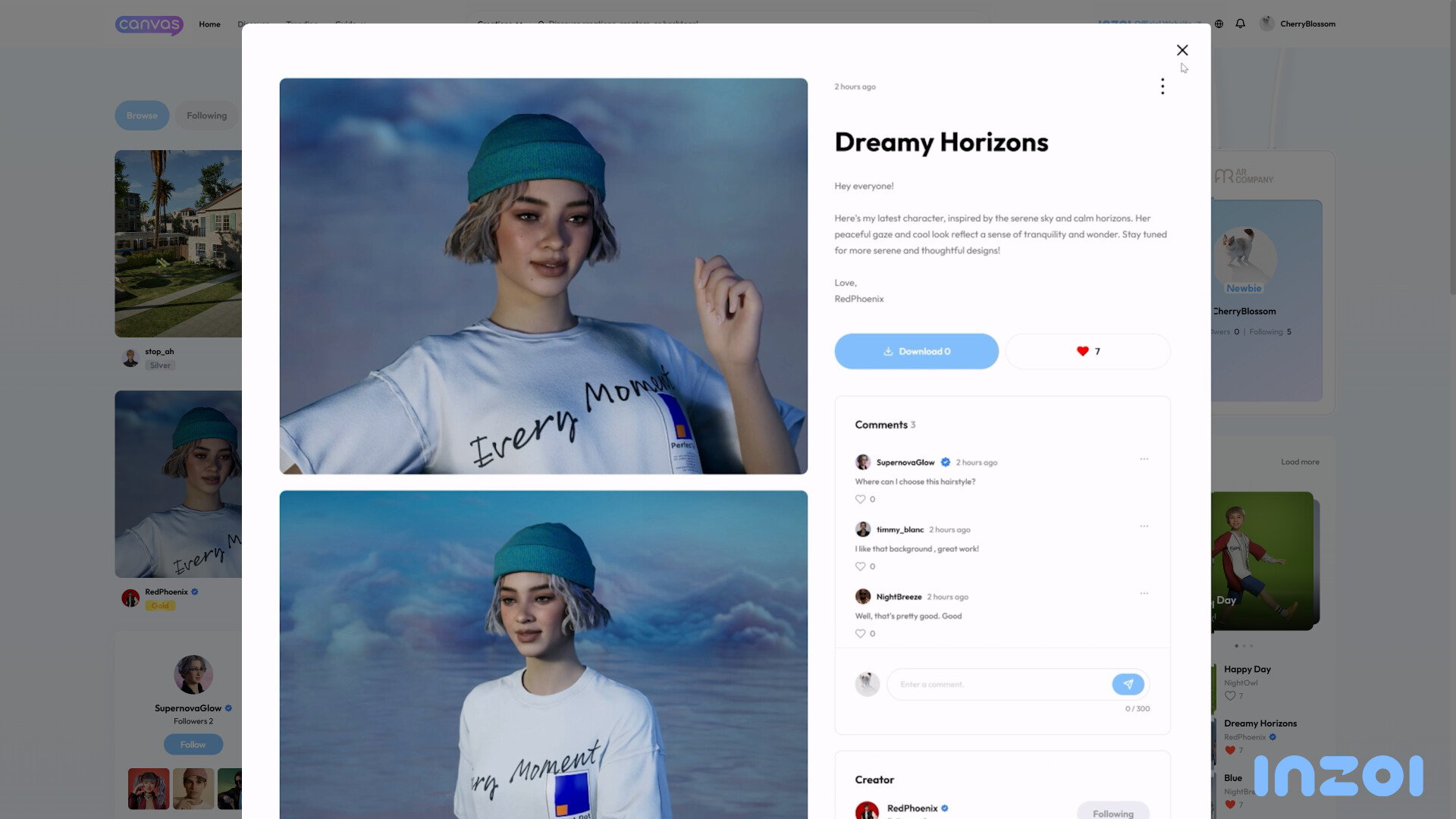
Take a thumbnail photo. This is the preview image other users see when browsing, so a clean, well-lit shot helps attract downloads.
Enter a name, description, and hashtags for discoverability.
Select the appropriate category (Zoi, Face, or Clothing).
Click Upload. Your creation becomes publicly available on Canvas immediately.
Uploading Property, Room, and Furniture Presets
Open Build Mode.
Click Upload to Canvas on the left side of the screen.
Select the item you want to upload (a full property, an individual room, or a furniture piece).
Take thumbnails, enter a name and description, and add hashtags.
For rooms, select the room type designation (bedroom, bathroom, kitchen, etc.) so Canvas sorts it correctly.
Click Upload to publish.
Uploaded content is public by default. There is no private sharing option on Canvas. All creations are visible to the entire community once uploaded. If you want to share content with specific people without making it public, you would need to use an external method outside of Canvas.
AI Texture Generation
Canvas creations can incorporate custom textures generated using inZOI's built-in AI texture tool. This feature allows players to create unique patterns and materials by typing a text description, and the game generates a matching texture within seconds.
To generate a custom texture, select a piece of clothing or furniture in Create-a-Zoi or Build Mode, click on My Texture, then click the four-pointed star icon. A text box appears where you describe the texture you want (for example, "weathered wood with irregular grains in warm tones" or "blue floral pattern"). After pressing Create, the game generates the pattern locally on your hardware.
Local Processing
The AI texture generation runs entirely on your local GPU. It uses a small language model that does not require an internet connection. While generating textures, the game may temporarily lower your graphics settings to balance GPU resources between rendering and AI processing. Creations with custom AI textures can be uploaded to Canvas like any other preset, allowing other players to download and use your unique designs.
Creator Ranking System
Canvas has a four-tier creator ranking system that rewards popular and active uploaders. As creators gain likes and followers, they progress through the ranks.
Tier | Description |
|---|---|
Newbie | Default starting tier for all new uploaders. Everyone begins here regardless of experience. |
Silver | Established contributors with consistent uploads and a growing number of downloads and followers. |
Gold | Distinguished designers with many popular creations and strong community engagement. |
Diamond | Elite tier. The most downloaded and liked creators with high activity across the platform. |
Rankings are determined by factors including follower count, creation popularity (downloads and likes), and overall community engagement. The ranking algorithms for different categories are calculated separately and are updated periodically to maintain fairness. Ranking records are finalized for each period (Daily, Weekly, Monthly) at specific UTC times.
Higher-ranked creators get featured placement on the Canvas homepage, which significantly increases visibility for their new uploads. This creates a positive cycle: featured creators attract more downloads, which reinforces their ranking position. Following a creator ensures you are notified when they publish new content.
Canvas vs CONNECT Gamewear vs CurseForge
inZOI has three distinct platforms for obtaining additional content, each serving a different purpose. Understanding the difference helps you find what you need without confusion.
Platform | Content Type | Source | Cost |
|---|---|---|---|
Canvas | Zoi characters, faces, clothing, properties, rooms, furniture | Player-made using inZOI's built-in tools only | Free to download (some furniture costs Meow to place) |
CONNECT Gamewear | Premium clothing and outfit collections for Create-a-Zoi | Curated clothing items from the CLO/CONNECT platform | Free and premium items; some contest-exclusive pieces |
CurseForge | Gameplay mods, script mods, custom content packs created with the MODkit | Community modders using the inZOI MODkit (Unreal Editor) | Free |
Canvas is the place for sharing creations made entirely within the game's built-in editors. If you are looking for gameplay modifications, new mechanics, or content created with external tools, those belong on CurseForge. CONNECT Gamewear is a separate third-party marketplace specifically for high-quality clothing items designed with CLO, a professional fashion design platform that integrates with inZOI.
Property Size Filter (March 2026)
The March 2026 Update introduced a Property Size filter to Canvas, making it significantly easier to browse and download property presets. Before this update, players had to manually check whether a downloaded property would fit their lot. The new filter lets you search for properties that match specific lot dimensions.
Alongside the filter, Krafton standardized property sizes across Dowon and Bliss Bay to increase compatibility between properties. Several lots were adjusted to cleaner dimensions:
Property | Previous Size | New Size |
|---|---|---|
Dowon Junghwa Parkville | 25.5 x 20m | 25 x 20m |
Bliss Bay 203 Somerset Place | 30 x 26m | 30 x 25m |
Bliss Bay 8 Beachfront Drive | 22.5 x 15m | 25 x 20m (expanded) |
With standardized sizes, buildings created for one property can be reused in other properties that share the same dimensions. The size filter also displays the orientation of each lot, helping you understand how a downloaded property will sit on the land. Note that buildings created before the size standardization may fail to load properly if they are incompatible with the updated lot dimensions.
Upcoming Canvas Improvements
Krafton has outlined several planned improvements to Canvas as part of the 2026 Roadmap. These features are designed to make browsing and filtering content more precise.
Feature | Description |
|---|---|
Trait and personality sorting | Uploaded Zois will be sortable by their assigned traits and personalities, allowing players to find characters that match specific archetypes. |
City and address filters for Build Mode | Property and room presets will be filterable by specific cities (Dowon, Bliss Bay) or addresses, making it easier to find builds designed for particular lots. |
Mod content tagging | Assets will be tagged to indicate whether they contain mods or are purely vanilla, helping players who prefer to avoid modded content. |
Further ahead, Canvastown is a new world being developed as part of the 2026 R&D roadmap. The first small village iteration of Canvastown had been planned for June 2026 but did not ship then; it was first shown publicly as an online game mode at TapTap Game Fest 2026 in Shanghai on September 12 and 13, 2026, with no release date given as of September 21, 2026. It aims to provide a dedicated space where player-created content integrates with the game world, and script mods and story saves featured in the demo.
Restrictions
Restriction | Details |
|---|---|
No external mods | Only creations made with inZOI's built-in tools can be uploaded. External custom content, texture mods, and third-party modifications are not allowed on Canvas. |
Public only | Uploaded content is public by default. There is no private sharing option. |
Community guidelines | Creations that violate community guidelines (offensive content, copyrighted material) may be removed by Krafton. |
Account required | Downloaded content requires an active Krafton account linked to your game. You cannot browse or download without signing in. |
Schedule download limit | The web browser queue supports a maximum of 10 scheduled downloads at a time. |
Tips
Use specific hashtags when uploading to help people find your creations (e.g., #modern, #apartment, #minimalist, #cottage, #gothic). Hashtags are the primary discovery mechanism beyond category browsing.
The web version on the Canvas website is faster for browsing large volumes of content than the in-game browser. Use it for research sessions and queue items with Schedule Download.
Check the Rankings tab regularly for inspiration. Trending creations show the latest community design trends and can give you ideas for your own builds.
Download Zoi presets before starting a new game to have a library of pre-made characters ready. This saves significant time during Create-a-Zoi.
Rooms are easier to share and download than full properties. They integrate into any property without layout conflicts, making them the most versatile Build Mode preset type.
Take high-quality thumbnails when uploading. Creations with attractive, well-lit preview images get significantly more downloads than those with dark or cluttered thumbnails.
Follow top creators to get notified when they upload new content. This is the best way to stay current with the most talented designers in the community.
When uploading properties, use the new Property Size filter tags introduced in the March 2026 Update so that downloaders can find builds that fit their lot.
If you are a creator aiming for higher ranks, focus on uploading consistently across multiple categories rather than only one. The ranking algorithm rewards overall activity and diversity.
v0.9.0 Canvas Changes
The v0.9.0 update (June 19, 2026) refined the Canvas profile in the main lobby screen. Likes, Downloads, and Followers can now be seen from the main lobby, and Canvas notifications were added there as well.
The Furniture > Social Events category was removed from Canvas. Items that were under the Social Events category were moved to other categories that better reflect what each item is.
v0.10.0 Canvas Changes (September 3, 2026)
Newborn and toddler age groups were added, so Zois at those stages can be uploaded and downloaded like any other.
The grey default profile picture was changed to blue.
Create a Zoi gained a matching baby age group in the same update, which is what makes a shareable newborn possible in the first place.