

Overview
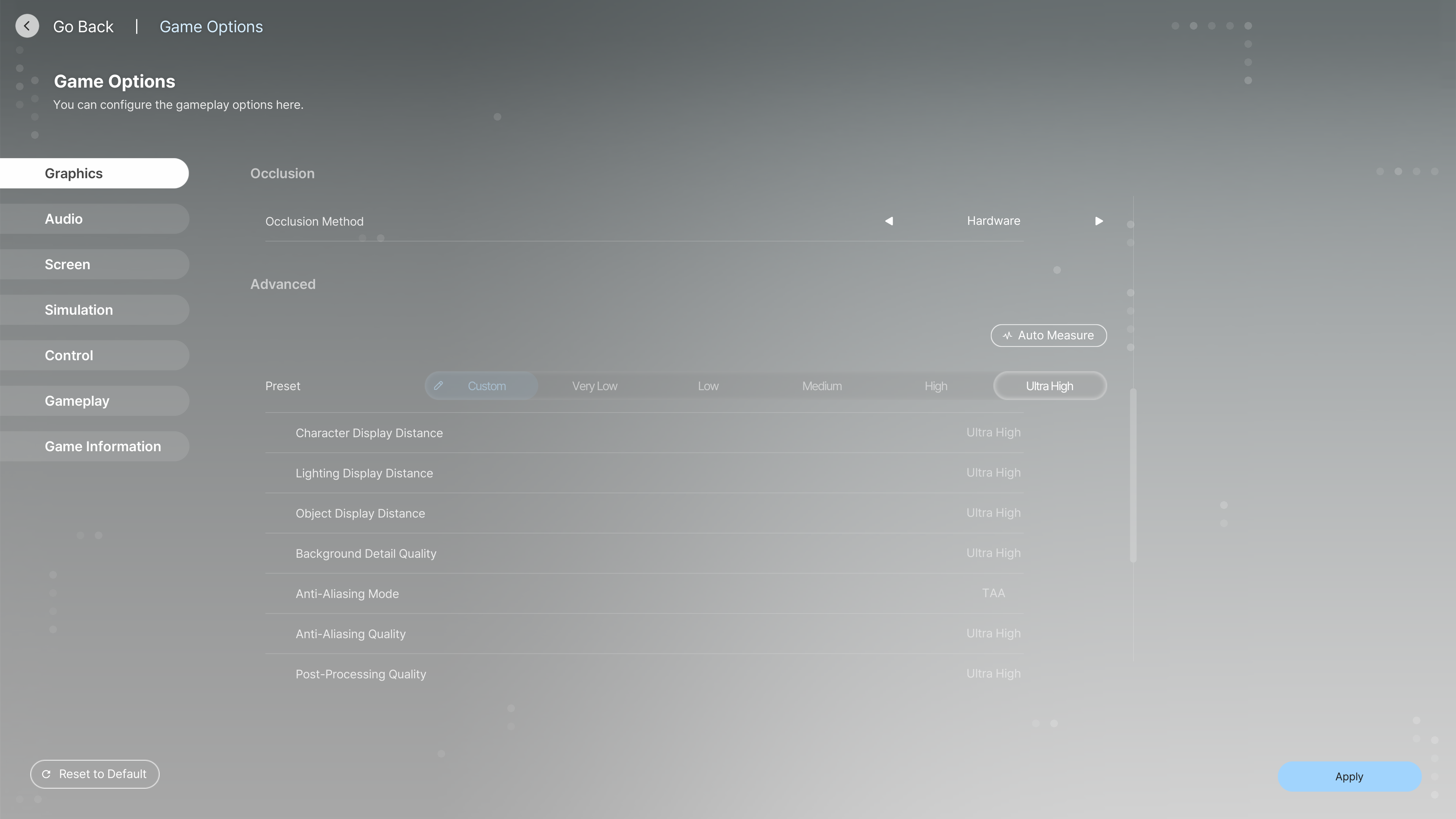
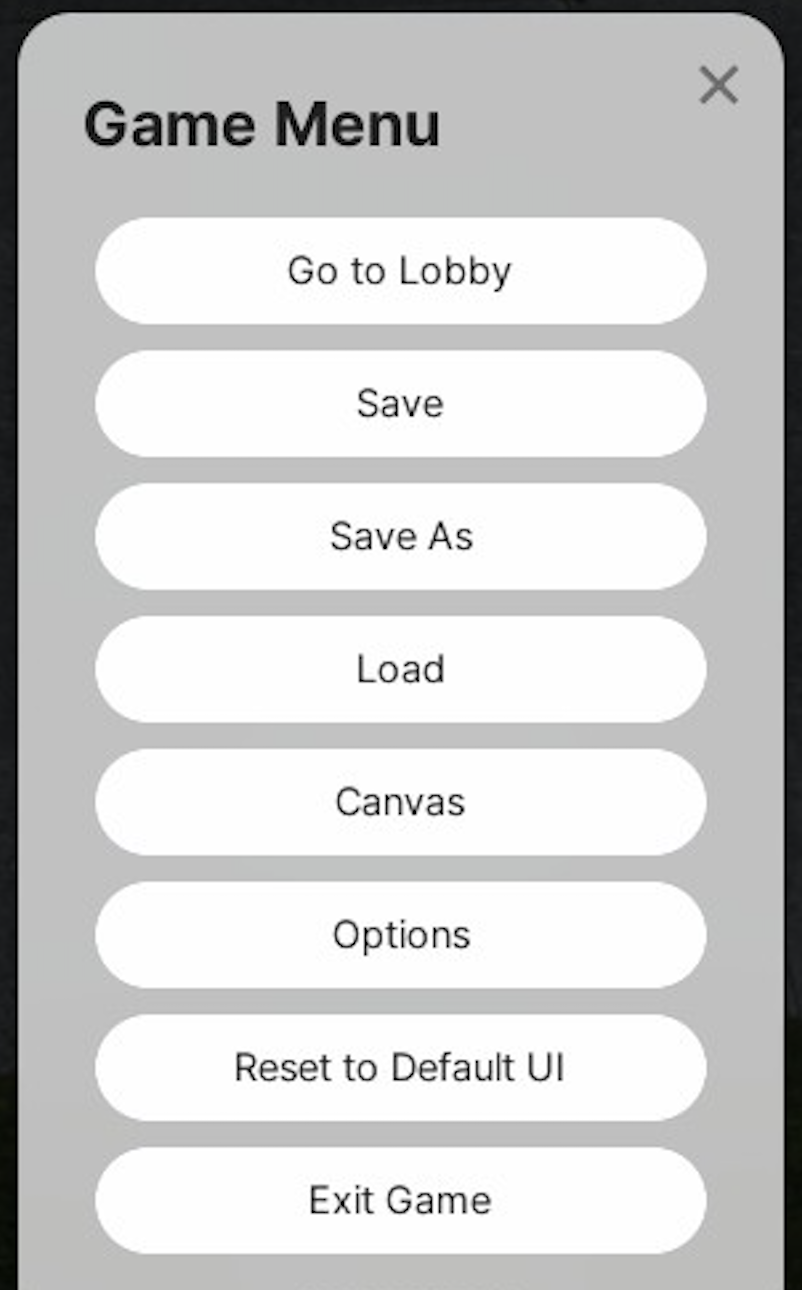
inZOI's settings menu is accessible by pressing Escape or clicking Menu in the menu bar and selecting Options. The settings are organized into several tabs: Graphics, Simulation, Gameplay, Audio, Controls, and Screen. This guide covers every non-graphics setting. For graphics and performance optimization, see the Performance and Optimization Guide. For keyboard and mouse bindings, see Controls.
Simulation Settings
Simulation settings control the physical fidelity and time scale of the game world. These settings affect how realistic certain visual elements look and how quickly in-game time passes.
Setting | Options | What It Does | Recommended |
|---|---|---|---|
Outfit Simulation | On / Off | Enables cloth physics for clothing. Fabric flows, folds, and reacts to wind and movement when turned on. | On. Minimal performance cost and noticeably improves visual quality. |
Animation Quality | 1ms to 10ms | Controls how much CPU time is allocated to character animations per frame. Lower values mean smoother animations but higher CPU usage. | 3ms. Provides smooth movement without wasting CPU resources. Setting higher than 3ms has no visible improvement. |
Length of Day | 48 minutes to 24 hours | Determines how long one in-game day lasts in real time. At 48 minutes, a full day passes quickly. At 24 hours, one game day equals one real day. | 48 minutes is the default (changed from 96 minutes in v0.4.0) and works well for most players. Shorter values (48-72 minutes) suit players who want faster progression. Longer values give more time to complete daily tasks. |
Length of Day in Detail
The Length of Day setting has a significant impact on gameplay pacing. With shorter days, needs decay feels faster relative to available time, making it harder to complete multi-step tasks like cooking elaborate meals or attending social events. Longer days give Zois more breathing room but slow down career progression and aging.
Length of Day | Playstyle |
|---|---|
48 minutes | Fast-paced. Good for testing or rapid progression. Needs decay feels intense. |
72 minutes | Quick sessions. One real hour covers most of a Zoi's day. |
48 minutes (default, changed from 96 in v0.4.0) | Balanced. Enough time to manage needs, work, and socialize. |
144 minutes | Relaxed. Plenty of time for creative building and exploring. |
24 hours | Real-time. One game day equals one real day. Very slow progression. |
Gameplay Settings
Gameplay settings control AI behavior, automation features, and quality-of-life options.
Freewill and Autonomy
Setting | Options | What It Does | Recommended |
|---|---|---|---|
Enable Free Will by Default | On / Off | Determines whether Zois act on their own when you are not giving them direct commands. When on, Zois autonomously eat, sleep, socialize, and pursue activities based on their needs, traits, and preferences. You can also toggle autonomy per Zoi in Play Mode by pressing T. | On for casual play. Off for full manual control. |
Smart Zoi
Smart Zoi is an experimental AI feature that uses a Small Language Model running on-device to make NPCs behave more naturally and unpredictably. It is separate from basic autonomy.
Setting | Options | What It Does | Recommended |
|---|---|---|---|
Enable Smart Zoi | On / Off | Activates the AI-driven behavior system. Requires an NVIDIA GPU on Windows, or Apple Silicon on macOS. | On if your hardware supports it and you want more immersive NPC behavior. Off on lower-end systems or if you prefer predictable Zoi actions. |
Applied Range in City | Controls how many Zois in the city use Smart Zoi AI. "All Zois in City" applies AI behavior to every NPC but increases CPU and GPU load. | Your Family for most players. All Zois in City only on high-end hardware. | |
Applied Range on Screen | Small Group / Large Group / All Zois on Screen | Controls how many visible Zois are actively simulated with Smart Zoi at any moment. | Small Group for performance. Large Group for immersion. |
General Gameplay
Setting | Options | What It Does | Recommended |
|---|---|---|---|
Queue Limit | 1 to 10+ | Maximum number of queued actions a Zoi can have at once. Higher values let you plan more actions ahead but use slightly more memory. | 8 is a good balance. 10 for micromanagers. |
Enable Manual Driving | On / Off | When on, you can manually drive vehicles using WASD. When off, Zois always use auto-drive. See Transportation for driving details. | On for immersion. Off if you prefer hands-free travel. |
Enable Auto Save | On / Off | Automatically saves the game at regular intervals. | On. Essential for recovering from bugs and crashes. |
Auto Save Interval | 5 / 10 / 15 / 30 minutes | How often the game auto-saves. Shorter intervals protect against more data loss but briefly pause the game each time. | 10 or 15 minutes. |
Popup Auto-Close | On / Off | When on, notification pop-ups (rewards, achievements, event updates) close automatically after a few seconds. When off, you must click to dismiss them. | On to reduce interruptions. Off if you want to read every notification. |
Character Name Format | Follow Language / Given Name First / Family Name First | Controls the display order of Zoi names. "Follow Language" uses the format natural to the current language setting. | Follow Language for most players. |
Temperature Scale | Celsius / Fahrenheit | Changes how temperatures are displayed in the weather system. | Personal preference. |
Language | 13 languages available | Full interface and audio localization. Supported languages include English, Korean, French, Italian, German, Spanish, Russian, Japanese, Simplified Chinese, Traditional Chinese, Portuguese (Brazil), Portuguese (Portugal), and Polish. See System Requirements for the full list. | Check localization quality for your language; some translations are more polished than others. |
Audio Settings
Audio settings control the volume levels for different sound categories. All sliders range from 0% (muted) to 100% (full volume).
Setting | What It Controls |
|---|---|
Master Volume | Overall volume for all game audio. Acts as a global limiter. |
Background Volume | Ambient sounds, music, and environmental audio. |
Sound Effects Volume | Interaction sounds, footsteps, object use, and physics sounds. |
UI Volume | Menu clicks, notification sounds, and interface feedback. |
Dialogue Volume | Zoi speech and conversation audio (Zois speak in a fictional language). |
Video Volume | Audio from in-game television and video content. |
Control Settings
Control settings configure mouse sensitivity and scrolling behavior. For a full list of keybindings, see the Controls article.
Setting | Options | What It Does |
|---|---|---|
Shoulder View Mouse Sensitivity | 0% to 200% | How fast the camera rotates when using shoulder (third-person) view. |
Shoulder View Wheel Speed | Low / Medium / High | Zoom speed of the scroll wheel in shoulder view. |
Top View Scroll Wheel Speed | Low / Medium / High | Zoom speed of the scroll wheel in top-down view. |
Edge Scrolling | On / Off | When on, moving the mouse to the edge of the screen scrolls the camera in that direction. |
Keyboard Presets | QWERTY / AZERTY / QWERTZ | Selects the keyboard layout to match your hardware. Affects default keybindings. |
Hotkey customization was added in the October 2025 update. Go to Options, then Controls to view and rebind keys. Most actions can be reassigned, but some system shortcuts like the cheat console (Ctrl+Shift+C) cannot be rebound.
Screen Settings
Setting | Options | What It Does | Recommended |
|---|---|---|---|
Field of View | 0% to 100% | Controls the camera's field of view angle. Higher values show more of the scene but can introduce distortion at the edges. Lower values feel more zoomed in. | 50% (default). Increase if you experience motion sickness. |
Brightness | 0% to 100% | Controls the overall screen brightness. Adjust until dark areas are visible but not washed out. | 50% (default). Adjust to your monitor. |
Tips
If the game feels too hectic, increase the Length of Day to give your Zois more time to complete daily tasks before needs become critical.
Smart Zoi is the most CPU-intensive non-graphics setting. If you experience lag, reduce the Applied Range before lowering graphics settings.
Auto-save at 10-minute intervals is the best insurance against bugs and crashes during Early Access.
Disable Edge Scrolling if you play on a multi-monitor setup, as the cursor hitting the screen edge can trigger unwanted camera movement.
The AZERTY and QWERTZ keyboard presets adjust default bindings for French and German keyboards respectively. Rebind manually if your layout does not match any preset.