
Decoration Guide
Complete decoration guide for Starsand Island covering build mode, three placement modes (standard, floor snap, free place), placement controls, painting and textures, furniture sources (crafting, shops, events, achievements, DLC), furniture sets and categories, layout strategies, preset house templates, properties and build areas, day/night preview, decoration tips, achievements, DLC furniture, and known Early Access issues.
On This Page
Overview
Starsand Island has a deep decoration system with roughly 1,000 decorative items spanning multiple visual themes. You can customize your home inside and out, paint walls and building pieces, place furniture with fine-grained control, and even save your own layouts for quick setup. This guide covers everything you need to know about decorating your property, from unlocking the build mode to sourcing furniture sets and mastering placement controls.
Unlocking Build Mode
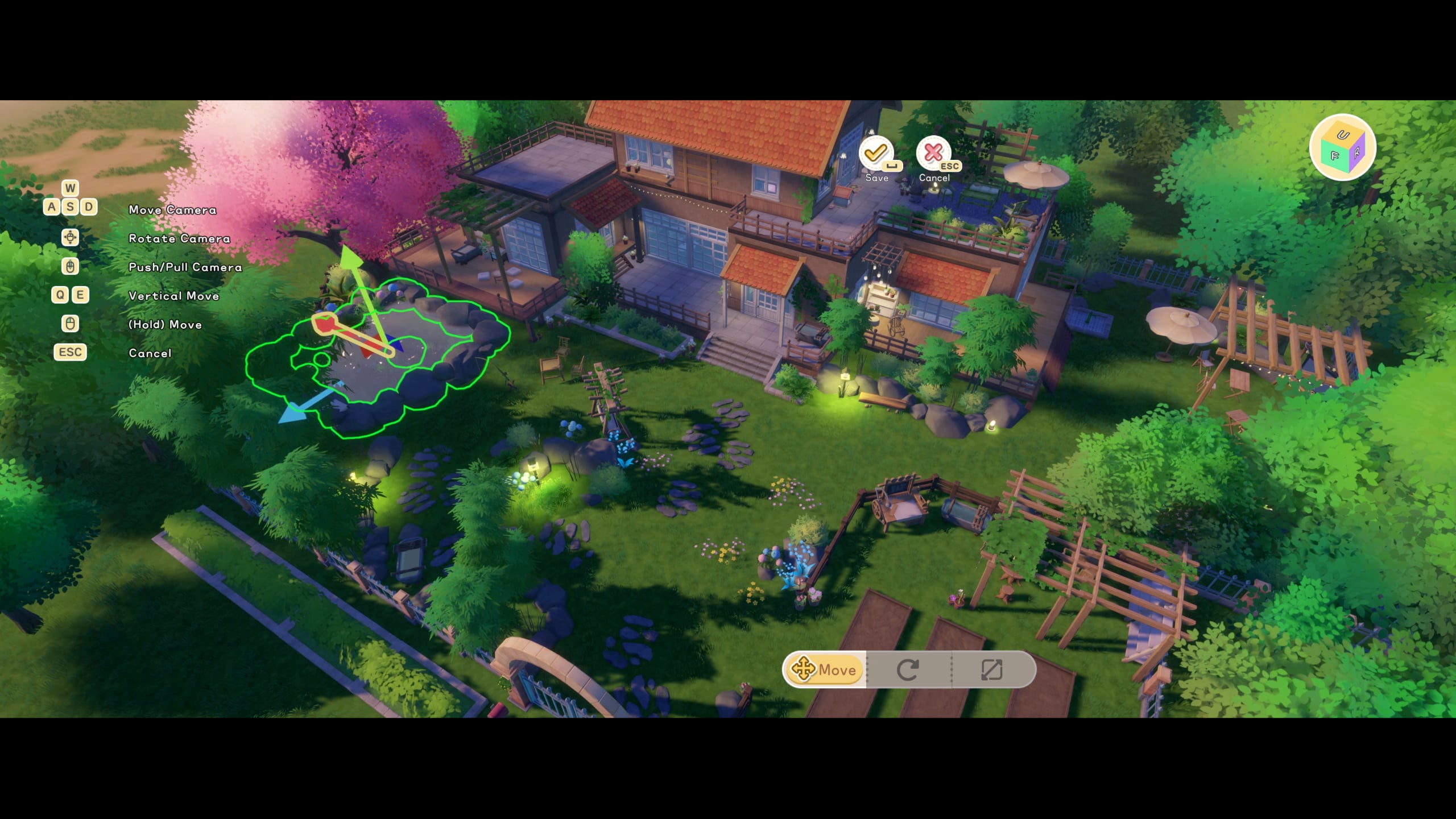
Build mode unlocks early in the game after completing the tutorial with Solara. Once unlocked, press C on PC (or the equivalent button on controller) while standing on your property to open the Build Menu. You can only enter build mode while standing inside your owned land boundaries.
Three Placement Modes
The building system uses three camera modes, each suited to a different scale of work:
Mode | Camera | Best For |
|---|---|---|
Free-view Building | Overhead camera | Designing homes, placing walls, doors, roofs, foundations, stairs, and outdoor structures. Building pieces snap together. Supports batch-select and batch-demolish. |
Character Perspective | First/third-person | Decorating interior and exterior spaces at a personal scale. Placing furniture, hanging wall items, arranging rooms. |
Local View | Close-up camera | Decorating small spaces like fishtanks, aquariums, tabletop displays, and shelf arrangements. |
Switch between modes using the camera toggle button in the build menu. Each mode has its strengths; use free-view for structural work and character perspective for fine-tuning room interiors.
Building Pieces vs. Decorations
There are two categories of items in the build menu, and they work differently:
Type | Pre-Crafting Required? | How It Works |
|---|---|---|
Building Pieces (walls, floors, roofs, stairs, fences) | No | Materials are consumed directly when you place the piece. No need to craft ahead of time. |
Decorations and Furniture | Yes | Must be crafted at a Worktable or purchased from a shop before you can place them. |
Building pieces can be resized after placement using large yellow arrows that appear on the piece. Many blocks, walls, and roof sections are resizable, giving you fine control over your home's dimensions. Non-decoration items like tools, food, or miscellaneous objects can also be placed as decorations.
Placement Controls
When placing items in build mode, you have several controls available:
Action | Details |
|---|---|
Rotate | Scroll wheel (PC) or bumper buttons (controller). Items can be rotated in any direction. |
Grid snap | Items snap to a grid by default for clean alignment. Toggle free placement for more precise positioning. |
Allow overlap | Enable this option in build settings to stack items on top of each other. Useful for creative combinations like placing a campfire on a flower bed. |
Demolish | Remove placed items and building pieces. Demolished furniture returns to your storage. |
Batch operations | In free-view mode, select multiple pieces to move or demolish entire sections at once. |
Painting and Textures
The paint system lets you customize the appearance of building pieces after placement. Click the paint icon at the bottom of the build menu to access the color and texture selector. You can paint walls, floors, roofs, and other structural pieces with any available color or texture.
Colors and textures are applied per-piece, so you can mix and match throughout your house.
Painting is free once you have the materials placed. There is no additional cost to change colors.
Exterior and interior surfaces can be painted independently.
Where to Get Furniture
Furniture and decorations come from seven main sources. Most pieces require a blueprint before you can craft them at a Worktable, though some are sold as finished items ready to place.
Source | Description | Currency |
|---|---|---|
Primary furniture shop in Starsand Town. Sells blueprints, finished pieces, decorations, and Glowing Shell Exchange exclusives. Open 8 AM to 10 PM. | Coins / Glowing Shells | |
Gacha Machine | Located at Chrono Arcade (Loren's shop). Random furniture drops among crafting materials. 20 tokens per pull. | Arcade Tokens |
Island Life Milestones | Progression rewards from the Island Life app. Completing milestones (Home Builder, Bright Star, etc.) unlocks furniture. | Free (progression) |
Washed up on beaches. Open for random furniture blueprints and items. | Free (random) | |
Festivals | Seasonal events with exclusive themed furniture. | Event currency |
Treasure chests scattered around the island and in the Moonlit Forest contain blueprints. Some are chest-exclusive. | Free (looting) | |
DLC Packs | Optional packs like the Forest Cabin Furniture DLC and Classic European Furniture DLC add themed sets. | Real money |
Furniture Sets
Furniture in Starsand Island is organized into themed sets. Collecting all pieces within a set gives your home a cohesive visual style. You can also mix and match pieces from different sets.
Set Name | Pieces | Main Sources |
|---|---|---|
Sylvan Home | 50 | Collection Album, Exploration, Lex Woodworks, Completing Requests, Starsand Manual |
Rhythm Charm | 39 | Lex's Showroom, Lex Woodworks |
Millenium Eve | 30 | Island Life, Gacha Machine, Lex Woodworks, Exploration, Drift Bottle |
Meow Hacker | 14 | Starsand Manual |
Smith Workshop | 9 | Exploration, Island Life |
Remote Work | 6 | Island Life, Exploration |
Pineapple Set | 6 | Various sources |
Cloud Mousse | 5 | Exploration, Gacha Machine, Beach Festival |
See the All Furniture List for a complete catalog of every furniture piece, its set, and where to obtain it.
Furniture Categories
The build menu organizes placeable items into categories for easy browsing. These categories appear as icons at the bottom of the screen when you enter build mode:
Category | Items |
|---|---|
Seating | Chairs, sofas, benches, stools |
Tables | Dining tables, desks, side tables, counters |
Storage | Chests, wardrobes, shelves, cabinets |
Lighting | Lamps, lanterns, ceiling lights, candles |
Wall Decor | Paintings, clocks, shelves, mirrors |
Beds | Single beds, double beds, bunk beds |
Outdoor | Fences, flower pots, garden furniture, path stones |
Plants | Flower bundles using collected flowers, potted plants |
Production | Crafting stations, processing equipment, animal housing |
Layouts
Layouts are pre-made house designs that come fully furnished. They let you place an entire house with interior decoration in one step, and they can be customized afterward.
Unlocking Layouts
Layouts become available after reaching Island Pro status by completing these milestones:
Place 6 furniture pieces in your starter house
Collect 2,000 Coins
Meet 10 islanders
Reach Junior rank in any profession
Complete 5 Bulletin Board requests
Placing a Layout
Layouts are purchased from Lex Woodworks (Alex's shop) in Starsand Town. To place one:
Acquire land through the Island Life app
Enter build mode on a cleared plot
Select the layout from the bottom menu
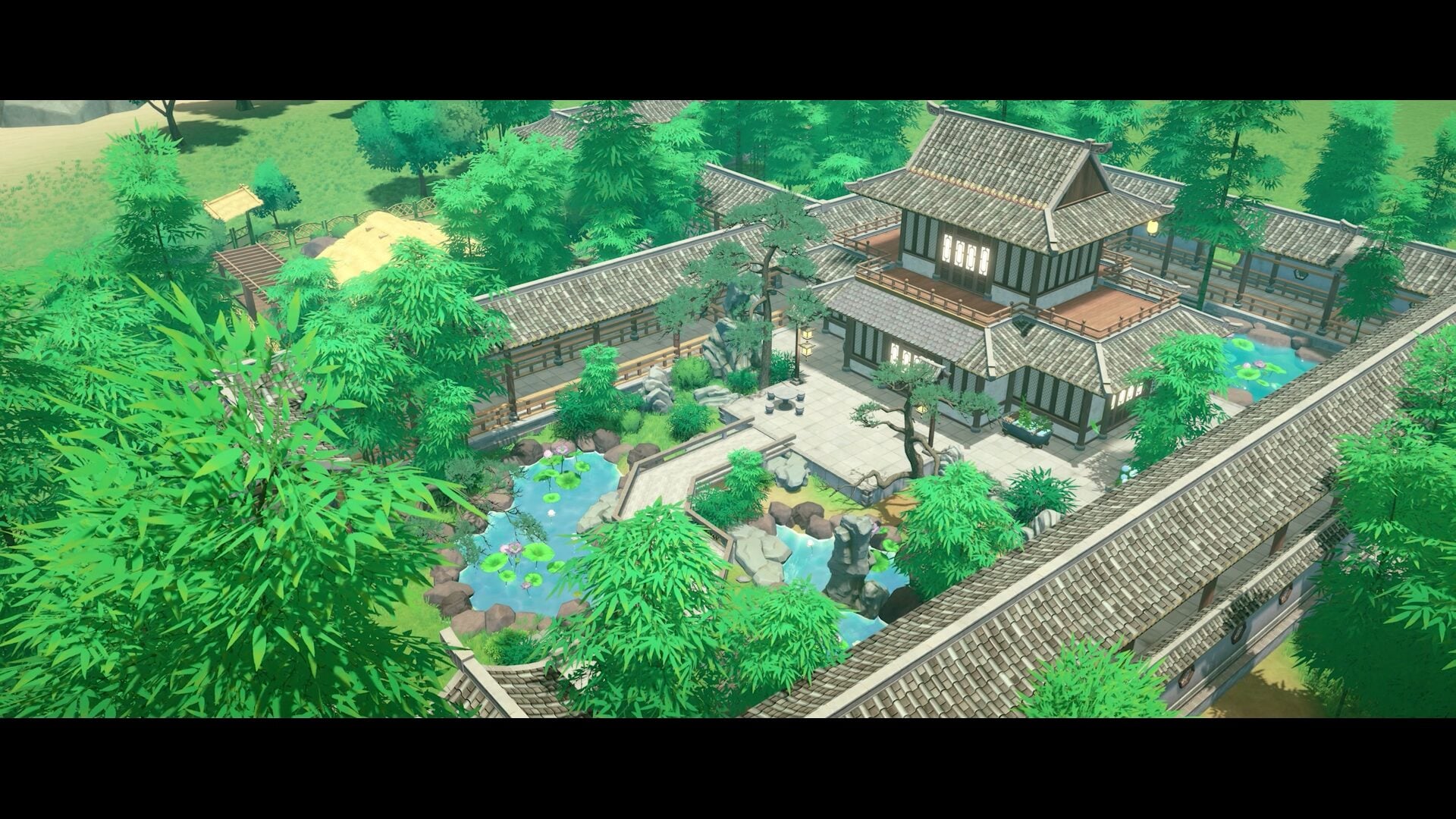
Position and align carefully; look for green boundaries indicating proper fit
Press place to build instantly
The layout spans the entire plot area, so any existing building pieces or remnants must be cleared before placement. After placing a layout, you can dismantle unwanted furniture (it goes to storage), rearrange pieces, enable overlap to add items, and save your modified version as a new custom layout.
Pre-Built Layout Options
Several pre-built layouts are available, each with a distinct visual style:
Layout | Style | Includes |
|---|---|---|
Countryside Haven | Cottage / rural | Beehives, gardens, cottage-style rooms with rustic furniture |
Retreat | Modern / minimal | Modern living spaces with clean lines and contemporary furniture |
Classic Courtyard | Traditional / elegant | Traditional design with full furniture sets, courtyard area |
Each layout comes pre-equipped with a kitchen, living areas, bedrooms, and outdoor elements. Additional layouts may be added in future updates.
Preset House Templates
For players who would rather skip designing from scratch, there are eight pre-designed house layouts available, including a "Floating Oasis" houseboat that comes with a water slide. Selecting a template shows all the materials needed upfront, along with matching decoration sets. Templates can be placed as-is or modified after placement.
Properties and Build Areas
You have four potential build areas on the island, each unlocking through Island Life progression:
Property | Unlock Requirement | Character |
|---|---|---|
Available from the start (tutorial) | Default home | |
Home Builder rank in Island Life | Lakeside property | |
Bright Star rank in Island Life | Beachfront property | |
Starsand Legend rank in Island Life | Offshore island property |
All land plots within each property are identical in size with no gameplay advantages between locations. The choice is purely aesthetic. Land purchases are permanent with no refund.
Day/night Preview
While in build mode, you can adjust the in-game time to preview how your decorations and paint choices look under different lighting. Scroll through the full day/night cycle, from midnight to dawn to sunset, to check how sunlight and moonlight affect color and shadow. Weather conditions can also be changed in the preview.
Decoration Tips
Spacing and Aesthetics
Leave breathing room between furniture pieces. A cluttered layout reduces visual appeal.
Group related items together: crafting stations in a workshop area, cooking equipment in a kitchen zone, and relaxation furniture in a living room.
Use wall decorations (paintings, shelves, clocks) to fill empty walls and add personality.
The flower section lets you place bundles using flowers you have collected. This is one of the easiest ways to beautify your farm and yard.
Functional Placement
Place crafting stations near storage chests for efficient material access.
Position your bed near the door for quick mornings. You wake up next to your bed each day.
Production facilities (Furnace, Loom, Separator) can be placed outdoors to save interior space.
Animal housing and feeders should be placed in a dedicated ranching area on your property.
Style Consistency
Stick to one furniture set per room for a cohesive look. The Sylvan Home set (50 pieces) offers the most variety.
Use the paint system to match building piece colors to your furniture theme.
Exterior decorations (fences, path stones, flower pots) help define outdoor zones and pathways.
Decoration Achievements
Three achievements are tied directly to furniture and decoration:
Achievement | Requirement |
|---|---|
Not Empty Walls | Craft 10 furniture pieces |
Not a Shabby Room | Place 50 unique furniture items in your home |
Renovated Home | Unlock 100 unique furniture pieces |
To reach 100 unique pieces for Renovated Home, make sure to check all seven furniture sources regularly. The Gacha Machine at Chrono Arcade is particularly useful since it drops furniture pieces not available elsewhere.
DLC Furniture
Optional DLC packs add themed furniture sets that are not available in the base game:
DLC Pack | Description |
|---|---|
Forest Cabin Furniture DLC | Seven Sylvan Cabin furniture items and their blueprints. Rustic woodland theme. |
Classic European Furniture DLC | Classical furniture set with intricate details and a sophisticated color palette. Castle-inspired aesthetic. Also includes the Elegant Formal Outfit and Pumpkin Carriage vehicle. |
Chinese New Year Furniture DLC | Seasonal themed furniture for traditional celebrations. |
Known Issues
The issues below were reported from the February 2026 Early Access launch onward. Patch 1.08.5207 on August 31, 2026 fixed two of the paint faults, so re-check any of these against the current build before treating them as live:
Paint occasionally vanishes from walls, reverting them to a default stone slab look. Repainting fixes it.
Grass can grow through flagstone flooring when placing house layouts. A concrete layer underneath prevents this. The developers confirmed automatic ground clearing as a planned change; it had not arrived by build 1.09.7160 on September 17, 2026.
Fence pieces sometimes display visual gaps or seams between segments.
Deleting placed pieces does not refund materials. Double-check placement before committing to large builds.
Related Articles
Item | Description |
|---|---|
full building system guide | |
complete furniture catalog | |
crafting details and materials | |
Decoration and Paint System | paint system details |
blueprint sources and categories | |
property overview |