

Overview
Hair Styles are a core part of Create a Zoi, the character creation system in inZOI. The hair editor lets players choose from a library of hairstyles organized by length, then fine-tune each style with a multi-zone color system, length adjustments, and color blending controls. Built on Unreal Engine 5's MetaHuman technology, hair in inZOI is rendered with high-fidelity texture and natural movement, producing results that feel closer to film-quality digital humans than what most life simulation games offer.
All hairstyles in Create a Zoi are fully unisex. Any Zoi can wear any hairstyle regardless of gender identity. This applies to all length categories, colors, and accessories. The same design philosophy extends to clothing and accessories as well.
Hair customization is available during initial character creation and can also be changed after creation by interacting with a mirror in the game world and selecting "Edit Appearance." While structural features like face customization and body type are locked after a Zoi is finalized, hairstyle and hair color can be freely changed at any time.
Length Categories and Filtering
Hairstyles are organized into four length categories. When browsing the hair selection panel, you can filter by category to narrow down the options. There is also a secondary filter for "only with color options," which limits the display to hairstyles that support the multi-zone color system.
Category | Description | Length Slider Support |
|---|---|---|
Short | Cropped and close-cut styles | Not available |
Medium | Shoulder-length and mid-length styles | Available on select styles (3 styles) |
Long | Styles that fall below the shoulders | Available on select styles (7 styles) |
Tied-Up | Ponytails, buns, braids, and updo styles | Not available |
The four categories cover the full range of styles from buzz cuts to waist-length hair. Tied-Up is treated as its own category rather than a variant of Long, since these styles have distinct silhouettes and behave differently with hats and accessories.
Color Zones
Most hairstyles support five separate color zones, giving players precise control over how color is distributed across the hair. The color zones are accessed by clicking the color wheel icon beneath the selected hairstyle.
Zone | Purpose | Typical Use |
|---|---|---|
Base Color | The dominant color that covers the majority of the hair | Sets the overall hair tone (brown, black, blonde, red, etc.) |
Sub Color | A secondary color that blends with the base across broader areas | Adds depth or a two-tone effect (darker roots, lighter ends) |
Highlight 1 | First targeted highlight accent | Accent streaks, sun-bleached highlights, or fashion color pops |
Highlight 2 | Second targeted highlight accent | Layered highlights for more complex color blending |
Highlight 3 | Third targeted highlight accent | Additional dimension or contrasting accent tones |
Each zone has its own color picker. Colors can be selected from a full color wheel, entered directly as a hex code, or chosen from a row of preset swatches. Custom colors you create can be saved as swatches for reuse across multiple Zois. This is especially useful when you want consistent hair color across a household or family.
Not every hairstyle supports all five zones. Some simpler styles have fewer color zones. The "only with color options" filter in the hair browser lets you quickly find styles that support the full multi-zone system. For styles with limited color zone support, you can still set a base color through the standard color picker.
Apply to Whole
If you prefer a uniform look, the color editor includes an option to apply a single color to the entire hairstyle at once. This overrides the individual zone settings and paints the hair with one flat color. You can switch back to zone-by-zone editing at any time to restore multi-tone coloring.
Adjustment Sliders
Below the color zones, three sliders let you control how colors interact and how long the hair appears. These sliders are found inside the same color wheel popup that houses the color zone pickers.
Slider | Function | Details |
|---|---|---|
Length | Shortens the hairstyle from its default length | Only available on select Medium (3) and Long (7) styles. Cannot extend hair beyond the default length. Adjustable between 0 and 100. |
Ratio | Controls the balance between color zones | Shifts how much of the hair is covered by the base color versus the sub color and highlights |
Blur | Softens the transitions between color zones | Higher blur values create smooth, gradient-like blends between zones. Lower values produce sharper, more defined color boundaries. |
The Length slider is not immediately obvious, since it only appears for hairstyles that support it. If you do not see a Length slider in the color popup, the selected hairstyle does not support length adjustment. Only ten hairstyles total offer this feature: three Medium-length styles and seven Long styles. The slider can only shorten hair from its default length; it cannot make hair longer than the preset default.
The Ratio and Blur sliders work together with the color zones. For example, setting a dark brown base with a lighter blonde sub color, then pushing the Ratio slider toward the sub color and increasing Blur, creates a natural ombré effect. Keeping Blur low with a vivid highlight color produces sharp, visible streaks.
Hex Code Entry and Swatch Saving
Every color picker in the hair editor accepts hex codes directly. This is useful when you want to match a specific reference color (from artwork, a brand palette, or another game). Type the six-character hex value into the input field next to the color wheel and the preview updates instantly.
Any color you select or enter can be saved as a custom swatch. Saved swatches persist across creation sessions, so you can reuse your favorite tones when creating new Zois or editing existing ones. This feature is shared with the skin tone and makeup color pickers as well.
Hat Compatibility
All hairstyles in inZOI are compatible with hats. When you equip a hat on a Zoi, the hair adjusts automatically to fit underneath or around the headwear without clipping through it. This works across all four length categories.
Tied-Up hairstyles receive special treatment. When you select a Tied-Up style and then equip a hat, inZOI automatically converts the visible portion of the hair into a hat-compatible version. The ponytail, bun, or braid is repositioned or tucked to sit naturally with the headwear. This conversion happens on the fly and does not permanently change the hairstyle; removing the hat restores the original Tied-Up appearance.
Hair Physics
Hair in inZOI responds to character movement with physics-based simulation. When a Zoi walks, turns their head, or performs animations, the hair sways and bounces according to its length and weight. Longer styles show more visible movement, while shorter cuts remain relatively stable. This adds a layer of realism to everyday actions and is especially noticeable during photography and photo mode sessions.
The hair physics system is powered by Unreal Engine 5's simulation framework. Each hairstyle has properties that determine how it reacts to motion, gravity, and environmental forces. Heavier styles (thick, long hair) move with more inertia, while lighter styles (thin ponytails, short layers) react more quickly to head turns.
The v0.7.0 update (March 2026) addressed a common issue where long hairstyles would clip through hoodies. This fix improved the interaction between hair physics and certain upper-body clothing items, particularly those with raised collars or hoods.
Eyebrows and Facial Hair
Although eyebrows and facial hair are separate from head hair in the editor, they share some of the same customization philosophy. Eyebrow styles are chosen from a preset library, and their color is set independently using a dedicated color picker. This means eyebrow color does not automatically match hair color; you need to set it manually if you want them to coordinate.
Facial hair options (beards, mustaches, stubble) are also selected from presets and have their own color settings. Like head hair, these are fully unisex and available to all Zois. For detailed information about eyebrow positioning and structure, see the Face Customization article.
Hair Accessories
Separate from hairstyles, the Create a Zoi editor offers a selection of hair accessories such as clips, headbands, bows, and decorative pins. These are equipped in the accessories section of the editor rather than the hair section. Hair accessories layer on top of the selected hairstyle and are compatible with most styles across all length categories.
Post-launch updates have expanded the accessory library. The April 29, 2025 update added five new hair accessories alongside other Create a Zoi items.
Post-Launch Additions
inZOI launched into Early Access on March 28, 2025 with a starting library of hairstyles across all four length categories. Krafton has continued to expand the selection through regular updates. The following table summarizes confirmed hair-related additions.
Update | Date | Hair Changes |
|---|---|---|
April 29, 2025 | Added 3 new short-length hairstyles, 5 new hair accessories, 2 new eyelash styles | |
March 2026 Update (v0.7.0) | March 26, 2026 | Fixed long hairstyles clipping through hoodies. Added new banner to help players find newly added hairstyles and items. |
Krafton has stated that more hairstyles will be added in future updates. The modding community has also created custom hairstyles through the inZOI ModKit, available on platforms such as Nexus Mods and CurseForge.
The June 2026 preview cycle confirmed new hairstyles in development, shown alongside the baby appearance improvements in the June 5 weekly update. The same update discussed letting some hairstyles and clothing be obtained through specific stores; the interface is being updated to show where each unlockable item comes from, and once unlocked an item remains freely available. Player opinion on store-specific acquisition was mixed, and the team says it is still balancing immersion against creative freedom.
Changing Hair After Creation
Unlike facial bone structure, hair is not permanently locked after creating a Zoi. To change a Zoi's hairstyle or hair color during gameplay:
Click on your Zoi and select "Change Clothes," or interact with any mirror in your home and choose "Edit Appearance."
Select "Style Yourself" to open the full customization screen.
Navigate to the hair section, choose a new style, and adjust colors as desired.
Click "Save" to confirm changes. If you exit without saving, the hair reverts to its previous state.
Every default home comes with a mirror. Additional mirrors can be purchased and placed through Build Mode. The mirror-based editing interface provides the same hairstyle library and color options as the original Create a Zoi editor.
Tips for Natural-Looking Hair
Getting hair to look natural takes some experimentation with the color zones and sliders. The following tips are drawn from community experience.
Use all five color zones. Real hair is never a single flat color. Setting a dark base, a slightly lighter sub color, and subtle warm highlights creates depth that reads as natural even at a glance.
Keep the Blur slider above zero. Sharp color boundaries between zones look artificial. Even a small amount of blur softens the transitions and makes multi-tone coloring more believable.
Match eyebrow color deliberately. Eyebrow color is independent of hair color. Mismatched brows and hair can look unintentional unless you are going for a specific stylized look.
Preview with hats on and off. Some hairstyles change shape significantly when a hat is equipped. Check how your color choices look in both states before committing.
Save custom swatches for consistency. If you are creating a family, save your hair color swatches so siblings and parents share similar tones. This is especially useful for matching the base and sub colors that drive genetics and inheritance appearance.
Use the hex code field for precision. The color wheel is great for exploration, but if you have a specific shade in mind, typing the hex code directly avoids the guesswork of dragging the picker.
Try the Length slider on supported styles. Shortening a Long hairstyle by a small amount can create a look that feels distinct from any of the preset lengths. Experiment with values between 20 and 80 for the most noticeable variation.
See Also
Create a Zoi - Full overview of the character creation system
Face Customization - Facial structure, eyes, skin, and eyebrows
Body Type Customization - Body shape, sliders, and physique options
Clothing - Outfit customization and wardrobe options
Canvas - Community sharing platform for presets and creations
Traits - Personality traits that define Zoi behavior
Modding - Custom content including community-made hairstyles
Additional Details
Available Hairstyles
The base game ships with dozens of hairstyle options spanning a broad range of lengths, textures, and cultural styles. Categories include:
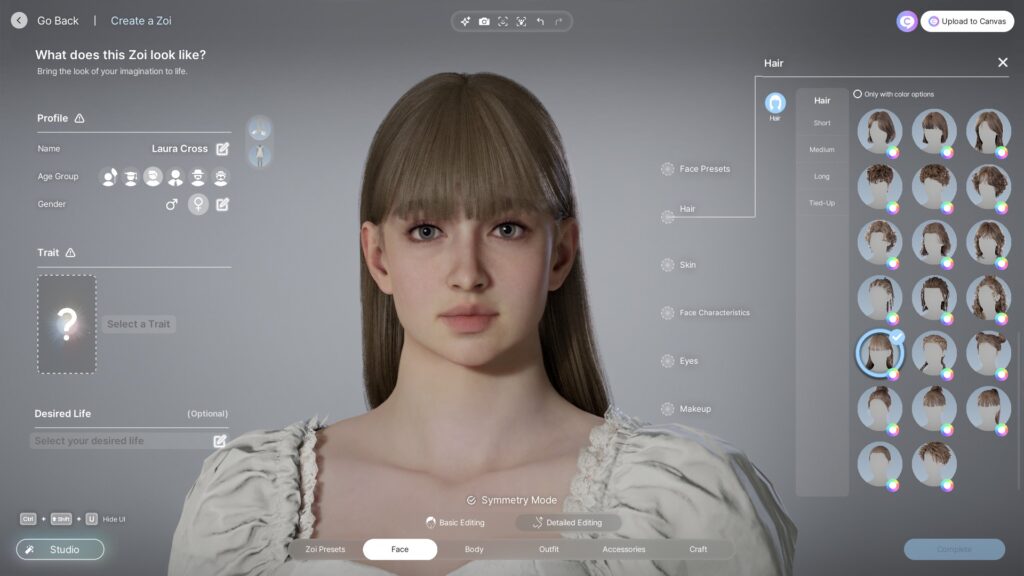
Short cuts: Pixie cuts, buzz cuts, fades, textured crops, and undercuts
Medium length: Bob cuts, layered styles, shags, and wavy mid-length looks
Long styles: Straight, wavy, and curly long hair reaching past the shoulders
Braids: French braids, box braids, cornrows, and fishtail braids
Ponytails and buns: High ponytails, low buns, messy buns, and top knots
Updos: Formal updos, twisted styles, and pinned arrangements
Afros and natural styles: Afros of various sizes, twist-outs, and locs
Different hairstyles are available depending on the character's life stage. Children have a separate, age-appropriate selection, while adult Zois have access to the full catalog.
Hair Color Customization
Each hairstyle can be recolored using a flexible color system. Players pick a base color from a palette of natural and unnatural shades. Beyond solid colors, the editor supports gradient and multi-color options, allowing highlights, ombre effects, and two-tone looks.
The color picker uses a hue/saturation/brightness model, so players can dial in exact shades rather than choosing from a fixed list of swatches. This is useful for matching a specific reference photo or achieving subtle auburn and ash tones that preset swatches might not cover.
Custom Hairstyles via ModKit
Since the ModKit was introduced in v0.2.0, community modders have been creating and sharing custom hairstyles. These mods can add entirely new cuts that do not exist in the base game, expanding the available selection significantly. Custom hairstyles are installed through the mod manager and appear alongside the default options in Create a Zoi.