

Overview
Makeup is a major component of Create a Zoi, the character creation system in inZOI. The makeup editor provides five distinct cosmetic categories: Highlighter, Blush, Eyeshadow, Eyeliner, and Lipstick. Each category offers preset styles along with fine-grained controls for color, intensity, and gloss, giving players extensive freedom to craft unique looks ranging from subtle everyday styles to bold artistic statements.
Makeup is accessible during initial character creation and can be changed at any time after creation by interacting with a mirror in the game world. Unlike structural features such as face customization nodes and body type sliders, which are locked once a Zoi is finalized, cosmetic features like makeup, hair color, and contact lenses remain fully editable throughout gameplay.
Makeup Categories
The makeup editor is organized into five categories, each targeting a different area of the face. Every category includes its own set of preset styles and adjustment controls. The table below summarizes what each category covers and its key customization options.
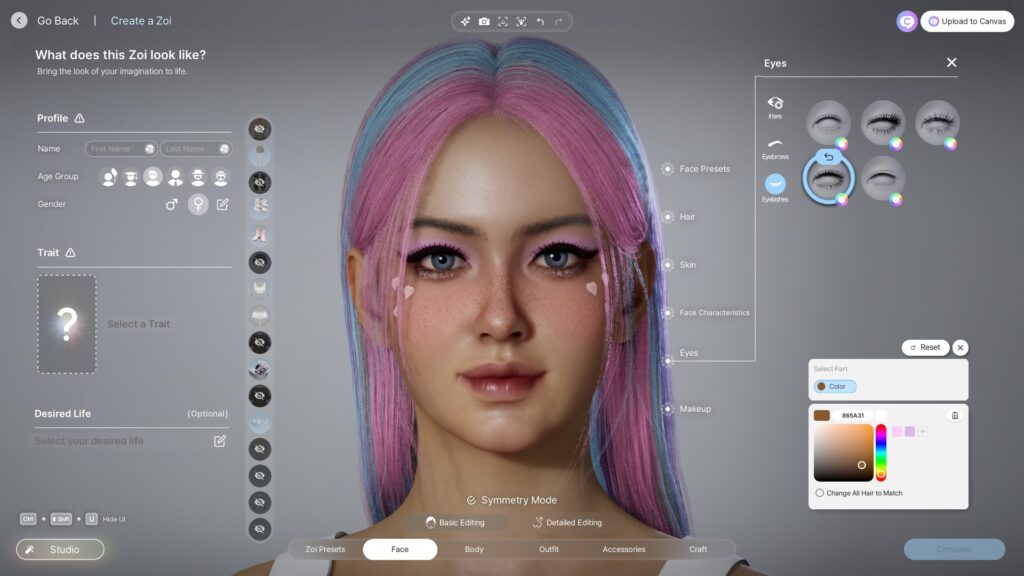
Category | Target Area | Key Controls |
|---|---|---|
Highlighter | Cheekbones, brow bone, nose bridge, cupid's bow | Tone, Glow, Contour sliders; color picker; intensity slider |
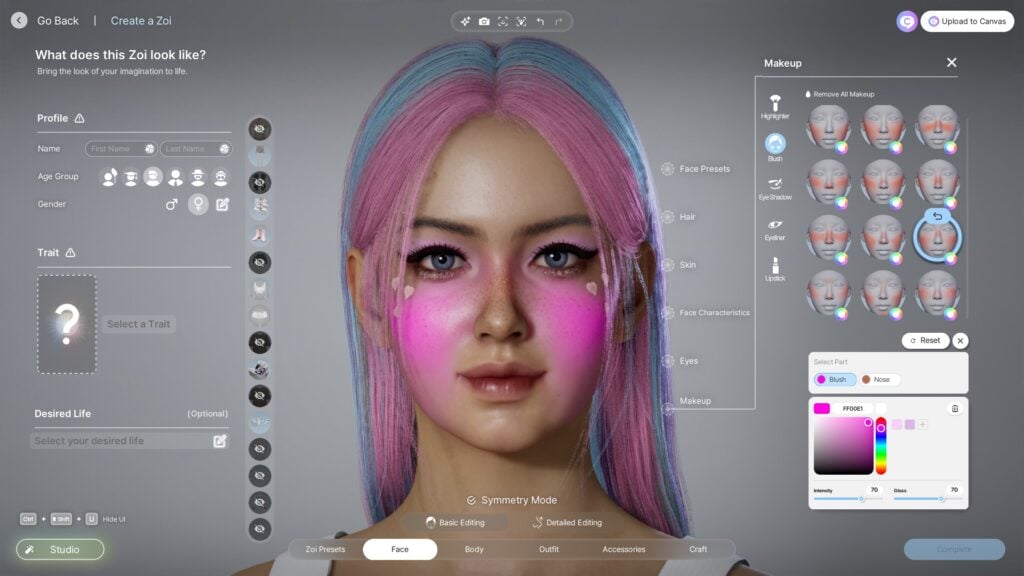
Blush | Cheeks and surrounding facial regions | Separate tone controls for different face regions; color picker; intensity slider; gloss toggle |
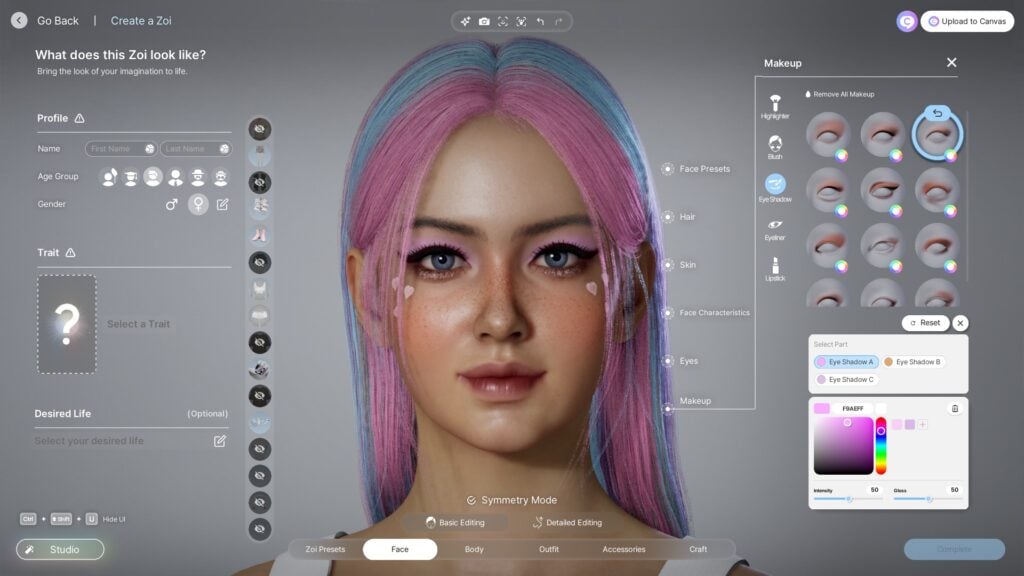
Eyeshadow | Eyelids and surrounding eye area | Color picker; intensity slider; some presets include subtle eyeliner elements |
Eyeliner | Upper and lower lash lines | Color picker; intensity slider; preset line styles |
Lipstick | Upper lip, lower lip, and lip edges | Two sub-color controls (e.g., edges vs. main lip area); gloss intensity slider; color picker |
Highlighter
Highlighter presets simulate the light-catching effect of real highlighter products, adding a luminous sheen to raised areas of the face. The highlighter section stands out from the other categories because it offers three dedicated sub-sliders in addition to the standard intensity control:
Slider | Effect |
|---|---|
Tone | Adjusts the warmth or coolness of the highlight color |
Glow | Controls the brightness and spread of the luminous effect |
Contour | Adds subtle shadowing that pairs with the highlight to sculpt facial features |
Combined with the color picker, these sliders let you create anything from a soft, barely-there glow to a dramatic editorial highlight. The Contour slider is particularly useful because it introduces depth alongside the brightness, so you do not need to rely on blush alone for facial definition.
Blush
Blush adds color and warmth to the cheeks. What sets inZOI's blush apart is that many presets include separate tone controls for different regions of the face, allowing you to apply slightly different shades across the cheekbones, nose, and forehead rather than a single flat color across the entire area.
Blush also doubles as the home for certain skin surface details. Freckles and beauty marks are found in the blush section of the makeup menu rather than in a separate skin features panel. The freckle options range from super subtle dustings to full-face coverage, and they can be layered on top of a blush color for a combined effect. Beauty marks are positioned at specific preset locations on the face.
Like all makeup categories, blush includes an intensity slider and color picker. You can also add gloss to any blush, which gives the cheeks a dewy, fresh-skin finish.
Eyeshadow
Eyeshadow covers the eyelid and the area around the eyes. The category can feel a little tricky at first because it is not always immediately clear what area each slider or color option affects. With some experimentation, though, the system becomes intuitive.
A notable detail is that many eyeshadow presets include subtle built-in eyeliner elements. This means that even before you apply a separate eyeliner, the eyeshadow itself may already define the lash line to some degree. When you later choose an eyeliner preset, it layers on top of whatever the eyeshadow provides, so the two categories work together rather than overriding each other.
Eyeshadow supports a full color picker and an intensity slider. Reducing intensity to near zero effectively removes the eyeshadow while preserving the preset selection, which makes it easy to toggle between looks without losing your preset choice.
Eyeliner
Eyeliner defines the lash line and is one of the most impactful makeup categories for creating distinct eye shapes. Preset styles range from thin, natural lines to thicker, more dramatic looks. Each preset can be recolored using the standard color picker, and the intensity slider controls how bold or subtle the line appears.
Because eyeshadow presets sometimes include built-in eyeliner effects, it is worth previewing your eyeshadow selection before choosing an eyeliner. Combining the two can produce a layered effect that adds depth and complexity to the eyes.
Lipstick
Lipstick is one of the most detailed makeup categories. Each lipstick preset comes with two sub-color controls that let you adjust different parts of the lip independently. Depending on the preset, these might control the lip edges versus the main lip surface, or the upper lip versus the lower lip. This dual-color system adds realistic depth, since real lipstick rarely appears as a single flat tone.
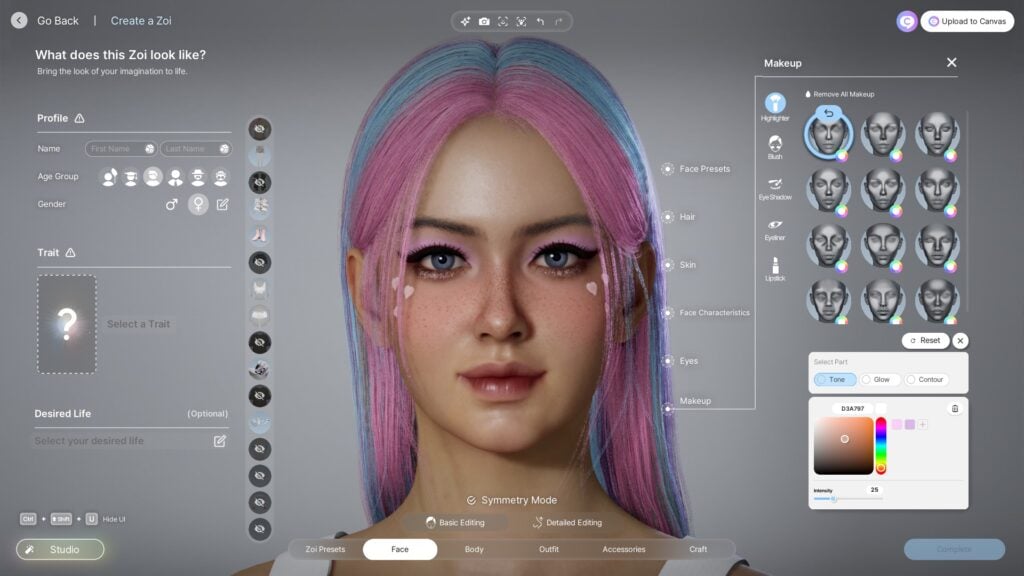
The lip gloss slider is a standout feature. You can adjust gloss intensity from a completely matte finish to a high-shine, wet-look gloss. The gloss color can also be tweaked independently, making it possible to apply a clear gloss over a dark lipstick or tint the gloss to create a layered color effect.
Lip wrinkle rendering is also affected by lipstick. The surface detail of the lips changes based on how much gloss is applied: higher gloss values smooth out the lip texture, while matte settings let the natural lip lines show through. This is a subtle touch that adds realism.
Common Controls
All five makeup categories share a consistent set of controls. Understanding these core tools makes it easy to work across categories without relearning the interface.
Control | Description | Available In |
|---|---|---|
Color Picker | Full color wheel for selecting any hue; hex code entry supported; saved swatches for reuse | All categories |
Intensity Slider | Controls the opacity of the makeup effect, from invisible to fully opaque | All categories |
Gloss Slider | Adjusts surface shininess from matte to high-shine | Lipstick, Blush, Highlighter |
Sub-Color Controls | Separate color adjustments for different zones within a single preset | Lipstick (two sub-colors), Blush (regional tones), Highlighter (tone/contour) |
Preset Selection | Library of pre-made styles for each category | All categories |
Colors can be chosen from the wheel, entered as a hex code, or saved as custom swatches for future use. The swatch system is shared across the makeup editor, so a color saved while editing blush can be recalled later when adjusting lipstick.
Makeup Presets and Randomizer
Update v0.4.0 introduced dedicated Makeup Presets, accessible through the Face menu under Makeup. This feature lets you save your current makeup configuration as a named preset that can be applied to any Zoi. It is useful for maintaining a consistent look across multiple characters or for quickly switching between saved styles.
The same update added a Randomizer button for all customization categories, including makeup. Pressing the randomizer generates a random combination of presets and settings across all makeup categories at once. This is a good starting point when you want inspiration without building a look from scratch. You can randomize, keep the parts you like, and manually adjust the rest.
Style Presets
Update v0.5.0 expanded on the preset system with Style Presets, which save a complete look that includes outfit, hair, and makeup together. Unlike Makeup Presets (which save only the cosmetic settings), Style Presets capture everything about a Zoi's styled appearance in one package. This is especially useful when you want to define a full "look" and swap between several complete styles quickly.
Style Presets can be shared through Canvas, inZOI's community sharing platform. Other players can download your Style Preset and apply it to their own Zois, making it a popular way to share character designs.
Makeup and Outfit Categories
inZOI provides nine outfit categories that players can design separate wardrobes for: Everyday, Formal, School, Sleepwear, Party, Sportswear, Swimwear, Summer, and Winter. However, makeup and hair are currently shared across all outfit categories. This means a Zoi wearing full glam makeup for a party will have the same makeup when switching to sleepwear or sportswear.
This is a known limitation and one of the most commonly requested features in the community. Players want the ability to assign different makeup and hair configurations per outfit category, so that a character could look natural during everyday activities and wear a full face of makeup for formal or party events. As of the current version, this feature has not been implemented, though KRAFTON has acknowledged the feedback.
AI Texture Generation
inZOI has an AI-powered text-to-image tool that generates custom textures from written prompts. This tool is primarily used for clothing and furniture customization, where you type a description (such as "flower pattern" or "tidal wave") and the system generates a matching texture after a few seconds.
The AI texture tool sits next to the color wheel in the customization interface. To use it, select the item you want to customize, navigate to the "My Texture" option at the bottom of the icon panel, and click the four-pointed star icon to open the text prompt. After the texture is generated, you can save it for future use. Repeating the same prompt produces similar but slightly varied results, so you can regenerate until you find a version you like.
While AI texture generation is most commonly associated with clothing and build-mode items, the underlying technology applies to any recolorable surface in the editor. The feature has generated discussion in the community, with some players embracing it for the creative freedom it offers and others preferring to rely on curated presets and manual color selection.
Changing Makeup After Creation
Unlike facial structure and body shape, which are permanently locked once a Zoi is finalized, makeup can be changed at any time during gameplay. To modify makeup after creation, interact with any mirror in the game world. Every default house comes with a mirror, and additional mirrors can be placed through build mode.
Clicking on a mirror opens an action menu that lets you enter the character editor. From here, you have access to all the same makeup tools available during initial creation: eyeshadow, lipstick, blush, eyeliner, and highlighter. You can also change hairstyle, hair color, and accessories through the mirror. There is no limit to how many times you can change your Zoi's appearance, so you are free to experiment without any penalty.
Feature | Editable After Creation? |
|---|---|
Makeup (all categories) | Yes, via mirror |
Hair style and color | Yes, via mirror |
Yes, via mirror | |
Outfits | Yes, via mirror |
Facial structure (nodes) | No, locked at creation |
Body shape | No, locked at creation |
Age group | No, locked at creation |
Gender identity | No, locked at creation |
Tips for Natural-Looking Makeup
Creating a convincing, natural makeup look in inZOI takes some restraint. The tools are powerful enough to produce dramatic results, but subtlety often yields the most realistic faces. These tips are drawn from community experience.
Start with low intensity. Every makeup category defaults to a noticeable intensity. Pull the intensity slider down to around 30-40% for a natural base, then gradually increase until the effect looks right. It is much easier to add than to dial back.
Match blush to skin undertones. Warm skin tones pair well with peach and coral blush shades, while cool skin tones work better with pink and berry tones. Using the color picker to sample a shade slightly warmer than the skin color produces a realistic flush.
Layer eyeshadow and eyeliner carefully. Since many eyeshadow presets include built-in eyeliner elements, check the eyeshadow result before adding a separate eyeliner. Overdoing both can create an overly heavy look around the eyes.
Use lip gloss sparingly for realism. A small amount of gloss adds life to the lips. Pushing the gloss slider too high creates a wet-look effect that reads as editorial rather than everyday.
Take advantage of highlighter contour. The highlighter's Contour slider adds dimension to the face without needing to rely on blush alone. A light contour value paired with gentle glow gives the face natural depth.
Use the randomizer for inspiration. If you are unsure where to start, press the randomizer button and then adjust from there. Random combinations sometimes produce unexpected pairings that work well together.
Save presets as you go. Once you land on a look you like, save it as a Makeup Preset. This preserves your work and makes it easy to apply the same look to other Zois or restore it after experimenting.
Preview in different lighting. Rotate the camera and check the makeup under different angles. Makeup that looks perfect from the front may appear too strong or too weak in profile or three-quarter views.
See Also
Create a Zoi - Full overview of the character creation system
Face Customization - Facial structure, skin features, and eye customization
Body Type Customization - Body shape, sliders, and physique options
Canvas - Community sharing platform for presets and creations
Clothing - Outfit customization and wardrobe options
Traits - Personality traits selected during character creation
Additional Details
Foundation and Base
Foundation evens out the skin tone and is the base layer for other cosmetics. Players can adjust the coverage level from sheer to full, and the shade is selected from a comprehensive palette that accounts for warm, neutral, and cool undertones.
Mascara
Mascara darkens and thickens the eyelashes. Players can adjust the length and volume independently. While black is the most common choice, the full color palette is available for creative looks.
Lipstick and Lip Gloss
Lip color comes in two forms: lipstick (matte or satin finish) and lip gloss (shiny, translucent finish). Both support full color customization. Lip liner is also available as a separate option to define the lip edges before filling in color.
Intensity and Opacity Controls
Every makeup category includes an intensity or opacity slider. Setting the slider low produces a barely-there, natural effect, while cranking it high creates a dramatic, editorial look. This single control is what allows the same eyeshadow shade to look like a daytime neutral or a nighttime statement depending on how it is applied.
The opacity slider is particularly useful for blush and foundation, where a heavy hand can quickly make a character look unnatural. Starting low and gradually increasing is a reliable approach.
Nail Art
Although separate from facial makeup, nail art is part of the same beauty customization section in Create a Zoi. Players can select nail shapes (square, oval, stiletto, almond) and apply polish colors, patterns, and designs. Nail length is adjustable, and custom designs allow for detailed nail art.
Occasions and Versatility
Makeup is set during character creation and remains consistent throughout gameplay. While Zois cannot change their makeup dynamically during a play session, players can enter Create a Zoi at any time to update the look. This means you can adjust your character's makeup to match a special event or simply refresh their style whenever you want.