

Overview
Mouse Mode is an optional control scheme in Pokemon Pokopia that uses the Nintendo Switch 2's Joy-Con as a pointing device, similar to a computer mouse. When enabled, a cursor appears on screen that allows precise block placement and destruction. Mouse Mode transforms the building experience by enabling accurate furniture placement, long-range block targeting, and rapid construction. It is widely considered a game-changer for players who enjoy building and decorating.
How to Enable
Press the + button to open the Pokedex menu.
Select "Settings".
Go to the "Game" tab.
Scroll down to find "Mouse Mode" and toggle it On.
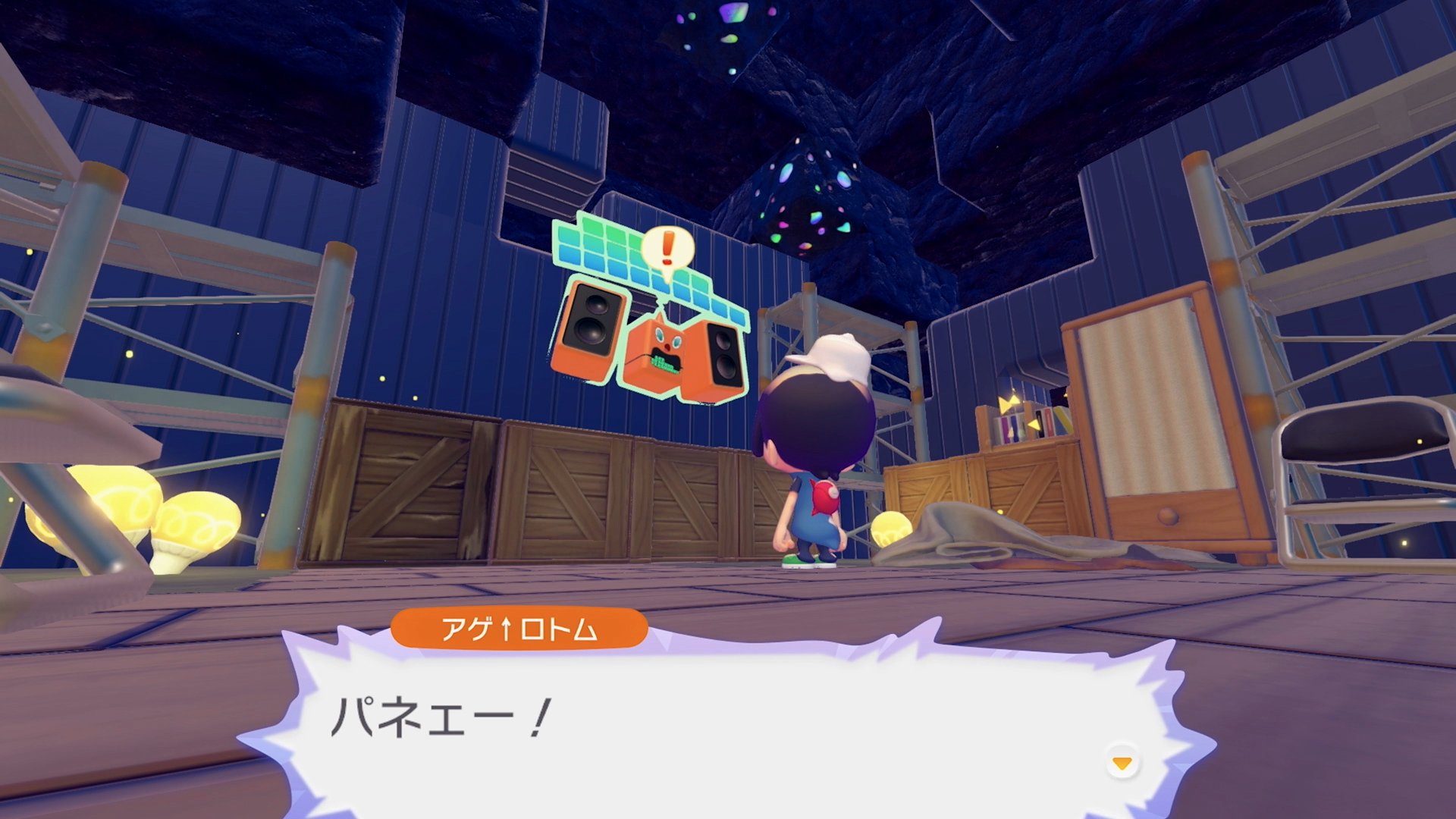
Once enabled, detach one Joy-Con from the console (or use a Pro Controller's right half). Hold the Joy-Con sideways with the magnet (IR sensor) facing down against a flat surface, like a table. A yellow cursor with a red outline will appear on screen.
Controls
Mouse Mode controls depend on which Joy-Con is used as the mouse. Either hand works:
Action | Right Joy-Con as Mouse | Left Joy-Con as Mouse |
|---|---|---|
Move cursor | Slide Joy-Con on surface | Slide Joy-Con on surface |
Place items/blocks | R button | L button |
Rock Smash (destroy blocks) | ZR button | ZL button |
The other Joy-Con (or the console itself in handheld mode) handles character movement with the analog stick. This creates a dual-control setup: one hand moves Ditto, the other aims the cursor.
What You Can Do
Precise Block Placement
The cursor allows placing blocks and furniture with pinpoint accuracy. In standard mode, item placement depends on Ditto's position and facing direction. Mouse Mode removes this limitation, letting you place items at any targetable location within range, even far from Ditto. This is especially useful for interior decoration, where precise furniture alignment matters.
Long-Range Rock Smash
The cursor extends Rock Smash's reach significantly. Instead of punching blocks directly in front of Ditto, you can target specific blocks across a wide sweep. This makes large-scale demolition and terraforming much faster. You can systematically clear rows of blocks by sweeping the cursor across them.
Rapid Building
Clicking rapidly while moving the cursor allows placing multiple blocks in quick succession, far faster than the standard control scheme. This is ideal for building walls, floors, and large structures.
Limitations
Limitation | Details |
|---|---|
Rock Smash only | Mouse Mode restricts Ditto to Rock Smash as the only usable move. You cannot use Water Gun, Leafage, Cut, or any other transformation while the cursor is active. |
Flat surface required | The Joy-Con must be placed on a flat surface to track movement. Playing in handheld mode or without a table is impractical. |
Not ideal for exploration | Since only Rock Smash works, Mouse Mode is best toggled on for building sessions and off for general gameplay. |
When to Use Mouse Mode
Use Case | Benefit |
|---|---|
Interior decorating | Precise furniture placement inside houses |
Large construction projects | Rapid block placement for walls, floors, roofs |
Demolition and terraforming | Wide-sweep Rock Smash for fast block removal |
Sparkling Skylands building | Accurate block placement on floating island edges |
Post-game creative building | Combines well with Magnet Rise for ultimate building control |
Tips
Toggle Mouse Mode on only when building. Switch back to normal controls for exploration, farming, and quests.
Use a flat desk or table surface for the best cursor tracking. Uneven surfaces cause erratic cursor movement.
The right Joy-Con works better for right-handed players, and the left Joy-Con for left-handed players. The game supports either.
Combine Mouse Mode with Magnet Rise (post-game) for the ultimate building setup: fly freely while placing blocks with cursor precision.
Use Mouse Mode's long-range Rock Smash to efficiently clear Glowing Blocks on Lucky Days when more spawn across the map.