
Home Building Guide
Complete guide to building homes in inZOI, covering Build Mode controls, wall placement, roofing, flooring, furniture, pools, fences, platforms, multi-story construction, AI tools, presets, cheats, and all March 2026 (v0.7.0) additions including standardized property sizes, adjustable pool water, resizable rugs, modular roofing, Hanok walls, and 60+ new build items.
On This Page
Overview
Building a home from scratch is one of the most rewarding parts of inZOI, but the tools can be overwhelming the first time you open Build Mode. This guide walks through every step of the process, from choosing a lot to placing your final piece of furniture. If you want to practice without worrying about budget, use Build Studio from the main menu first. Everything you build there can be saved as a preset and imported into your live game later.
Before You Start
Entering Build Mode
Press I on the keyboard or click the Build Mode icon in the bottom-right corner of the screen. The camera jumps to your household's lot and the building interface appears. If you want to edit a community lot instead, click the Build Mode icon and select "Edit Public Property" or "Edit Street." Community lot edits cost no Meow.

Essential Controls
Memorize these controls before placing your first wall. They apply throughout the entire building process.
Action | Control |
|---|---|
Enter/Exit Build Mode | I |
Selection Tool | V |
Room Selection Tool | R |
Toggle Floor Grid | G |
Rotate Object Right | Right-Click or C |
Rotate Object Left | Z |
Free Placement (ignore grid) | Hold Alt |
Place Multiple Copies | Hold Shift |
Go Up a Floor | PgUp |
Go Down a Floor | PgDn |
Toggle Wall Visibility | Home / End |
Delete Selected Object | Delete |
Undo | Ctrl+Z |
Redo | Ctrl+Shift+Z |
Hide UI (for screenshots) | Ctrl+Shift+U |
Move Camera | Left-Click Drag on empty space, or W/A/S/D |
Rotate Camera | Right-Click Drag on empty space |
Zoom | Mouse Wheel |
As of the March 2026 update (v0.7.0), players can fully customize keyboard and mouse bindings through the Game Menu (Esc key). Every action listed above can be reassigned to preferred keys, so the defaults shown here may not match your personal configuration.
Budget Considerations
Everything in Build Mode costs Meow. Walls, flooring, furniture, doors, and windows each have individual prices. A modest starter home can cost 15,000 to 25,000 Meow, while a fully furnished family house can exceed 80,000 Meow. Some pre-built property presets cost over 90,000 Meow. If your household cannot afford the home you want, consider building the structure first and furnishing rooms gradually as income comes in.
Step 1: Choose Your Lot
Before building, you need a lot to build on. See the Lots and Housing article for a full breakdown of available lots in each city.
Empty lots: Found throughout Dowon, Bliss Bay, and Cahaya. Look for vacant land with no existing structures.
Existing properties: You can demolish an existing home and rebuild on the same lot. Use the "Remove All" option in the toolbar to clear everything.
Lot size: Lots vary in size from small urban plots to larger suburban parcels. Pick a lot that matches the scale of house you want to build. A two-story family home needs significantly more ground area than a studio apartment.
Once you have moved your household onto a lot (or selected an empty lot to edit), press I to enter Build Mode.
Standardized Property Sizes (V0.7.0)
The March 2026 update standardized all properties across Dowon, Bliss Bay, and Cahaya into seven fixed size formats. This change was introduced so that buildings downloaded from Canvas fit correctly on compatible lots without clipping or overhang issues. A new Size filter on Canvas lets creators browse presets by property dimensions, making it much easier to find builds that match a specific lot.
When loading a save file after the v0.7.0 update, players receive a notification if any of their properties were resized. Custom buildings are automatically preserved as presets before the resize, so no work is lost. Properties with reduced dimensions display a preset load notification, and property prices are adjusted accordingly with a minimum of 1,000 Meow preserved. Players can also trigger a manual property refresh through Options, then Gameplay, then Refresh Property Manually.
Notable Property Size Changes
Several specific properties changed dimensions with the standardization:
Junghwa Parkville (Dowon): Reduced from 25.5 x 20 m to 25 x 20 m.
203 Somerset Place (Bliss Bay): Reduced from 30 x 26 m to 30 x 25 m.
8 Beachfront Drive (Bliss Bay): Expanded from 22.5 x 15 m to 25 x 20 m.
If you have custom builds on properties that were resized, check that your walls and furniture still fit within the new boundaries. The automatic preset backup makes it easy to restore your original design and adjust it to the updated dimensions.
Step 2: Enable the Floor Grid
Before placing any walls, press G to enable the floor grid. This is the single most important step that new builders skip. When the grid is active, walls snap to grid points and enclosed areas automatically generate flooring (the interior turns blue). Without the grid enabled, flooring will not auto-generate and you will need to place floor tiles manually.
The grid uses a square system where four grid squares equal approximately one meter. Keeping the grid visible also helps with symmetry and alignment throughout the build.
Step 3: Choose a Wall Height
Before you start drawing walls, decide on a wall height. This choice affects the overall look and feel of your home and cannot be mixed within a single structure.
Wall Height | Best For |
|---|---|
3.0 m | Single-story homes, cozy cottages, compact builds |
3.9 m | Standard residential homes, a good default choice |
4.8 m | Multi-story homes (recommended for two or more floors) |
5.7 m | Grand multi-story builds, mansions, commercial-style buildings |
Important: You cannot mix different wall heights within the same connected structure. All exterior walls must use the same height. If you want a two-story home, choose 4.8 m or 5.7 m walls from the start. Interior partition walls can use shorter heights than the exterior.
Step 4: Place Walls
Open the Structure tab in the left panel and select the wall tool. Click on a grid point to begin placing your first wall, then drag to extend the wall along the grid. Click again to confirm the endpoint.
Click on a grid square to start your first wall segment
Drag the cursor along the grid to define the wall's length
Click to confirm and place the wall
Continue drawing walls from the endpoint, connecting segments until you return to the starting point
When walls fully enclose an area, the flooring inside turns blue, indicating a valid room
Wall Placement Tips
Start from a grid point. Walls placed off-grid may not auto-generate interior flooring.
Draw the exterior perimeter first, then add interior walls to divide the space into rooms.
Interior walls create room boundaries. Each enclosed space becomes a separate room that can have its own wallpaper and flooring.
Walls do not automatically join to adjacent walls. Check connections carefully to avoid gaps.
You cannot delete individual wall segments. If a wall is wrong, undo it with Ctrl+Z immediately or rebuild the section.
Step 5: Add Doors and Windows
Doors and windows are found in the Structure tab under their respective categories. Click a door or window to select it, then click on a wall to place it.
Doors
Every home needs at least one exterior door for Zois to enter and exit
Interior doors between rooms are optional but improve traffic flow and room privacy
Door direction matters: the door should open toward the nearest wall. A door close to the right wall should have its handle on the left side.
Doors placed on raised platforms or upper floors can occasionally be buggy. Save before placing doors in these locations.
Windows
Windows cannot be placed at the very bottom of a wall flush with the floor. Position them at mid-height or higher.
You cannot stack multiple windows on the same wall section. One window per wall segment.
Consider window placement early because wall segment restrictions can limit your options later.
Step 6: Build the Roof
Roofing is placed from the roof floor. Press PgUp until you reach the top floor level, or zoom out until the roof plane becomes visible. Select a roof type from the Structure tab.
Navigate to the roof floor using PgUp
Select a roof type (gable, hip, half-hip, or flat are the main options)
Click on one corner of the area you want to cover and drag to the opposite diagonal corner
Release to place the roof section
For complex roof shapes, place multiple overlapping roof sections and align them manually
Roof Tips
Roofs can only be placed in rectangular shapes. Diagonal walls may need multiple overlapping roof pieces.
Roof sections do not automatically connect to each other. Use the Alt key for free placement to manually align them.
Customize roof color and material by clicking on a placed roof section and selecting the paintbrush icon.
A flat roof is the simplest option if you are unsure about roofing. You can always replace it later.
As of v0.7.0, new placement guidelines appear on screen when positioning roofs, helping you line up edges and avoid gaps between sections.
Modular Roofing (V0.7.0)
The March 2026 update added three modular roofing pieces that can be combined to create more complex roof designs. These pieces snap together at edges, making it significantly easier to build L-shaped, T-shaped, or multi-gable rooflines without relying entirely on free placement and manual alignment. If you have struggled with roofing in the past, try starting with modular pieces before falling back to the standard rectangular roof tool.
Step 7: Apply Flooring and Wallpaper
Once the structure is complete, customize the interior surfaces. Click on any wall or floor surface, then click the paintbrush icon to open the Customize Paint menu.
Wallpaper and Paint
Each side of a wall can be painted independently. The interior face and exterior face can have different colors and textures.
Options include solid colors, tile patterns, wood finishes, brick textures, and more
To paint multiple surfaces with the same material, select the icon with the plus symbol after choosing a paint
AI Texture: Type a text description and the built-in AI generates a custom texture from your prompt. Apply it to any surface.
My Texture: Upload your own image file as a texture and apply it to walls or floors.
Flooring
If the floor grid was enabled when you placed walls, interior rooms already have default flooring. Click on any floor surface and use the paintbrush to change the material.
Manual floor tiles come in three sizes: 7.5m x 7.5m, 15m x 15m, and 30m x 30m. These are useful for outdoor patios or areas where auto-generated flooring does not appear.
Customizable properties for both walls and floors include color, material, gloss level, pattern scale, and special effects.
Textured Tiles (V0.7.0)
The v0.7.0 update introduced 22 new textured tile patterns for walls and floors. These expand the available finishes beyond the original set and include stone, ceramic, terracotta, and patterned options. Browse them under the Structure tab's tile section when customizing surfaces.
Hanok Walls (V0.7.0)
A traditional Korean-style Hanok wall (high) piece was added in the March 2026 update. This wall element lets you incorporate a Korean architectural aesthetic into your builds. Pair it with the new traditional objects (see below) to create an authentic Hanok-style home.
Step 8: Place Furniture
Open the Furniture tab in the left panel. Items are organized by room type: Bedroom, Living Room, Kitchen, Bathroom, Home Office, Hobby, Outdoors, Social Event, and Other. See the Furniture article for detailed item lists and prices.
Essential Rooms and Required Furniture
A functional home needs certain furniture for Zois to meet their basic needs.
Room | Required Items | Purpose |
|---|---|---|
Bedroom | Bed (adult and/or child/toddler sizes) | Sleep need |
Bathroom | Toilet, sink, shower or bathtub | Bladder and hygiene needs |
Kitchen | Refrigerator, stove or oven, counter space | Hunger need via cooking |
Living Area | Seating (sofa or chairs), TV or entertainment | Fun and social needs |
Additional rooms to consider for skill development and income:
Room | Key Items | Benefit |
|---|---|---|
Home Office | Computer desk, computer, bookshelf | Programming, Critical Thinking, writing, job searching |
Hobby Room | Easel, instruments, treadmill, yoga mat | Art, Instrument, Fitness skill training |
Garden/Yard | Planting plots, bonsai trees, outdoor gym | Gardening skill and crop income |
Nursery | Bassinet, changing table, toddler bed, potty chair | Baby and toddler care |
Placement Mechanics
Grid snapping (default): Objects snap to the nearest grid position. Good for aligned, organized layouts.
Free placement: Hold Alt while moving an object to ignore the grid entirely. This lets you push furniture against walls, overlap items, and place things at any angle.
Rotation: Right-click or press C to rotate 45 degrees clockwise. Press Z for counter-clockwise. Hold Alt while rotating for fine-tuned angles.
Multiple copies: Hold Shift while placing to drop several of the same item without reselecting it from the menu.
Improved snap-to-grid (v0.7.0): The March 2026 update made object grid snapping more precise and consistent, reducing the small offset errors that sometimes occurred in earlier versions.
Note: There is currently no way to resize or scale most furniture. All standard items have fixed dimensions. The exception is rugs, which gained adjustable sizing in v0.7.0 (see below).
Furniture Customization
After placing a piece of furniture, click on it to open the customization menu. You can change the texture, color, material, and gloss of most items. AI Texture and My Texture options are also available for furniture, letting you apply custom designs to tables, sofas, cabinets, and more.
Floor-Level Furniture (V0.7.0)
The March 2026 update added floor tables, floor cushions, and floor bedding (single and double configurations). These items let Zois eat, drink, socialize, and sleep at floor level, opening up new interior design options that were not possible before.
Floor tables and cushions: Place a low floor table and surround it with floor cushions to create a traditional dining area. Zois will sit on the cushions and use the table for meals and conversations.
Floor bedding: Two new bed types (single and double) sit directly on the floor. Zois can sleep on them just like standard beds. These are useful for minimalist builds, studio apartments, or traditional Japanese or Korean-inspired rooms.
Standard table heights were also increased from 35 cm to 45 cm across the board to prevent object clipping issues when Zois interact with items on tables.
Adjustable-Size Rugs (V0.7.0)
Rugs in inZOI now support size adjustment. After placing a rug, use the resize handles to stretch or shrink it so that a single rug item can cover different floor areas. This eliminates the old problem of needing to hunt for a rug that matched your room's exact dimensions. You can scale a small accent rug to fit under a coffee table or stretch a large rug to cover an entire living room floor.
Multi-Story Homes
To build a home with multiple floors, you need to plan for vertical space from the start.
Choose 4.8 m or 5.7 m walls when starting your build. The 3.0 m option does not support upper floors well.
Complete the ground floor structure (walls, rooms) first.
Place stairs from the Structure tab. Position them in an area with enough clearance above for the stairwell opening.
Press PgUp to navigate to the second floor. The staircase creates a floor opening automatically.
Draw walls on the upper floor just as you did on the ground floor. Upper floor walls sit on top of the lower structure.
Repeat for additional floors. Apartment buildings in inZOI support up to 30 floors.
Stair Types
Straight stairs: The simplest option. Place them along a wall for space efficiency.
L-shaped (corner) stairs: Place a straight flight first, then click the slanted arrow option in the stair settings to add a turn.
U-turn stairs: Place a full straight flight, then bend it 180 degrees. Takes more space but looks more elegant.
Stairs must be placed in open areas. Nearby walls or furniture can block stair placement. If you get placement errors, clear the area around the stairwell first.
Pools
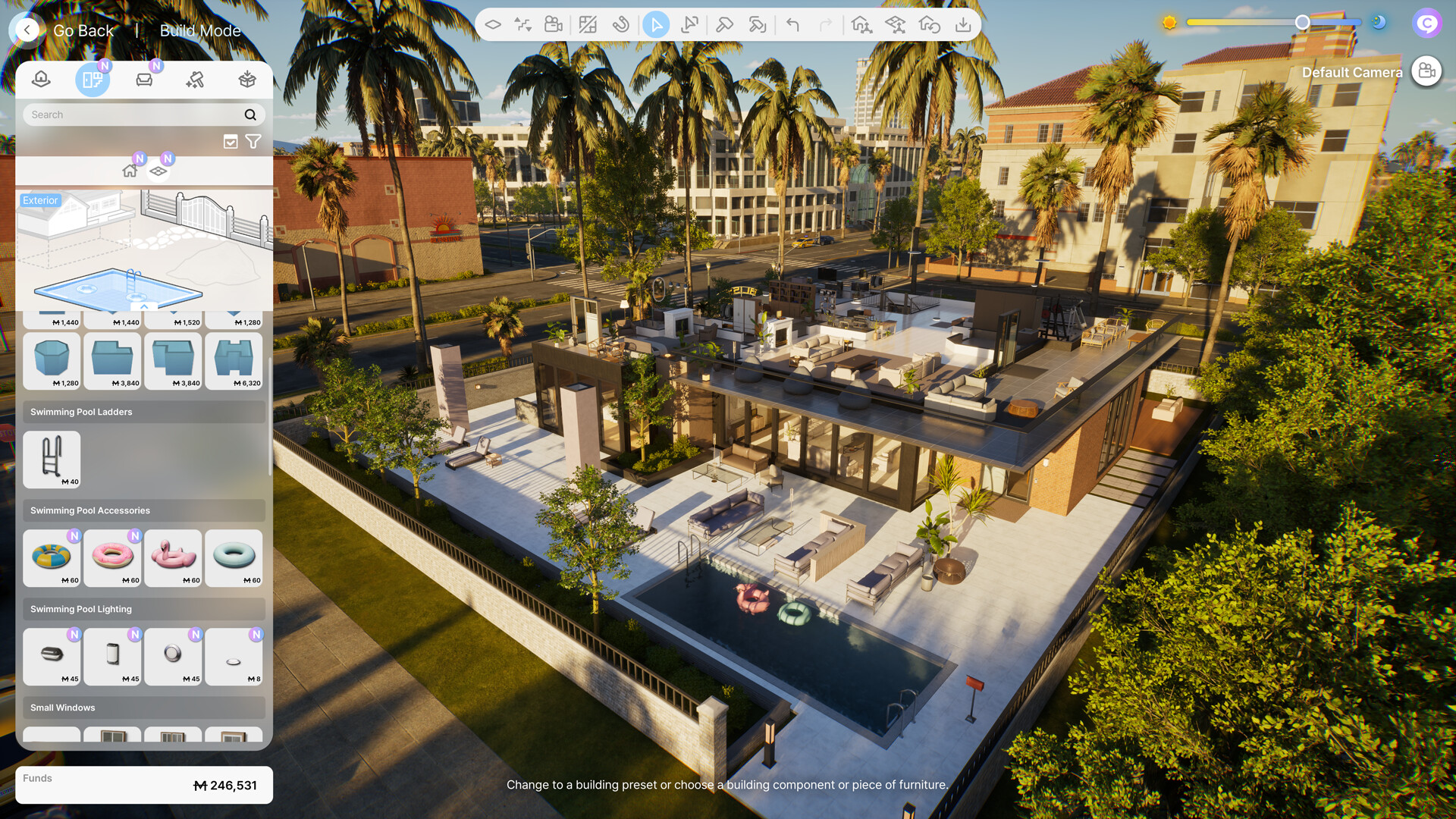
Swimming pools are found in the Structure tab under Exteriors. They are placed outdoors on your lot.
Select a pool shape from the Exteriors section
Click and drag on your lot to define the pool boundaries
Ensure all pool wall lines connect so the pool is properly enclosed and can hold water
Adjust pool wall height and steepness using the customization controls
Add pool ladders so Zois can enter and exit. Without a ladder, Zois cannot use the pool.
Add pool accessories and lighting from the Furniture tab for decoration
To have a Zoi swim, interact with the placed pool and select the "GO" option.
Adjustable Pool Water Levels (V0.7.0)
Starting with the March 2026 update, swimming pool water height and depth can be customized. After placing a pool, select it and use the water level controls to raise or lower the water surface. This lets you create shallow wading pools, deep diving pools, or decorative water features with precisely the water level you want. Combined with the existing wall height and steepness adjustments, pools are now far more flexible than in earlier versions of the game.
Fences and Gates
Fences define property boundaries and add curb appeal, but they require careful handling due to known placement quirks.
Build fences last: Fences can disappear if you build other structures afterward. Always add fences as the final step of your build.
Gate placement: Build both sides of the fence line first, then snap the gate into the gap. Gates require 4 to 12 grid hexes of space and must be placed away from the property border.
Fences cannot be placed on floor tiles (including grass-textured tiles). Place them directly on the ground.
Partition fences (v0.7.0): A new interior partition fence piece was added in the March 2026 update. Unlike exterior fences, partition fences work as room dividers inside your home without creating full wall boundaries.
Placement guidelines (v0.7.0): Visual guides now appear when positioning fences, helping you align segments and avoid the spacing errors that previously caused fences to vanish.
Platforms and Foundations
Raised foundations give homes a more realistic look. inZOI does not have a dedicated foundation tool, but you can achieve a raised base using platforms.
Place a platform from the Structure tab
Use the movement controller (first option in the piece selector) to adjust the platform's height and size
Build your home on top of the raised platform
Add stairs from the ground level up to the platform so Zois can access the front door
Note: Door placement on raised platforms can be buggy. Save your build before adding doors to elevated surfaces.
AI and Creative Tools
AI Texture Generation
The built-in AI texture generator creates custom textures from text descriptions. Access it through the Customize Paint menu on any surface or furniture piece. Type a description (for example, "rustic red brick" or "Japanese cherry blossom wallpaper") and the AI produces a texture you can apply immediately. This is one of inZOI's most unique building features.

3D Printer
The 3D Printer lets you upload a 2D image and convert it into a 3D object. The printed object can be used as decoration in your home. It works best with symmetrical shapes (vases, figurines) or flat items viewed from one side (wall art, plaques). 3D-printed objects are purely decorative and cannot be interacted with functionally (a printed chair cannot be sat on).
Furniture Workbench
The Furniture Workbench (found in the Hobby section of the Furniture tab) lets Zois with the Housework skill craft custom furniture. Crafted pieces can be placed in the home or sold for Meow.
Saving and Sharing
Saving Presets
Save Property Preset: Saves your entire build (structure + furniture) as a reusable template. Found in the top toolbar.
Save Room Preset: Use the Room Selection Tool (R) to select a single room, then save it. Useful for reusing a kitchen or bathroom design across multiple homes.
Presets are stored locally on your computer and can be placed on any lot in any save file.
Uploading to Canvas
Share your build with the community through Canvas. Click "Upload to Canvas" in the Build Mode interface, add a title, description, and tags, then upload. Other players can download and place your creation in their own games. Only Photo Mode screenshots can be used as thumbnails for Canvas uploads.
As of v0.7.0, Canvas now includes a Property Size filter that lets you search for presets matching specific lot dimensions. This makes it much easier to find compatible builds for your property.
Using Presets Instead of Building From Scratch
If building from scratch feels overwhelming, the Building Presets tab offers pre-built homes and rooms that can be placed in a single click.
Preset Type | What It Includes | Best For |
|---|---|---|
Property Presets | Complete homes with walls, roof, doors, windows, and basic furniture | Quick start; move in immediately |
Room Presets | Individual pre-designed rooms (kitchen, bedroom, bathroom, etc.) | Filling out a custom shell; mix and match rooms |
Canvas Downloads | Community-created builds downloaded from Canvas | Unique designs from other players |
Property presets can be expensive. The Sunwood Living preset, for example, costs over 90,000 Meow. Make sure your household can afford the preset before placing it.
New Build Items (V0.7.0)
The March 2026 update added over 60 new build items across multiple categories. The table below summarizes every new category and its item count.
Category | Count | Details |
|---|---|---|
Holiday Landmarks | 3 | Decorative landmarks for seasonal celebrations |
Festival Booths | 3 | Functional booths for seasonal festival events |
Lobbies | 4 | Fire station, villa, and apartment building lobby presets |
Bliss Bay Apartment Presets | 1 | New apartment layout preset for Bliss Bay |
Textured Tiles | 22 | New floor and wall tile patterns |
Traditional Objects | 8 | Cultural and traditional decorative items |
Floor Bedding | 2 | Single and double floor beds |
Modular Roofing | 3 | Customizable roof pieces for complex designs |
Hanok Walls (High) | 1 | Traditional Korean-style wall piece |
Partition Fences | 1 | Interior room divider fence |
Floor Tables and Cushions | Multiple | Low tables and floor cushions for floor-level dining |
Infant Items | Multiple | Toy car race track, inflatable baby bath, and infant toys |
TVs can now also be placed on additional furniture types that were previously unsupported, and more world buildings are editable in Build Mode.
Current Limitations (Early Access)
Build Mode is still evolving during Early Access. The following features are not yet available:
No basements: You cannot dig below ground level. A basement option is visible in the interface, suggesting it is planned for a future update.
No terrain sculpting: Lots are flat. There are no tools to create hills, slopes, or custom terrain shapes.
No terrain painting: You cannot paint grass, dirt, sand, or other ground textures directly onto the lot.
No curved walls: All walls are straight segments only.
No object resizing (except rugs): Standard furniture cannot be scaled up or down. All items other than rugs have fixed dimensions. Adjustable-size rugs were added in v0.7.0.
No vertical furniture adjustment: Standard furniture cannot be raised or lowered on walls.
No crown molding or baseboards: Decorative trim elements are not available as separate pieces.
The 2026 roadmap includes 7 to 8 planned updates throughout the year. The v0.7.0 anniversary update shipped over 60 new Build Mode items including modular roofing, Hanok walls, textured tiles, and floor-level furniture. Future updates are expected to continue expanding the build item catalog.
Build Mode Cheats
For players who want to experiment without restrictions, several cheats are available. Enable cheats through Psycat's Advice menu, then press Ctrl+Shift+C to open the console.
Cheat | Effect |
|---|---|
editAllSite true | Enables editing on all properties except roads and streets |
editAllSite false | Reverts to only editing owned properties |
showStudioCategory true | Makes Build Studio objects available on all properties |
showStudioCategory false | Restricts studio objects back to Build Studio only |
EnableFreeEditMode true | Enables free positioning and free scaling of objects (added in the October 15, 2026 update) |
EnableFreeEditMode false | Turns free positioning and scaling off |
Money cheats can be used to increase your household budget if the cost of building is a constraint. See the Cheats article for a full list.
Common Mistakes and How to Avoid Them
Mistake | Solution |
|---|---|
Floor grid not enabled before placing walls | Press G before drawing your first wall. Without the grid, flooring will not auto-generate inside rooms. |
Choosing 3.0 m walls for a multi-story home | Use 4.8 m or 5.7 m walls if you plan on adding a second floor. Wall height cannot be changed after placement. |
Fences disappearing after adding walls or furniture | Build fences last, after all other construction is complete. |
Walls not enclosing a room properly | Check for tiny gaps at corners. Zoom in and verify every wall endpoint connects to the next. |
Doors vanishing on raised platforms | Save before placing doors on elevated surfaces. If a door disappears, undo and try repositioning slightly. |
Running out of Meow mid-build | Build the structure first (walls, roof, doors). Add furniture gradually as income allows. Use Build Studio for planning. |
Placing roof on the wrong floor | Navigate to the roof floor using PgUp. The roof plane is one level above your highest room. |
Custom build no longer fits after v0.7.0 property resize | Your build was automatically saved as a preset before the resize. Load the preset and adjust walls to fit the new standardized dimensions. |
Canvas preset incompatible with your lot | Use the Property Size filter on Canvas (added in v0.7.0) to find presets that match your lot's standardized dimensions. |
Step-by-Step Starter Home Walkthrough
Here is a quick walkthrough for building a simple one-story, two-bedroom starter home:
Move into an empty lot and press I to enter Build Mode
Press G to enable the floor grid
Select 3.9 m walls from the Structure tab
Draw a rectangular perimeter (roughly 20 x 15 grid squares) for the exterior walls
Add interior walls to create: a living room, kitchen, two bedrooms, and a bathroom
Place an exterior door on the front wall and interior doors between rooms
Add windows to each room (one per wall section)
Navigate to the roof floor (PgUp) and place a simple gable roof over the entire structure
Click on walls and floors to customize paint, wallpaper, and flooring materials
Furnish the kitchen (fridge, stove, counter), bathroom (toilet, sink, shower), bedrooms (beds, wardrobes), and living room (sofa, TV)
Add a front yard fence (build this last)
Save as a Property Preset for reuse
This basic home should cost between 15,000 and 25,000 Meow depending on furniture choices. It provides everything a Zoi needs to live comfortably while you learn the building system.
General Tips
Use Build Studio for practice builds before spending Meow in your live game
Download homes from Canvas to study how experienced builders structure their designs
The Alt key is your best friend. Free placement and free rotation open up far more design possibilities than grid-only building.
Save frequently with Ctrl+S. Build Mode changes can occasionally have issues, and a recent save prevents lost work.
Plan your room layout on paper or in a notes app before starting. Knowing where each room goes prevents costly teardowns.
Experiment with AI Texture on accent walls. A single AI-generated feature wall can transform a plain room.
Keep bedrooms close to bathrooms. Zois who wake up needing the bathroom will path to the nearest one.
Place the kitchen near the front door so Zois returning from work can eat quickly
For families with children, place kids' bedrooms near the parents' bedroom for efficient nighttime baby care
Undo (Ctrl+Z) works for almost everything. If a placement goes wrong, undo immediately rather than trying to manually fix it.
Use the new modular roofing pieces (v0.7.0) if you find standard rectangular roofs limiting. They snap together at edges for cleaner complex rooflines.
Try floor tables and floor bedding (v0.7.0) for a minimalist or traditional aesthetic. They take up less visual space and give rooms a different feel.
After the v0.7.0 property standardization, always check your lot dimensions before downloading a Canvas preset. Use the Size filter to ensure compatibility.
If your controls feel awkward, remap them through the Game Menu. Custom keymapping (v0.7.0) lets you assign every Build Mode action to your preferred keys.