Loading...
Loading...
Photography and Photo Mode Guide
March 9, 2026 at 11:49 PM
Merged content from Photography article (equipment table, urges/preferences, photo frames/decorations, career info) and Photo Mode article (fully covered by existing content). Both source articles deleted, slugs added as aliases.
inZOI has two separate photography systems that serve different purposes. Photo Mode is a player-facing screenshot tool with full camera freedom, filters, poses, and lighting controls. In-game photography is a Zoi action that uses the phone camera or photography objects to level the Media Production skill and earn income. This guide covers both systems and explains how to get the most out of each.
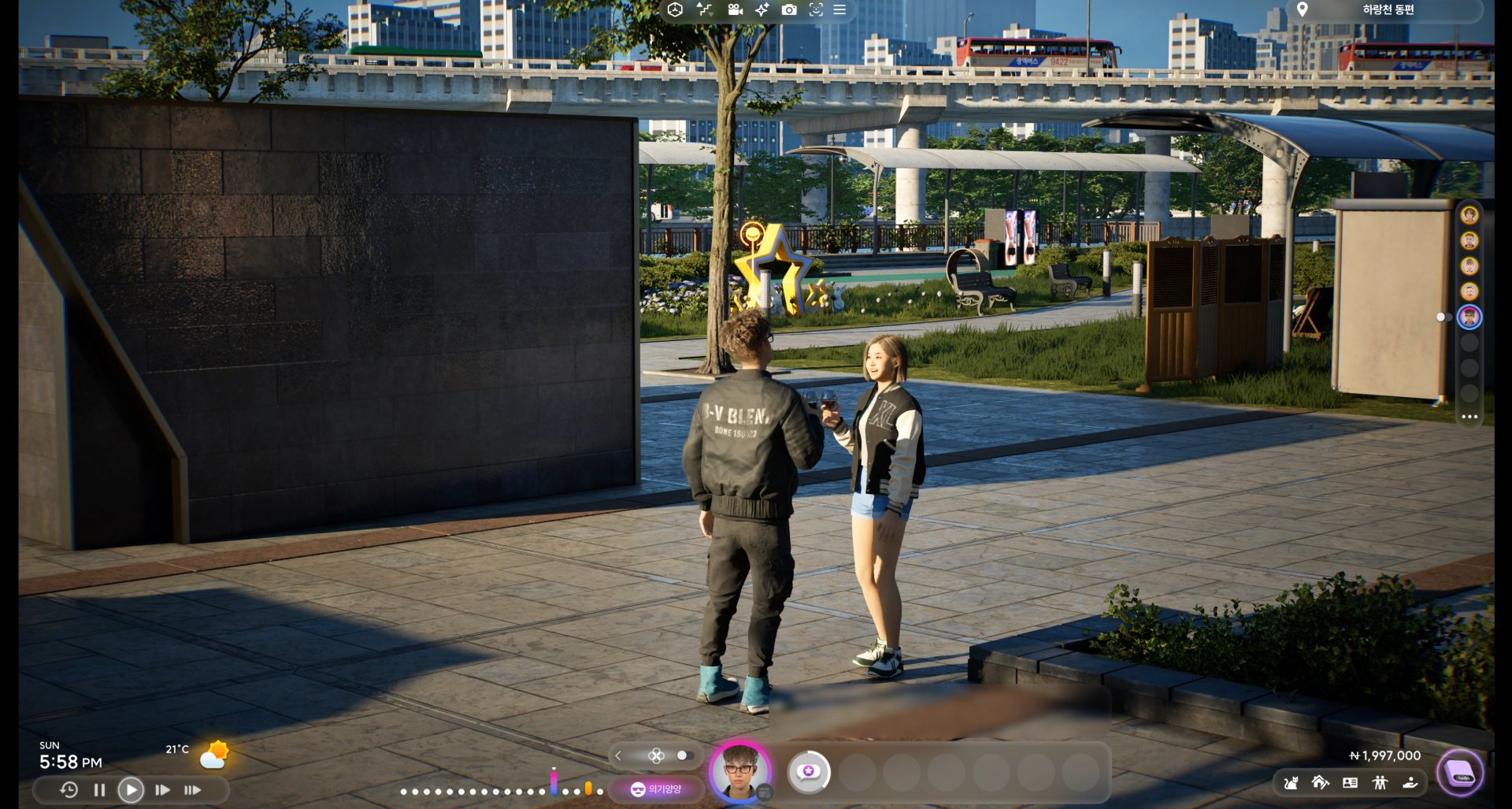
Click the camera button on the top toolbar at the center of the screen. Photo Mode is available during Live Mode (gameplay), Create-a-Zoi, and Build Mode. It cannot be activated during cutscenes. There is no dedicated keyboard shortcut to enter Photo Mode; it must be activated through the on-screen button.
Action | Control |
|---|---|
Move Camera | W / A / S / D |
Move Camera Up / Down | Q / E |
Reposition Camera | Left-Click + Drag |
Rotate Camera Angle | Right-Click + Drag |
Zoom In / Out | Mouse Scroll |
Hide UI | Ctrl+Shift+U |
Change Wall View | Home / End |
Take Photo | Shutter button (bottom center) |
Two framing modes are available, toggled by buttons beside the shutter button:
Mode | Best For |
|---|---|
Portrait | Tight focus on the subject. Ideal for headshots, upper-body shots, and character showcases. |
Landscape | Wider field of view capturing more of the environment. Best for builds, outdoor scenes, and group shots. |
Perspective | Description |
|---|---|
Selfie Mode | Camera faces the Zoi from the front, simulating a selfie. The Zoi looks directly at the camera. |
Play Camera Mode | Standard third-person angle from gameplay. Gives a more natural, candid look. |
Both perspectives work with both framing modes, giving you four basic camera setups before any further adjustments.
Open Camera Options from the bottom-right corner of the Photo Mode screen to access these controls:
Setting | What It Does |
|---|---|
Field of View (FOV) | Controls how wide or narrow the lens appears. Low FOV produces telephoto compression; high FOV produces a wide-angle look. |
Depth of Field (DOF) | Controls background and foreground blur. Shallow DOF isolates the subject with a blurred background; deep DOF keeps everything sharp. |
Background Removal | Toggles the environment on or off, isolating the Zoi against a blank background. Useful for character portraits. |
Time of Day | Adjusts the in-game clock within Photo Mode to change natural lighting (sunrise, golden hour, midday, sunset, night). Does not affect actual gameplay time. |
Screen Ratio | Changes the aspect ratio of the final image. Accessed from the bottom-left icon. |
Nine post-processing filters are available from the filter selector beside the Camera tab. Each one changes the color grading, contrast, and overall mood of the image.
Filter | Visual Effect |
|---|---|
Realistic | Default, unmodified game appearance |
Lovely | Warm tones with a soft bloom for a dreamy aesthetic |
Cartoon | Cel-shaded, illustrated look with outlined edges |
B&W Cartoon | Cartoon styling in black-and-white monochrome |
Diorama | Tilt-shift effect that makes the scene look like a miniature model |
Fisheye Lens | Barrel distortion that curves the edges of the frame |
Mono | Black and white without the cartoon outline effect |
Retro | Desaturated, vintage color palette reminiscent of old film stock |
Thriller | High contrast, dark tones, and dramatic shadows for a suspenseful atmosphere |
These same nine filters are also available as game-wide visual filters during normal gameplay. Access them by clicking the star/sparkle icon at the top of the screen.
Photo Mode includes over 40 preset poses and 10 facial expressions that can be applied to any Zoi in the scene. Poses come in two types:
Static poses: The Zoi holds a fixed position. Standard portrait and action stances.
Dynamic poses: The Zoi performs a short looping animation. The camera captures a freeze-frame from the animation.
Expressions are selected separately from poses. Mix and match any pose with any expression. Poses can only be changed while the game is paused in Photo Mode. Use the Pause/Play button at the bottom-left to freeze or resume Zoi movement.
The Make AI Emote feature lets you create custom poses from reference images or videos. Access it from the Pose tab at the top of the pose list.
Open Photo Mode and navigate to the Pose tab
Select "Make AI Emote" at the top of the list
Upload a reference: a video (.mp4, .avi, .mkv, .mov) for animated emotes, or an image (.jpg, .jpeg, .png, .bmp, .tiff) for static poses
The reference must show a full-body shot of a single person. Half-body shots or images with multiple people will fail.
The AI generates the pose, which appears in your pose selection menu marked in blue
AI-generated poses do not include facial expressions. You must select an expression separately or use Facial Capture. The feature is still under development and may not always perfectly replicate the reference.
For more nuanced expressions beyond the 10 presets, inZOI supports real-time facial capture using an iOS device.
Requirements: An iPhone or iPad running iOS 16.0 or later, connected to the same Wi-Fi network as the PC
App: Download "Live Link Face" from the App Store (free)
Setup: A QR code appears in Photo Mode or Character Studio. Scan it with the iOS device to connect.
Usage: The app translates your real-time facial movements onto the Zoi. Smile, frown, raise eyebrows, or make any expression and the Zoi mirrors it instantly.
Facial capture continues to work while the game is paused in Photo Mode, so you can fine-tune the expression before taking the shot.
The Themed Studio is a dedicated in-game venue designed for controlled photo shoots. Travel there through the map or community lot selection.
Several preset room backgrounds are available, including a white studio, a gas station scene, and a cloud backdrop
The studio can be fully customized using Build Mode tools with an unlimited budget
Add furniture, paint walls, place props, and decorate with any item from the Build Mode catalog
Changes can be reversed at any time by selecting a preset room again
The studio provides controllable lighting with sliders for main light and backlight intensity, allowing dramatic shadow and highlight setups
Photos save to Documents\inZOI\Photo on your PC. A Photo Folder button at the bottom-left of the Photo Mode menu opens this directory directly. After capturing a photo, the game prompts you to save or discard the shot.
In-game photography is separate from Photo Mode. It involves Zoi actions that build the Media Production skill and can generate income. Photo Mode screenshots do not affect the Media Production skill; only in-game Zoi actions count.
Method | Speed | Details |
|---|---|---|
Take photos / selfies | Fastest | Use the phone camera, desktop cameras, or tripod cameras. Quick, free, and repeatable. The single fastest way to level Media Production. |
Edit videos on computer | Moderate | Select "Edit Video" on a desktop or laptop. Time-consuming but provides substantial XP per video. |
Post selfies on Bubbly | Slow | The in-game social media platform. Quick action but low XP. Requires at least 60 Challenger Value points. |
At higher Media Production levels, Zois can produce and sell videos on the computer. The value scales with skill level, so delaying sales until near level 10 maximizes income.
Skill Level | Unlock |
|---|---|
Level 0 | Basic "Edit Video" option |
Level 3 | Workout Video, Performance Video |
Level 4 | Singing Video, Comedy Video |
Level 5 | Advertisement Video (highest earner) |
After completing a video, click "can sell" to receive Meow instantly. Advertisement Videos at high skill levels produce the most income. Give each video a title and description before selling.
Skill Level | Unlocked Item |
|---|---|
Level 3 | Vision Maker Computer |
Level 5 | Instant Film Picture Frame, Creative Corkboard |
Level 7 | Vintage Camera |
Designated selfie spots are marked with camera icons at scenic locations throughout Dowon, Bliss Bay, and Cahaya. Parks, beaches, landmarks, and popular attractions all have selfie spots.
Click the camera icon at a selfie spot to trigger the "Take Selfie" action
Fulfills the "Wants to Take a Selfie at a Local Attraction" urge
Provides Media Production skill XP
Some selfie spots offer scenic backdrops that make the Zoi's social media post more impactful
Bubbly is inZOI's in-game social media platform. To post a selfie:
Click on the Zoi to open the action menu
Select Smartphone, then scroll to "Post a Selfie on Social Media"
The Zoi takes a selfie and posts it to Bubbly
Rewards include a small amount of Meow Coins and a Tranquil mood boost
Posting requires at least 60 Challenger Value points as a Core Value. The Adventurer trait naturally aligns with Challenger Value. Activities that boost it include painting, singing, socializing, and surfing.
When uploading creations to Canvas, Photo Mode images serve as thumbnails. Up to four photos can be selected per upload. You can take new photos at upload time or use previously saved Photo Mode images. A good thumbnail significantly increases download counts for shared Zois, builds, and furniture.
Golden hour: Use the Time of Day slider to set the time to early morning or late afternoon. This produces warm, directional light that flatters faces and adds depth.
Backlight: Position the sun behind the Zoi for a rim-lighting effect that separates the subject from the background.
Night shots: Slide the time to nighttime and use the city's neon signs and streetlamps as light sources. The Thriller filter enhances night photography.
Themed Studio: For total control, use the Themed Studio's lighting sliders. Adjust main light and backlight separately to create dramatic setups.
Shallow DOF (strong background blur) works best for portraits and close-ups. It draws the viewer's eye to the subject.
Deep DOF (everything in focus) is better for landscape shots and build showcases where you want every detail visible.
For group photos, use medium DOF to keep all Zois sharp while softly blurring the background.
Position your subject off-center rather than dead center in the frame. Place the Zoi's eyes at roughly one-third from the top of the image. This creates a more visually interesting composition than centering everything.
Select a dynamic (animated) pose, let it loop, then use the Pause button to freeze the Zoi at the exact moment you want. This captures mid-action energy that static poses cannot replicate.
The Photography category under Hobby Furniture in Build Mode includes seven items:
Item | Price (Meow) | Requirement |
|---|---|---|
Camera | 599 | None |
Ring Light | 48 | None |
Softbox | 141 | None |
Tripod | 60 | None |
Tripod-Mounted Camera | 290 | None |
Tripod-Mounted Ring Light | 338 | None |
Vintage Camera | 259 | Media Production Level 7 |
Ring lights and softboxes improve the lighting quality for photo sessions. The Vintage Camera is a premium item that unlocks at a higher skill level and adds a retro aesthetic to the photography setup.
Photography-related urges appear based on the Zoi's personality and preferences:
Urge | How to Fulfill | Reward |
|---|---|---|
Wants to Take a Selfie at a Local Attraction | Visit a park or beach, find a camera icon, and select "Take Selfie." | Meow Coins + Tranquil emotion |
Wants to Take Photos | Use a desktop camera, tripod camera, or smartphone camera interaction. | Meow Coins + skill experience |
Wants to Post a Selfie on Social Media | Right-click Zoi > Smartphone > "Post a Selfie on Social Media." | Meow Coins + Tranquil emotion |
Urges expire after 12 in-game hours if not fulfilled. The Taking Photos preference can be assigned during Zoi creation and determines whether a Zoi likes or dislikes photography activities. Zois can hold up to 10 preferences simultaneously, and preferences can change over time based on events and actions.
The Taking Photos preference aligns with four Desired Life paths: Life of Perseverance, Life of Harmony, Life of Familial Devotion, and Life of Excitement. Having this preference makes photography-related urges appear more frequently.
Photos can be displayed in the home using picture frames available as furniture in Build Mode. Players can insert custom images into picture frames by clicking the brush icon on the frame, selecting the folder icon, and uploading an image file.
Supported formats: PNG and JPG (rename .jpeg files to .jpg if they fail to upload).
Square dimensions (e.g., 1024x1024) work best and avoid stretching.
Custom images may appear slightly darker than the original after being applied.
Customized frames can be saved as furniture presets and shared via Canvas.
Two special photo-related furniture items unlock through the Media Production skill:
Item | Unlock Level | Description |
|---|---|---|
Instant Film Picture Frame | Level 5 | A polaroid-style picture frame for displaying photos. |
Creative Corkboard | Level 5 | A bulletin board for pinning multiple images and notes. |
The 3D Printer can also transform uploaded 2D photos into decorative 3D objects, though these are strictly decorative and non-functional. Simple, symmetrical images with contrasting backgrounds produce the best results.
There is currently no dedicated photography or content creator career in inZOI. However, the Media Production skill functions as an informal freelance content creation path. Zois can earn Meow by selling edited videos, and posting selfies rewards Meow Coins. Players on the official forums have requested influencer, vlogger, and photographer career tracks as future additions.
Press Ctrl+Shift+U to hide the UI before taking every photo. The clean frame looks dramatically better.
The Curious emotional state boosts Media Production leveling speed. Get your Zoi curious before a photography session.
Taking selfies with the phone camera is the fastest method to level Media Production. Each selfie takes seconds and can be repeated endlessly.
Wait until near level 10 before selling Advertisement Videos. The selling price scales with skill level, and early sales leave money on the table.
Use Background Removal for clean character portraits. This is especially useful for Canvas thumbnails.
The Diorama filter turns any outdoor scene into a miniature effect. It works especially well with elevated camera angles looking down at a street or park.
The Retro filter pairs well with Cahaya's tropical beaches for a vintage vacation postcard look.
AI Emote custom poses are marked blue in the pose list, making them easy to find among the 40+ presets.
Facial Capture requires Wi-Fi. Make sure both the PC and iOS device are on the same network before scanning the QR code.
Video recording in Photo Mode exists as a UI button but is currently grayed out and under development. Use third-party software (OBS, NVIDIA ShadowPlay) for video recording.