
Home Decoration and Interior Design
Complete guide to home decoration and interior design in inZOI, covering Build Mode furniture categories, placement controls, wallpaper and flooring customization, AI texture generation, the 3D printer, custom furniture assembly, floor seating, lighting, outdoor decoration, Canvas community content, the Island Getaway DLC additions, the March 2026 anniversary update, and practical design tips.
On This Page
Decorating a home in inZOI goes well beyond placing a bed and a fridge. The Build Mode system offers hundreds of furniture items across nine categories, surface customization with colors and materials, AI-generated textures, community content through Canvas, and a furniture crafting system tied to the Housework skill. How you furnish your home directly affects your Zoi's needs fulfillment, comfort, and daily life. This article covers everything involved in turning a bare lot into a well-designed living space.
Over its first year of Early Access, KRAFTON added over 930 pieces of furniture and steadily expanded the decoration toolset. The March 2026 anniversary update introduced floor tables, floor cushions, resizable rugs, Hanok walls, and 22 new textured tiles, giving players even more creative options. Whether you prefer realistic minimalist apartments or elaborate fantasy mansions, the tools below will help you design spaces that look good and keep your Zois happy.
Build Mode Basics
Enter Build Mode by clicking the house icon with a hammer at the bottom of the screen, or by pressing I on the keyboard. The interface shows a left-side content panel for browsing items and a top toolbar with structural and furniture tools. Build Mode is where all decoration, furnishing, and customization happens.
For unrestricted creative practice, the Build Studio offers a separate sandbox environment with no budget limits. Creations built there can be uploaded to Canvas and imported into the main game later.
Furniture Categories
inZOI organizes furniture into nine main categories within Build Mode. Each category contains sub-categories for specific item types.
Category | Key Items |
|---|---|
Bedroom | Beds (adult and child sizes), wardrobes, cabinets, dressers, mirrors, clocks, bedside tables, rugs, hangers |
Living Room | Sofas, TVs, cushions, chairs, rugs, audio equipment, stereos, fireplaces, coffee tables |
Kitchen | Refrigerators, coffee machines, ovens, stovetops, range hoods, countertops, dining tables, bar counters, dishwashers, trashcans |
Bathroom | Sinks, bathtubs, shower booths, toilets, washing machines, shelves, cabinets, bathroom supplies |
Home Office | Computers, desks, office supplies, shelves, cabinets, bookcases, paintings, plants |
Hobby | Exercise equipment, easels, musical instruments, photography items, furniture workbench, painting supplies |
Outdoors | Tables, chairs, sunbeds, beach items, floor panels, flower pots, trees, BBQ grills, picnic benches, coolers |
Social Event | Party items, flea market items, wedding decorations |
Other | Food stalls, playground rides, outdoor public facilities |
Placement Controls
Furniture placement uses a grid-based system by default, with a free placement toggle for precise positioning.
Control | Action |
|---|---|
Left-click | Select and drag objects to position them. |
Right-click or Z/C keys | Rotate in 45-degree increments. |
Alt key (hold) | Enable free placement (disables grid snap) and per-degree rotation. |
Grid icon (top bar) | Toggle free placement on/off permanently without holding Alt. |
Shift | Continuous placement of the same item. |
Delete key | Remove the selected object. |
Page Up / Page Down | Move between floors. |
The Alt key is the most important tool for interior design. Holding it while moving an object removes grid snapping entirely, letting you push items against each other, nestle furniture into corners, and create tight, realistic arrangements that the default grid would not allow.
One caution: using free placement to clip items together or push them against walls can create impassable spots where Zois get stuck. Test your layouts by unpausing the game and watching your Zoi navigate the room before finalizing the design.
Move, Rotate, Scale Tool
Selecting any placed object and choosing the Move, Rotate, Scale option (sometimes abbreviated as MRS) opens a gizmo with three axes. This tool is the only way to adjust the vertical position of an object. You can raise a lamp onto a shelf, float a decoration on a wall, or push a plant up to sit on a countertop by dragging the vertical axis handle. This is especially useful for placing small decorative items on surfaces that do not have built-in placement slots.
Before October 2026 there was no way to resize or scale objects from their original dimensions, and the MRS tool only controls position and rotation, not size. The October 15, 2026 update (v0.11.0) added free scaling through the cheat console: entering EnableFreeEditMode true enables free positioning and free scaling of objects, and EnableFreeEditMode false turns it off.
Wallpaper and Flooring
Wallpaper
Interior and exterior walls can be customized independently. Clicking the inside of a wall changes the interior wallpaper; clicking from outside changes the exterior finish. You can also paint a single tile section of a wall rather than the entire surface, which allows accent walls and mixed-material designs within the same room.
Customization options include:
Feature | Details |
|---|---|
Color | Choose from a full color palette. |
Texture and Material | Select from stone, brick, wood, plaster, tile, and other materials. |
Gloss | Adjust the shininess of the surface from fully matte to highly reflective. |
Pattern Scale | Control the size of repeating patterns. Smaller scale values create tighter, more detailed patterns; larger values produce broad, dramatic textures. |
Special Effects | Apply reflective glass effects and select from a range of video textures for animated surfaces. |
MY Texture | Upload your own image files (JPEG or PNG) as custom wallpaper textures. |
AI Texture Generation | Enter a text prompt to generate a custom texture using on-device AI. Click the four-pointed star icon to access this feature. Prompts must be in English. |
Flooring
Flooring is auto-generated when walls are properly aligned with the floor grid. Floor tiles can also be placed manually in three sizes: 7.5m x 7.5m, 15m x 15m, or 30m x 30m. Tiles cannot be resized beyond these preset dimensions.
Floor customization uses the same options as wallpaper: paint colors, tile patterns, wood textures, grass textures, material finishes, visual effects, and AI-generated textures. Pre-made homes come with flooring installed that can be re-customized to match your design.
With the March 2026 anniversary update, 22 new textured tiles were added to the tile catalog, expanding the range of stone, ceramic, and patterned floor options available in Build Mode.
Color and Material Customization
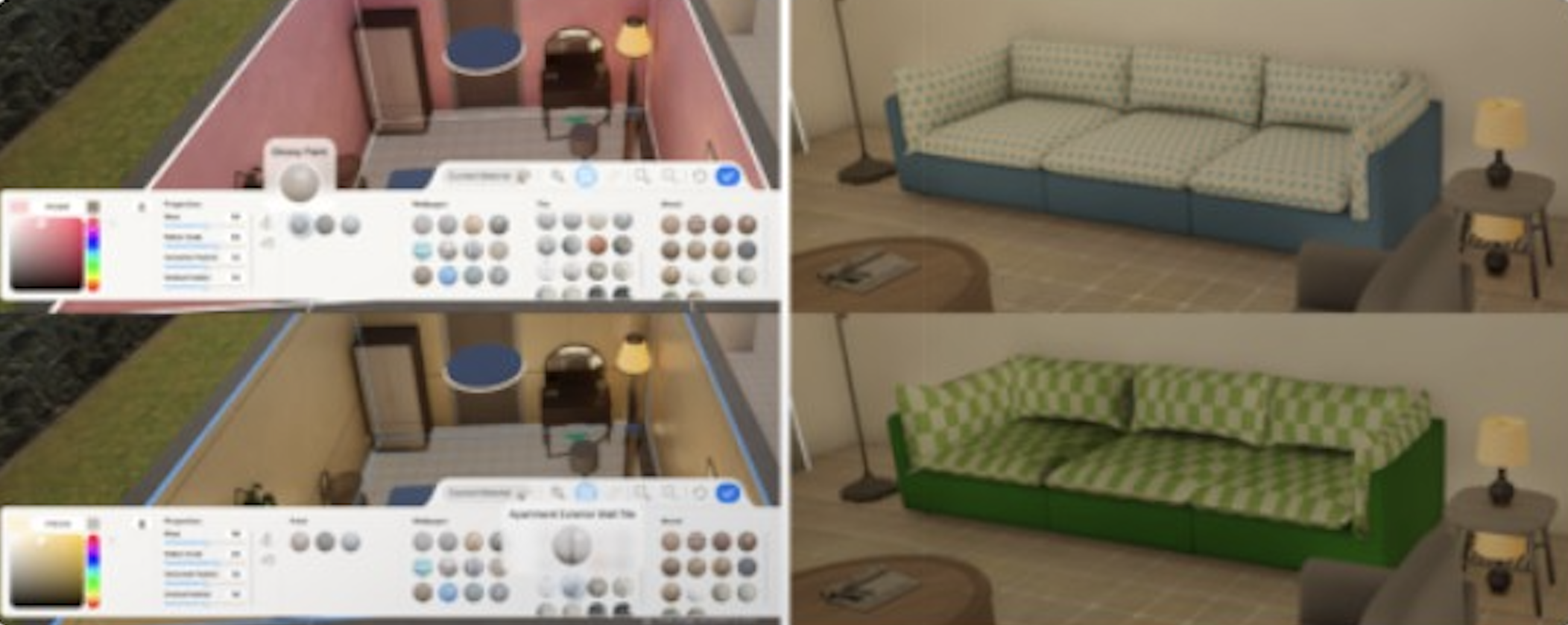
Every placed furniture item can be customized by clicking on it in Build Mode and selecting "Edit Color and Material." The customization panel offers:
Option | Description |
|---|---|
Color | Full color palette for painting surfaces. |
Material | Choose the surface material. Since the Island Getaway DLC, materials are organized into five categories: wood, textile, metal, wallpaper, and tile. |
Gloss | Adjust how shiny or matte the surface appears. |
Pattern Scale | Control the size of patterns and textures on the surface. |
Effects | Apply special visual effects to the surface. |
MY Texture | Upload a personal image file to use as a custom texture. |
Enter text prompts (keywords) to generate custom textures. Works for furniture, walls, and floors. |
AI Texture Generation Workflow
AI texture generation runs on-device and produces results in seconds. To use it, click on any surface in Build Mode, open the customization panel, and click the four-pointed star icon. A text box appears where you type descriptive keywords in English.
It works best with descriptive keywords like "dark walnut wood grain," "blue floral pattern," or "weathered wood with irregular grains in warm tones." When you repeat the same prompt, the generated pattern remains similar but with slight variations, so you can try the same prompt multiple times until a variation fits your vision. Click Save after generating to store the texture for reuse.
The same system is also available for clothing customization in Create a Zoi.
3D Printer and Custom Objects
The 3D Printer in the Craft tab of Build Mode lets you create decorative objects from uploaded images. This is separate from the Custom Furniture Assembly system. While custom furniture uses preset in-game parts, the 3D Printer generates entirely new 3D models from a flat image.
How to Use the 3D Printer
Open Build Mode and navigate to the Craft tab on the left-side menu.
Select the 3D Printer option.
Click the Plus (+) icon in the center of the screen and upload a JPEG or PNG image from your computer.
The game generates a 3D object in approximately 20 seconds.
Adjust the position and rotation of your object, then click the blue Next button.
Name your creation and add a description, then click OK to save.
3D Printer Tips
Use images with plain backgrounds for the best results. JPEGs work well for fully 3D objects, while PNGs with transparent backgrounds are better for flat items.
Ensure the image contains only one object so the printer can recognize it clearly.
Avoid photographs taken in bright direct sunlight, as glare and shine interfere with the conversion.
The 3D Printer performs better with simpler objects. Intricate designs with fine details may not translate well into 3D prints.
3D-printed objects are decorative only; Zois cannot interact with them.
Placing a 3D-printed object in your home costs 100 Meow.
There is no limit to how many 3D-printed objects you can create.
3D-printed objects can also be applied as character accessories through the Craft Clothes menu, allowing you to attach custom items to your Zoi as wearable decorations.
Floor Seating
The March 2026 anniversary update introduced a floor seating system with new furniture types designed for ground-level living. Floor tables and floor cushions allow Zois to eat, drink, and socialize while seated on the floor, adding a traditional or casual atmosphere to any room.
Item | Description |
|---|---|
Floor Table | A low table where Zois can eat meals, drink beverages, and have conversations while seated at floor level. |
Floor Cushion | Seating placed beside floor tables. Zois sit on these cushions to interact with the table. The "Sit on Floor Cushion" interaction was initially introduced in the February 2026 update. |
Floor Bedding | Two variants (single and double) that serve as alternative sleeping arrangements. These were added alongside the floor table system in the March 2026 update. |
Floor seating pairs well with traditional design themes and small apartments where space is limited. Combine floor cushions with the Hanok wall pieces and traditional objects (also added in the March 2026 update) for a cohesive Korean-inspired interior.
Furniture Quality and Need Fulfillment
inZOI implements a furniture performance scaling system where higher-priced items provide better performance. This directly affects how efficiently furniture satisfies Zoi needs:
More expensive beds restore Energy faster and provide better sleep quality.
Higher-priced kitchen appliances improve food preparation efficiency.
Better sofas and entertainment items satisfy the Fun need more effectively.
Premium bathroom fixtures restore Hygiene faster.
There is no formal room scoring system in inZOI (unlike some other life simulation games). Instead, individual furniture items affect specific needs directly through their price tier. The overall home condition also matters: deteriorated or dirty furniture causes the "Uncomfortable" emotion and can eventually make Zois sick. Keeping furniture clean and maintained is part of the Housework skill.
Furniture Deterioration
Furniture naturally wears down over time, developing tears and scuffs. Frequently used items deteriorate faster. A messy, deteriorated environment negatively impacts Zoi mood. You have two options for dealing with worn furniture:
Option | Requirement | Details |
|---|---|---|
Refurbish | Housework Level 2 | Restores the furniture to its original condition. Costs Meow based on the item and damage severity. Not all items can be refurbished (electronics and some small decorations are excluded). |
Replace | None | Delete the old item in Build Mode and buy a new one. More expensive but always available. |
Repair (for broken items) | None (or Housework skill) | Hire a repair service from the Pocket Market (100 Meow, always succeeds) or attempt manual repair (success depends on skill level). |
Room Essentials
Every functional home needs certain items in specific rooms. Without these essentials, Zois cannot satisfy their basic needs and will become frustrated.
Kitchen
Item | Purpose |
|---|---|
Refrigerator | Access food and store ingredients. Also provides quick meals without cooking. |
Oven or Stovetop | Required for cooking recipes. See Cooking for the full recipe list. |
Countertop | Food preparation surface needed for meal prep. |
Sink | Hygiene and cleanup after cooking. |
Trashcan | Waste disposal. Without one, garbage accumulates. |
Dining Table and Chairs | Eating surfaces. Zois prefer sitting at a table to eat. |
Bathroom
Item | Purpose |
|---|---|
Toilet | Addresses the Bladder need. |
Sink | Quick Hygiene restoration. |
Shower or Bathtub | Best Hygiene restoration. Bathtubs are more effective but take longer. |
Washing Machine | Laundry. Keeps clothing clean. |
Bedroom
Item | Purpose |
|---|---|
Bed | Energy restoration. Each Zoi needs their own bed. Prices range from 350 to 2,080 Meow; more expensive beds provide better sleep quality. |
Wardrobe | Clothing storage and outfit changes. |
Mirror | Appearance checks. Also used by Entertainers for Performance skill practice. |
Living Room
Item | Purpose |
|---|---|
Sofa or Couch | Relaxation and socializing. |
Television | Fun need fulfillment. Also used for educational programs that boost skills. |
Computer | Homework, skill building, creative work, stock market investments, video editing. |
Safety and Health
Item | Purpose |
|---|---|
Fire Alarm | Alerts the household when a fire starts. Strongly recommended in every home. |
First Aid Kit | Medicine for illness. Prevents the "Uncomfortable" emotion from lingering. |
Toys | Required for child Zoi development. Builds various child skills. |
Lighting
Lighting plays both an aesthetic and functional role in home design. Build Mode offers ceiling lights, floor lamps, table lamps, wall lamps, hanging lamps, and portable lamps that can be placed in any room.
Feature | Details |
|---|---|
Shadow Casting | Each light can have shadow casting enabled individually (Build Mode > Select Light > Lighting Shadows > Turn On). When enabled, realistic shadows are cast beneath characters and furniture based on light direction. |
Realistic Shadows | A graphics option (Options > Graphics > Custom > Realistic Shadows > On) provides sharper, more detailed shadows. This may impact performance on lower-end hardware. |
Interactive | Lights can be turned on and off by Zois during gameplay. A Zoi entering a dark room may autonomously turn on the nearest light. |
Custom Floor Lamps | The Craft tab in Build Mode allows players to assemble custom floor lamps from individual parts (body and base), mixing styles for unique designs. |
The Island Getaway DLC added multiple new lamp types: 4 outside/standing lamps, 1 table lamp, 1 wall lamp, 2 portable lamps, and 4 hanging lamps with tropical styling. These lamps work in both the Cahaya island map and the standard Dowon City properties.
For the best visual results, combine ceiling lights with floor lamps in the same room and enable shadow casting on at least one light source. A single overhead light creates flat, even illumination, while layered lighting adds depth and atmosphere to the space.
Outdoor Decoration
The Outdoors furniture category includes items for yards, patios, and gardens: tables, chairs, sunbeds, beach items, floor panels, flower pots, trees, BBQ grills, picnic benches, and coolers. Fences and gates can be placed around properties, but build them last during construction; placing them before walls are finished can cause glitches.
Gardening adds a living element to outdoor spaces. Growing plants (purchasable as seedlings) mature over time, require daily watering and fertilizing, and produce harvestable fruits and vegetables. Decorative plants (flowerpots and flower beds) add color without the maintenance demands of full gardening.
Using Alt-key free placement, plants can be grouped tightly together for dense garden designs that would not be possible with grid snapping. The March 2026 update improved fence and roofing placement guidelines, making it easier to align outdoor structures with property boundaries.
Furniture Crafting
The Furniture Workbench (available in the Hobby category of Build Mode) lets Zois craft handmade furniture. Crafting builds the Housework skill and produces functional items that can be placed in the home or sold for Meow. Higher skill levels unlock additional creation options and improve item quality, which directly affects the selling price.
Custom Furniture Assembly
The Custom Furniture Assembly system (in the Craft tab of Build Mode) offers a different approach. Instead of crafting with skill progression, it lets players select and combine individual parts to build custom designs. There is no limit to how many custom pieces you can create.
Currently available furniture types and their customizable parts:
Furniture Type | Customizable Parts |
|---|---|
Computer Chair | Backrest, Legs |
Computer Desk | Tabletop, Legs |
Floor Lamp | Body, Base |
Computer | Monitor, Main Body, Keyboard and Mouse |
After assembling a custom piece, it appears in your Craft tab inventory. You can place it in your home like any other furniture item (it still costs Meow to place). Once placed, you can further customize its color and texture using the standard Edit Color and Material panel.
Paintings and Murals
Zois can also create paintings on easels and murals at public locations. Paintings can be hung on walls as decorative items or sold through the Pocket Market for income. The quality of the painting depends on the Zoi's skill level.
Canvas Community Content
Canvas is inZOI's official content-sharing platform where players upload and download custom builds, rooms, furniture, and designs. For interior design, Canvas is invaluable:
Lot Type | Description |
|---|---|
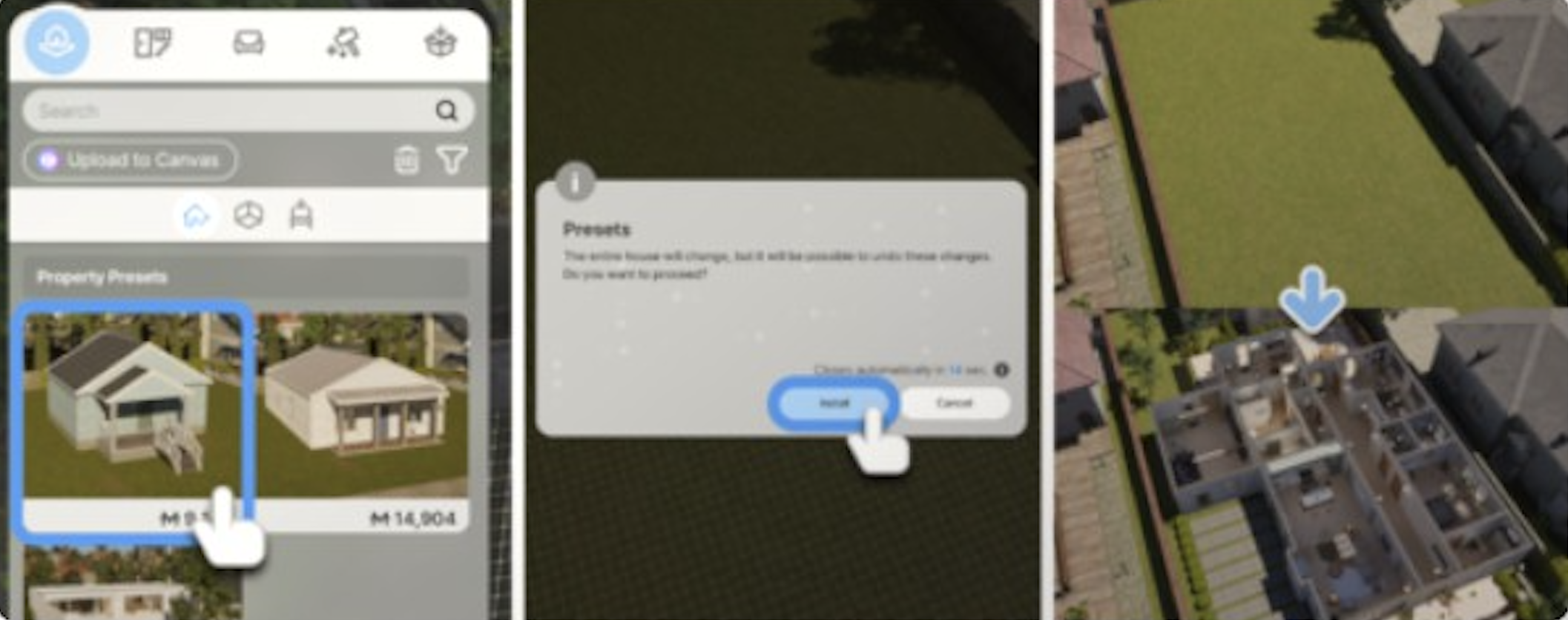
Property Presets | Download fully built and furnished homes. These appear under Property Presets in Build Mode. |
Room Presets | Download individual room designs (a decorated bedroom, a modern kitchen) that can be placed into any enclosed space. |
Custom Furniture | Download player-created furniture designs. These appear under Crafts. |
Murals | Download wall art created by other players. |
Downloaded items are marked with a purple Canvas icon. Canvas content is accessible both in-game and through the web on the Canvas website. With over 470,000 uploaded creations, there is a vast library of designs to draw from.
Decorating Business Properties
The decoration of business properties has a direct gameplay impact beyond aesthetics. Higher-quality furniture and thoughtful layouts improve customer satisfaction, which feeds into the business star rating system:
Feature | Details |
|---|---|
Customer Attraction | Better-decorated spaces attract more customers and improve loyalty. |
Workflow Efficiency | Layout affects how quickly staff can serve customers. Central counter placement in cafes, for example, accelerates beverage preparation. |
Neglected business spaces generate negative customer reactions. |
See the Business Management Guide for detailed strategies on setting up profitable commercial spaces.
DLC and Update Additions
Island Getaway DLC (August 2025)
The free Island Getaway DLC added a substantial amount of tropical-themed content:
189 new building pieces with Cahaya tropical themes, including rattan furniture and resort decor
49 new character items
4 Cahaya-style property presets (pre-built island homes)
Expanded furniture customization materials to five categories: wood, textile, metal, wallpaper, and tile
New doors (1), windows (5), gutters (2), roofs (15), elevators (2), fences (8), gates (3)
Pool floaties (4) and pool lamps (4)
Multiple new lamp types: 4 standing lamps, 1 table lamp, 1 wall lamp, 2 portable lamps, 4 hanging lamps
Swimming pool construction tools
February 2026 Update
Key Build Mode additions in the February 2026 update:
51 new build assets including stairs, pillars, and various materials
104 new building items including roofing, fences, and gates
15 new roof designs with a dedicated Roof Presets category
New doors, windows, and stair variants
Shadow casting for indoor ceiling lights and floor lamps
"Sit on Floor Cushion" interaction for floor cushion furniture
Two Hanok presets added to Junghwa Parkville and Aram Estate property lots
Drink Dispenser object for preparing mixed drinks
March 2026 Anniversary Update
The one-year anniversary update (March 26, 2026) brought significant decoration content:
Floor tables and floor cushions: Zois can eat, drink, and socialize at floor-level tables
Floor bedding: 2 new items (single and double variants) for ground-level sleeping
Resizable rugs: Rugs now support adjustable sizes for flexible room coverage
22 textured tiles: New stone, ceramic, and patterned floor tile options
1 Hanok wall (high variant): Traditional Korean wall piece for cultural-themed builds
8 traditional objects: Items for Korean-inspired interior design
3 modular roofing pieces: Additional roof construction options
1 partition fence: Interior and exterior space divider
TVs can now be placed on more types of furniture
Shorter tables had their heights increased from 35 cm to 45 cm to reduce clipping issues
Improved snap-to-grid features for more reliable placement
Adjustable swimming pool water levels
Additional properties in the world can now be edited in Build Mode
New fence and roofing placement guidelines
Future Plans
The 2026 roadmap includes interior and exterior wall module decoration features and terrain editing, both currently in development. KRAFTON plans to deliver 7 to 8 content updates throughout the remainder of 2026.
Object Manipulation Advanced Techniques
Beyond the basic placement controls, several techniques let you create more polished interiors.
Technique | How to Do It |
|---|---|
Floating objects | Use the Move, Rotate, Scale tool to raise an object above the floor. This lets you place items on shelves, countertops, or wall brackets that do not have built-in placement slots. |
Tight corner arrangements | Hold Alt to disable grid snap, then push two pieces of furniture into the same corner. Release Alt only after both items are in position. |
Angled placement | Hold Alt while rotating to achieve any angle. Diagonal sofas and angled dining chairs make rooms feel less rigid and more natural. |
Rapid duplicates | Hold Shift while placing to continuously stamp the same item. This is useful for lining up chairs, fence posts, or rows of plants. |
Surface decoration | Small decorative items can be raised using the MRS tool and positioned on top of larger furniture. The item will visually rest on the surface even if it is technically floating. |
Wall-mounted objects | Paintings, mirrors, and some shelves snap to walls automatically. If an item does not snap, use the MRS tool to raise it and position it manually against the wall surface. |
Note that objects raised with the MRS tool do not obey physics. They stay exactly where you place them, even if the surface below is removed. This is useful for creative builds but can look unrealistic if items are visibly floating with nothing underneath.
Budget Tips
Start with essentials only. Build a bedroom, kitchen, bathroom, and relaxation area first. Expand and decorate once you have income flowing.
Avoid expensive presets early. Building from scratch costs less than applying pre-built homes with premium furniture.
Pause while building. Exiting Build Mode and pausing prevents Zoi needs from depleting during long decorating sessions.
Sell unused furniture. Delete expensive items in Build Mode to recoup some of the cost, then replace with cheaper alternatives.
Refurbish instead of replacing. Refurbishing deteriorated furniture at Housework Level 2 costs less than buying new pieces.
Use Canvas room presets. Community-created room designs often provide a polished look without the time investment of designing from scratch.
Plan walls carefully. Walls cost Meow, and building a sprawling house with unnecessary rooms burns through the budget quickly.
For an instant budget boost, use the money cheat from the Psycat's Guide menu (bottom-right corner > "Use Money Cheat") to add 100,000 Meow.
Design Tips
Use the Alt key constantly. Grid snapping produces boxy, uniform layouts. Free placement lets you angle furniture, push items against walls naturally, and create layered, realistic interiors.
Mix furniture from different categories. A bookcase from Home Office, a rug from Bedroom, and a plant from Outdoors can make a living room feel lived-in and personal.
Vary wall heights (3m, 4.8m, 5.7m) between rooms for visual interest. Entryways with higher ceilings feel grander.
Test pathfinding after decorating. Place items, then unpause the game and send your Zoi through every room to make sure they can navigate without getting stuck.
Use AI textures to create unique surfaces that no other player has. A quick keyword like "terrazzo countertop" or "hand-painted tile" can produce striking results.
Place lighting strategically. A single overhead light looks flat. Combine ceiling lights with floor lamps and enable shadow casting for depth and atmosphere.
Use accent walls. Paint or texture one wall in a room differently from the others to create a focus without additional furniture.
Coordinate material categories. Choose one or two dominant materials (for example, wood and textile) for a room, then apply them consistently across furniture and walls for a cohesive look.
Layer rugs with furniture. Since the March 2026 update, resizable rugs can be scaled to fit specific areas. Place a rug under a dining table or sofa grouping to visually anchor the arrangement.
Use the 3D Printer for personal touches. Print family photos, small sculptures, or logo items to add personality that prebuilt furniture cannot provide.
Common Decoration Mistakes to Avoid
Blocking walkways. Free placement makes it easy to push furniture too close together. If Zois cannot walk between items, they will get stuck and their scheduled activities will fail. Always leave at least one grid square of walkable space between furniture groups.
Forgetting essential items. A beautifully decorated home is useless if it lacks a toilet, a bed, or a refrigerator. Place essentials first, then decorate around them.
Placing fences before walls. Building fences and gates before the main structure is complete can cause placement glitches. Finish all walls, floors, and roofing before adding perimeter fencing.
Ignoring deterioration. Worn-out furniture reduces Zoi comfort and can trigger negative emotions. Check furniture condition regularly and refurbish or replace items before they degrade too far.
Overlapping objects excessively. While clipping items together with Alt placement can look creative, severe overlaps sometimes cause Zois to get stuck or prevent interactions from firing correctly.
Using only one light source. Rooms with a single ceiling light appear flat and lifeless. Add at least one floor lamp or table lamp per room and enable shadow casting for depth.
Skipping outdoor spaces. Yards and patios provide additional areas for Zoi activities like grilling, gardening, and socializing. An empty yard is a missed opportunity for both gameplay and aesthetics.
Related Articles
Build Mode
Furniture
Build Studio
Canvas
Housework Skill
Gardening
Create a Zoi
Emotions
Needs
Business Management Guide