
Loading...
Loading...
City Edit Mode
April 25, 2026 at 04:05 PM
Embedded 4 relevant images into article
City Edit Mode is a cosmetic customization system that lets players change the look and feel of their city in inZOI. Through this mode, you can alter the weather, swap out tree species, choose which animals roam the streets, plaster custom images on billboards, and much more. Most changes are purely aesthetic and do not affect Zoi behavior or gameplay mechanics directly, though weather adjustments do influence temperature and clothing choices.
There are two ways to open City Edit Mode:
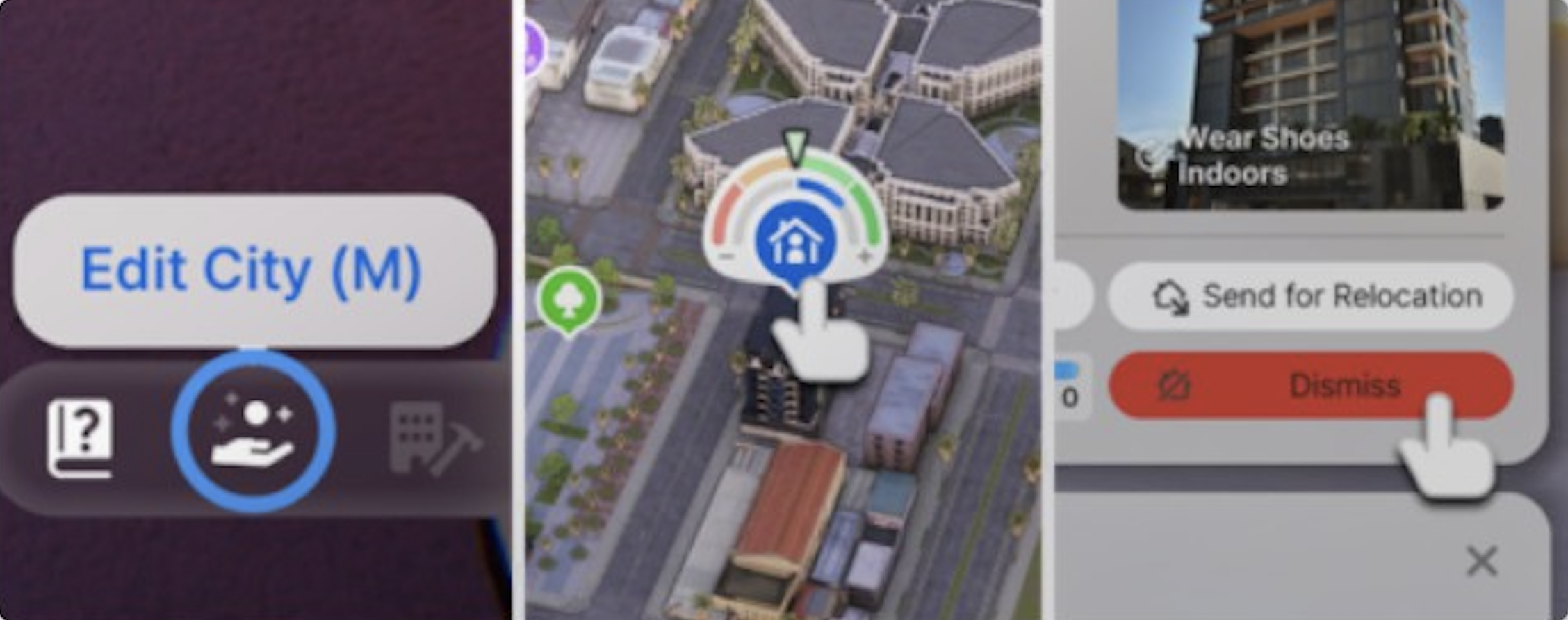
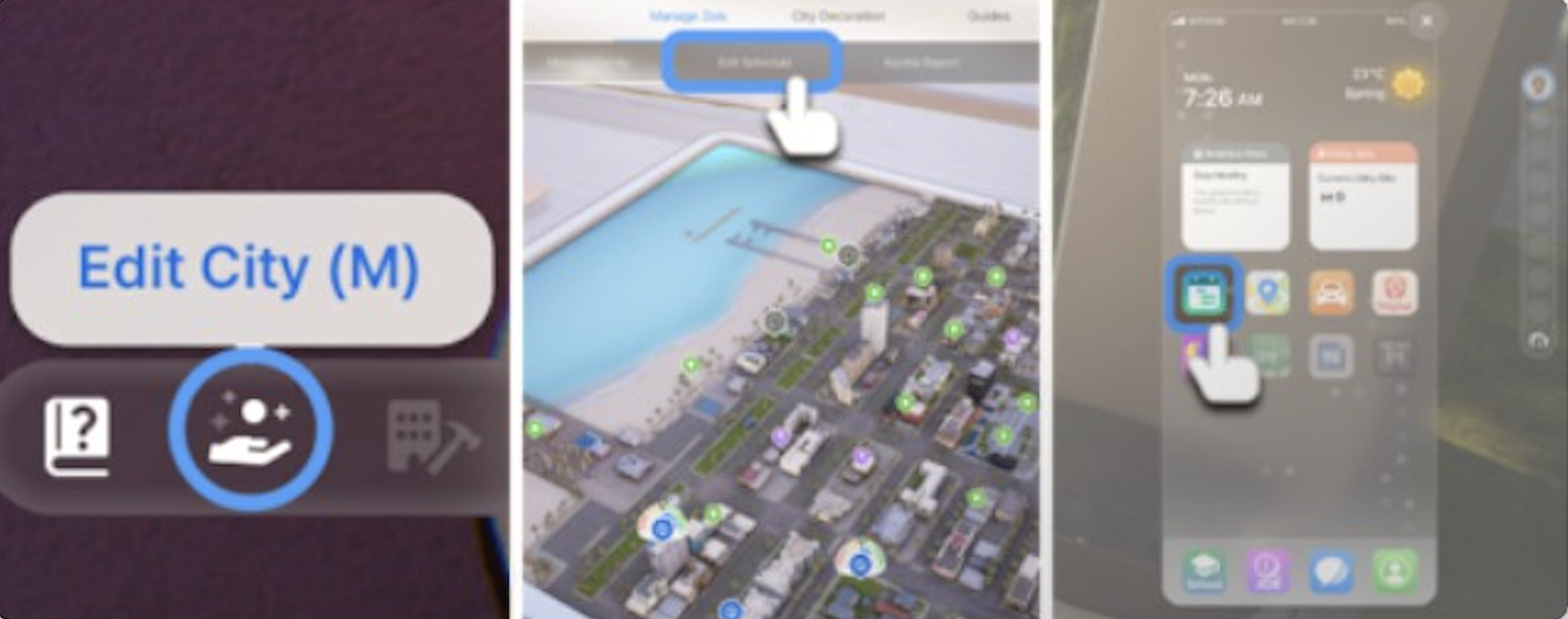
Edit City button: Click the Edit City button in the lower-right corner of the screen, then select City Appearance (also labeled City Decoration).
Keyboard shortcut: Press M to open the City Map, then navigate to the City Appearance tab.
Once inside, you will see eight customization categories: Weather, Billboards (Signs), Trees, Grass, Decorations, Animals, Special Effects, and Adjust Environment. Each category has its own set of options and sliders.
The Adjust Environment tab contains a single slider that controls the overall cleanliness of your city. Dragging the slider to the left moves the city toward a Run-Down appearance: roads and buildings look dirty, pollution covers surfaces, and trees vanish as if the environment has been neglected. Dragging the slider to the right produces a Clean look with pristine streets, bright colors, and healthy vegetation.
This slider is useful for players who want to set a specific mood for screenshots or storytelling. A run-down setting works well for gritty, dystopian-themed saves, while a fully clean setting keeps the city looking polished and inviting.
The Trees tab lets you pick from nine tree species that will appear throughout the city. Each species has a distinct silhouette and changes the overall feel of the streetscape. Available tree types are listed below.
Tree Species | Visual Style |
|---|---|
Palm | Tall, tropical fronds; fits warm coastal settings |
Zelkova | Broad canopy with layered branches |
Maple | Classic deciduous shape; vivid autumn colors |
Chinese Fringetree | Delicate white blossoms in spring |
Ginkgo | Fan-shaped leaves that turn bright yellow in fall |
Pine | Evergreen conifer; maintains color year-round |
Cypress | Tall, narrow silhouette; Mediterranean feel |
Bamboo | Dense clusters of tall green stalks |
Yoshino Cherry | Pink blossoms; iconic spring appearance |
After selecting a tree type, a color wheel appears that lets you adjust both trunk and leaf colors independently. This means you can create unnatural color palettes (purple leaves, white trunks) for creative screenshots or keep things realistic with natural seasonal tones.
The Grass tab controls the low-level ground vegetation that fills parks, medians, and open spaces. You can choose from over ten plant types, each with a different shape and color profile.
Plant | Description |
|---|---|
Flowering Shrub | Low hedges with small colorful flowers |
Hydrangea | Round clusters of blue, pink, or purple blooms |
Coreopsis Palmata | Yellow wildflower with thin petals |
Areca Palm | Short tropical palm suitable for ground cover |
Westringia | Dense, rounded Australian shrub |
Sunflower | Tall yellow flowers that stand above other ground plants |
Orange Sapling | Small citrus sapling with green foliage |
Bamboo Sapling | Young bamboo shoots; shorter than full bamboo trees |
Rose Shrub | Classic rose bushes with red or pink blooms |
Reed Seedling | Thin, tall wetland grasses |
Like trees, many grass types respond to the color wheel, letting you shift their palette to match your overall city theme.
The Animals tab lets you populate the city's public spaces with wildlife. You can select up to three animal types at a time and adjust their overall density using a slider. The density slider is shared across all three selected types, so you cannot have high density for one animal and low density for another. Eight animal types are available.
Animal | Habitat | Interactable |
|---|---|---|
Cat | Parks, sidewalks | Yes (requires 60+ Coexistence value) |
Dog | Parks, open spaces | No |
Panda | Parks | No |
Deer | Parks, green areas | No |
Raccoon | Parks, alleys | No |
Squirrel | Parks, near trees | No |
Fox | Parks, outskirts | No |
Crocodile | Parks, waterside areas | No |
Cats are the only animal type that Zois can interact with. When a Zoi has at least 60 points in the Coexistence value, clicking on a cat reveals interaction options: Give Snack and Greet with a Treat. Both fulfill the "Wants to Bond with Animals" urge and reward Meow Coins. If the Zoi is depressed, a third option appears: Receive Comfort Through Empathy.
All other animals (dogs, pandas, deer, raccoons, squirrels, foxes, and crocodiles) function as visual props. They roam around public spaces and can appear in photos, but Zois cannot pet, feed, or otherwise interact with them. Full pet ownership (adopting cats or dogs to live in your household) is not yet available but has been confirmed as a high-priority feature on the development roadmap.
The Weather tab gives you manual control over the current weather conditions. Four weather types are available, and each type (except Sunny) offers three intensity levels that you can adjust using a knob.
Weather Type | Intensity Levels | Visual Effect |
|---|---|---|
Sunny | 1 (no intensity adjustment) | Clear skies, bright lighting |
Cloudy | 3 (light, moderate, heavy overcast) | Grey skies, muted lighting |
Rainy | 3 (drizzle, rain, heavy rain) | Rainfall, puddles, wet surfaces |
Snowy | 3 (light flurries, snow, blizzard) | Snowfall, frosted surfaces, snow accumulation |
Weather changes are temporary. After one in-game hour, the weather reverts to the default seasonal conditions for that city. This means you can create unusual combinations (snow during summer, rain during winter) without permanently altering the climate cycle.
Unlike most City Edit Mode changes, weather is not purely cosmetic. Adjusting the weather changes the city's temperature, which is tied to the current season. Zois respond to temperature changes by automatically switching their clothing. If they are dressed inappropriately for the conditions (underdressing in freezing weather or overdressing in heat), they can become sick and may need to visit a hospital for treatment.
The Billboards (Signs) tab lets you replace the default advertisements displayed on billboards throughout the city. You can choose between two display modes:
Image: Upload custom images from your computer or select from the game's built-in gallery. You can set up an image roulette that cycles through multiple pictures by pressing the "+" button and adding up to 3 images.
Video: Paste any YouTube URL into the provided text box and the billboard will stream that video. This lets you display music videos, gameplay clips, or any other YouTube content on the city's screens.
A day/night toggle in the billboard editor lets you preview how your chosen images or videos look during different times of day. This is helpful for checking visibility and ensuring your custom content reads well against both bright daylight and dark nighttime backdrops.
The Decorations tab adds large-scale decorative objects to central areas of the city, mostly parks and plazas. These are oversized novelty items designed for visual flair and photo opportunities. Available decorations include:
Balloon animals: Giant floating balloons shaped like cats and pandas.
Celestial objects: Floating models of Earth, Jupiter, Mercury, the Moon, and the Sun that hover above the cityscape at night.
You can adjust the quantity of decorations using a slider. Decorations are placed automatically by the game at predefined positions in public areas; you do not choose their exact location.
The Special Effects tab adds ambient visual effects to the city. Like animals, you can select up to three effect types at a time, and the density slider is shared across all selected effects. Available effects include:
Effect | Description |
|---|---|
Butterflies | Colorful butterflies flutter through parks and green spaces |
Fireflies | Glowing particles that light up parks at night |
Drones | Small drones hover and fly above the city skyline |
Red Lamps | Decorative red lantern-style lights strung across streets |
Fireworks | Periodic firework bursts in the sky above the city |
Fireflies are particularly striking at night, adding a warm glow to parks and wooded areas. Fireworks create periodic bursts that work well with evening or nighttime photography sessions.
inZOI features three playable cities, each with its own visual identity and climate. While City Edit Mode works the same way in all three, the default atmosphere and seasonal behavior differ.
City | Inspiration | Climate | Notes |
|---|---|---|---|
Seoul, South Korea | Four distinct seasons | Dense urban layout with smaller lots; cold winters and warm summers | |
Southern California, USA | Warm year-round | Larger property lots; less population density; mild seasonal changes | |
Bali and Yogyakarta, Indonesia | Tropical; no cold winters | Island setting with resort areas; part of the Island Getaway DLC (August 2025) |
The default seasonal weather in each city means that manual weather changes feel different depending on where you play. Setting snow in Dowon during winter is natural, but doing the same in Cahaya during its tropical summer creates a more surreal result. Remember that all manual weather changes revert after one in-game hour regardless of which city you are in.
City Edit Mode focuses on global aesthetic changes, but inZOI also lets you edit individual public spaces. Properties marked with an "(Editable)" label on the city map can be customized using Build Mode. To do this, have your Zoi travel to the editable property and click the building icon in the bottom-right corner. Editing public properties does not cost any Meow, so you can renovate parks, libraries, and other community spaces freely.
This is separate from the City Appearance menu. City Edit Mode changes the global look of the city (trees, weather, animals, effects), while editing a public property lets you redesign the layout and furniture of a specific lot.
Screenshot setups: Combine weather, special effects, and foliage colors to stage dramatic screenshots. Snowy weather with fireflies and cherry blossoms creates a fantasy-like atmosphere.
Storytelling themes: Use the environment slider to match your save's narrative. A run-down setting pairs well with a crime-focused playthrough, while a clean city suits a family-oriented save.
Animal variety: Since you can only pick three types, rotate your selections occasionally to keep the city feeling fresh. Cats are the only interactable animals, so including them in your three is recommended if you want your Zois to bond with wildlife.
Billboard creativity: Use the YouTube video option to play ambient music or nature footage on city billboards for added immersion.
Weather for photography: Rainy and snowy weather conditions produce reflective surfaces and atmospheric depth that make in-game photos more visually interesting. Since the weather reverts after one in-game hour, you have a limited window to capture the shot.
Day/night preview: Always check your billboard choices in both day and night modes before committing. Dark images can be invisible at night, and bright images may look washed out during the day.
It is important to understand the distinction between City Edit Mode and Build Mode. Build Mode is lot-scoped: it handles everything within a single residential or commercial lot, including walls, floors, furniture, and landscaping within the lot boundaries. City Edit Mode is world-scoped: it handles everything outside individual lots, including the placement of lots themselves, terrain between lots, public infrastructure, and city-wide decorative elements.
Feature | Build Mode | City Edit Mode |
|---|---|---|
Scope | Single lot | Entire city/neighborhood |
Furniture placement | Yes | No (lot-level only) |
Terrain editing | Within lot boundaries | City-wide terrain |
Community lot placement | No | Yes |
Wildlife placement | No | Yes |
Season override | No | Yes |
Access key | B key | M key |
