

Overview
Photo Mode is one of the headline features in Pokemon Pokopia, giving players a full-featured camera system for capturing memories of their island paradise. You can photograph Pokemon in their habitats, take selfies with your Ditto character, document items with Reference Photos, and unlock new frames by capturing Photo Ops as they happen around you. The camera is as fully featured as those in prior mainline Pokemon games, supporting selfie sticks, facial expressions, poses, filters, and frames.
Accessing Photo Mode
There are two ways to open the camera:
Menu access: Open the main menu with the Plus button, then select the Camera icon from the Pokedex or menu screen.
Quick shortcut: Press the Minus button on the left Joy-Con (or Pro Controller) to open the camera instantly without navigating through menus.
Photo Mode is available from the moment you receive the Pokedex early in the game. You can use it anywhere on your islands, indoors or outdoors, and during multiplayer sessions with friends.
Camera Controls
Photo Mode has its own dedicated control scheme separate from the main gameplay controls. The following table lists every button mapping available while the camera is active.
Button | Action |
|---|---|
A | Take photo / Confirm selection in menus |
B | Exit Photo Mode or close submenus |
X | Toggle between Landscape and Selfie mode |
Y | Toggle between regular photo and Reference Photo |
Left Stick | Move your character around while camera is open |
Left Stick Click | Adjust camera height (Landscape) / Switch hands (Selfie) |
Right Stick | Rotate the camera angle |
Right Stick Click | Reset camera to default angle |
ZL | Zoom out |
ZR | Zoom in |
L / R | Tilt camera left or right; cycle through Frame/Filter menus when open |
Plus (+) | Open Frames and Filters menu |
Minus (-) | Hide the control guide overlay |
D-Pad Up | Make all visible Pokemon and characters look at the camera |
D-Pad Down | Change your Ditto's pose |
D-Pad Left / Right | Cycle through facial expressions for your character |
Landscape Mode
Landscape mode is the default camera view. The camera floats freely behind your character, and you can rotate it with the Right Stick to frame the shot however you like. Use ZL and ZR to zoom out and in respectively. Clicking the Left Stick lets you raise or lower the camera height, which is useful for ground-level shots of small Pokemon or overhead views of your buildings and layouts.
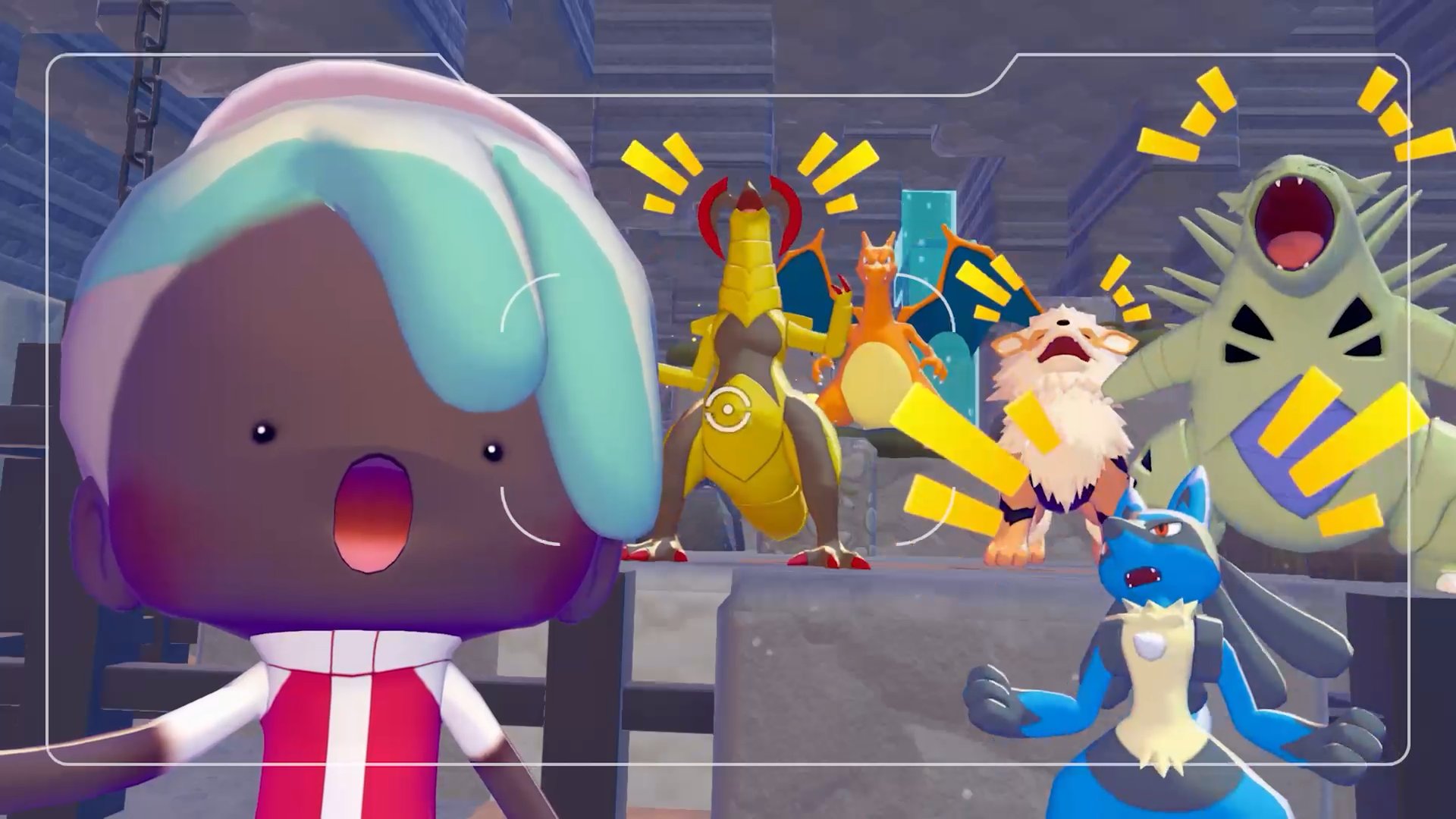
Press D-Pad Up to make every Pokemon and character in the frame turn and look directly at the camera. This works on any Pokemon currently visible, whether they are following you, idling in a habitat, or performing a specialty task. Combine this with D-Pad Down (pose changes) and D-Pad Left/Right (expression changes) to set up the perfect group shot.
Selfie Mode
Press X to toggle from Landscape to Selfie mode. In Selfie mode, the camera swings around to face your Ditto as if you are holding the camera yourself, simulating a selfie stick. This is ideal for close-up portraits with your favorite Pokemon standing behind or beside you.
While in Selfie mode, clicking the Left Stick switches which hand your character holds the camera with, changing the angle slightly. All the same expression and pose controls (D-Pad) work in Selfie mode. During multiplayer sessions, other players in the frame can change their own poses independently, making group selfies possible.
Reference Photos
Press Y to toggle the camera into Reference Photo mode. In this mode, the camera identifies and labels the names of items, blocks, and objects visible in the environment. This is extremely useful for figuring out what specific blocks, furniture, or crafting materials are without picking them up one by one.
Reference Photos are stored separately from regular photos. When you open your Album (see below), you will find two tabs: Memories for regular photos and Reference Photos for identification shots. Reference Photos serve as a personal encyclopedia of items you have encountered.
Filters and Frames
Press Plus (+) while in Photo Mode to open the Frames and Filters menu. Use L and R to switch between the Frames tab and the Filters tab.
Filters
Filters change the overall color grading and mood of your photo. They apply effects like sepia tones, high contrast, warm lighting, cool tones, and other visual styles. Scroll through the available filters and press A to apply one. You can preview the effect in real time before taking the shot.

Frames
Frames add decorative borders around your photo. You start with a small selection of default frames, and additional frames are unlocked by completing Photo Ops (see below). Frames can reflect different themes, seasons, and Pokemon designs.
Photo Ops
Photo Ops are spontaneous events that occur as you play. A popup notification appears in the upper-right corner of your screen alerting you that a Photo Op is happening nearby. When triggered, quickly open the camera and look for an area highlighted by a yellow rectangle. Position the rectangle within your frame and take the photo.
Successfully capturing a Photo Op rewards you with a new frame for your collection. Photo Ops typically feature Pokemon interacting with the environment in noteworthy or amusing ways, such as a Pokemon playing with furniture, dancing in the rain during a weather event, or interacting with another Pokemon. These moments are time-sensitive, so keep an eye on the notification and react quickly.
Album
All photos taken through Photo Mode are saved to your in-game Album. The Album is divided into two categories:
Category | Description |
|---|---|
Memories | Standard photos and selfies of Pokemon, builds, and scenery |
Reference Photos | Identification shots taken in Reference Photo mode that label items in the environment |
Photos taken with the in-game camera are stored within the game's save data, not directly to the Nintendo Switch 2's system album. If you want a copy saved to your Switch 2's screenshot gallery, use the console's native screenshot button (the capture button on the left Joy-Con) instead of or in addition to the in-game shutter.
Security Cameras
Security Cameras are a placeable item unlocked early in the game. You can position a Security Camera near a habitat to monitor Pokemon activity from a distance. The camera sweeps the area for movement, and when it detects something (such as a new Pokemon spawning), you receive a notification.
This is particularly useful for tracking rare Pokemon appearances without standing in one spot. Place Security Cameras near habitats that have rare spawns, such as habitats for legendary Pokemon or time-of-day-specific habitats affected by the day and night cycle. Check the camera feed when you receive an alert to see what appeared.
Tips for Better Photos
Press D-Pad Up before taking group shots. This makes every visible Pokemon face the camera simultaneously, avoiding shots where half the group has their backs turned.
Use the weather system to your advantage. Rain, fog, and sunset lighting create dramatic backdrops. Wait for specific weather conditions for the best atmosphere.
Experiment with camera height. Clicking the Left Stick in Landscape mode adjusts the vertical position. Low angles looking up at a large Pokemon like Tyranitar or Mewtwo make them look more imposing.
Remove the UI guide for cleaner shots. Press Minus to hide the on-screen control overlay before snapping the photo.
Use Photo Mode during limited-time events. Event Pokemon and seasonal decorations provide unique photo opportunities that will not be available later.
For documentation purposes, use Reference Photo mode (Y toggle) when exploring new areas. The item labels help you catalog materials and furniture you encounter.
During multiplayer sessions, coordinate poses with friends. Each player can independently choose expressions and poses using their own D-Pad.