
Loading...
Loading...
Performance and Optimization Guide
March 26, 2026 at 08:21 PM
Add March 2026 Graphics Optimizations section: shadow improvements (VSM, blob shadows), SSGI expansion, lighting fixes, memory optimization (PSO partitioning, preallocation), hidefx command
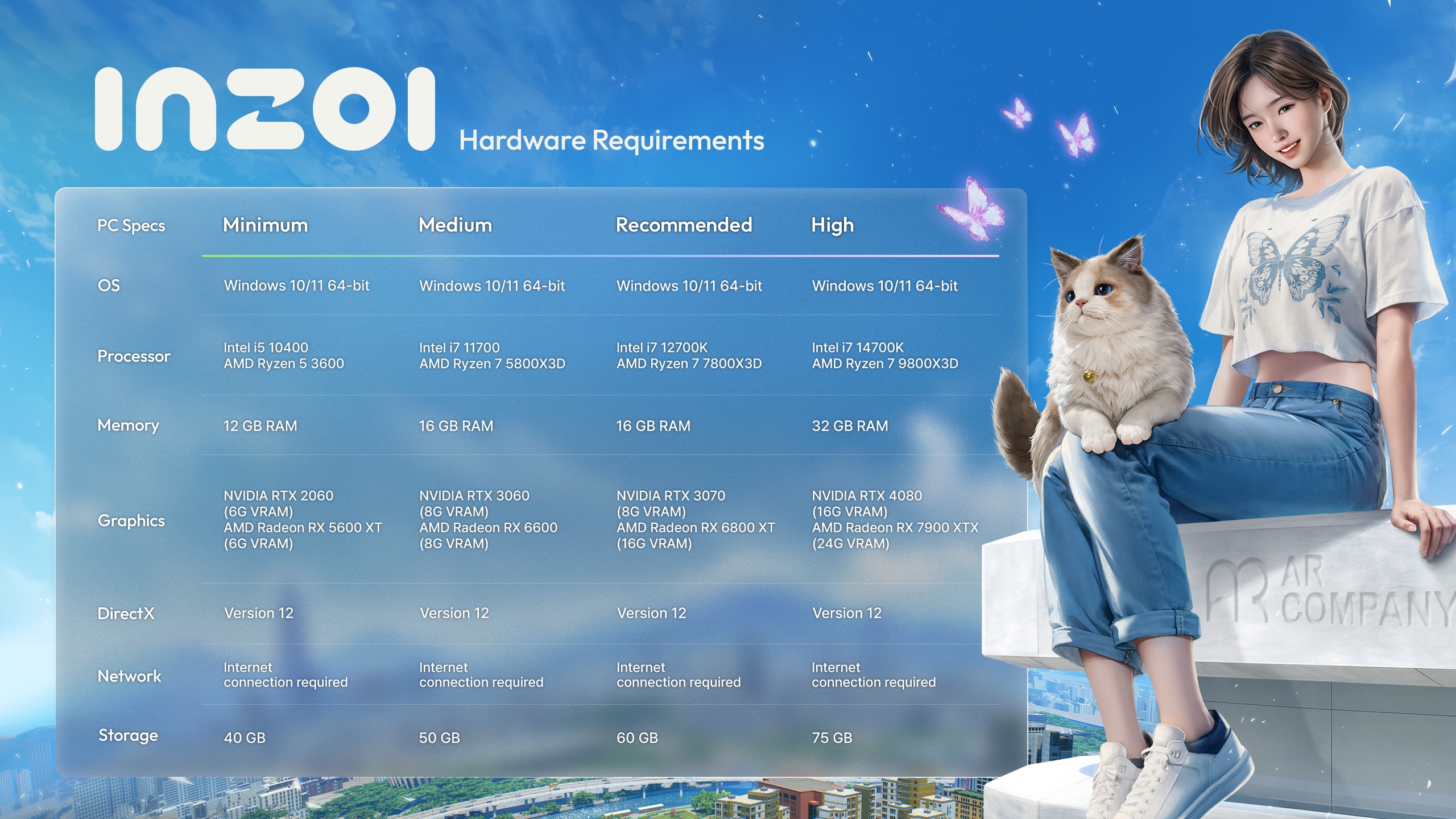
inZOI runs on Unreal Engine 5 with advanced rendering technologies including Lumen global illumination, Nanite virtualized geometry, and Virtual Shadow Maps. These features produce photorealistic visuals but place heavy demands on hardware. This guide covers every graphics setting, upscaling technology, and system-level optimization to help you find the right balance between visual quality and frame rate. For minimum and recommended hardware, see the System Requirements article.
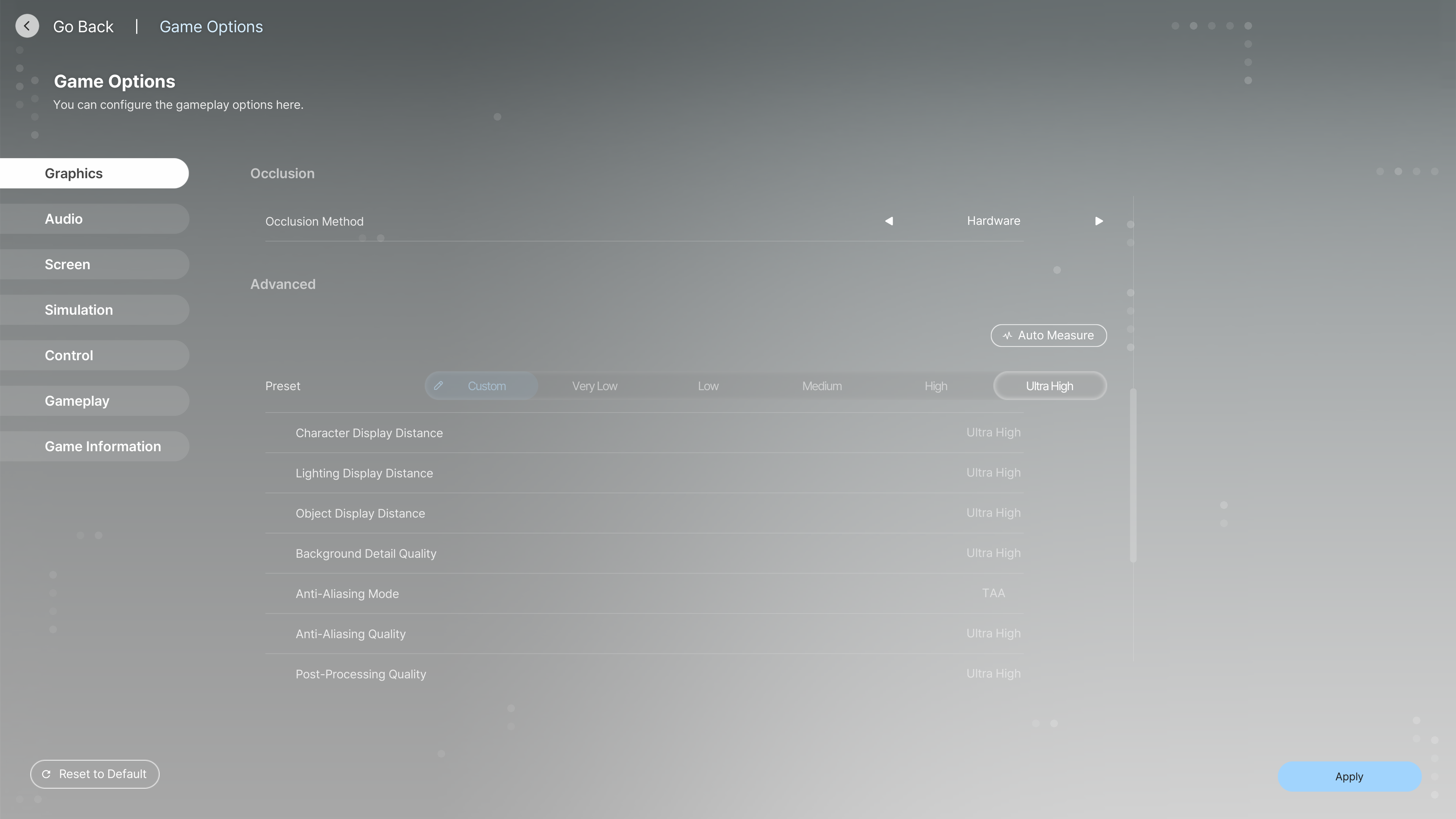
inZOI offers five built-in presets. The game also includes an Auto Select button that detects your hardware and picks a starting preset. The table below shows approximate frame rates at 4K resolution with DLSS Quality upscaling on an RTX 4080.
Preset | Approximate FPS (4K, DLSS Quality) | Notes |
|---|---|---|
Very Low | ~135 FPS | Significant visual reduction; good for low-end hardware |
Low | ~115 FPS | Reduced textures and effects; noticeable quality drop |
Medium | ~107 FPS | Balanced option for mid-range GPUs |
High | ~86 FPS | Recommended starting point for most players |
Ultra | ~73 FPS | Near-maximum quality; diminishing returns vs High |
Ultra + Ray Tracing | ~68 FPS | Heaviest option; hardware ray tracing enabled |
Starting from the High preset and switching to Custom mode to adjust individual settings gives the best results for most systems.
After selecting a preset, switch to Custom to fine-tune. The settings below are listed in order of performance impact, from most to least significant.
Setting | What It Does | Recommendation |
|---|---|---|
DLSS / FSR / XeSS | AI-based upscaling that renders at a lower internal resolution and reconstructs the image. The single biggest performance lever in the game. | Quality mode for sharp visuals with a large FPS boost. Performance or Ultra Performance for struggling hardware. |
Ray Tracing | Enables hardware ray tracing for global illumination, reflections, and shadows. Costs 6-8% FPS over stock Lumen lighting. Very Low RT looks worse than stock Lumen. | Off for maximum performance. High if your GPU handles it comfortably. Avoid Very Low. |
Ray Tracing Quality | Controls the precision of ray traced effects when Ray Tracing is enabled. | High if RT is on. Ultra provides minimal visible improvement over High. |
Shadow Quality | Resolution and precision of dynamic shadows. One of the most impactful settings. Reducing from Ultra to Medium provides roughly a 10% frame rate boost. | High. Ultra has barely noticeable improvement. |
Global Illumination Quality | Controls Lumen's indirect lighting accuracy. Switching from Ultra to Medium can grant approximately a 20% FPS improvement. | High for good visual fidelity. Medium if chasing frames. |
Reflection Quality | Detail level of screen-space and Lumen reflections on surfaces. | High. Lower to Medium on mid-range GPUs. |
Setting | What It Does | Recommendation |
|---|---|---|
Post-Processing Quality | Volumetric lighting, fog, screen-space effects, and color grading. Ultra costs 5-15% performance over High with subtle differences. | High. The visual difference from Ultra is minimal. |
Shader Quality | Controls surface shader complexity including parallax mapping, normal maps, blending, and tessellation (called Material Detail in some menus). | High. Reducing to Medium gives a noticeable FPS bump. |
Anti-Aliasing Quality | inZOI applies a temporal anti-aliasing (TAA) filter on top of DLSS/FSR. Controls the quality of edge smoothing. | High with DLSS. Medium without upscaling. |
Background Detail Quality | Draw distance and level of detail for distant buildings and terrain. | High. Reducing this can improve FPS in dense city areas. |
Realistic Shadows | Additional shadow detail for environmental lighting. Disabling provides 4-8% GPU headroom. | Off for performance. On for visual fidelity. |
Shadow-Casting Lighting Effect | Whether individual light sources (streetlamps, etc.) cast dynamic shadows. | Off for performance. On for realism. |
Setting | What It Does | Recommendation |
|---|---|---|
Texture Quality | Resolution of surface textures. Primarily limited by VRAM rather than GPU performance. Uses up to 10 GB VRAM at Ultra with 4K and ray tracing. | Ultra if you have 8 GB+ VRAM. High with 6 GB. |
Effects Quality | Detail of particle effects including smoke, fog, smog, color effects, and emissives. | High. Rarely a bottleneck. |
Face and Hair | Quality of subsurface scattering for character skin and hair rendering. | High or Ultra. Affects character close-ups. |
Plant Density and Quality | Vegetation quality, density, and draw distance. Note: this setting has minimal effect in the current Early Access build. | High. Currently does not significantly impact visuals or performance. |
Character / Object / Lighting Display Distance | How far away characters, objects, and light sources render at full detail. | High. Ultra adds minimal visible benefit. |
Occlusion Method | How the game determines which objects are hidden behind others. Options: Hardware, Depth Information, or Off. | Off if using Ray Tracing. Depth Information otherwise. |
Setting | Recommendation | Notes |
|---|---|---|
Display Mode | Fullscreen | Best performance. Windowed modes add overhead. |
Resolution | Native monitor resolution | Lower only as a last resort. |
Resolution Scale | 100% | Reducing below 100% causes blurriness. Use DLSS/FSR instead. |
Dynamic Resolution | Off (or On for struggling hardware) | Automatically lowers resolution to maintain a target FPS. |
Maximum FPS | Match your monitor refresh rate, or cap at 100 | Capping FPS reduces temperature spikes and improves frame pacing. |
Vertical Sync | Off (use in-game FPS cap instead) | VSync adds input latency. Disable if your monitor supports variable refresh rate (G-Sync/FreeSync). |
Motion Blur | Off | Reduces clarity without improving performance. Recommended off. |
Depth of Field | Personal preference | No significant performance cost. |
Upscaling renders the game at a lower internal resolution and uses AI or algorithmic reconstruction to output a higher-resolution image. This is the most effective way to gain performance in inZOI without major visual loss.
inZOI supports DLSS 3.5 with Super Resolution and Frame Generation on RTX 20, 30, and 40 series GPUs. DLSS 4 with Multi Frame Generation for RTX 50 series is planned for August 2026.
DLSS Mode | Internal Resolution (at 4K output) | Use Case |
|---|---|---|
DLAA | Native (3840x2160) | Best anti-aliasing quality. No upscaling. GPU-intensive. |
Quality | 2560x1440 internal | Recommended for most players. Nearly identical to native at 1440p+. |
Balanced | 2227x1253 internal | Good balance on mid-range GPUs. |
Performance | 1920x1080 internal | Significant FPS boost. Minor softness visible up close. |
Ultra Performance | 1280x720 internal | Maximum FPS gain. Noticeable quality reduction. Last resort. |
DLSS Frame Generation is available on RTX 40 and 50 series GPUs. It generates intermediate frames between real rendered frames, providing roughly a 60% performance boost. Frame Generation works best when your base FPS is below 70. Above 80-90 FPS, disable it to avoid potential instability.
To enable DLSS Frame Generation: go to Windows Settings, then System, then Display, then Graphics Settings, and enable Hardware-accelerated GPU scheduling. Restart your computer before activating Frame Generation in the game settings.
FSR 3 upscaling and frame generation can be enabled by editing the GameUserSettings.ini file located at: AppData\Local\BlueClient\Saved\Config\Windows\GameUserSettings.ini
INI Setting | Value | Effect |
|---|---|---|
FSR3Value | 2 | Performance mode |
FSR3Value | 3 | Balanced mode |
FSR3Value | 4 | Quality mode |
FSR3Value | 5 | Native AA (highest quality) |
FSR3FI | True | Enables FSR 3 Frame Generation |
Players report a 20+ FPS increase on minimum-spec systems when combining FSR upscaling with frame generation. FSR does not require specific GPU hardware and works on both NVIDIA and AMD cards.
XeSS (Xe Super Sampling) is available for Intel Arc GPUs. It functions similarly to DLSS and FSR, with Quality, Balanced, Performance, and Ultra Performance modes. XeSS also works on non-Intel GPUs as a fallback upscaler.
These settings are separate from graphics but can affect performance, especially on CPU-limited systems.
Setting | Recommendation | Notes |
|---|---|---|
Animation Quality | 3ms | Controls how much CPU time is spent on character animations. Setting higher than 3ms is not noticeable but wastes CPU resources. |
Outfit Simulation | On | Fabric physics for clothing. Minimal performance cost. |
Applied Range in City | Reduce if CPU-limited | Controls how many Zois in the city are fully simulated. "Small Group of Zois on Screen" reduces CPU load. |
Queue Limit | 8 | Maximum number of queued actions per Zoi. Lower values reduce memory usage slightly. |
Power Plan: Set Windows to High Performance mode. Open Control Panel, then Hardware and Sound, then Power Options, and select High Performance.
Hardware-Accelerated GPU Scheduling: Enable in Windows Settings under System, then Display, then Graphics Settings. Required for DLSS Frame Generation and generally improves GPU task management.
Memory Integrity: Disabling Memory Integrity (Virtualization-Based Security) in Windows Security settings can improve FPS in some configurations.
Background Applications: Close unnecessary programs, browser tabs, and system tray applications before playing. Each background app consumes RAM and CPU cycles.
Virtual Memory: If you experience crashes or stuttering with 16 GB RAM, increase the Windows page file size. inZOI can use significant system memory during extended play sessions.
RTX 50 Series: Use driver 572.83 or newer.
RTX 40 Series: Driver 566.36 is recommended. Some players report frame drops with 572.xx drivers on 40-series cards.
RTX 30 Series and older: Use the latest available driver.
In the NVIDIA Control Panel under Program Settings for inzoi.exe, set Power Management Mode to Prefer Maximum Performance, Shader Cache to On, and Texture Filtering to High Performance.
Installing inZOI on an SSD (ideally NVMe) significantly reduces texture streaming stutters and load times. Unreal Engine 5 relies heavily on streaming assets from disk, so mechanical hard drives can cause noticeable hitching during gameplay.
Advanced users can place a custom Engine.ini file at AppData\Local\BlueClient\Saved\Config\Windows\Engine.ini to fine-tune Unreal Engine 5 parameters. Several community-made configuration files are available on NexusMods that optimize CPU and GPU multi-core rendering, shader compilation, and asset streaming. After placing an Engine.ini file, set it to Read-only in the file properties so the game does not overwrite it.
Popular optimization mods on NexusMods include the InZOI Optimizer (reduces stuttering through asset and shader optimization) and various Engine.ini tweaks that target multi-core rendering and shader compilation. See the Modding Getting Started Guide for instructions on installing NexusMods content.
Preset: Low or Very Low
DLSS/FSR: Performance mode
Ray Tracing: Off
Resolution: 1080p
Frame Generation: Enable if available (RTX 40+)
Target: 30-60 FPS
Preset: Custom (start from High)
DLSS/FSR: Quality mode
Ray Tracing: Off or High (if RTX 3070+)
Shadow Quality: High
Global Illumination: High
Texture Quality: High or Ultra
Resolution: 1080p or 1440p
Target: 60 FPS
Preset: Custom (start from High or Ultra)
DLSS: Quality or DLAA
Ray Tracing: High
All quality settings: High or Ultra
Texture Quality: Ultra
Resolution: 1440p or 4K
Frame Generation: Optional (enable for 4K)
Target: 60-100 FPS
Preset: Ultra + Ray Tracing
DLSS: DLAA or Quality
Ray Tracing: Ultra
All settings: Ultra
Resolution: 4K
Frame Generation: Enable for consistent 60+ FPS at 4K Ultra + RT
Target: 60-90+ FPS
Problem | Solution |
|---|---|
Stuttering during gameplay | Install on SSD. Enable Shader Cache in NVIDIA Control Panel. Try an Engine.ini optimization mod. Increase Windows page file if RAM is at 16 GB. |
Low FPS despite good hardware | Check that the game is using the correct GPU (not integrated graphics). Set Windows Power Plan to High Performance. Update GPU drivers. Close background applications. |
Frame Generation not working | Enable Hardware-accelerated GPU scheduling in Windows. Restart your computer. Disable NVIDIA overlay and screen capture apps. Use Fullscreen display mode. |
VRAM usage too high | Lower Texture Quality from Ultra to High. Disable Ray Tracing. Reduce Resolution Scale if above 100%. |
Crashes after extended play | Increase Windows page file. Monitor RAM usage. Disable Ray Tracing if unstable. Verify game files through Steam. |
Ray Tracing artifacts | Update GPU drivers. Switch Ray Tracing Object from Actual Mesh to Fallback Mesh if visual glitches appear. Disable RT at Very Low as it looks worse than stock Lumen. |
The March 2026 Update (Anniversary Update) introduced a set of targeted graphics optimizations that improve visual quality on lower presets and fix long-standing lighting issues on higher presets. These changes shipped ahead of the full Unreal Engine 5.6 migration, which is scheduled for the April 2026 update.
Shadow rendering received preset-specific upgrades to improve visual fidelity at every quality level:
Preset | Change |
|---|---|
Very Low | Applied Virtual Shadow Maps (VSM) to buildings, replacing the previous simplified shadow system |
Very Low | Applied blob shadows to Zois, giving characters basic ground shadows even at the lowest settings |
High / Ultra | Added shadows to city maps, improving shadow coverage in outdoor urban environments |
All Presets | Applied fake shadows to furniture, providing ambient shadow detail to indoor objects across every quality tier |
The VSM addition on Very Low is notable because Virtual Shadow Maps are normally a feature associated with higher presets. Applying them selectively to buildings ensures that even players on low-end hardware see proper architectural shadows instead of flat, shadow-free structures.
The Very Low preset received improved Zoi materials, which raises the baseline visual quality of character models on the lowest settings. Previously, Zoi skin and clothing materials on Very Low appeared noticeably flat compared to Low and above. The updated materials apply better surface detail without significant performance cost.
Screen Space Global Illumination (SSGI) was expanded across lower presets to improve indirect lighting:
Low and Medium presets: SSGI is now applied as a default setting across all instances (previously disabled or limited).
Very Low preset: SSGI is applied in lobby areas only, keeping the performance impact minimal on the weakest hardware.
SSGI calculates approximate light bounces using screen-space data. While less accurate than Lumen's full global illumination, it adds subtle fill lighting and color bleed that makes indoor and shaded areas look more natural on presets that previously relied solely on direct lighting.
The Very Low preset received improved Screen Space Ambient Occlusion (SSAO). Ambient occlusion darkens creases, corners, and contact points between objects to simulate soft shadows from indirect light. The improvement produces deeper, more accurate occlusion on Very Low, reducing the flat appearance that low-end players previously experienced.
Two lighting issues were addressed in this update:
Yellowish indoor tone (High and Ultra): A bug caused indoor environments to appear with an unnatural yellow color cast when playing on High or Ultra presets. This has been fixed, restoring accurate indoor color temperature.
Nighttime indoor lighting (All presets): Indoor lighting during nighttime hours has been improved across all quality levels, producing more realistic and visually consistent results when Zois are inside their homes after dark.
The March 2026 Update introduced three memory optimization features that reduce stuttering and improve stability during long play sessions:
Feature | Description |
|---|---|
PSO Partitioning | Pipeline State Object compilation is now partitioned across multiple frames instead of compiling all at once. This reduces the shader compilation stutters that previously caused brief freezes when encountering new materials or effects for the first time. |
Memory Preallocation | The game now preallocates memory pools at startup for frequently used resources. This reduces mid-session memory allocation spikes that could cause frame drops, particularly when loading new city districts or transitioning between areas. |
Other Optimization Fixes | Additional internal memory management improvements that reduce overall RAM usage and improve garbage collection timing. |
These memory optimizations are separate from the deeper engine-level memory improvements that will arrive with the UE 5.6 migration in April 2026. Together, they represent a two-phase approach: the March update addresses the most impactful memory issues within the current UE 5.4 framework, while the April update brings fundamental engine changes that further reduce resource usage.
The March update also added the hidefx [true/false] cheat command, which removes all special effects (post-processing, particles, bloom) from the screen. This is useful for capturing clean screenshots without visual noise, especially for content creators building tutorials or gallery images.
Stable frame times matter more than peak frame rates. Capping at 100 FPS with consistent delivery feels smoother than fluctuating between 80 and 140.
DLSS Quality mode is the single best performance upgrade for NVIDIA users. It nearly matches native resolution quality while rendering at a lower internal resolution.
Avoid setting Resolution Scale below 100%. Use DLSS, FSR, or XeSS instead for a much cleaner result.
Shadow Quality and Global Illumination are the two settings where lowering from Ultra to High gives the biggest FPS return for the smallest visual loss.
RAM usage of 70-85% is normal for inZOI due to Unreal Engine 5's asset caching. This only becomes a problem if you experience freezing or constant stuttering.
After any game update, check that your graphics settings have not been reset to defaults. Major patches occasionally overwrite custom configurations.
