

Paralives is designed for PC and Mac with mouse and keyboard as the primary input method. Controller support has not been confirmed: the Steam store listing declares no controller support as of September 21, 2026. All keys can be rebound for accessibility, allowing players to customize their control scheme. The launch build features distinct control sets for Build Mode, Live Mode, and developer / modding tools. Build Mode hotkeys are displayed in the bottom right corner of the screen for quick reference while building.
In-Game Help Menu
The in-game help menu was introduced on March 24, 2026. The help menu lives inside the game and surfaces context-aware tips, the active hotkey list, and quick links into key tutorial content. It is accessible from the main menu and from a dedicated in-game hotkey, providing a single discoverable place to learn the launch build's controls without leaving the game. Specific bindings shown in the help menu reflect the player's current keymap, so rebound keys appear correctly in tips.
Live Mode Hotkeys
Action | Default Key |
|---|---|
Camera pan | WASD or middle-mouse drag |
Camera rotate | Q / E or right-mouse drag |
Camera zoom | Mouse wheel |
Pause / play time | Spacebar |
Time speed up | 1, 2, 3 (standard speed and faster steps) |
Select a Parafolk | Left-click |
Group select Parafolk | Shift + left-click on each Parafolk |
Open Photo Mode | Dedicated Photo Mode hotkey (rebindable) |
Time controls are accessible through the game interface and allow players to balance between watching events unfold in real time and progressing through the day more quickly when Parafolk are engaged in lengthy activities. There is currently no ultra-speed option for rapidly skipping through long periods such as sleep; speed steps top out at the confirmed 3x tier.
Build Mode Hotkeys
Build Mode provides a set of keyboard and mouse shortcuts for manipulating objects, walls, and other elements. These controls enable the grid-free building system that is one of the defining features of Paralives.
Action | Default Key | Description |
|---|---|---|
Rotate 90 degrees | X | Rotates the selected object by 90 degrees |
Rotate counterclockwise 45 degrees | , (comma) | Rotates the selected object 45 degrees counterclockwise |
Rotate clockwise 45 degrees | . (period) | Rotates the selected object 45 degrees clockwise |
Free rotation | Right-click + drag | 360-degree free rotation |
Toggle advanced widget | * (asterisk) | Activates the Advanced Object Placement Tool |
Move vertically | Shift | Raises or lowers objects vertically |
Disable snap | Alt | Temporarily disables object snapping for fully free placement |
Resize via corner anchor | Drag corner handle | Stretch or shrink an object along the dragged axis |
Measuring tape | Dedicated hotkey (rebindable) | Activates the in-game measuring tape for real-unit dimensions |
Grid toggle | Dedicated hotkey (rebindable) | Toggles the optional placement grid on or off |
Sell object | Del | Sells the currently selected object, refunding its value in paradimes |
Cancel | Esc | Cancels the current action or deselects the active object |
Object Placement System
The placement system in Paralives is built around freedom and flexibility. Objects can be placed anywhere without being locked to an invisible grid. An optional grid can be enabled to assist with alignment when desired, and it is adjustable to different sizes. Snapping tools speed up placement by aligning objects to nearby surfaces and other objects; these can be disabled with the Alt key for fully freeform positioning.
Most objects can be stacked, rotated, and elevated using the Advanced Object Placement Tool (toggled with the asterisk key). Combined with Shift for vertical movement and right-click dragging for free rotation, players have precise control over every aspect of object positioning. Many objects can also be resized by pulling corner anchors, transforming a single bed into a king-size bed or stretching a small window into a dramatic large one.
Walls, half-walls, and fences can be placed freely without following a set grid. This includes the ability to create curved walls and walls at any angle, giving builders architectural freedom that goes well beyond traditional grid-based construction. The in-game measuring tape provides real-unit feedback so builders can match real-world dimensions when needed.
Photo Mode Hotkeys
Action | Default Key |
|---|---|
Open Photo Mode | Dedicated hotkey (rebindable) |
Move character | Click and drag a character |
Rotate character | Click and drag with rotation modifier |
Select animation | Open the animation picker |
Jump to frame | Drag the animation timeline scrubber |
Adjust time of day | Time-of-day slider |
Toggle filter / depth of field / bloom | Effect toggles in the Photo Mode UI |
Exit Photo Mode | Esc |
Photo Mode hotkeys all live alongside the broader keymap; all are rebindable. See Photo Mode for the full feature set.
Camera Behavior
Paralives uses a free 3D camera similar to other simulation games. The camera can be panned, zoomed, and rotated to view the game world from any angle. The launch build does not feature first-person or third-person camera modes; instead, players always view the world from an overhead perspective that can be freely adjusted. This camera system applies across all modes of play, including Build Mode, Live Mode, and Photo Mode.
Classic Camera Mode
Patch 0.1.8, on August 24, 2026, added a second camera control scheme for players used to the handling of other life simulation games. The Camera Mode setting in the options menu offers two choices: Paralives, the original scheme and the default, and Classic, the new one. Under the Classic scheme the camera rotates with middle click and the view scrolls with right click, in place of the default bindings listed above. The rest of the keymap is unaffected, and players can switch back at any time.
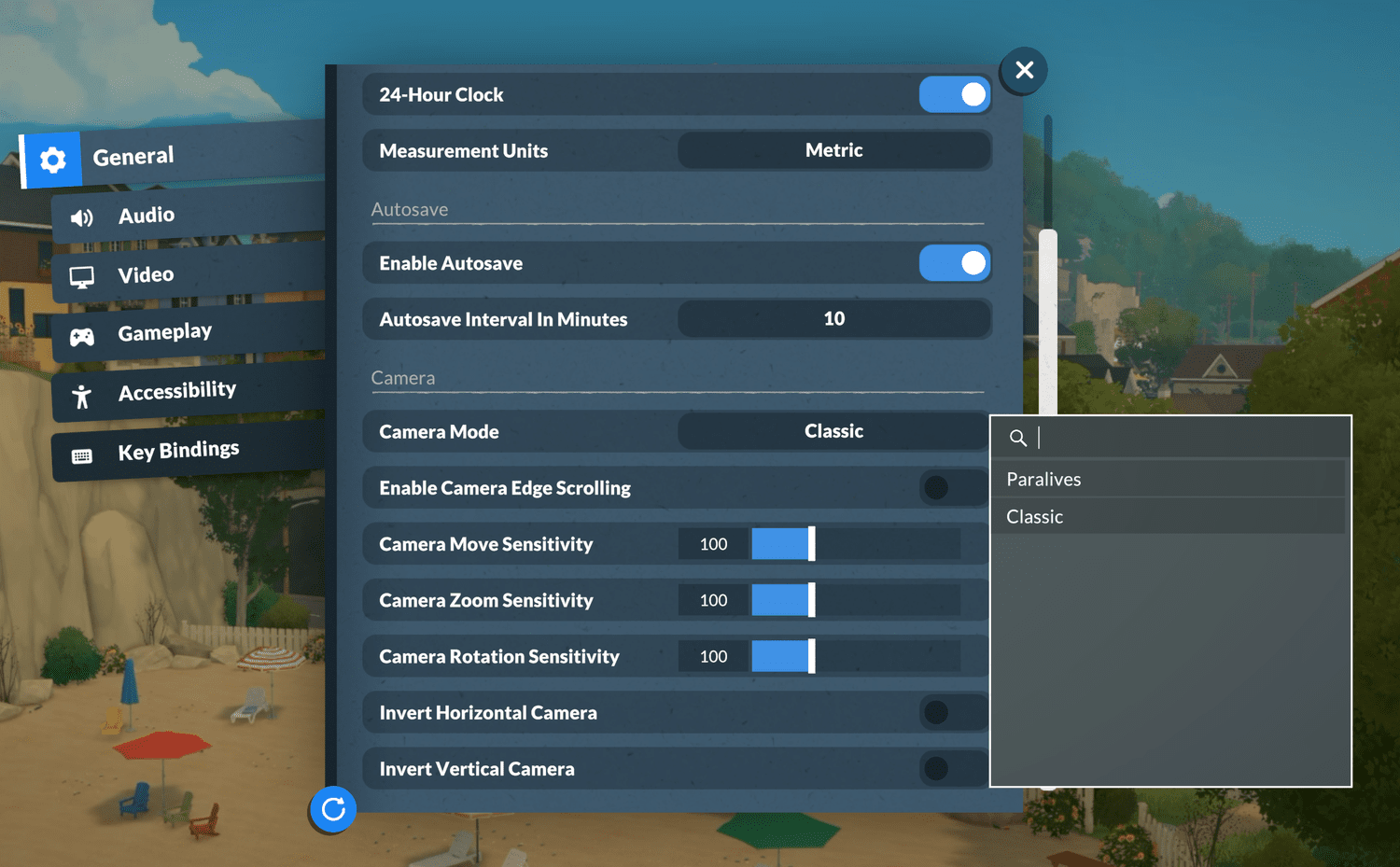
The same options panel groups the rest of the camera settings alongside the mode selector.
Setting | Effect |
|---|---|
Camera Mode | Switches between the Paralives scheme and the Classic scheme |
Enable Camera Edge Scrolling | Pans the view when the cursor reaches the edge of the screen |
Camera Move Sensitivity | Pan speed, set to 100 by default |
Camera Zoom Sensitivity | Zoom speed, set to 100 by default |
Camera Rotation Sensitivity | Rotation speed, set to 100 by default |
Invert Horizontal Camera | Reverses the horizontal rotation direction |
Invert Vertical Camera | Reverses the vertical rotation direction |
Help and Debug Surfaces
Surface | Hotkey | Purpose |
|---|---|---|
In-game help menu | Dedicated hotkey (rebindable) | Context-aware tips, hotkey list, and quick links to tutorial content |
Control Panel | Ctrl+F2 | Examine and edit game content in real time; reorder content lists; primary modding inspection tool |
Console | Ctrl+F1 | View error messages and debug output; useful for catching mod-induced exceptions |
Modding Tools menu | Main menu | Entry point for the full official toolkit |
Modding-Related Controls
Paralives includes built-in developer tools that are useful for both testing and Modding and Steam Workshop work. These tools are accessible through keyboard shortcuts at any point during gameplay. The Console (Ctrl+F1) allows players and modders to monitor whether modifications cause errors or exceptions; no red errors should appear in the console during normal operation. The Control Panel (Ctrl+F2) displays how game content was configured and integrated, listing the launch build's careers, recipes, Together Cards, vibes, wants, and other moddable categories. The Control Panel supports search and reordering of its lists.
The studio has noted that sometimes restarting the game is necessary after making changes, as some settings modifications may temporarily break game data but work correctly after a restart.
Cheats and Accessibility
All keyboard controls in Paralives can be rebound to accommodate different player needs and preferences. This applies to both Build Mode hotkeys and the developer-tool shortcuts. The ability to customize controls is part of the game's broader approach to accessibility, ensuring players with different physical capabilities can interact with the game comfortably. See Cheats for the related cheat-console surfaces; the cheat input system uses the same in-game console framework.
Alongside key rebinding, the Steam store listing declares a set of accessibility features for the shipping build: adjustable text size, camera comfort options, custom volume controls, adjustable difficulty through the Storyteller selection, a mouse-only play option, no timed input requirements, saving at any time, and stereo sound. The camera-comfort group covers the foliage-animation intensity slider added in the Day-0 patch and the photosensitivity fade option added in Patch 0.1.3.
Day 1 Status
All of the controls described above are confirmed Day 1 for the May 25, 2026 Early Access launch. The complete Paramaker and Live Mode keymaps will be fully documented in the in-game help menu at launch. Controller and Steam Deck verification have still not been confirmed as of September 21, 2026; the store listing shows neither a controller-support field nor a Steam Deck compatibility rating, and keyboard and mouse remain the supported input method.
Out of Scope
The full default keymap for Paramaker and many of the smaller Live Mode submenus has not been published outside the in-game help menu. Controller-input remaps, Steam Deck verification, and gamepad support remain unconfirmed as of September 21, 2026. The studio has said controller support would be the first step if it takes on console versions later. Linux-specific input handling has not been documented; players running the game through compatibility layers should expect behavior to follow Windows defaults.