Loading...
Loading...
Crash and Fatal Error Troubleshooting
October 8, 2026 at 10:46 PM
Added the Steam Cloud screenshot beside the specific setting-reset procedure
This guide covers the global Windows PC client of AION 2 and the crash guidance published on October 7 and 8, 2026. Begin with the checks for your symptom. The folder-reset procedure below applies specifically to PresentInternal(SyncInterval) failed; it is not a general instruction to delete all game files.
On Steam, open Library > AION 2 > Properties > Installed Files > Verify integrity of game files. Steam redownloads missing or damaged files.
Temporarily disable overlays, hardware-monitoring tools and GPU-tuning utilities, then restart AION 2. Examples include Discord Overlay, MSI Afterburner, RivaTuner Statistics Server and third-party FPS overlays.
If you use CPU or memory overclocking, undervolting or manually adjusted voltages, restore default or manufacturer-recommended settings.
Install a stable graphics driver compatible with your GPU: NVIDIA Game Ready or AMD Adrenalin. For Radeon RX 9000-series cards, the October 7 support answer specifically recommends Adrenalin 26.9.1. This is a dated recommendation for that series.
For these desktop CPU generations, the support guidance recommends the latest stable BIOS supplied by the motherboard manufacturer, which may include updated microcode. Follow that manufacturer's instructions for the exact motherboard. No particular BIOS menu, voltage or universal fix is specified.
Open NVIDIA Control Panel > Set up G-SYNC, clear Enable G-SYNC, G-SYNC Compatible, apply the change and restart the game. If this resolves the crash, the support guidance says to keep G-SYNC disabled until further notice.
If this exact error appears, reset the client setting folder for the launcher you use. Close the game before changing its settings. The Steam and PURPLE paths are different.
Launcher | Folder to delete | Additional step |
|---|---|---|
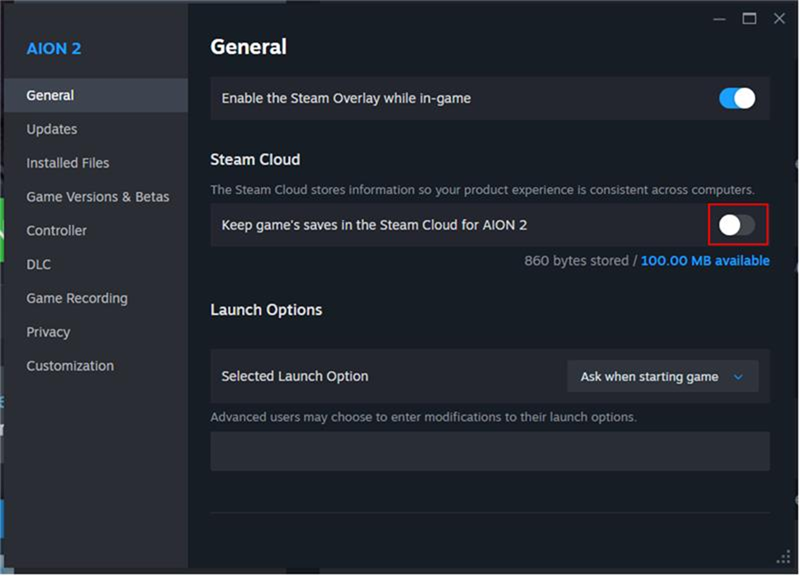
Steam | %localappdata%\AION2\Saved_Steam\PersistentDownloadDir\UserSetting | Disable Steam Cloud for AION 2. |
PURPLE | %localappdata%\AION2\Saved\PersistentDownloadDir\UserSetting | The support answer does not specify a Steam Cloud step for PURPLE. |
For Steam, open AION 2 Properties > General and turn off Keep games saves in the Steam Cloud for AION 2. Then restart the game. Delete only the indicated UserSetting folder, rather than its entire parent directory.
System Requirements lists supported hardware and operating systems. Known Issues covers account, server and other acknowledged launch problems. Account Linking explains the Steam and PURPLE account connection.