

Overview
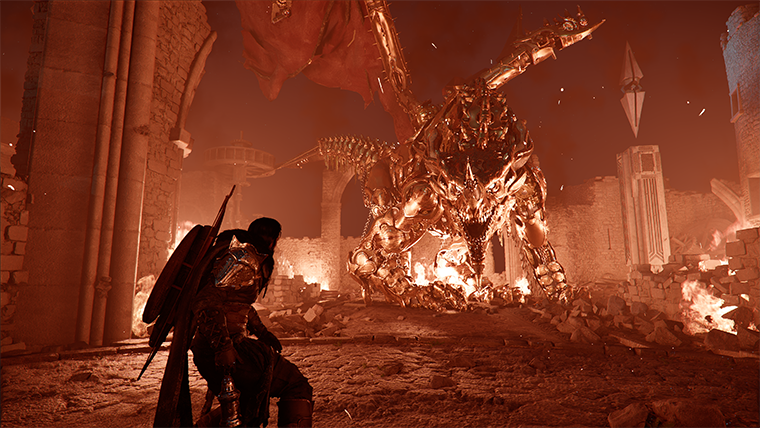
Crimson Desert runs on Pearl Abyss's proprietary BlackSpace Engine, which features advanced rendering techniques including ray-traced global illumination, stochastic path tracing, and real-time color bleeding. The game supports six graphics presets (Minimum, Low, Medium, High, Ultra, and Cinematic) and a range of upscaling technologies to scale across different hardware configurations. A former Pearl Abyss developer has claimed the BlackSpace Engine is "on a completely different level than your typical mass-produced Unreal Engine 5 games."
Graphics Presets
Six graphics presets are available, each progressively enabling more demanding visual features.
Preset | Key Features |
|---|---|
Minimum | 900p upscaled to 1080p at 30 FPS. Lowest visual fidelity for entry-level hardware. |
Low | Baseline visual settings. Reduced shadow quality, simplified global illumination, and lower particle density. |
Medium | Improved shadow quality and texture detail. Standard post-processing effects. |
High | Higher resolution shadows, improved view distance, and enhanced post-processing. |
Ultra | Enables Advanced Weather Effects and Ray Tracing. High particle quality. The 4K/60 FPS demo used this preset. |
Cinematic | The highest preset. Enables full path tracing with multiple secondary bounces. The most demanding visual mode. |
At the press preview eventPearl Abyss demonstrated the game running at native 4K with 60 FPS on the Ultra preset (not even the highest setting), using an AMD Radeon RX 7900 XTX.
Ray Tracing
The BlackSpace Engine uses stochastic path tracing based on Monte Carlo methods to simulate realistic lighting. Ray tracing is enabled by default at the Ultra preset level and includes several advanced features.
Feature | Description |
|---|---|
Ray-traced diffuse GI | Per-pixel lighting applied to all light sources including indoor torches, with multiple secondary bounces (Multi-Bounce) for indirect lighting. |
Ray-traced reflections | Combined with screen-space reflections at varying distances for accurate surface reflections. |
Real-time color bleeding | Objects affect nearby surfaces with their color in real time. For example, a red cloak casts a reddish tint on nearby gray stone. |
Path tracing (Cinematic) | Full path tracing mode with dense volumetric fog and multiple light source interactions. The most visually impressive but most demanding mode. |
Upscaling Technologies
NVIDIA DLSS
Crimson Desert launches with day-one support for NVIDIA's full DLSS stack. An optimized GeForce 595.79 WHQL driver was released alongside the game. NVIDIA officially announced the game's DLSS 4 support alongside other upcoming titles.
Feature | Hardware Requirement | Description |
|---|---|---|
DLSS 4 with Multi Frame Generation | RTX 50 Series | Latest generation upscaling with multi-frame generation for maximum performance gains. |
DLSS Frame Generation | RTX 40 Series | AI-generated intermediate frames to boost frame rates. |
DLSS Super Resolution | All RTX GPUs | AI-driven upscaling from lower internal resolutions. |
DLSS Ray Reconstruction | All RTX GPUs | Enhances ray-traced effects with reduced noise and improved stability. |
DLAA | All RTX GPUs | Deep Learning Anti-Aliasing at native resolution for maximum image quality. |
AMD FSR Redstone
Crimson Desert is the second game (after Call of Duty: Black Ops 7) to support AMD FSR Redstone, the latest upscaling suite optimized for AMD Radeon RX 9000 series (RDNA 4) GPUs. The full FSR Redstone suite includes four components.
Component | Description |
|---|---|
FSR 4.0 Super Resolution | AI-driven upscaling technology. |
ML Frame Generation | Machine learning frame synthesis for higher frame rates. |
Ray Regeneration | Machine learning denoiser for ray tracing. Produces more stable, less noisy ray-traced reflections and shadows. AMD's answer to DLSS Ray Reconstruction. |
Neural Radiance Caching | Speeds up intensive lighting calculations using neural networks. Note: Neural Radiance Caching was not available at launch and was added in a post-launch update. |
PlayStation PSSR
On PS5 Pro, Crimson Desert supports PSSR (PlayStation Spectral Super Resolution), enabling the game to reach 4K resolutions at higher frame rates. The several PS5 Pro enhancements on March 4, 2026. These include High CPU Frequency Mode (heavily utilized for seamless open-world traversal), Geometry Shader Oversubscription and NGG Culling (used to render large numbers of elements without losing visual detail), ray tracing for more realistic and natural lighting effects, and SSD streaming leveraged for long draw distances across the open world.
Apple MetalFX
The macOS version uses Apple's MetalFX Upscaling for AI-driven resolution scaling, MetalFX Frame Generation for intermediate frame synthesis, and MetalFX Denoiser for cleaning up ray-traced effects at lower computational cost. M3 and M4 family chips support hardware-accelerated ray tracing and mesh shading.
Upscaler Comparison
Crimson Desert supports NVIDIA DLSS 4.5DLSS 4.0DLAAand AMD FSR Redstone (FSR 4.0). Choosing the right upscaler is one of the most impactful decisions for both image quality and performance. Because Crimson Desert uses stochastic path tracing, the sample count for global illumination depends on the internal render resolution, not the output resolution. This means upscaling at aggressive presets (Performance or Ultra Performance) will show more noise than running at native or Quality.
Upscaler | Recommendation | Details |
|---|---|---|
DLSS 4.0 (Quality) | Best for NVIDIA RTX 40/50 Series | Produces a cleaner image than DLSS 4.5 with less noise in the current build. Use Quality preset for minimal quality loss. |
DLSS 4.5 (Preset M/L) | Avoid for now | Produces noticeably more noise and artifacts compared to DLSS 4.0. Wait for a patch. |
DLAA | Best native-resolution image quality for RTX users | Deep Learning Anti-Aliasing at native resolution. No upscaling, so no performance gain, but the cleanest possible image. |
FSR 4.0 (Quality) | Best for AMD Radeon RX 9000 Series | AMD's latest AI-driven upscaler. Use Quality preset for the best balance. |
FSR 3.1 (Balanced) | Fallback for older AMD GPUs | Use Balanced preset if your GPU does not support FSR 4.0. |
Frame Generation | Enable if available | Adds AI-generated intermediate frames. Works with both DLSS and FSR. Significant FPS boost with minimal input lag. |
With DLSS or FSR at Quality mode, expect a 30 to 50% improvement in frame rates over native rendering. Frame Generation can roughly double the displayed frame rate at the cost of slight input lag.
Individual Graphics Options
Beyond the six presets, the following individual settings have been identified from preview builds and optimization coverage.
Setting | Notes |
|---|---|
Shadow Quality | Low, Medium, High, Ultra. Reportedly the most impactful setting for performance. |
Global Illumination | Adjustable. Lower settings use screen-space alternatives instead of ray tracing. |
Texture Quality | High and Ultra options. Low FPS impact; 8 GB+ VRAM recommended for Ultra textures. |
View Distance | High and Ultra options. |
Particle Quality | Scales up to 100. |
Advanced Weather Effects | Enabled at Ultra preset and above. |
Ray Tracing | Toggle. Enabled at Ultra preset and above. |
Anti-Aliasing | TAA confirmed. SSAA available but demanding. DLAA for RTX users at native resolution. |
Post-Processing Effects | Adjustable. |
V-Sync | On/Off toggle. No hard frame rate cap on PC. |
Performance Impact
Not all settings carry the same weight. The table below summarizes the performance impact of each major setting when lowered from Cinematic to a more reasonable level, based on community benchmarks. Knowing which settings matter helps you squeeze out extra frames without sacrificing visual quality where it counts.
Setting | Impact When Lowered | Notes |
|---|---|---|
Lighting Quality | High (largest impact) | Max costs 36% FPS vs Cinematic. Ultra saves 9-10% over Cinematic with only minor visual differences. This is the single most impactful setting. |
Model Quality | Medium | Low gives roughly 9% FPS gain. Ultra looks nearly identical to Cinematic and runs better. |
Foliage Density | Medium | Noticeable impact in open outdoor areas. Low reduces grass and bush density visibly. |
Volumetric Fog Quality | Low-Medium | Dropping from Cinematic to High saves a few percent. One of the first settings to lower. |
Shadow Quality | Low | Roughly 2% gain from Cinematic to Ultra. Below Medium, shadows become blurry and start to flicker. |
Ray Tracing | Negligible | Disabling RT does not save performance; in some cases it costs 1-2 FPS. The engine is built around RT. Keep it on. |
Water Quality | Negligible | Difference between Cinematic and Low is negligible even when swimming. |
Simulation Quality | Negligible | No visible change and no measurable FPS difference. |
Post-Processing Quality | Negligible | Switching from Cinematic to Low disables lens flares with about 1% gain. |
Effect Quality | Negligible | Minimal impact on frame rate. |
Ray Reconstruction | Very High (40-50% cost) | Adds significant GPU load. Improves shadow and object quality beyond Max settings, but very expensive. |
Ray Regeneration | Very High (40-50% cost) | AMD equivalent. Also introduces subtle geometry changes beyond noise reduction. |
The key takeaway: Lighting QualityModel Qualityand Foliage Density are the three settings with the most meaningful performance impact. Most other settings can stay at Ultra or Cinematic with negligible cost.
PC Performance Benchmarks
The following benchmarks come from the March 2026 press preview event, where Pearl Abyss deliberately chose a previous-generation GPU to demonstrate the engine's optimization.
Configuration | Settings | Result |
|---|---|---|
Ryzen 9 7900X3D + RX 7900 XTX | Native 4K, Ultra, Ray Tracing ON | Approximately 60 FPS |
Ryzen 9850X3D + RX 9070 XT | Native 4K, Path Tracing (Cinematic-level) | Approximately 40-50 FPS |
that the game runs "quite differently than a lot of Unreal Engine games would run at native 4K," highlighting the BlackSpace Engine's efficient rendering pipeline.
GPU Benchmark Reference
The following benchmark data from TechSpot's 40-GPU test provides a reference for expected performance at different resolutions on the High preset without upscaling or frame generation, using an AMD Ryzen 7 9800X3D processor.
GPU | 1080p High (Avg FPS) | 1440p High (Avg FPS) | 4K High (Avg FPS) |
|---|---|---|---|
RTX 5090 | 188 (CPU limited) | ~160 | ~100 |
RTX 4090 | 166 | ~145 | ~95 |
RTX 5070 Ti / 4080 Super | ~130 | ~110 | ~70 |
RX 7900 XTX / 9070 XT | ~125 | ~110 | ~65 |
RTX 5060 Ti / 4070 | ~100 | ~80 | ~50 |
RTX 5060 / 4060 Ti | ~80 | ~60 | ~35 |
RX 7600 / RTX 4060 | ~60 | ~45 | ~25 |
These numbers represent the High preset without upscaling. With DLSS or FSR at Quality mode, expect a 30 to 50% improvement in frame rates. Frame Generation can approximately double the displayed frame rate at the cost of slight input lag.
Hardware Support
TechSpot and that modern upper-midrange GPUs including the NVIDIA RTX 5070 Ti and AMD Radeon RX 9070 XT can maintain 60 FPS at native 4K on the Ultra preset with ray tracing enabled. This was demonstrated without upscaling technologies active, running on the BlackSpace Engine's native rendering pipeline. Pearl Abyss sent a demonstration of the game running at these settings on an RX 7900 XTX (a GPU with similar benchmark results to the 9070 XT and 5070 Ti), captured at a stable 60 FPS.
Cinematic Preset Requirements
For the Cinematic preset, which enables full path tracing with multiple secondary bounces, testing on a Ryzen 9850X3D with an RX 9070 XT produced approximately 40 to 50 FPS at native 4K. This suggests the Cinematic preset's path tracing is significantly more demanding than the Ultra preset's standard ray tracing, and players targeting 60 FPS at this quality level will need the very highest-end hardware or the assistance of DLSS 4/FSR Redstone upscaling.
The official Ultra tier specification lists the RTX 5070 Ti and RX 9070 XT as the target GPUs for 4K at 60 FPS, paired with a Ryzen 7 7700X or Core i5-13600K CPU and 16 GB of RAM. These are current-generation midrange to upper-midrange components rather than flagship hardware. This reflects Pearl Abyss's emphasis on engine optimization across a broad hardware range.
AMD Partnership
AMD and Pearl Abyss have an official partnership for Crimson Desert. A co-branded Sapphire NITRO+ RX 9070 XT Crimson Desert Edition GPU was released in February 2026 featuring custom artwork. AMD also offers a free copy of Crimson Desert with qualifying Ryzen and Radeon purchases as part of a game bundle promotion running from February 10 to April 25, 2026.
System Requirements Quick Reference
All PC tiers require 16 GB RAMan SSD with 150 GB free spaceWindows 10 64-bit (22H2+)and DirectX 12. The following table shows the official GPU and CPU requirements published by Pearl Abyss for each performance tier.
Tier | Target | GPU | CPU |
|---|---|---|---|
Minimum | Upscaled 1080p / 30 FPS | GTX 1060 / RX 5500 XT | i5-8500 / Ryzen 5 2600X |
Low | 1080p / 30 FPS | GTX 1660 / RX 6500 XT | i5-8500 / Ryzen 5 2600X |
Medium | 1080p / 60 FPS or 4K / 30 FPS | RTX 2080 / RX 6700 XT | i5-11600K / Ryzen 5 5600 |
High | 1440p / 60 FPS | RTX 4070 / RX 7700 XT | i5-12600K / Ryzen 5 7600X |
Ultra | 4K / 60 FPS | RTX 5070 Ti / RX 9070 XT | i5-13600K / Ryzen 7 7700X |
For detailed specifications and Mac requirements, see the full System Requirements article.
Display Settings (All Tiers)
Setting | Recommendation | Notes |
|---|---|---|
Screen Mode | Borderless | Allows easy Alt-Tab and overlay access without performance penalty. |
Your monitor's native resolution | Do not lower this manually; use upscaling instead. | |
V-Sync | Off | Use the in-game or driver frame rate limiter instead to reduce input lag. |
Frame Rate Limiter | Match your monitor's refresh rate | Capping at 60, 120, or 144 prevents unnecessary GPU strain. |
Blur Intensity | 0 | Removes motion blur, giving a cleaner image during movement. No measurable performance cost. |
Optimised Settings Profile
An optimised settings profile delivers roughly 18% better performance than the Cinematic preset with almost no visible difference in image quality. The key changes from Cinematic are:
Lighting QualityUltra (saves 9-10% with only minor visual differences)
Model QualityUltra (nearly identical to Cinematic, runs better)
Volumetric Fog QualityHigh (small visual change, measurable FPS gain)
Blur Intensity0 (removes motion blur entirely)
Everything elseCinematic or Ultra
This profile is an excellent starting point. You can then lower Foliage Density or other settings depending on your hardware headroom.
Recommended Settings: High-End PCs
Target: 4K at 60+ FPS or 1440p at 100+ FPS. Hardware: RTX 5070 Ti / 4080 or better, RX 9070 XT or better, 16 GB RAM, SSD.
Setting | Value |
|---|---|
Model Quality | Ultra |
Texture Quality | Cinematic (12 GB+ VRAM) or Ultra (8-10 GB VRAM) |
Shadow Quality | Ultra |
Ray Tracing | On |
Lighting Quality | Ultra |
Reflection Quality | Ultra |
Advanced Weather Effects | On |
Water Quality | Ultra |
Foliage Density | High |
Volumetric Fog Quality | High |
Effect Quality | Cinematic |
Simulation Quality | Ultra |
Post-Processing Quality | Cinematic |
Upscale Mode | DLSS 4.0 Quality / FSR 4.0 Quality |
Ray Reconstruction | On (NVIDIA only) |
Ray Regeneration | Off (see note below) |
Note on Lighting Quality: Lighting Quality is the single most impactful setting in Crimson Desert. It controls global illumination resolution, indirect lighting quality, and reflection fidelity. Ultra provides roughly 9 to 10% better performance than Cinematic with only minor visual differences. Unless you have a flagship GPU like the RTX 5090 or RTX 4090, stick with Ultra over Cinematic.
Note on Volumetric Fog: Dropping Volumetric Fog from Cinematic/Ultra to High saves a few percent with barely any visible change, making it a worthwhile trade-off even on high-end hardware.
Recommended Settings: Mid-Range PCs
Target: 1440p at 60 FPS or 1080p at 100+ FPS. Hardware: RTX 4060 Ti / 5060, RX 7700 XT / 9070, 16 GB RAM, SSD.
Setting | Value |
|---|---|
Model Quality | High |
Texture Quality | High (8 GB VRAM) or Ultra (10 GB+ VRAM) |
Shadow Quality | High |
Ray Tracing | On |
Lighting Quality | High |
Reflection Quality | Ultra |
Advanced Weather Effects | On |
Water Quality | Ultra |
Foliage Density | High |
Volumetric Fog Quality | High |
Effect Quality | High |
Simulation Quality | Ultra |
Post-Processing Quality | High |
Upscale Mode | DLSS 4.0 Balanced / FSR Balanced |
Ray Reconstruction | On (NVIDIA only) |
Ray Regeneration | Off |
Why keep Ray Tracing on? Crimson Desert was designed with ray tracing in mind. The BlackSpace Engine is built around RT, and the rasterization fallback is not well-optimized. Disabling RT does not improve performance (and can cost 1-2 FPS in some scenes). It also does not fix noise issues. Leaving it on is the better tradeoff at every hardware tier.
Recommended Settings: Low-End PCs
Target: 1080p at 60 FPS. Hardware: RTX 3060 / 4060, RX 6700 XT / 7600, 16 GB RAM, SSD.
Setting | Value |
|---|---|
Model Quality | Low |
Texture Quality | High (6 GB VRAM) or Medium (4 GB VRAM) |
Shadow Quality | High |
Ray Tracing | Off |
Lighting Quality | High |
Reflection Quality | High |
Advanced Weather Effects | Off |
Water Quality | High |
Foliage Density | Low |
Volumetric Fog Quality | High |
Effect Quality | High |
Simulation Quality | High |
Post-Processing Quality | Medium |
Upscale Mode | DLSS Performance / FSR Performance |
Frame Generation | On (if supported) |
Key savings: Model Quality set to Low gives approximately a 9% performance boost. Reducing Foliage Density to Low has a noticeable impact during outdoor exploration. Turning off Advanced Weather Effects removes rare weather event rendering that rarely affects gameplay. Shadow Quality below High causes visible flickering and blur, so High is the minimum recommendation.
Fixing Noise and Artifacting
The most common visual complaint in Crimson Desert is image noise, particularly in dimly lit interiors, shadowed areas, and during certain weather effects. This noise is a byproduct of the stochastic path tracing system used by the BlackSpace Engine. Because the engine uses Monte Carlo methods to simulate lighting, lower sample counts produce more visible noise, and the sample count scales with the internal render resolution.
Steps to Reduce Noise
Set Lighting Quality to Ultra or Cinematic. Lower settings reduce the sample count for indirect lighting, which directly increases visible noise. Ultra is the sweet spot for performance and quality.
Use DLSS 4.0 instead of DLSS 4.5. DLSS 4.0 produces a cleaner, less noisy image in the current build. DLSS 4.5 introduces additional artifacts in some scenes.
Enable Ray Reconstruction (NVIDIA). Combining DLSS 4.0 Quality mode with Ray Reconstruction is the ideal setup for minimizing noise. Note: Ray Reconstruction has a known bug where it can remove rain effects from the game.
Do not disable Ray Tracing to fix noise. Counter-intuitively, turning off Ray Tracing does not fix noise issues. The noise persists because it originates from the global illumination system, not from ray-traced reflections specifically.
Set Blur Intensity to 0. This removes motion blur that can compound the visual noise, giving a cleaner image during movement.
Run as high a render resolution as your hardware allows. Because lighting sample counts depend on internal render resolution, using DLSS/FSR at Quality (or even native via DLAA) will produce less noise than Performance or Ultra Performance modes.
Avoid FSR Ray Regeneration for now. Both NVIDIA Ray Reconstruction and AMD Ray Regeneration add significant GPU load (40 to 50% performance hit). Ray Regeneration also introduces subtle geometry changes beyond noise reduction, making it less predictable.
Console Settings
Crimson Desert offers three graphics modes on console: Quality, Balanced, and Performance. The game uses FSR 3 upscaling on PS5 and Xbox Series X to deliver higher output resolutions from lower internal renders. For a full breakdown, see Platform Comparison.
PS5 and Xbox Series X
Mode | Frame Rate | Ray Tracing | Notes | |
|---|---|---|---|---|
Quality | Upscaled 4K (from 1440p via FSR 3) | 30 FPS | High | Best visual quality. Stable frame rate. |
Balanced | Upscaled 4K (from 1280p via FSR 3) | 40 FPS | Low | Best compromise between visuals and smoothness. Recommended for most players. |
Performance | 1080p | 60 FPS (VSync) / 60+ with VRR | Low | Smoothest frame rate but noticeably lower image quality. Frequent frame drops on base PS5 during the first hours. |
Recommendation: Balanced mode is the safest choice on base PS5 and Xbox Series X. It delivers image quality much closer to the Quality preset while running at 40 FPS. Performance mode on base PS5 struggles to hold a steady 60 FPS, with frame rates fluctuating between the high 30s and 60 during early gameplay.
PS5 Pro
Mode | Frame Rate | Ray Tracing | Notes | |
|---|---|---|---|---|
Quality | Native 4K (no upscaling) | 30 FPS | Ultra | True native 4K. Best image quality on any console. |
Balanced | Upscaled 4K (from 1440p via PSSR 2) | 40 FPS / 48+ with VRR | High | Higher internal resolution than base PS5. VRR pushes past 40. |
Performance | Upscaled 4K (from 1080p via PSSR 2) | 60 FPS / 60+ with VRR | High | Recommended. 4K output, 60 FPS, high ray tracing. Best overall console experience. |
Recommendation: Performance mode on PS5 Pro is the sweet spot. It uses Sony's upgraded PSSR 2 upscaler to deliver 4K output at 60 FPS with high ray tracing, a significant improvement over the base PS5's 1080p Performance mode.
Xbox Series S
Mode | Frame Rate | Ray Tracing | |
|---|---|---|---|
Quality | 1080p | 30 FPS | None |
Performance | 720p | 40 FPS | None |
Xbox Series S does not support ray tracing in Crimson Desert. Quality mode at 1080p/30 FPS provides a stable experience, while Performance mode drops to 720p for a 40 FPS output.
PS5 Pro Analysis
John Linneman described Crimson Desert as "a striking game" after testing the PS5 Pro version. The PS5 Pro offers three display modes using PSSR upscaling: 4K at 30 FPS (Quality), upscaled 4K from 1440p base at 40 FPS (Balanced), and upscaled 4K from 1080p base at 60 FPS (Performance).
In Performance mode, Linneman said it "surprised" him "with how good it was overall." With VRR enabled, some areas reached 70 FPS. However, the frame rate dips in areas with larger crowds involving many NPCs and dropped "significantly" during one early game battle into the 30 FPS region, though this was described as "not the norm at all" for the game.
One noted concern was the PS5 Pro build's use of an older version of PSSR, which led to some image quality issues. Pearl Abyss aims to use a more modern version of PSSR in future updates. Pearl Abyss for "adding detail to every corner of the vast open world" and highlighted the ray-traced diffuse global illumination as a standout feature, with sunlight bouncing naturally across surfaces and illuminating interiors.
Base PS5 and Xbox Series X|S Performance
In the run-up to release, as of March 14, 2026 (five days before launch), Pearl Abyss had not released base PS5 or Xbox Series X|S performance footage. Only PS5 Pro and PC footage has been shown publicly. Pearl Abyss Marketing Director Will Powers stated: "Regardless of what we say, people probably won't believe us. So instead we're sending the game and they'll have a full analysis of performance across all the platforms at launch." Base PS5 and Xbox Series X|S use AMD FSR 3 for upscaling rather than PSSR.
Mac Settings
The macOS version of Crimson Desert uses Apple MetalFX for upscaling, frame generation, and denoising. M3 and M4 family chips support hardware-accelerated ray tracing and mesh shading. The minimum requirement is an M2 Pro, M3, or M4 with 16 GB RAM and macOS 15.0 or later.
For best results on Mac:
Use the Low-End PC settings table as a baseline.
Disable Ray Tracing unless you have an M4 Pro or M4 Max chip.
Set Foliage Density to Low or Medium.
Enable MetalFX Upscaling at the Balanced or Performance preset.
Enable MetalFX Frame Generation for smoother frame rates.
Running macOS 15 (Sequoia) or later enables frame interpolation, which allows 60 FPS performance across all resolution tiers regardless of native rendering speed.
Known Issues
Issue | Status | Workaround |
|---|---|---|
Object pop-in at high speed | Known, no fix available | Occurs even at maximum settings due to VRAM streaming optimization. Lowering traversal speed slightly reduces the frequency. |
Ray Reconstruction removes rain | Confirmed bug | Disable Ray Reconstruction during rainy weather if you want to see rain effects, or wait for a patch. |
DLSS 4.5 introduces noise | Known issue | Use DLSS 4.0 instead until a game or driver update resolves the issue. |
Interior shadow artifacts | Affects lower lighting settings | Set Lighting Quality to Ultra or higher to resolve. |
PS5 Performance mode frame drops | Known on base PS5 | Switch to Balanced mode (40 FPS) for a more stable experience, or enable VRR if your display supports it. |
Tips
The Performance and Graphics Settings article provides a full breakdown of every in-game option.
Check the Platform Comparison article for side-by-side visual and performance comparisons across all platforms.
The Controls article covers keybinds and controller layouts if you are configuring input alongside graphics.
For Mac-specific features and known issues, see the macOS Version article.
Your Save System progress is not affected by changing graphics settings. Feel free to experiment.
If you are experiencing performance issues in specific areas, the BlackSpace Engine article explains how the engine handles rendering and streaming.
Patch 1.04.00 Graphics Updates
Patch 1.04.00 made broad graphics improvements across all platforms. Distant object and texture rendering quality was improved, character visual quality at long distances was raised, and hair lighting in shaded areas was reworked. Displacement mapping errors and flickering were fixed. On PC, AMD FSR Ray Regeneration quality was improved and Intel XeSS 3.0 upscaling and Frame Generation were added or improved. On Mac, a new MetalFX Denoising Upscaler option is available on macOS Tahoe and later, and HDR quality was improved with HDR enabled by default on compatible displays. Subtitle font now offers a 'Max' size option, and the camera distance is preserved when adjusting the visual range slider, removing the camera-snap that previously happened when changing the setting. See Patch 1.04.00 for the full graphics and accessibility change list.
Patch 1.16 Graphics Updates
Patch 1.16.00 (August 1, 2026) implemented a new AMD upscaling SDK, adding FSR Upscaling 4.1 support on Radeon RX 7000 series (RDNA 3) GPUs and updating Ray Regeneration to 1.2.0.
The same patch reduced flickering around window frame edges and similar boundaries and fixed some distant objects not being visible in certain areas.
Hotfix 1.16.02 (August 3) fixed a graphical issue with Ray Regeneration enabled on Radeon RX 9070 XT and higher GPUs, and a Mac crash with the MetalFX Denoising Upscaler enabled.
Patch 1.18 Graphics Updates
Patch 1.18.00 on August 15, 2026 fixed rendering corruption that appeared when FSR Frame Generation or XeSS Frame Generation was enabled on certain low-end graphics cards, the GTX 1060 included. The same patch stabilized indoor lighting effects in certain situations and stopped the camera jittering or shaking under low frame rates.
Two upscaling problems remain open on the official known-issues notice as of August 16, 2026: on GTX 1060 GPUs, enabling FSR Upscaling together with Frame Generation turns the screen white, and with FSR4 upscaling, rain can disappear or the image can blur and distort in rainy weather. See Known Issues for the current list.