
Loading...
Loading...
Saving and File Management
March 13, 2026 at 01:43 AM
Add 1 relevant image to article
Pokemon Pokopia uses a dual save system combining automatic background saves with manual save-and-quit functionality. The game has one save file per Nintendo Switch 2 user profile. Unlike several previous Pokemon titles (Sword/Shield, Scarlet/Violet), Pokopia supports Nintendo Switch Online cloud save backup for the main game save.
The game automatically saves progress at regular intervals during gameplay. When the autosave triggers, a small icon appears in the upper-left corner of the screen. Do not exit the game or turn off the console while this icon is visible, as interrupting the save process could corrupt data.
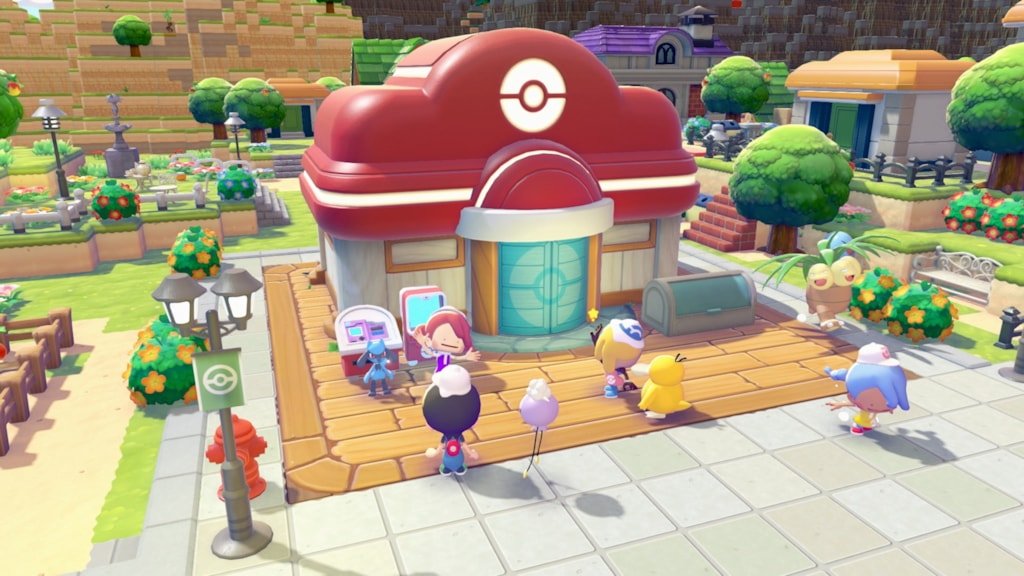
Autosave captures most actions including building placement, item collection, Pokemon befriending, and quest progress. However, because the exact interval between autosaves is not configurable, it is best practice to manual-save before ending a session.
To save manually, press the + Button to open the menu, then press the - Button to save and quit. This is the recommended way to end a play session, as it guarantees all recent progress is written to disk even if the autosave has not triggered recently.
There is no "save and continue" option. Manual saving always exits to the title screen. If you want to keep playing, rely on the autosave and only manual-save when you are done.
Pokopia has one save file per Nintendo Switch 2 user profile. To create a second save file, create a new user profile on the console. Each profile maintains its own independent save with its own island, Pokemon collection, and story progress.
The main island layout is identical and fixed for all players. There is no randomized island generation for the single-player world. All five areas (Withered Wasteland, Bleak Beach, Rocky Ridges, Sparkling Skylands, and Palette Town) unlock as you progress through Trainer Rank.
Pokopia supports Nintendo Switch Online cloud save backup for the main game save file. This is a notable departure from several previous Pokemon titles that blocked NSO cloud saves to prevent duplication exploits. With an active NSO membership, your save data is automatically backed up to Nintendo's cloud servers and can be restored if you switch consoles or lose your device.
This NSO cloud backup is separate from the in-game Cloud Island backup system described below.
For Cloud Islands (the persistent multiplayer worlds), a separate backup system exists. Cloud Island backups must be created manually; they are not saved automatically. You can only have one Cloud Island backup saved at a time, and backups can only be restored once per day.
Access the PC and select Link Play.
Select Check Settings.
Select Cloud Island Settings.
Press the R Button to switch to the Cloud Island Backup menu.
Select Save to create the backup.
Follow the same path but select Restore instead of Save. Restoring ends any active sessions on the island. Remember that you can only restore once per day, so use this feature carefully.
Each Cloud Island has a nine-digit magic number (seed) that determines its generated layout. If you delete a Cloud Island but remember its magic number, you can recreate the island with the same terrain layout. Write down your magic number before deleting.
Cloud Island creators can enable Virtual Mode, which prevents visiting players' actions from being saved to the island. This is useful when hosting public sessions where you want to protect your builds.
There is no in-game option to delete save data or start over. To delete your save and begin fresh:
Go to System Settings on the Nintendo Switch 2.
Navigate to Data Management.
Select the Pokemon Pokopia save data.
Delete it.
Relaunch the game to start a new game.
Warning: Deleted save data is permanent and cannot be recovered unless you have a cloud backup via Nintendo Switch Online.
If the game fails to save, freezes during save, or crashes while saving, try these steps:
Check storage space: System Settings > Data Management. Ensure sufficient free space on internal storage or microSD card.
Restart the console: Power Options > Restart.
Install game updates: Press + on the game > Software Update > Via Internet.
Verify game files: Press + > Data Management > Check for Corrupt Data.
Move game installation: If using a microSD card, try moving the game to internal storage for faster read/write speeds.
Reinstall: As a last resort, reinstall the game. Save data is stored separately from the game installation, so progress is preserved.
If you use the system clock trick to skip ahead in time, be aware that Pokopia does not allow reverting the timeline backward once advanced. If you push the clock forward significantly, the game locks progression to that future timeline until real time catches up. Always manual-save before adjusting the system clock.
Always manual-save before adjusting the system clock for time manipulation.
Back up your Cloud Island before inviting unknown players, in case they make unwanted changes.
If you want to experiment with a different playstyle, create a new user profile rather than overwriting your existing save.
When the autosave icon is showing in the upper-left corner, do not press the Home button or power off the console.
