

AION 2 is played on PC with a keyboard and mouse by default. The defaults below come from NCsoft's official guidebook for the Korean service; the global FAQ confirms that the global version runs on Windows PC through Steam and PURPLE, with the same in-game content on both. Every key can be rebound under Settings, Key Settings, which is offered on PC only.
Two Control Modes
The game ships with two control schemes and the slash key (/) switches between them at any time. The default on PC is the AION2 mode.
Mode | How it works |
|---|---|
AION2 mode (aiming) | The mouse pointer is hidden. Moving the mouse turns the camera without clicking, and the character moves only with W, A, S and D (or the arrow keys). Holding Alt, or opening a window, brings the pointer back. You target by aiming at an enemy, Tab changes target, and a mouse click makes a basic attack. |
AION1 mode (click) | The pointer is always visible. Clicking the ground moves the character, holding a click and dragging turns the camera, and clicking an enemy targets it. Double-clicking an enemy attacks it automatically. Tab still jumps to the nearest target. This mode supports camera lock-on. |
Two settings added on the Korean service belong to the AION1 mode: camera lock-on (December 3, 2025) and a mouse cursor lock that keeps the pointer inside the game window (August 26, 2026), found under Settings, Combat, Controls, Control Mode, AION1.
Default Keyboard and Mouse Layout
This is the official guidebook's default layout. Key names are the physical keys; the action names are descriptive translations of the Korean labels.
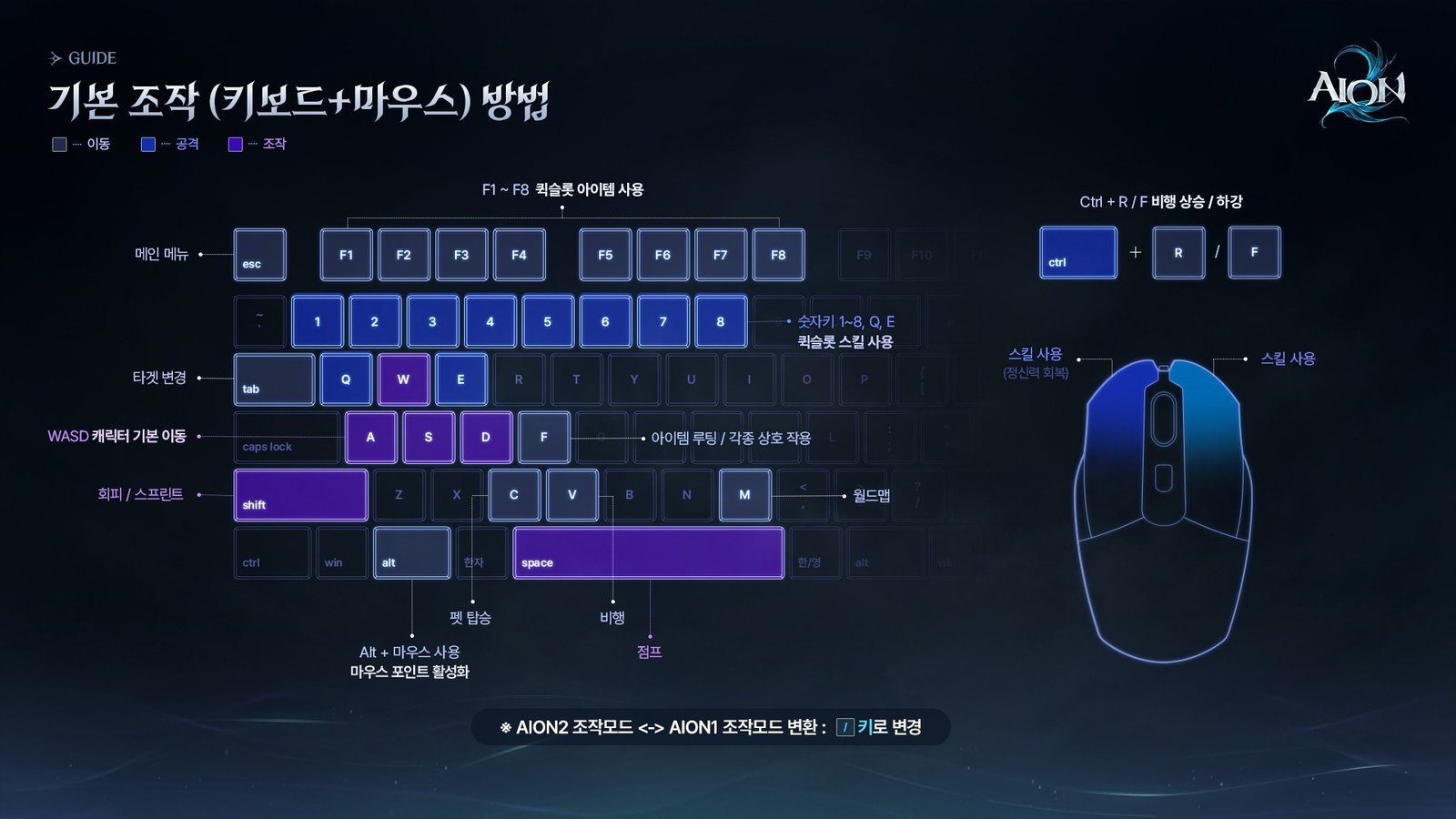
Key | Action |
|---|---|
W, A, S, D (or arrow keys) | Move |
Shift | Sprint while moving (faster, but it uses the action gauge); dodge in combat. A dodge timed just before a hit lands avoids the damage. |
Space | Jump; in the air, start or stop gliding |
V | Take off and fly, or land |
Ctrl + R / Ctrl + F | Rise or descend while flying |
C | Mount or dismount your pet |
F | Loot items and interact with objects and NPCs |
Tab | Change target to the nearest enemy |
1 to 8, Q, E | Skill quickslots |
F1 to F8 | Item quickslots |
Left mouse button | Use skill (the basic attack, which also restores MP) |
Right mouse button | Use skill |
Alt (hold) + mouse | Show the mouse pointer in AION2 mode |
Alt + number | Auto-move to a tracked quest objective |
M | World map |
Esc | Main menu |
/ | Switch between AION2 mode and AION1 mode |
Other default shortcuts named in the guidebook and the Korean update notes: I opens the Cube (inventory), H the shop, G the subscription screen, Ctrl + X the personal DPS meter, Alt + O the Closet (since January 28, 2026), and Alt + M shows or hides the overlay map (since July 29, 2026). Some interface buttons also respond to F since December 10, 2025. Flight is covered in more depth on Aerial Combat and Flight.
Lock-On
In AION1 mode the camera can lock onto your target and turn with it, which the guidebook recommends for one-on-one fights. Turn it on or off under Settings, Combat, Controls, Lock Camera on Target.
Key Settings
The Key Settings tab has four groups: General (movement and control shortcuts), Menu (menu and content windows), Quickslot, and Markers (shortcuts for placing party and force markers; see Parties and Forces). Each action can hold a main and a sub key. Additions on the Korean service include separate shortcuts for the World Market and the server Market (December 24, 2025), the skill macro key under General (January 28, 2026; see Macros and Third-Party Programs), a shortcut that dismisses all Spiritmaster spirits (July 1, 2026), and an option under Quickslot that gives the skills used in the Shugo Festival their own keys (July 29, 2026). Presets for equipment, Arcana, skills and titles can be swapped together with one key since January 14, 2026.
The October 7, 2026 global patch fixed Movement Controls appearing multiple times under Settings, Key Settings, General.
Gamepad
The global FAQ says AION 2 is playable with a controller but that controllers are not officially supported. The Korean service lists gamepad control as a beta feature in its guidebook (updated January 5, 2026) and warns that some functions may not work. Its default layout uses Xbox-style button names:
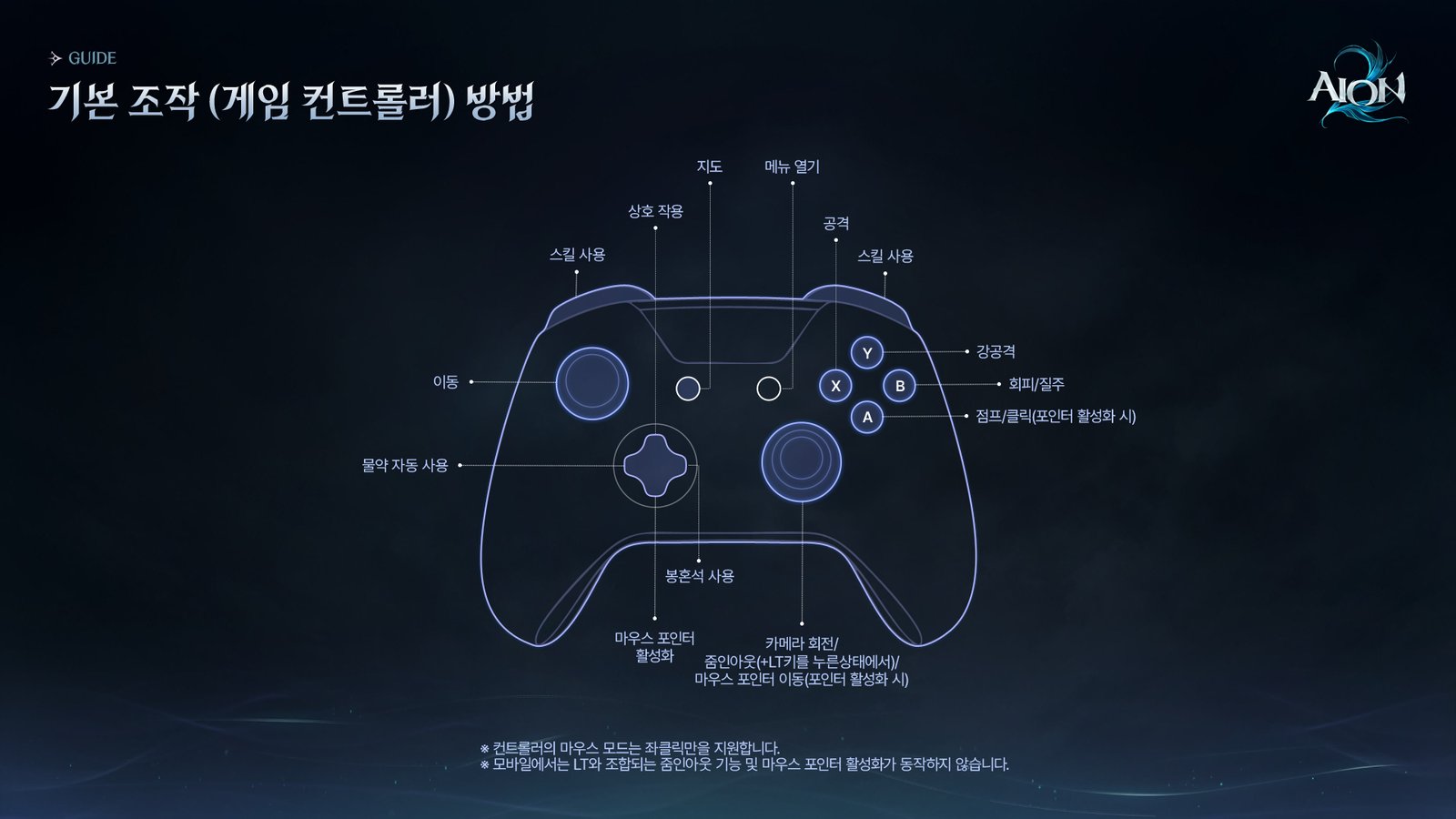
Input | Action |
|---|---|
X | Skill quickslot 1 (basic attack) |
Y | Skill quickslot 2 (heavy attack) |
B | Dodge or sprint |
A | Jump; click while the pointer is shown |
D-pad left | Turn automatic potion use on or off |
D-pad up | Action |
D-pad right | Turn Power Shard use on or off |
D-pad down | Show the mouse pointer |
View button | Open the map |
Menu button | Back; opens the main menu from the HUD |
Right stick click | Change target |
LT + X, Y, B, A | Skill quickslots 3, 4, 5 and 6 |
RB + X, Y | Skill quickslots 7 and 8 |
RT + X, Y, B, A | Stigma quickslots 1, 2, 3 and 4 |
LT + D-pad left, up, right, down | Item quickslots 1 to 4 |
RT + D-pad left, up, right, down | Item quickslots 5 to 8 |
RB + A | Start or stop flying |
RB + B | Mount or dismount |
Later Korean patches added a gamepad shortcut for the skill macro (LB + X, April 1, 2026) and a gamepad-specific key settings page (August 26, 2026): with a pad connected, the Key Settings page switches to pad bindings, LB and RB change tabs and the D-pad moves between entries.
Related Pages
Mobile Controls · User Interface · Settings · HUD Editor · Getting Started