
Loading...
Save System
March 23, 2026 at 10:14 AM
Added 1 image(s) from official press screenshots
Starsand Island uses a dual save system combining manual saves and configurable auto-saves, plus a 7-day rollback feature for emergency recovery. The game operates on a single save slot. There is one active save per playthrough. When a save occurs, a visual animation appears in the lower-right corner of the screen, and the word "autosaved" is displayed once the save completes.
Feature | Detail |
|---|---|
Manual save | Esc menu > Save (second button from top) |
Auto-save intervals | 3, 5, 10, or 20 minutes (configurable) |
Auto-save triggers | Sleeping in bed, returning to main menu, exiting game, using Unstuck |
Save slots | 1 (single save per playthrough) |
Rollback | Up to 7 in-game days back (morning of each day) |
Save location (PC) | %USERPROFILE%\AppData\LocalLow\SeedLab\StarsandIsland\ |
Steam Cloud | Supported |
Xbox Cloud Save | Supported |
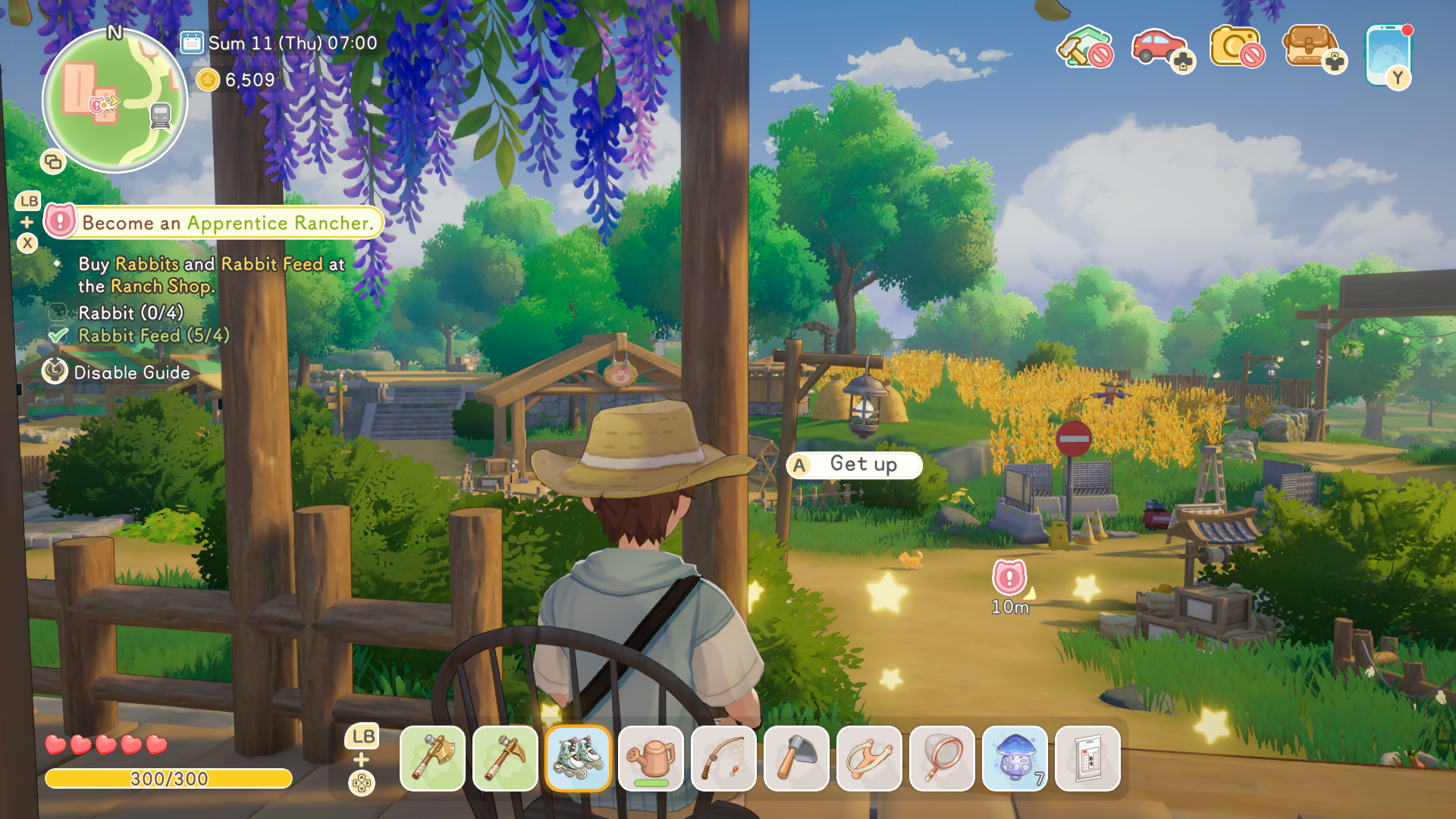
Press Escape on keyboard or Start on controller to open the pause menu.
Click the second button from the top, labelled "Save".
Wait for the saving animation in the lower-right corner and the "autosaved" confirmation text.
Sleeping in a bed also triggers a save. Make it a habit to manually save or sleep before quitting the game.
Auto-save runs on a configurable timer. The default interval is 10 minutes. It cannot be fully disabled: the shortest interval is 3 minutes.
Press Tab to open the in-game phone.
Open the Settings app.
Navigate to the Games tab (the two connecting gears icon).
Scroll to the bottom: the Auto-Save Interval setting is the last option.
Tap the yellow arrow on the right to cycle through intervals: 3, 5, 10, or 20 minutes.
In addition to the timer, auto-save fires when:
You sleep in a bed (the most reliable save trigger)
You return to the main menu
You exit or quit the game
You use the Unstuck feature (teleports you back to a safe location, triggers a save after confirming)
The game automatically creates a save snapshot at the morning of each in-game day and stores up to 7 days of these snapshots. If something goes wrong (an item disappears, a bug breaks your game, or you make a mistake you cannot undo) you can roll back to any of the past 7 mornings.
As of a February 2026 update, older save files are no longer automatically deleted, providing additional safety against data loss.
Press Escape to open the pause menu.
Select "Rollback to Previous Save".
Choose the day you want to revert to from the list of available snapshots.
Confirm. The game restores to the morning of that in-game day.
Warning: All progress after the selected rollback point is permanently lost. Gathered materials, quest progress, crafted items, and everything else since that morning is gone. You cannot undo a rollback. Use this only as an emergency recovery tool.
Note: Rollback uses separate daily snapshots, not your most recent manual save. It always reverts to the morning of the selected day, regardless of when you last saved.
Platform | Location |
|---|---|
PC (Steam) | %USERPROFILE%\AppData\LocalLow\SeedLab\StarsandIsland\steam.pre\steam__<user-id>\Save |
Steam Cloud | Backed up automatically. Access at store.steampowered.com/account/remotestorage |
Xbox | Standard Xbox cloud save infrastructure. Xbox Play Anywhere supported. |
Replace <user-id> with your Steam user ID number. Always close the game completely before copying or replacing save files to prevent corruption.
The game currently supports only one save slot. Starting a new game overwrites your existing save. To maintain multiple playthroughs:
Manual backup: Close the game, copy the entire save folder to a different location, then start a new game. Swap folders to switch between playthroughs.
Different Steam accounts: Each Steam account gets its own save subfolder (identified by Steam user ID).
The developers have discussed adding multiple save slots in a future update, but this is not yet implemented.
Issue | Status | Workaround |
|---|---|---|
Save data unexpectedly lost | Fixed (February 2026 emergency patch) | Update to latest version |
Loading saved game failed | Fixed (February 2026 emergency patch) | Update to latest version |
Escape menu unresponsive | Reported by some players | Force-close with Alt+F4 (auto-save preserves recent progress); verify game file integrity through Steam |
Steam Deck save button not working | Reported by some players | Rely on auto-save; sleep in bed to trigger event-based save |
House layout import deletes furniture | Known bug | Use the rollback feature to recover |
Xbox Apprentice Explorer quest bug | Reported by Xbox players | Save before starting the quest; check for updates |
Always manually save before quitting. Do not rely solely on auto-save. Press Escape > Save, or sleep in a bed.
Set auto-save to 3 minutes for maximum protection. The shorter the interval, the less progress you can lose. Configure via the phone Settings app.
Sleep in a bed to trigger a guaranteed save. This is the most reliable save method and does not depend on the auto-save timer.
Manually back up your save folder periodically. Copy the save directory to a separate location as insurance against corruption or accidental overwrites.
Do not panic if something goes wrong. The 7-day rollback system lets you revert to any of the past 7 mornings.
Check for the save animation. After manually saving, watch for the animation in the lower-right corner and the "autosaved" text. If it does not appear, try again.
Be careful with the house layout import feature. Importing layouts has been reported to delete furniture. Save before importing and use rollback if things go wrong.
Steam Cloud can overwrite local saves. If you are manually managing save backups, consider temporarily disabling Steam Cloud sync to prevent conflicts.